

Accessing a Private CDP Public Cloud Environment with a SOCKS Proxy
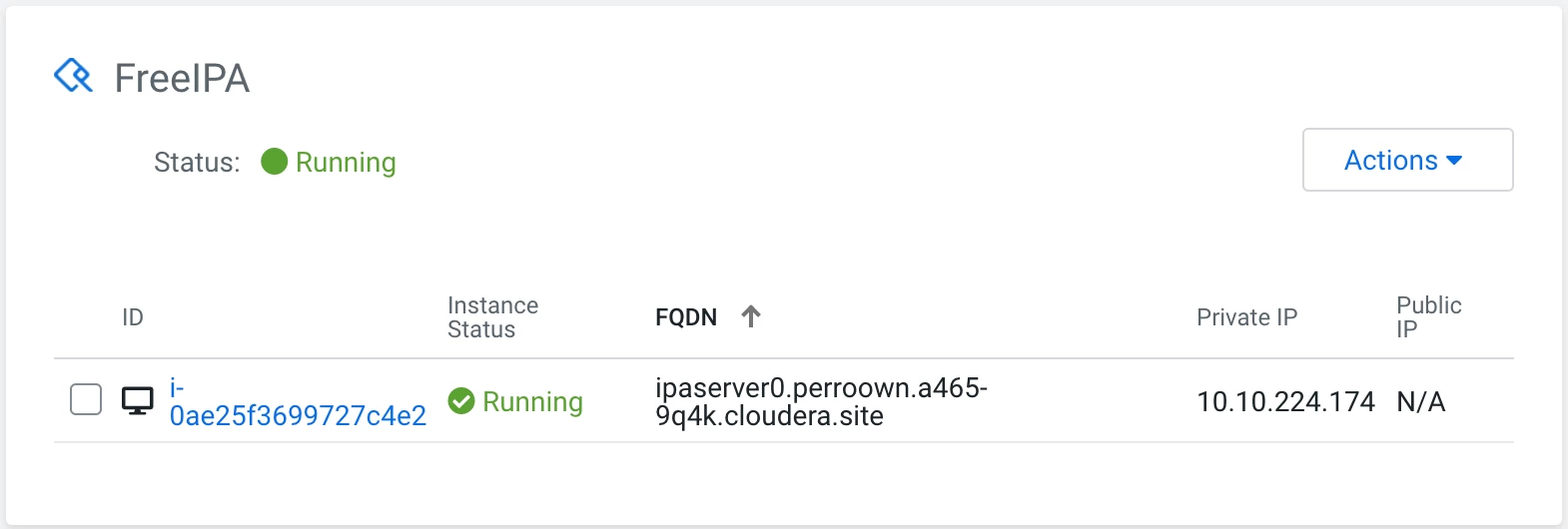
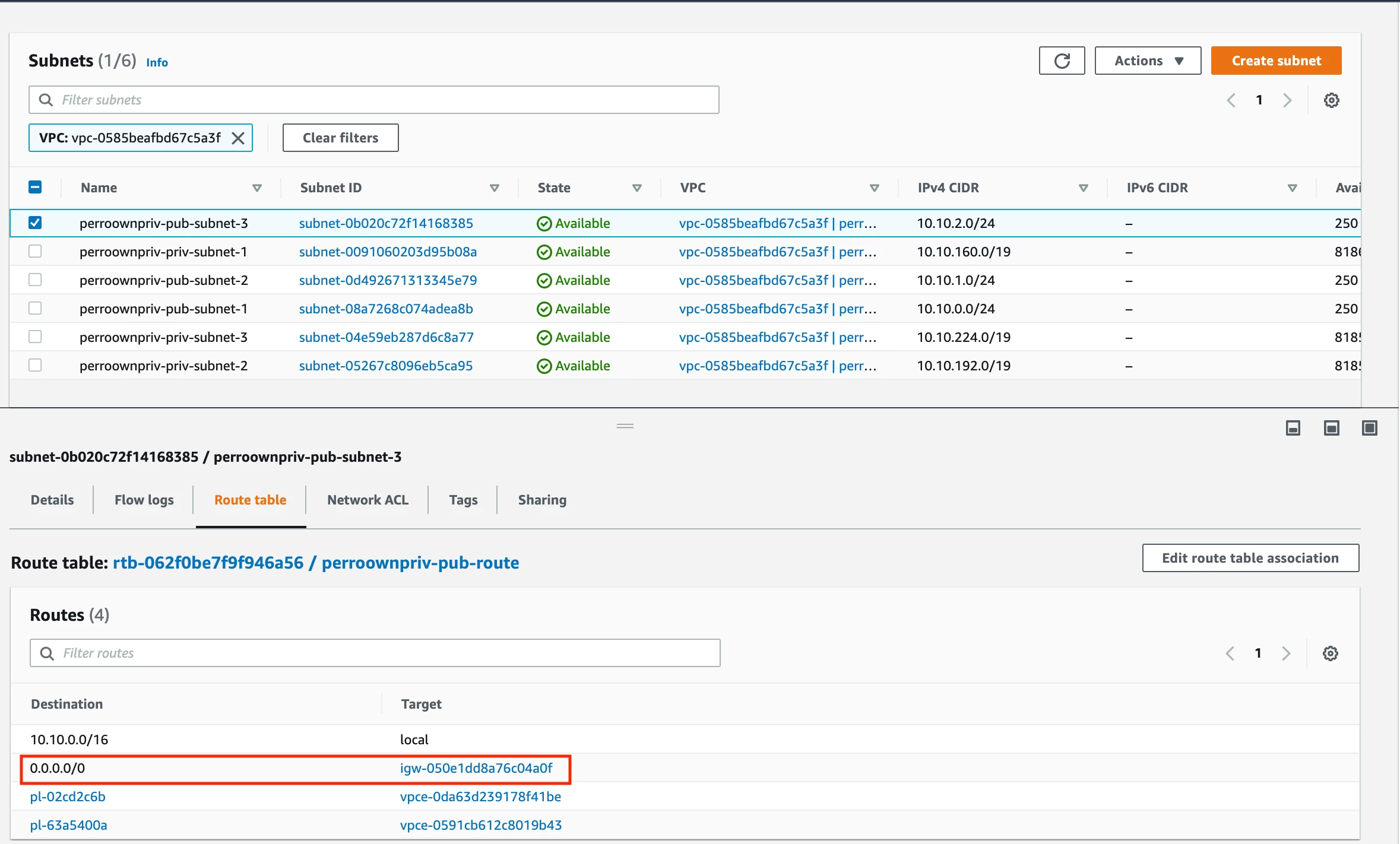
aws ec2 describe-internet-gateways --filter Name=attachment.vpc-id,Values=<YOUR_VPC_ID> | jq -r '.InternetGateways[0].InternetGatewayId'
<Returns an IGW_ID>
aws ec2 describe-route-tables --filter Name=route.gateway-id,Values=<IGW_ID> | jq -r '.RouteTables[0].Associations[0].SubnetId'
<Returns a PUBLIC_SUBNET_ID>
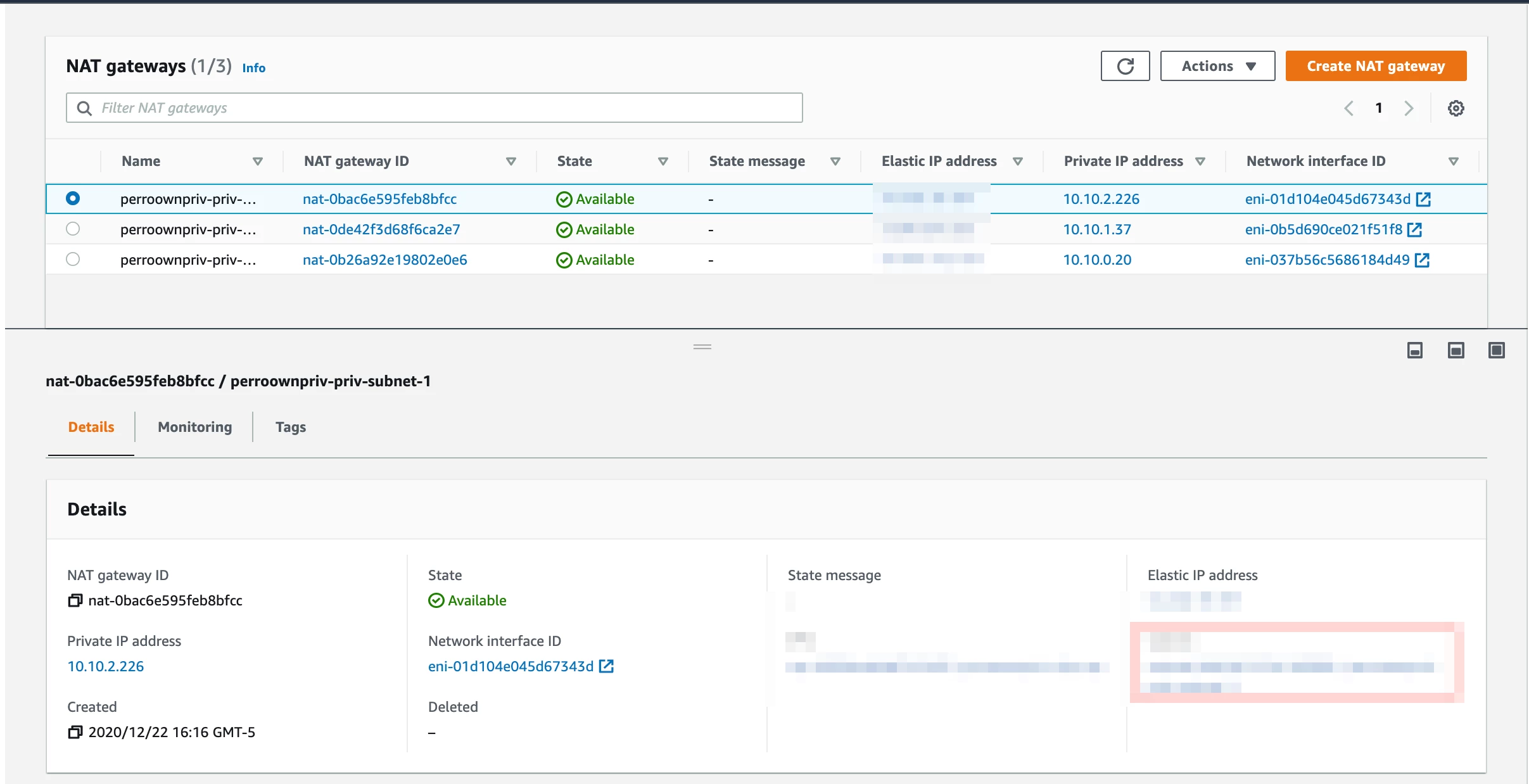
2. Find a subnet that has a NAT Gateway
Using the Console
Using the CLI
aws ec2 describe-nat-gateways --filter Name=vpc-id,Values=<YOUR_VPC_ID> | jq -r '.NatGateways[0].SubnetId'
<Returns a PUBLIC_SUBNET_ID>
Create a Bastion Host
Now that you have the ID of a public subnet, we just need to create a bastion host in your VPC (that same VPC that has your CDP environment).
Using the Console
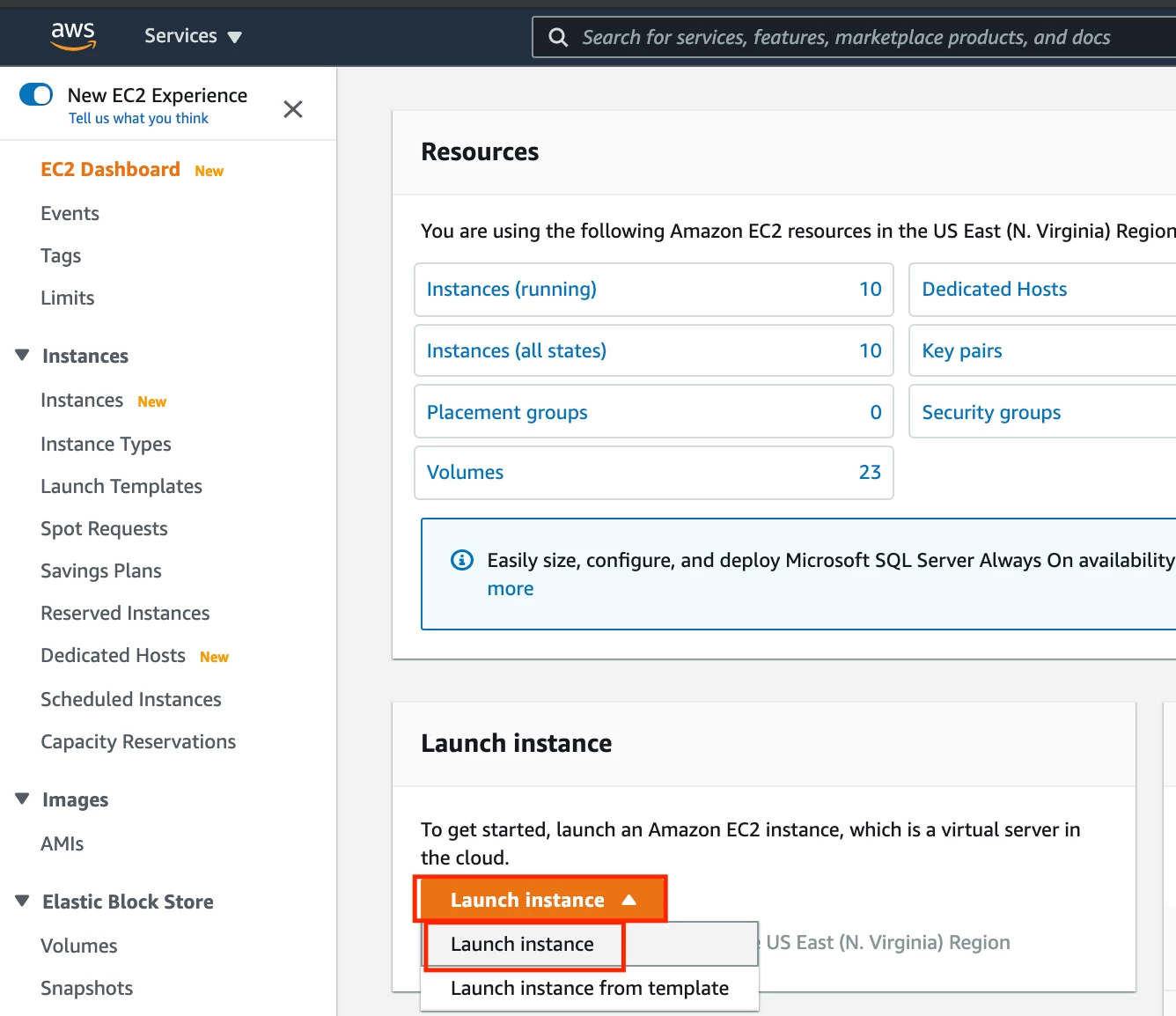
- Select the button to launch a new instance:
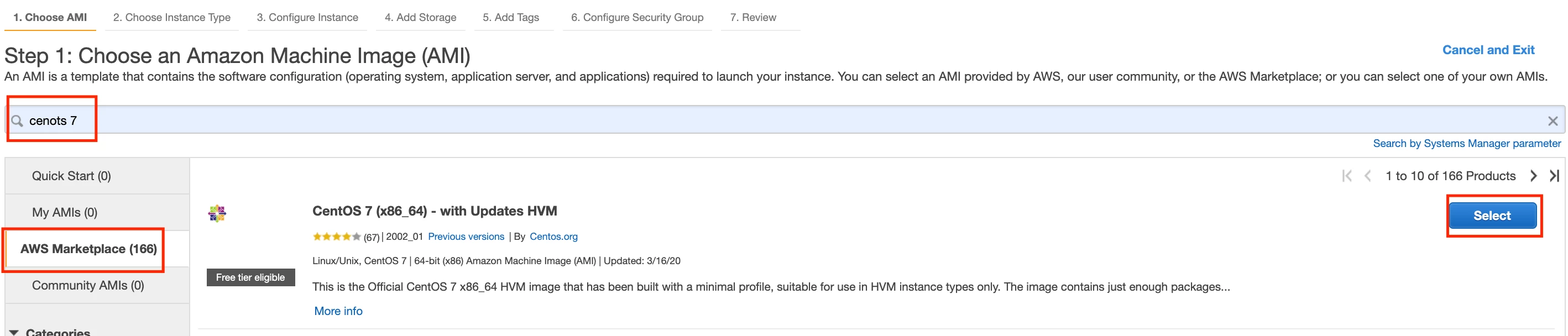
- Search for your favorite Linux variant (CentOS 7 below). You may have to select the AWS Marketplace tab. Then, choose Select.
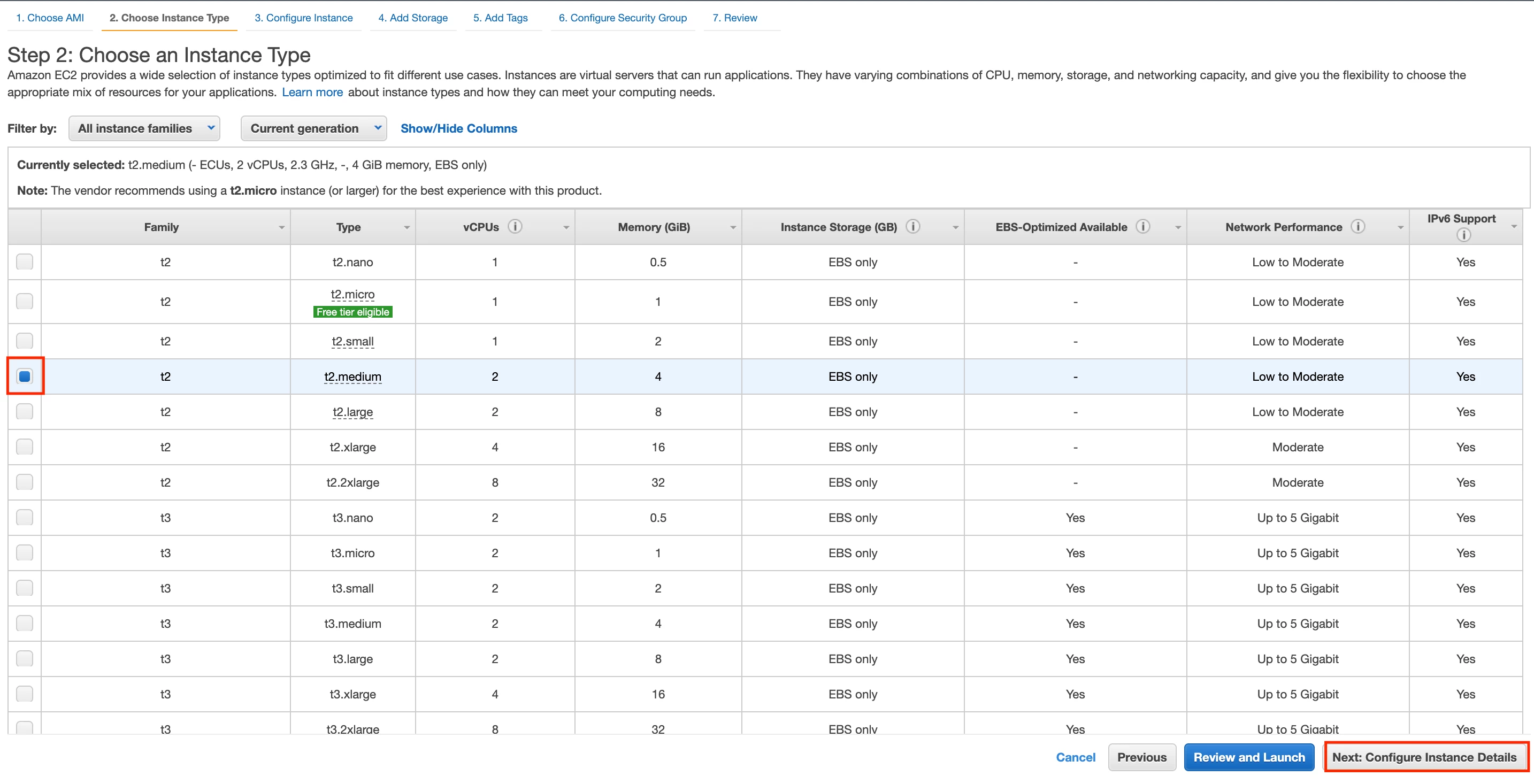
- Choose an instance type. Choose what meets your needs. I'm selecting t2.medium here.
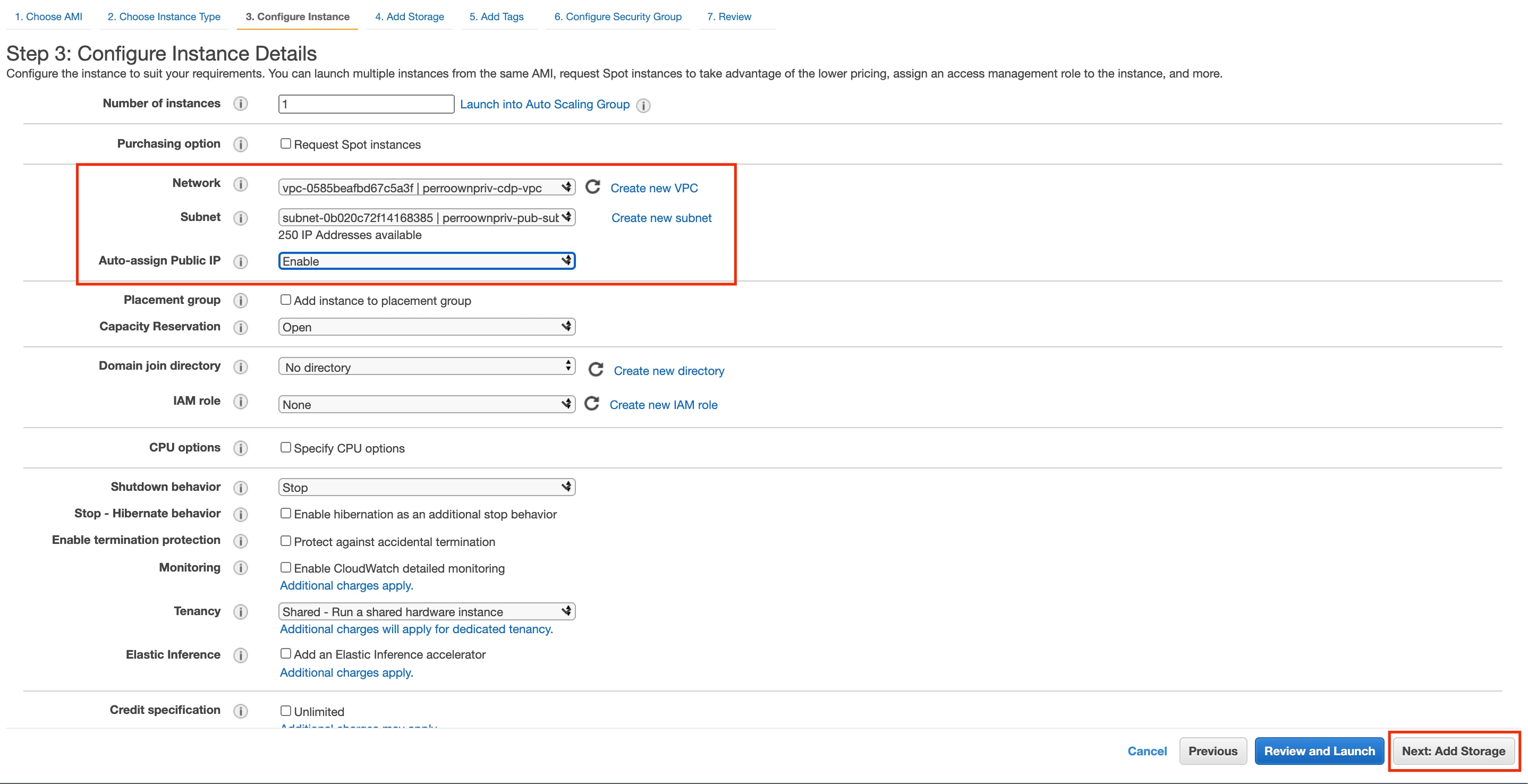
- Configure the Networking. You need to select the VPC that your CDP environment is running in. Also, choose the public subnet we found earlier. Finally, depending on how your subnet was created, you may have to change the Auto-assign Public IP to Enable.
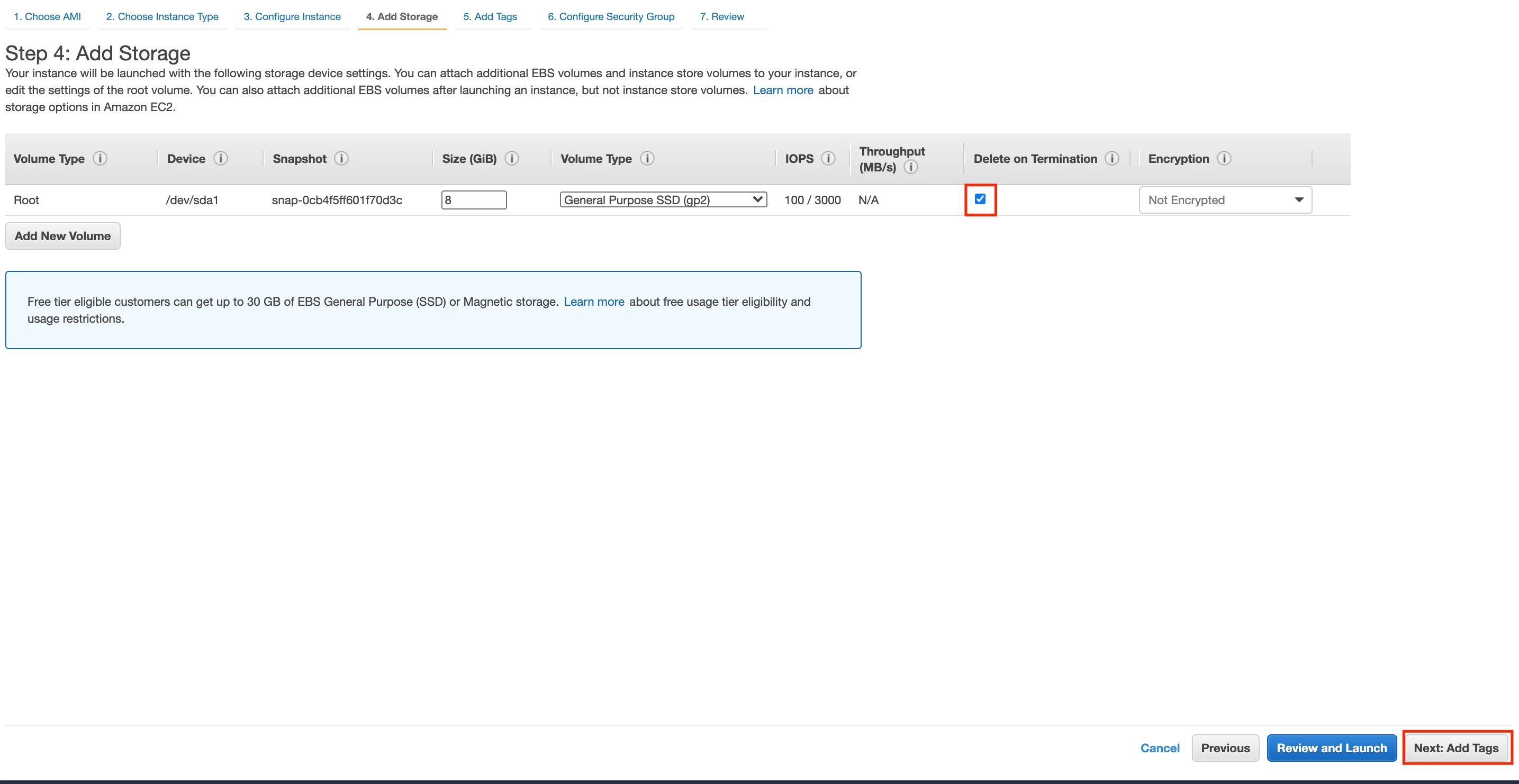
- In the Storage Options, you may want to check the option to Delete on Termination so you don't leave EBS volumes lying around after you delete your bastion.
- Add any tags you may want (like Name).
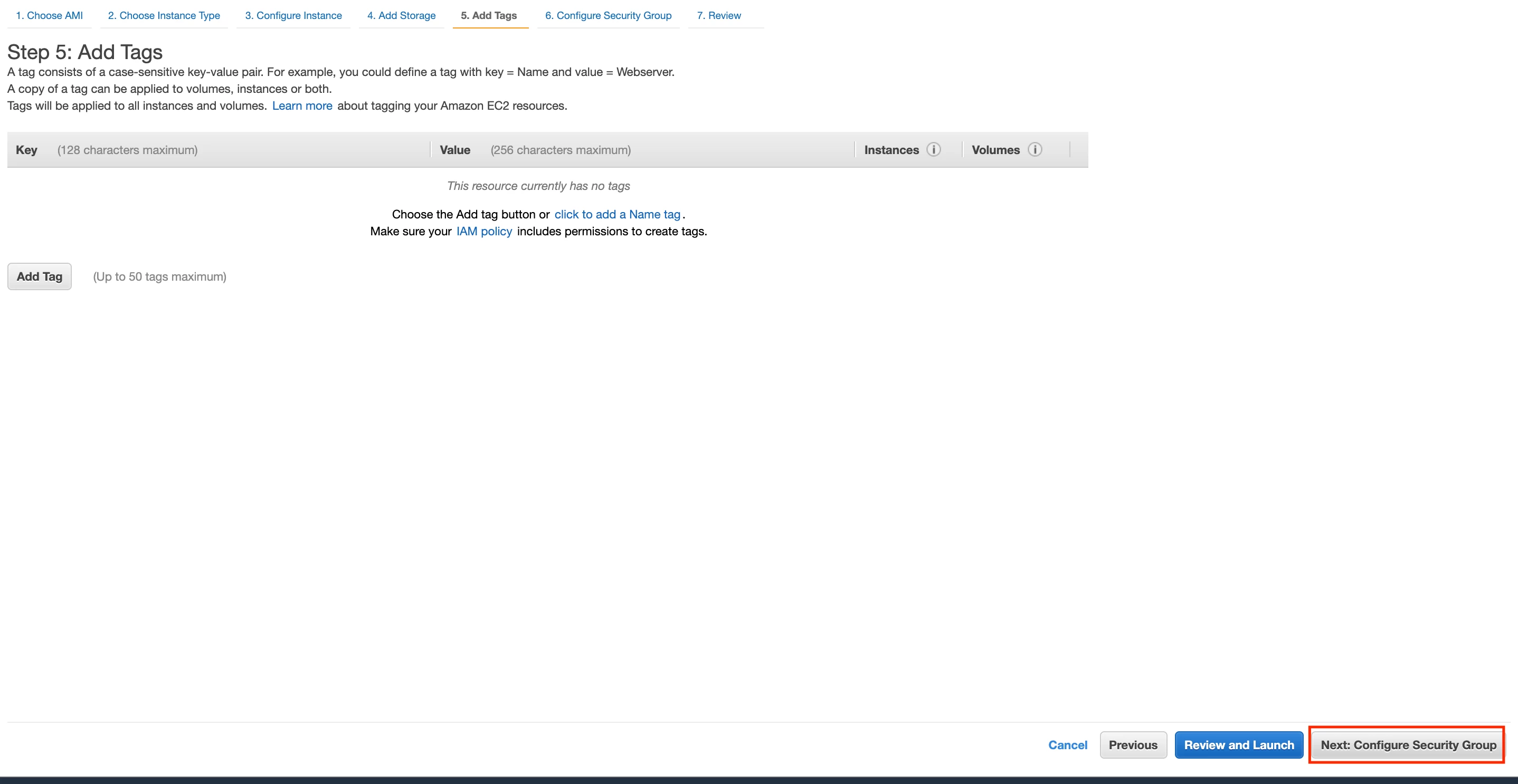
- You may have an existing SG you want to use. In the below example, I created a new x
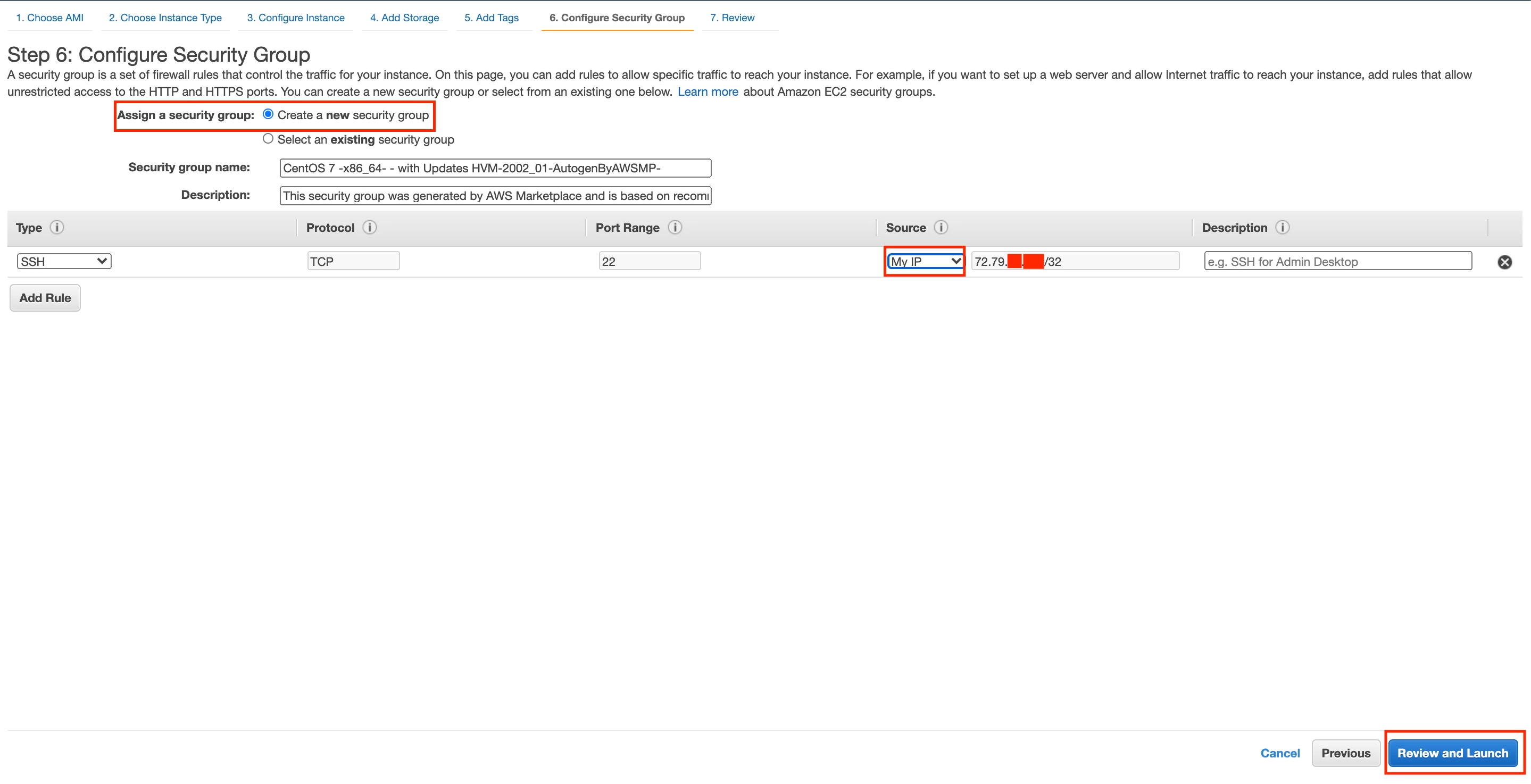
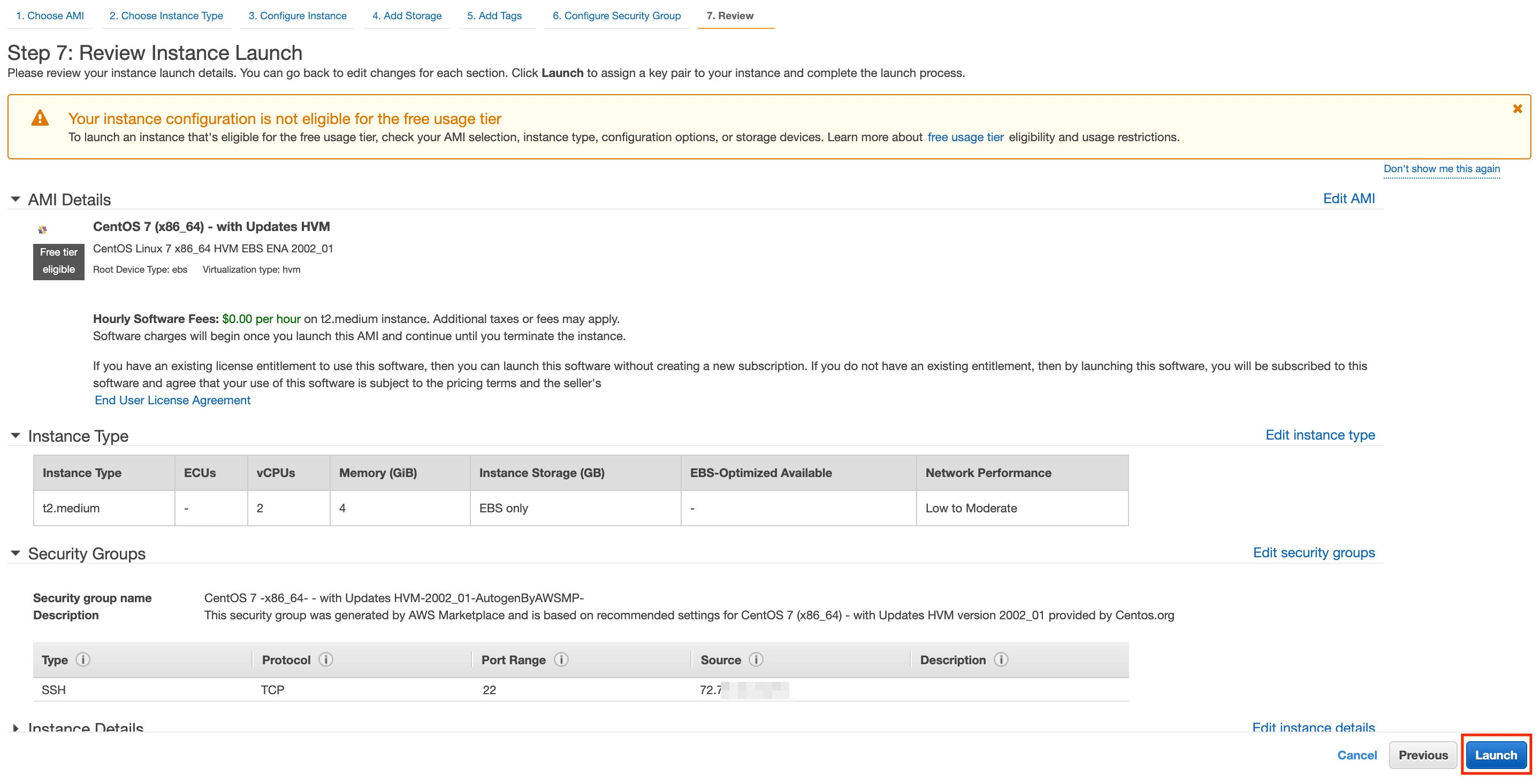
- Launch your Instance
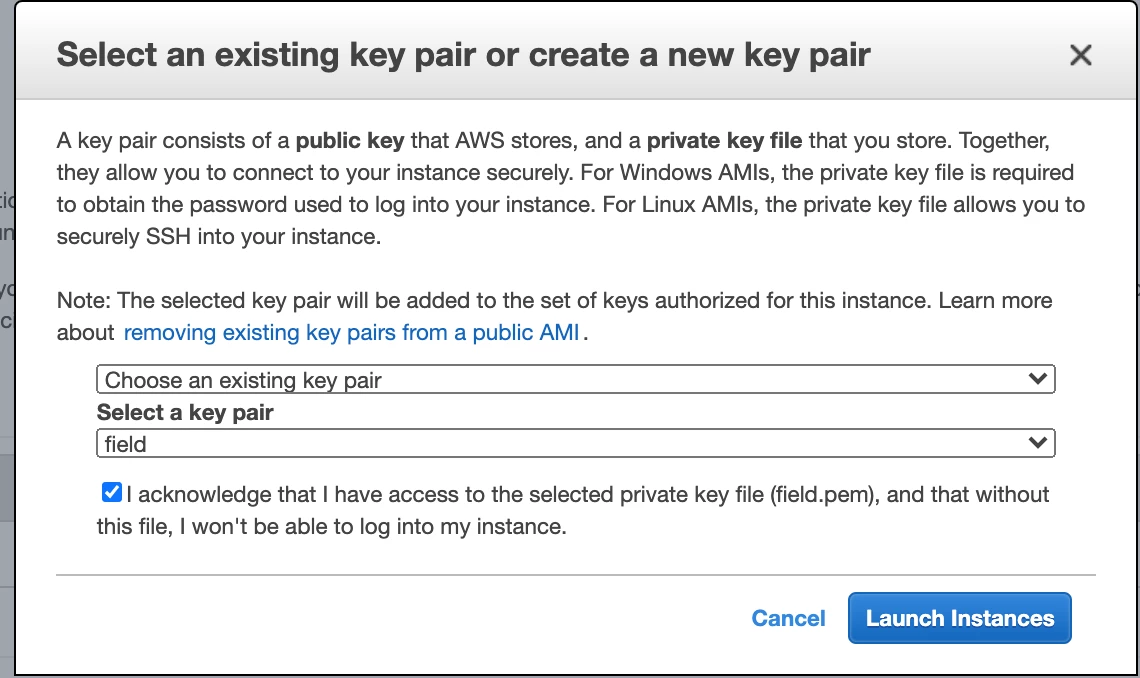
- Select your Key Pair
- You can now grab the public IP address of your bastion host.
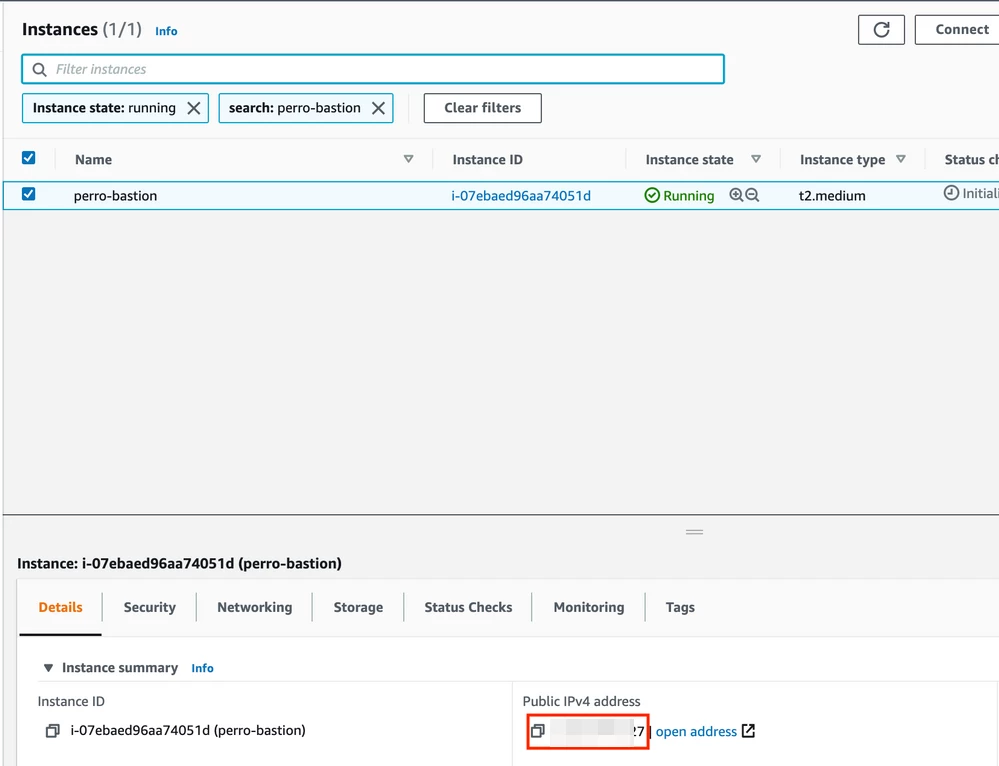
Via the CLI
- Find an Image ID (below uses a product code for Centos 7)...
aws ec2 describe-images \
> --owners 'aws-marketplace' \
> --filters 'Name=product-code,Values=aw0evgkw8e5c1q413zgy5pjce' \
> --query 'sort_by(Images, &CreationDate)[-1].[ImageId]' \
> --output 'text'
<Returns an IMAGE_ID>
- Launch the Instance (NB - You have to provide an existing security group. You can create one with a single ingress rule for TCP/Port 22/Your IP as in the Console walkthrough above).
aws ec2 run-instances --image-id <IMAGE_ID> --count 1 --instance-type t2.medium --key-name <YOUR_KEY_PAIR_NAME> --security-group-ids <EXISTING_SECURITY_GROUP> --subnet-id <PUBLIC_SUBNET_ID> --block-device-mapping DeviceName=/dev/sda1,Ebs={VolumeSize=8} --associate-public-ip-address --tag-specifications 'ResourceType=instance,Tags=[{Key=Name,Value="my-bastion"}]' 'ResourceType=volume,Tags=[{Key=Name,Value="my-bastion"}]
- Grab the public IP address of your new bastion host
aws ec2 describe-instances --filters "Name=tag:Name,Values=my-bastion" 2>/dev/null | jq -r '.Reservations[].Instances[] | select(.State.Name!="terminated")' | jq -r .PublicIpAddress
Azure
Find a Public Subnet
This is easier in Azure. Azure doesn't really make the distinction around Public/Private subnets like AWS does. So, in the Console and CLI steps, you'll just see us picking whatever Subnet is first in the list of subnets in the VNET.
Create the Bastion Host
Using the Console
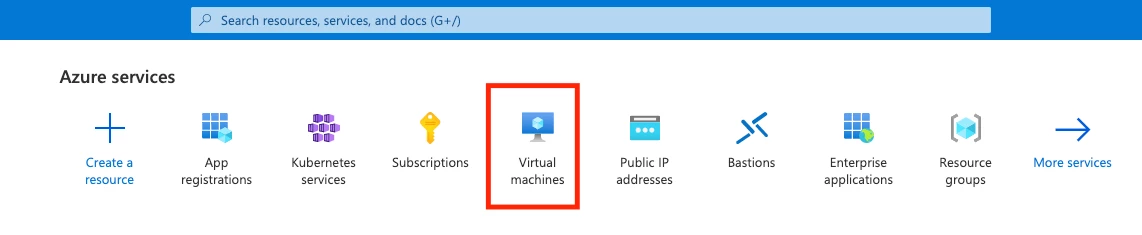
1. Find the Virtual Machines Service in the Azure Portal
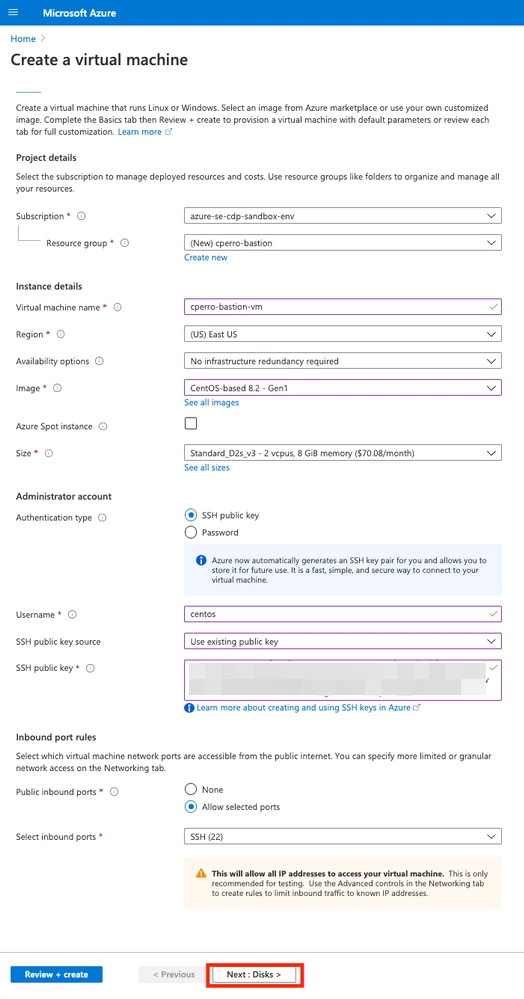
Start the process of creating a virtual machine. Make sure you create your bastion virtual machine in the same subscription as your CDP environment is running in. Second, I recommend creating a new resource group for your Bastion host (it makes deleting things much easier later on). You should pick the same region your CDP environment is based out of as well. You then need to decide on an image. I'm using CentOS, but any Linux flavour should work. Finally, choose a default username and decide on a public key / password. The last section will be used to create a skeleton Network Security Group. Leave "SSH" selected. We'll modify the Network Security Group later to restrict the source IP(s) to our own IP only.
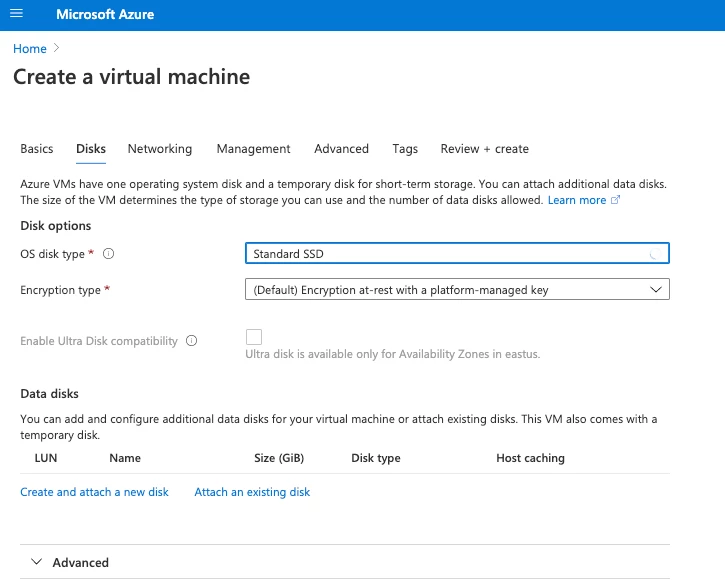
2. Disks don't really matter. I down selected to "Standard SSD".
Here's an important bit: ensure you choose the virtual network that houses your CDP environment. As mentioned earlier, I left the subnet alone. Any subnet in your VNET will do. Leave the option of creating a new Public IP. We'll need this to connect to our Bastion.
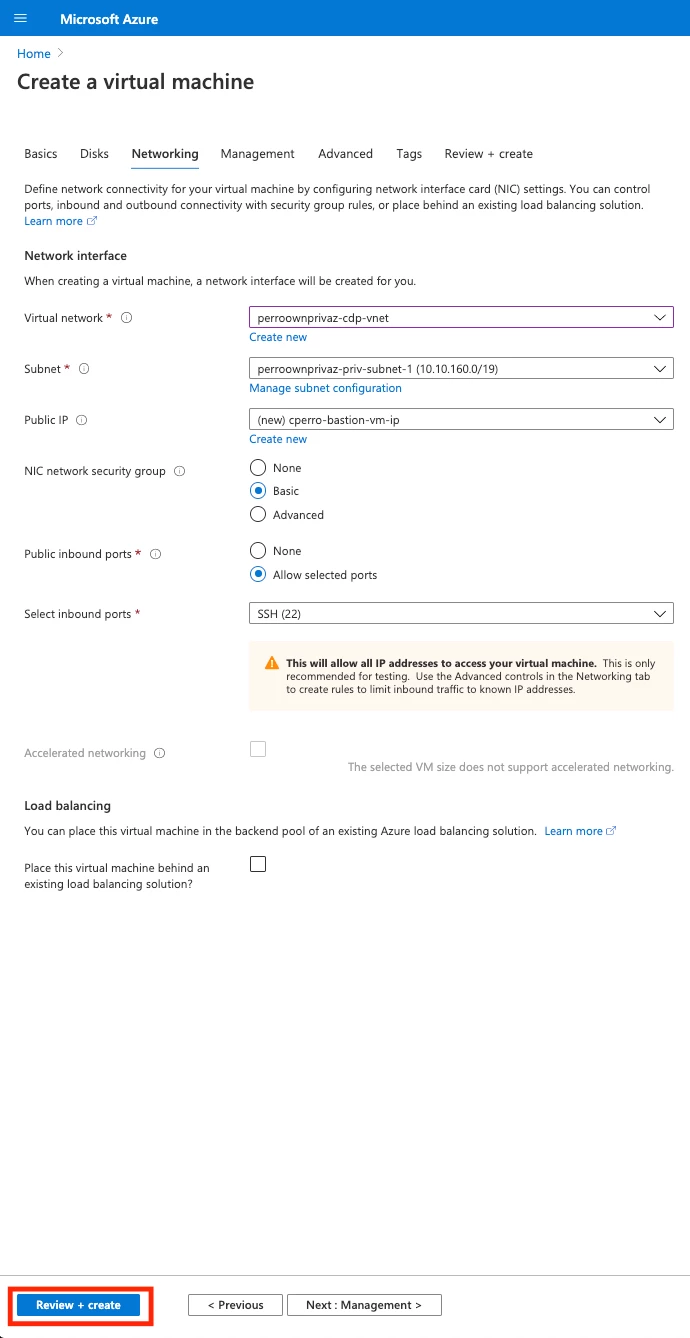
3. Create your Virtual Machine!
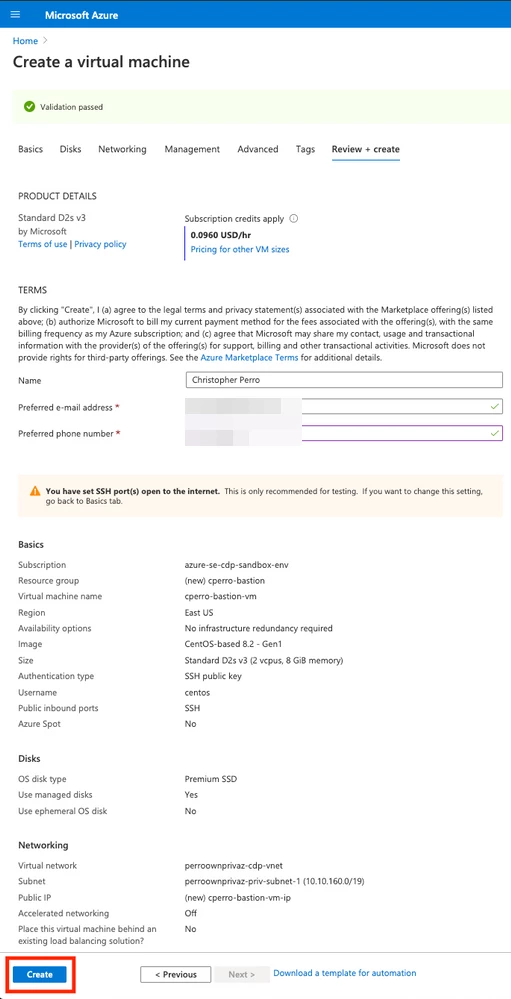
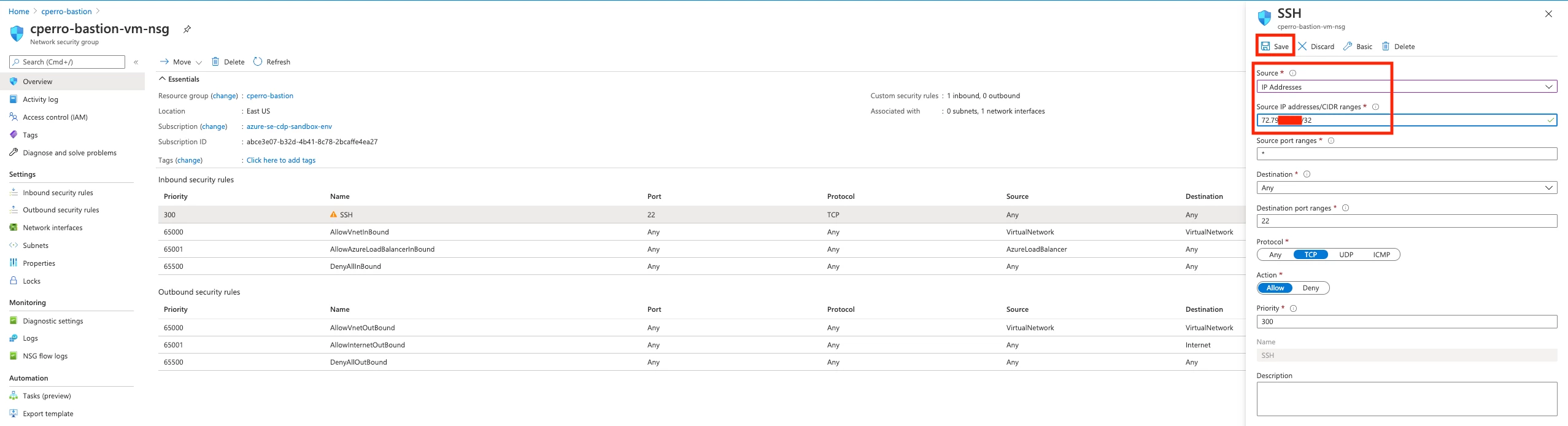
4. Once your resources are deployed, head to your resource group and click on your Network Security Group.
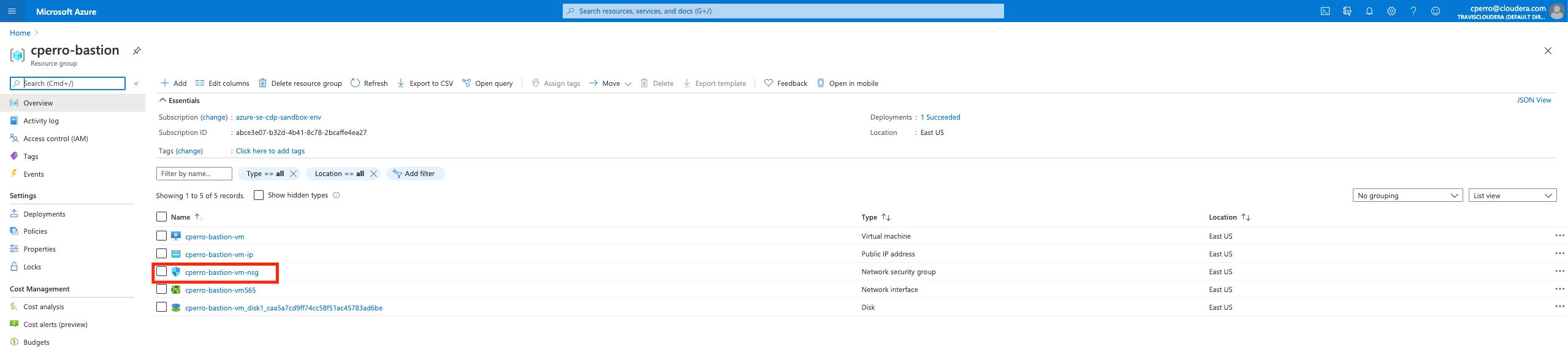
5. Once you're at your NSG, click on the first ingress rule for SSH access.
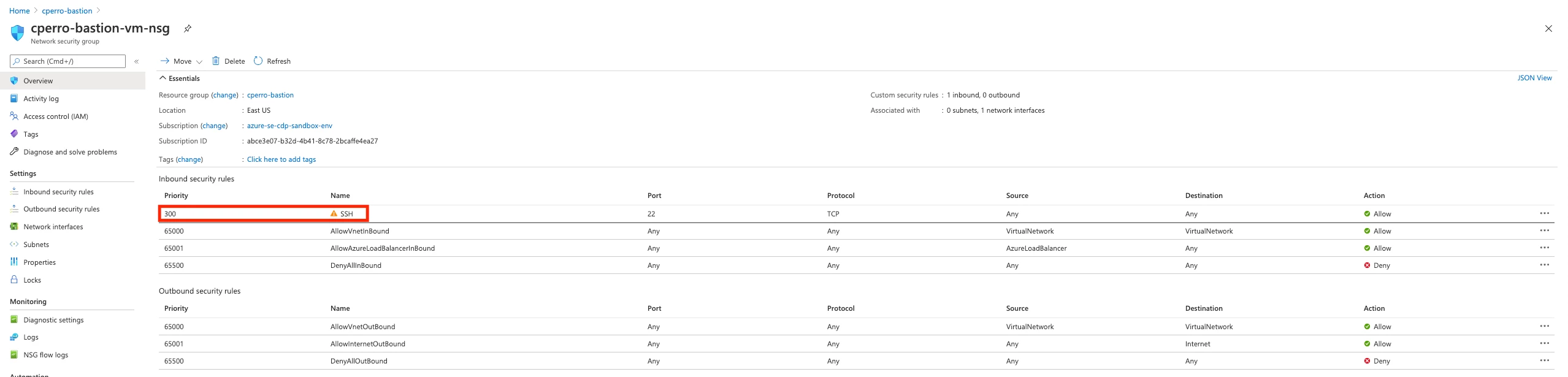
6. In the details box on the right, change the source to "IP Addresses" and add your IP/32 to the source address CIDR. This will restrict SSH access to your Bastion host to just your IP address.
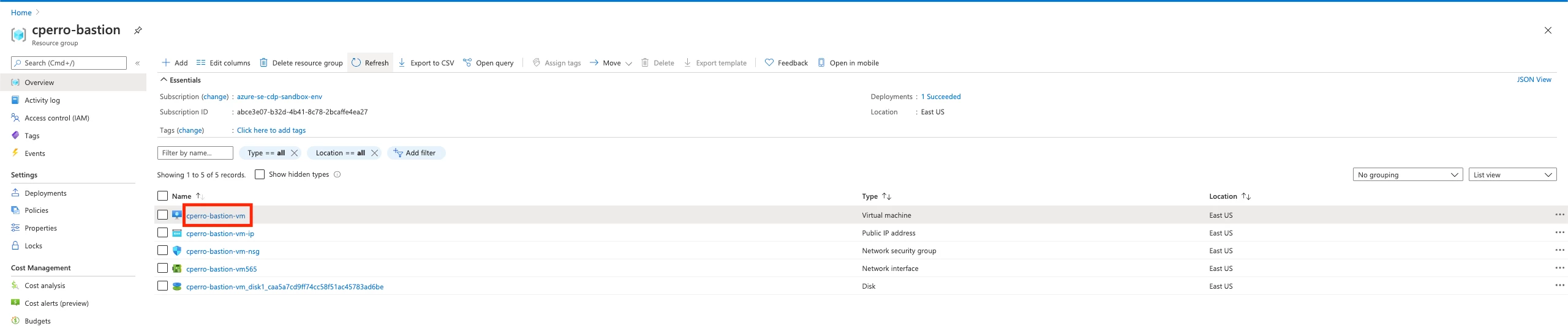
7. Head back to your resource group and click on your virtual machine.
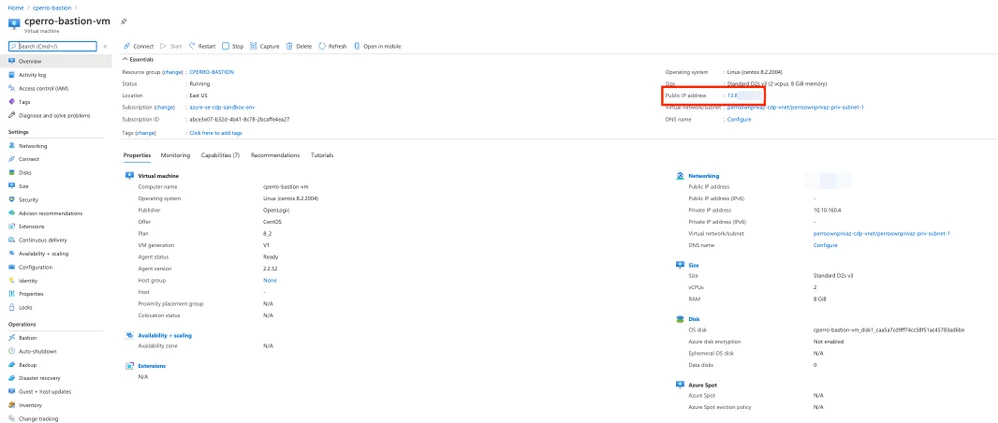
8. Make note of the public IP assigned to your virtual machine.
Using the CLI
First, we'll grab the first subnet in our VNET. NB: this needs to the subnet ID, not the subnet name. If you try creating a VM using the CLI command below and provide the friendly subnet name, Azure will create a new VNET and Subnet for you (which is not what we want).
az network vnet subnet list --resource-group "<Your CDP Resource Group>" --vnet-name "YOUR CDP VNET NAME" | jq -r '.[0].id'
<Returns a Subnet ID>
Let's create a new resource group for our VM, NSG, IP address (mostly for ease of deletion later on).
az group create --name my-bastion-rg --location "YOUR CDP ENV REGION"
Now we can create a new network security group and restrict the ingress to Port 22/SSH and your personal IP address
az network nsg create -g my-bastion-rg -n my-bastion-nsg

az network nsg rule create -g my-bastion-rg --nsg-name my-bastion-nsg -n ssh_cidr --priority 102 --source-address-prefixes "YOUR_IP_ADDRESS/32" --destination-address-prefixes '*'  --destination-port-ranges 22 --direction Inbound --access Allow --protocol Tcp --description "Allow SSH to boxes from CIDR."
Finally, we can create our virtual machine.
az vm create --name my-bastion --resource-group my-bastion-rg --image OpenLogic:CentOS:7.5:latest --location "YOUR CDP ENV REGION" --admin-username centos --public-ip-address $prefix-bastion-ip --subnet "PUBLIC_SUBNET_ID" --ssh-key-values "YOUR_PUBLIC_KEY" --nsg my-bastion-nsg
Just grab the public IP address of your new VM
az vm list -g my-bastion-rg -d | jq -r '.[0].publicIps'
Start the SOCKS5 Proxy
Open a terminal a create a SSH connection to your bastion host
ssh -i <Path to Private Key for Instance Key Pair> -CND 8157 centos@<Bastion Host Public IP>
Launch a Browser using your Proxy
Launch your browser of choice using your proxy. Below is how you can launch Chrome with a different user data directory using a proxy server. There are obviously ways to do this in other browsers (and not using the command line).
"/Applications/Google Chrome.app/Contents/MacOS/Google Chrome" --user-data-dir="$HOME/chrome-with-proxy" --proxy-server="socks5://localhost:8157"
Now you can navigate to the CDP Management console and connect to your UIs.
Happy Private Browsing!

