


Backing up the Ambari database with Postgres
Ambari Backup and Restore for Postgres
Summary:
Ambari server stores cluster configurations in a database. The default database for the Ambari install is Postgres. This document goes through a step by step process for backing up and restoring the Postgres database.
Background:
A backup copy of your Ambari database is good insurance to keep your Ambari server running. Anytime you make changes to Ambari you should create a backup of the Ambari database before you make the changes. You will want to do this if you need to restore your cluster to the original state. Examples of what you want to take backups are before cluster upgrasdes, changing service configurations, adding new servers, etc.
Backing up the server configuration:
- 1.Login to the server running the Ambari Server process. You will need to have the privileges to start/stop the Ambari server and read the Postgres database.
- 2.Stop the Ambari server using the following command:
ambari-server stop
- 3.Create a directory to hold the database backups.
cd /tmpmkdir
mkdir dbdumpscd
cd dbdumps

- 4.Create the database backups
pg_dump -U ambari ambari > ambari.sql
note: The password is “bigdata”
pg_dump -U mapred ambarirca > ambarirca.sql
note: The password is “mapred”
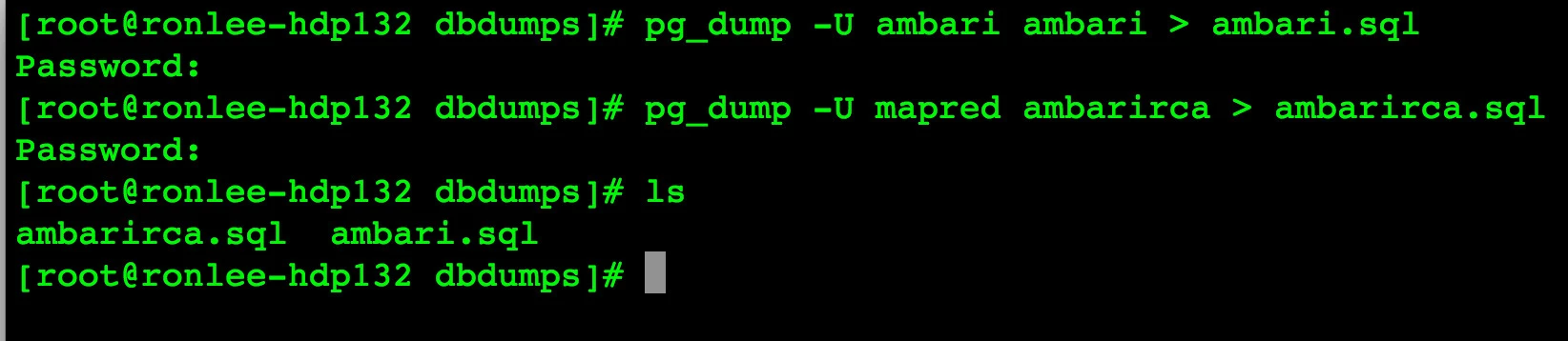
You will have two files when this is complete, ambari.sql and ambarirca.sql. These files need to be backed up to a server for a future restore.
Restoring the server configuration:
- 1.Install Ambari Server as described in the Hortonworks “Using Ambari” doc Sections 2.1 and 2.2.
- 2.Login to the system with enough priveledge to start/stop the Ambari server process and read/write data to the Postgres database.
- 3.Stop the Ambari server and agent
ambari-server stop
ambari-agent stop
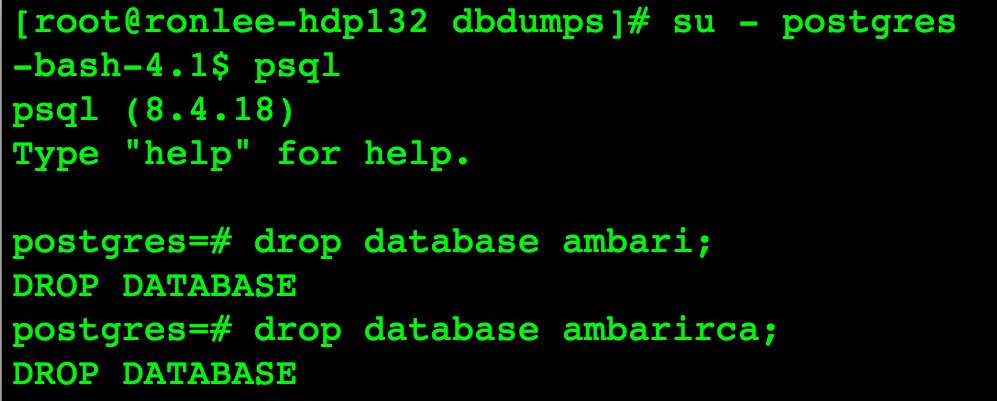
- 4.Connect to PostgresSQL
su – postgres
psql
- 5.In PostgresSQL drop the existing databases
drop database ambari;drop database ambarirca
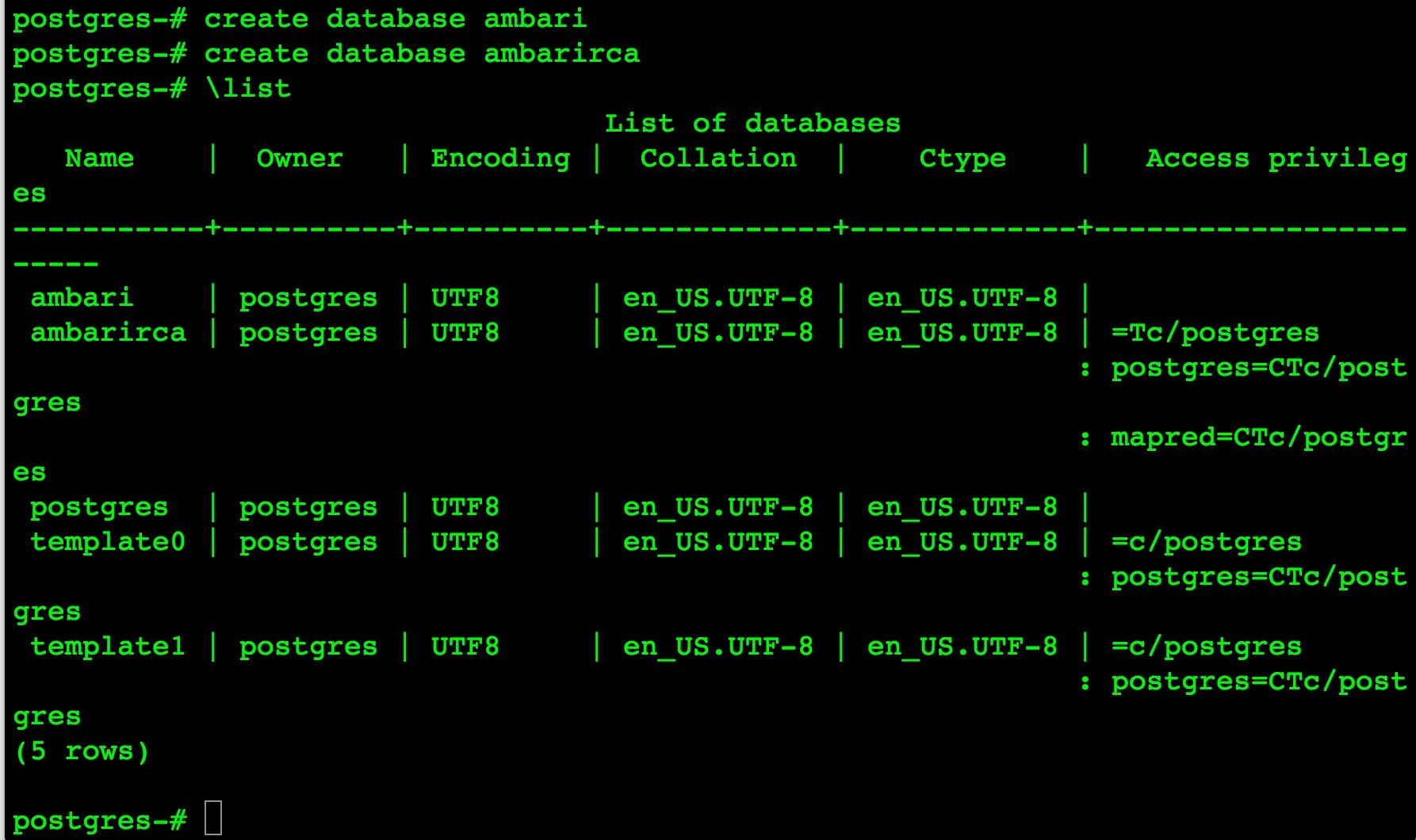
- 6.Verify the databases have been dropped
\list
You should not see ambari and ambarirca listed.
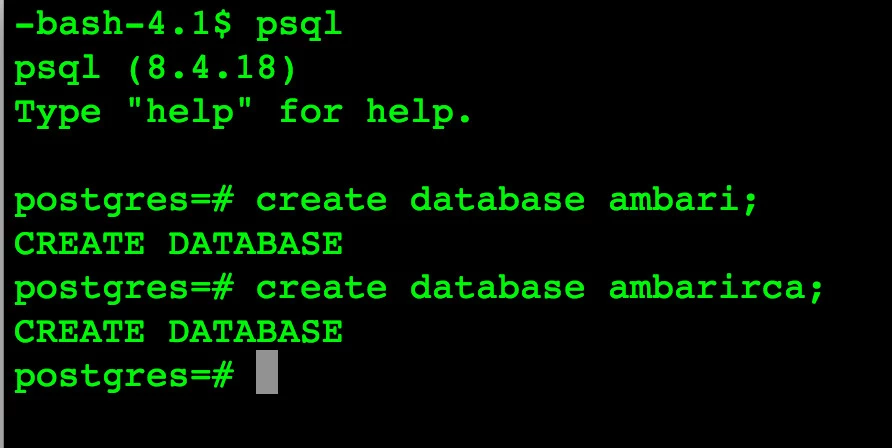
- 7.Create new databases
create database ambari;
create database ambarirca;
- 8.Exit PostgresSQL
^d (enter a control-d)
- 9. Copy the ambari and ambarirca files to the new server from the back up server
- 10.Restore the files(note: these commands need to be executed as user postgres.)
su - postgres
psql -d ambari -f ambari.sql
psql -d ambarirca -f ambarirca.sql
- 11.Start the Ambari server
ambari-server start
- 12. Start the Ambari agent for all servers.
ambari-agent start
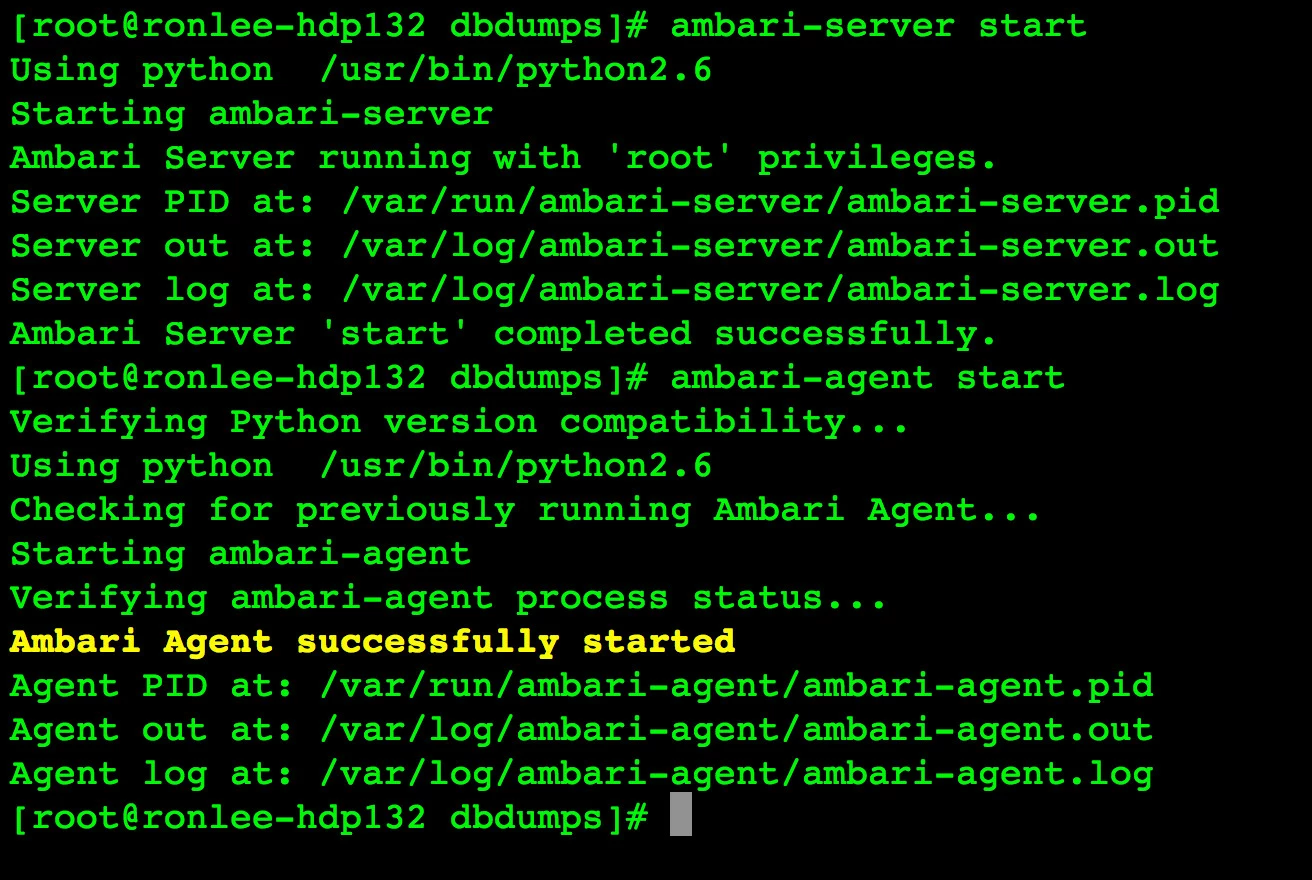 13.Connect to the Ambari web interface
http://<ambari server DNS name or IP address>:8080
- 14.Verify your configuration

