
Beast Mode Quotient - Part 2: Create Cloudbreak blueprints to deploy data science ready ephemeral clusters
Introduction
Continuing my series on Beast Mode Quotient, let's automate the creation and termination of data science ready clusters. As always, since this is step 2 of a series of article, this tutorial depends on my previous article.
Pre-Requisites
In order to run this tutorial you will need to have a CB instance available. There are plenty of good tutorial out there, I recommend this one
Agenda
This tutorial is divided in the following sections:
- Section 1: Create a blueprints & recipes to run a minimal data science ephemeral cluster
- Section 2: Add blueprint and recipes via Cloudbreak interface
- Section 3: Automate cluster launch and terminate clusters
Section 1: Create a blueprints & recipes to run a minimal data science ephemeral cluster
A Cloudbreak blueprint has 3 parts:
- Part 1: Blueprint details
- Part 2: Services Configuration
- Part 3: Host Components configuration
Here are the details of each part for our blueprint.
Blueprint details
This part is fairly simple; we want to run an HDP 3.1 cluster, and I'm naming it bmq-data-science.
"Blueprints": {
      "blueprint_name": "bmq-data-science",
      "stack_name": "HDP",
      "stack_version": "3.1"
    }
Host Components configuration
Similarly, I configured one Host with all the components needed for my services
"host_groups": [
      {
        "name": "master",
        "cardinality": "1",
        "components": [
          {
            "name": "ZOOKEEPER_SERVER"
          },
          {
            "name": "NAMENODE"
          },
          {
            "name": "SECONDARY_NAMENODE"
          },
          {
            "name": "RESOURCEMANAGER"
          },
          {
            "name": "HISTORYSERVER"
          },
          {
            "name": "APP_TIMELINE_SERVER"
          },
          {
            "name": "LIVY2_SERVER"
          },
          {
            "name": "SPARK2_CLIENT"
          },
          {
            "name": "SPARK2_JOBHISTORYSERVER"
          },
          {
            "name": "ZEPPELIN_MASTER"
          },
          {
            "name": "METRICS_GRAFANA"
          },
          {
            "name": "METRICS_MONITOR"
          },
          {
            "name": "DATANODE"
          },
          {
            "name": "HIVE_SERVER"
          },
          {
            "name": "HIVE_METASTORE"
          },
          {
            "name": "HIVE_CLIENT"
          },
          {
            "name": "YARN_CLIENT"
          },
          {
            "name": "HDFS_CLIENT"
          },
          {
            "name": "ZOOKEEPER_CLIENT"
          },
          {
            "name": "TEZ_CLIENT"
          },
          {
            "name": "NODEMANAGER"
          },
          {
            "name": "MAPREDUCE2_CLIENT"
          }
        ]
      }
    ]
Services Configuration
For our purposes, I want to create a minimum cluster that will run YARN, HDFS, HIVE, SPARK and ZEPPELIN (plus all the necessary compute engines behind it). I therefore configured these services according to the Cloudbreak examples that are available in the default Cloudbreak blueprints:
"configurations": [
      {
        "yarn-site": {
          "properties": {
            "yarn.nodemanager.resource.cpu-vcores": "6",
            "yarn.nodemanager.resource.memory-mb": "23296",
            "yarn.scheduler.maximum-allocation-mb": "23296"
          }
        }
      },
      {
        "core-site": {
          "properties_attributes": {},
          "properties": {
            "fs.s3a.threads.max": "1000",
            "fs.s3a.threads.core": "500",
            "fs.s3a.max.total.tasks": "1000",
            "fs.s3a.connection.maximum": "1500"
          }
        }
      },
      {
        "capacity-scheduler": {
          "properties": {
            "yarn.scheduler.capacity.root.queues": "default",
            "yarn.scheduler.capacity.root.capacity": "100",
            "yarn.scheduler.capacity.root.maximum-capacity": "100",
            "yarn.scheduler.capacity.root.default.capacity": "100",
            "yarn.scheduler.capacity.root.default.maximum-capacity": "100"
          }
        }
      },
      {
        "spark2-defaults": {
          "properties_attributes": {},
          "properties": {
            "spark.sql.hive.hiveserver2.jdbc.url": "jdbc:hive2://%HOSTGROUP::master%:2181/;serviceDiscoveryMode=zooKeeper;zooKeeperNamespace=hiveserver2",
            "spark.sql.hive.hiveserver2.jdbc.url.principal": "hive/_HOST@EC2.INTERNAL",
            "spark.datasource.hive.warehouse.metastoreUri": "thrift://%HOSTGROUP::master%:9083",
            "spark.datasource.hive.warehouse.load.staging.dir": "/tmp",
            "spark.hadoop.hive.zookeeper.quorum": "%HOSTGROUP::master%:2181"
          }
        }
      },
      {
        "hive-site": {
            "hive.metastore.warehouse.dir": "/apps/hive/warehouse",
          "hive.exec.compress.output": "true",
          "hive.merge.mapfiles": "true",
          "hive.server2.tez.initialize.default.sessions": "true",
          "hive.server2.transport.mode": "http",
          "hive.metastore.dlm.events": "true",
          "hive.metastore.transactional.event.listeners": "org.apache.hive.hcatalog.listener.DbNotificationListener",
          "hive.repl.cm.enabled": "true",
          "hive.repl.cmrootdir": "/apps/hive/cmroot",
          "hive.repl.rootdir": "/apps/hive/repl"
        }
      },
      {
        "hdfs-site": {
          "properties_attributes": {},
          "properties": {
          }
        }
      }
    ]
You can find the complete blueprint and other recipes on my github, here
Creating a recipe
Recipes in Cloubreak are very useful and allow you to run scripts before a cluster is launched or after. In this example, I created a PRE-AMBARI-START recipe that creates the appropriate Postgres and MySQL services on my master box, as well as recreating the DB for my BMQ analysis:
#!/bin/bash
# Cloudbreak-2.7.2 / Ambari-2.7.0 - something is install pgsq95
yum remove -y postgresql95*
# Install pgsql96
yum install -y https://download.postgresql.org/pub/repos/yum/9.6/redhat/rhel-7-x86_64/pgdg-redhat96-9.6-3.noarch.rpm
yum install -y postgresql96-server
yum install -y postgresql96-contrib
/usr/pgsql-9.6/bin/postgresql96-setup initdb
sed -i 's,#port = 5432,port = 5433,g' /var/lib/pgsql/9.6/data/postgresql.conf
systemctl enable postgresql-9.6.service
systemctl start postgresql-9.6.service
yum remove -y mysql57-community*
yum remove -y mysql56-server*
yum remove -y mysql-community*
rm -Rvf /var/lib/mysql
yum install -y epel-release
yum install -y libffi-devel.x86_64
ln -s /usr/lib64/libffi.so.6 /usr/lib64/libffi.so.5
yum install -y mysql-connector-java*
ambari-server setup --jdbc-db=mysql --jdbc-driver=/usr/share/java/mysql-connector-java.jar
if [ $(cat /etc/system-release|grep -Po Amazon) == Amazon ]; then
 yum install -y mysql56-server
 service mysqld start
else
 yum localinstall -y https://dev.mysql.com/get/mysql-community-release-el7-5.noarch.rpm
 yum install -y mysql-community-server
 systemctl start mysqld.service
fi
chkconfig --add mysqld
chkconfig mysqld on
ln -s /usr/share/java/mysql-connector-java.jar /usr/hdp/current/hive-client/lib/mysql-connector-java.jar
ln -s /usr/share/java/mysql-connector-java.jar /usr/hdp/current/hive-server2-hive2/lib/mysql-connector-java.jar
mysql --execute="CREATE DATABASE beast_mode_db DEFAULT CHARACTER SET utf8"
mysql --execute="CREATE USER 'bmq_user'@'localhost' IDENTIFIED BY 'Be@stM0de'"
mysql --execute="CREATE USER 'bmq_user'@'%' IDENTIFIED BY 'Be@stM0de'"
mysql --execute="GRANT ALL PRIVILEGES ON beast_mode_db.* TO 'bmq_user'@'localhost'"
mysql --execute="GRANT ALL PRIVILEGES ON beast_mode_db.* TO 'bmq_user'@'%'"
mysql --execute="GRANT ALL PRIVILEGES ON beast_mode_db.* TO 'bmq_user'@'localhost' WITH GRANT OPTION"
mysql --execute="GRANT ALL PRIVILEGES ON beast_mode_db.* TO 'bmq_user'@'%' WITH GRANT OPTION"
mysql --execute="FLUSH PRIVILEGES"
mysql --execute="COMMIT"
Section 2: Add blueprint and recipes via Cloudbreak interface
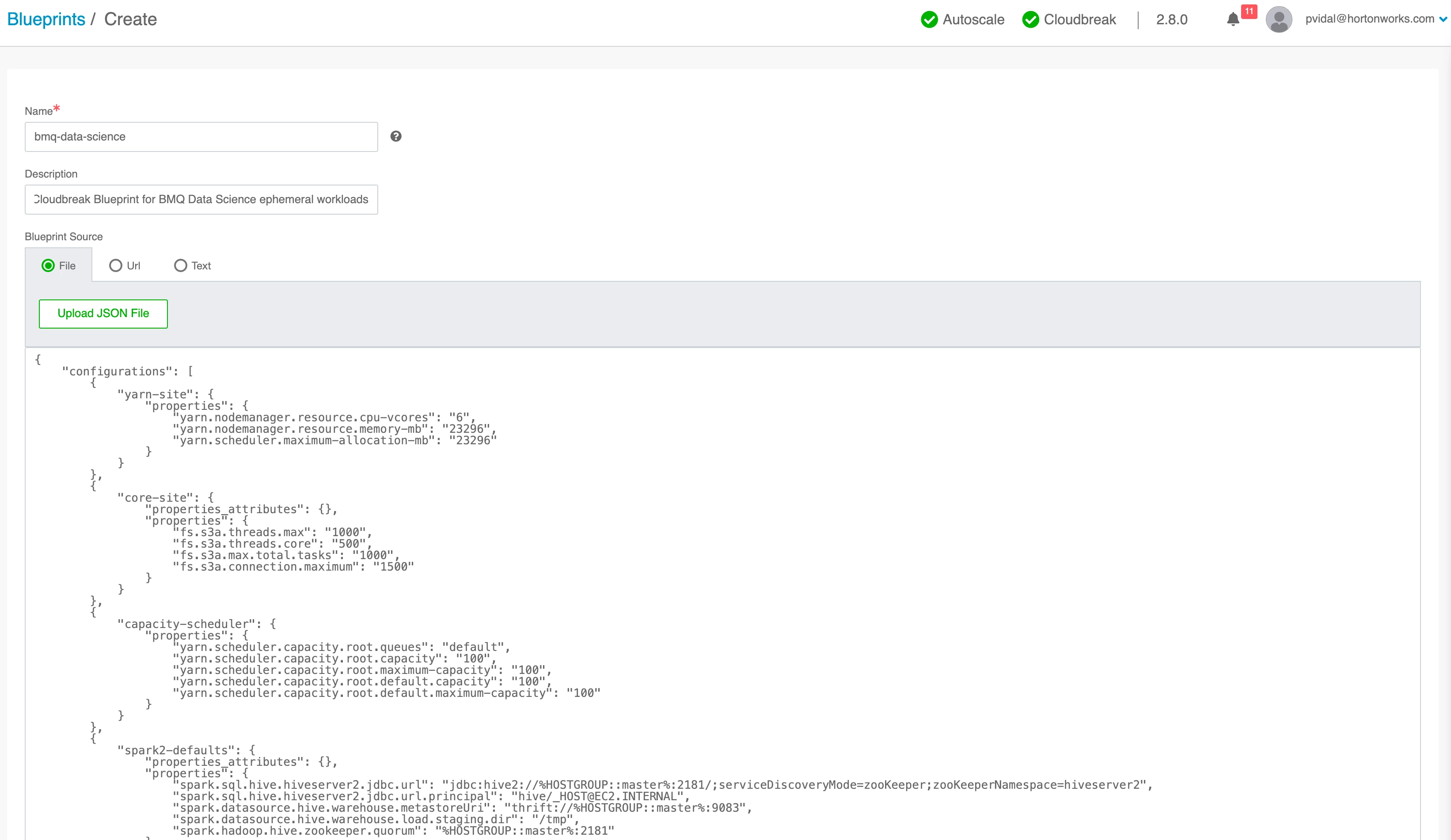
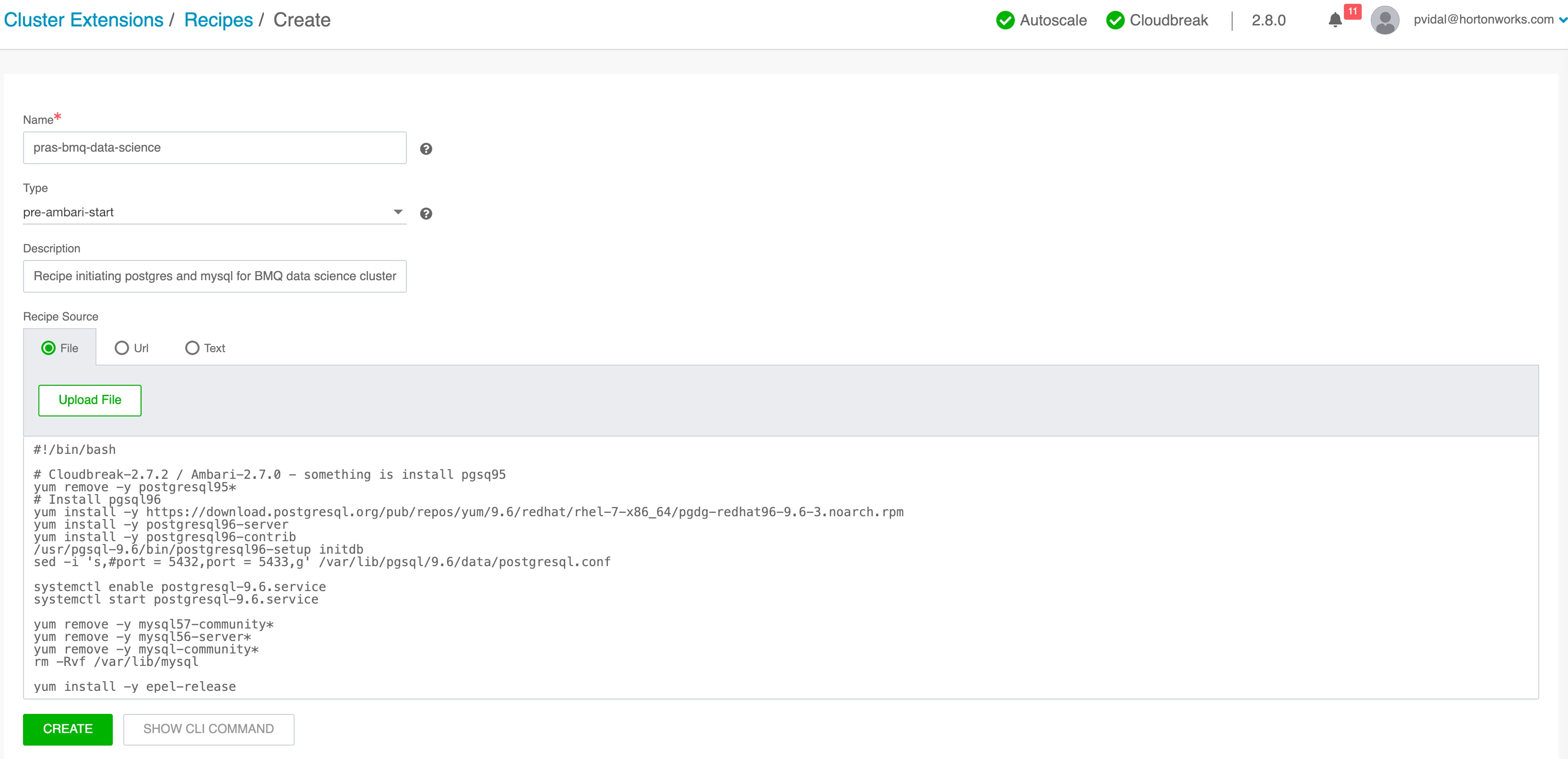
This part is super simple. Follow the User interface to load the files you just created, as depicted below
Adding a blueprint
Adding a recipe
Section 3: Automate cluster launch and terminate clusters
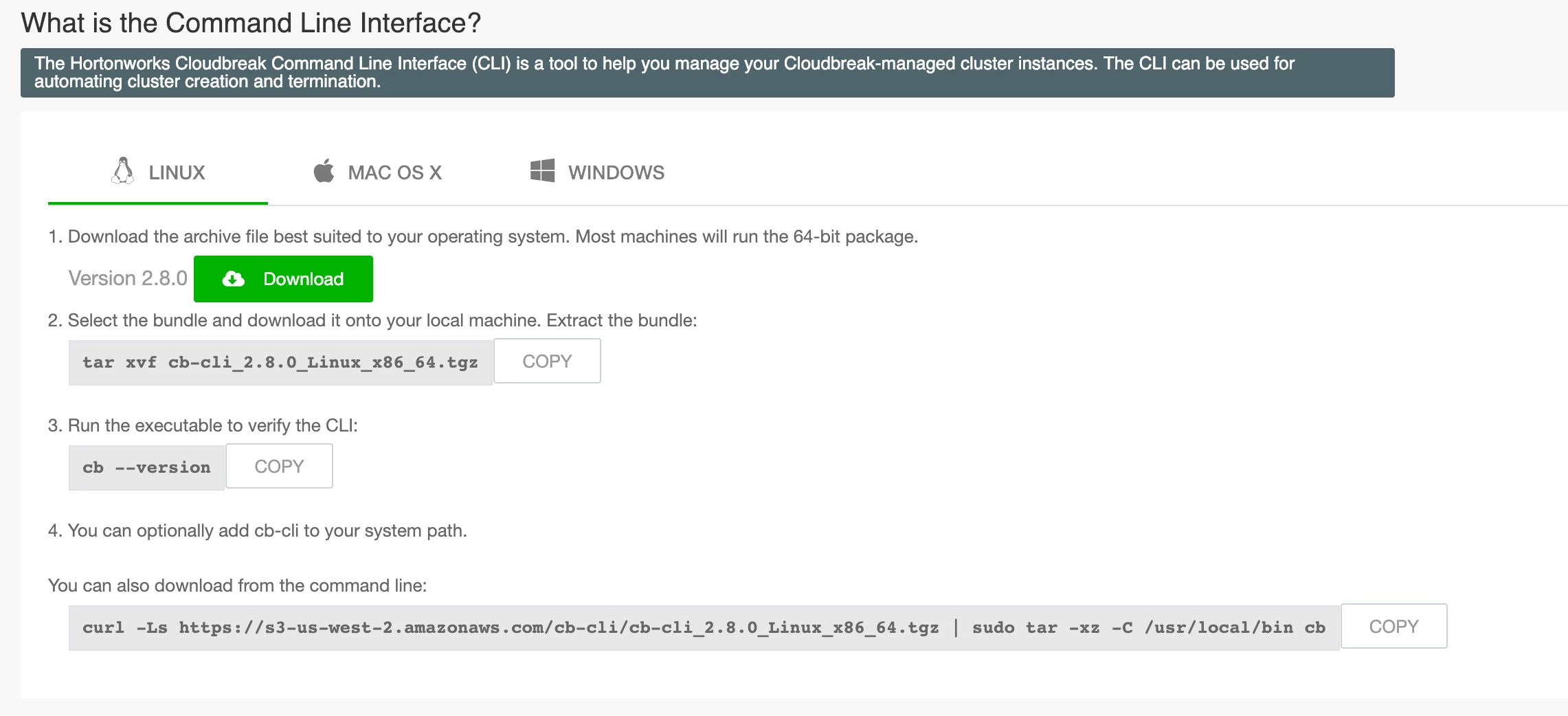
This is where the fun begins. For this part I created two scripts for launching and terminating the ephemeral cluster (that will then be called by the BMQ app). Both scripts rely on the cb cli that you can download from your CB instance:
Launch Cluster Script
As you will see below, the script is divided in the following part:
- Part 1: Reference the location of the cb-cli for ease of use
- Part 2: Dumps the content of my long lasting cluster to a recipe that will load them
- Part 3: Use CB api to add the recipe to my CB instance
- Part 4: Launch the cluster via cb-cli
#!/bin/bash
###############################
# 0. Initializing environment #
###############################
export PATH=$PATH:/Users/pvidal/Documents/Playground/cb-cli/
###################################################
# 1. Dumping current data and adding it to recipe #
###################################################
rm -rf poci-bmq-data-science.sh >/dev/null 2>&1
echo "mysql -u bmq_user -pBe@stM0de beast_mode_db --execute=\"""$(mysqldump -u bm_user -pHWseftw33# beast_mode_db 2> /dev/null)""\"" >> poci-bmq-data-science.sh
##################################
# 2. Adding recipe to cloudbreak #
##################################
TOKEN=$(curl -k -iX POST -H "accept: application/x-www-form-urlencoded" -d 'credentials={"username":"pvidal@hortonworks.com","password":"HWseftw33#"}' "https://192.168.56.100/identity/oauth/authorize?response_type=token&client_id=cloudbreak_shell&scope.0=openid&source=login&redirect_uri=http://cloudbreak.shell" | grep location | cut -d'=' -f 3 | cut -d'&' -f 1)
echo $TOKEN
ENCODED_RECIPE=$(base64 poci-bmq-data-science.sh)
curl -X DELETE   https://192.168.56.100/cb/api/v1/recipes/user/poci-bmq-data-science   -H "Authorization: Bearer $TOKEN"   -k
curl -X POST   https://192.168.56.100/cb/api/v1/recipes/user   -H "Authorization: Bearer $TOKEN"   -H 'Content-Type: application/json'   -H 'cache-control: no-cache'   -d " {
        \"name\": \"poci-bmq-data-science\",
        \"description\": \"Recipe loading BMQ data post BMQ cluster launch\",
        \"recipeType\": \"POST_CLUSTER_INSTALL\",
        \"content\": \"$POST_CLUSTER_INSTALL\"
    }"   -k
########################
# 3. Launching cluster #
########################
cb cluster create --cli-input-json tp-bmq-data-science.json --name bmq-data-science-$(date +%s)
Terminate Cluster Script
This script is much simpler; it uses cb cli to list the clusters running and terminate them:
#!/bin/bash
###############################
# 0. Initializing environment #
###############################
export PATH=$PATH:/Users/pvidal/Documents/Playground/cb-cli/
################################################
# 1. Get a list of clusters and terminate them #
################################################
cb cluster list | grep Name | awk -F \" '{print $4}' | while read cluster; do
  echo "Terminating ""$cluster""..."
  cb cluster delete --name $cluster
done
Conclusion
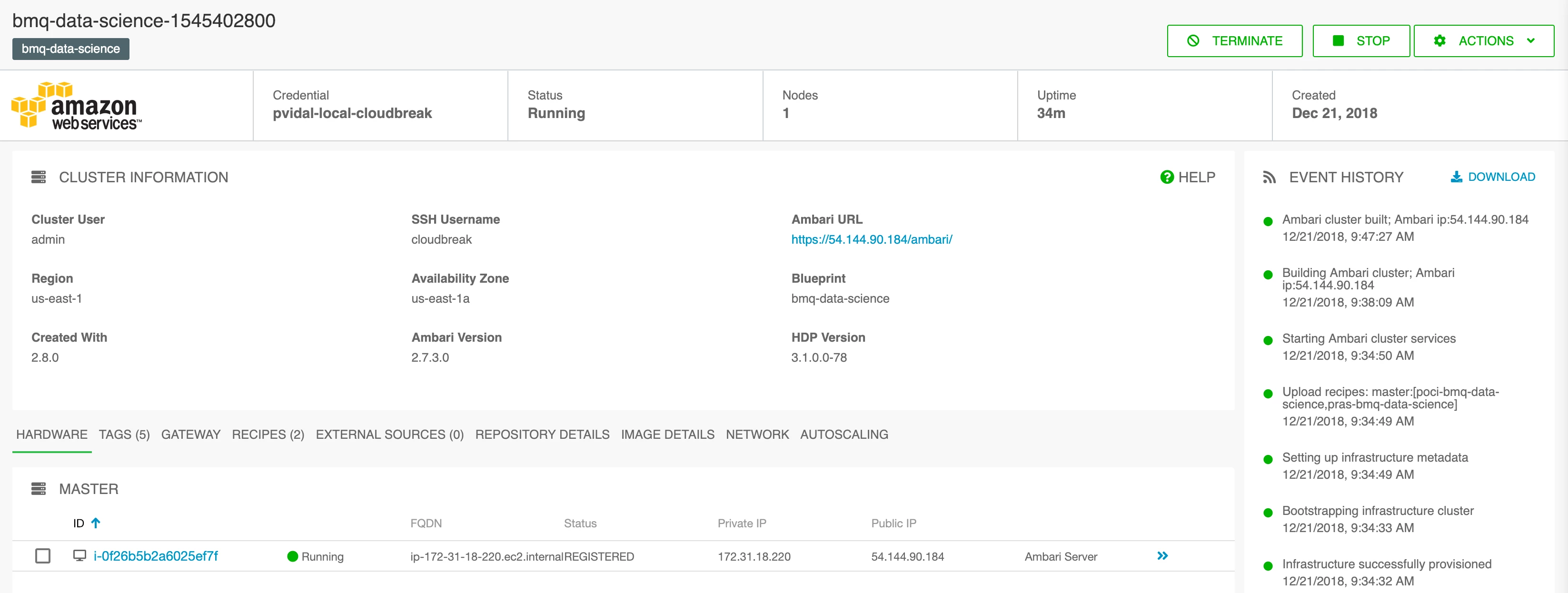
With this framework, I'm able to launch and terminate clusters in a matter of minutes, as depicted below. Next step will be to model a way to calculate accurate prediction for BMQ!