
Configure Anaconda with Zeppelin and HDP 3.0.1
This article will demonstrate how to install anaconda on an HDP 3.0.1 instance and the configuration to enable Zeppelin to utilize the anaconda python libraries to use with apache spark.
Pre-requisites:
- bzip2 library needs to be installed prior to installing anaconda
Step 1. Download and Install Anaconda
https://www.anaconda.com/download/#linux
From the following link, download the anaconda installer. It will be a large bash script around 600MB in size. Please land this file in an appropriate directory like /tmp.

Once downloaded, provide the installer with executable permissions.

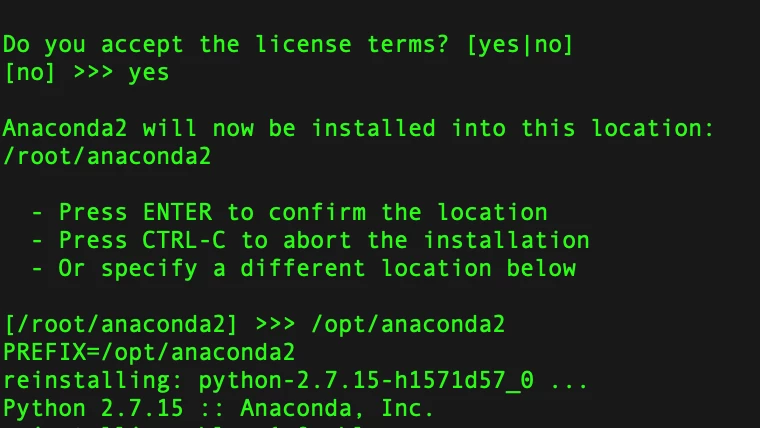
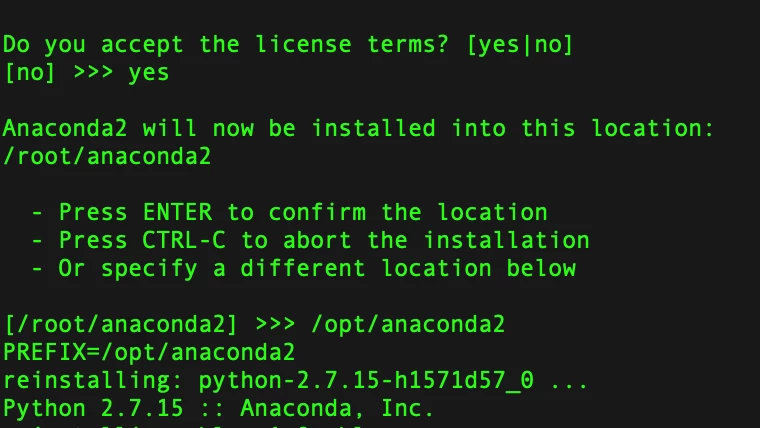
One completed, the installer can be executed. Please execute with a user with sudo privileges. Follow the prompts and accept the license agreements. As a best practice, please install anaconda in a separate directory than the default. /opt is the default for my installations.
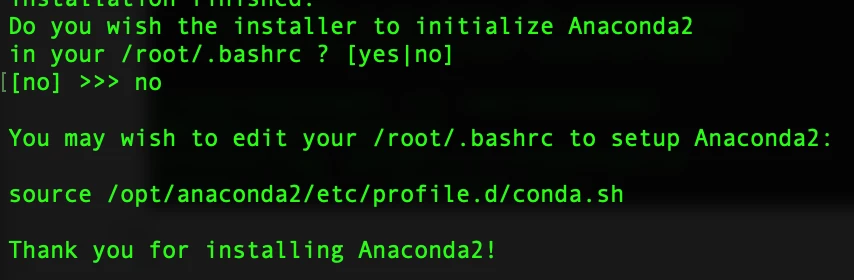
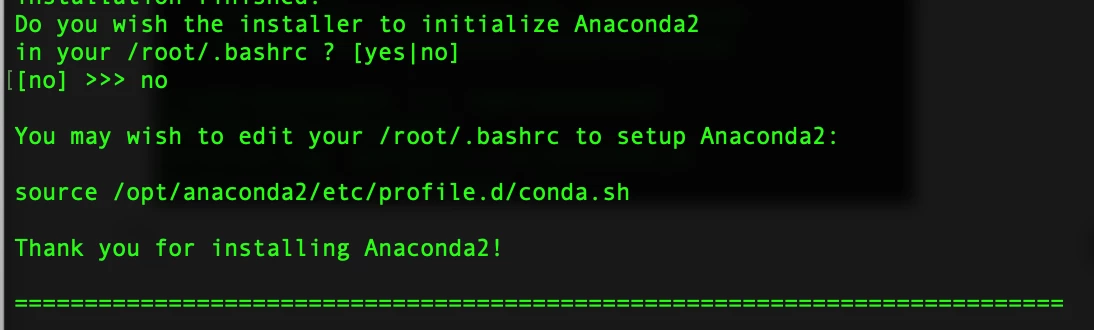
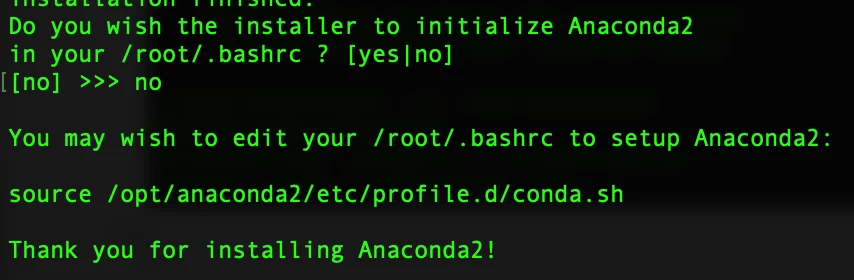
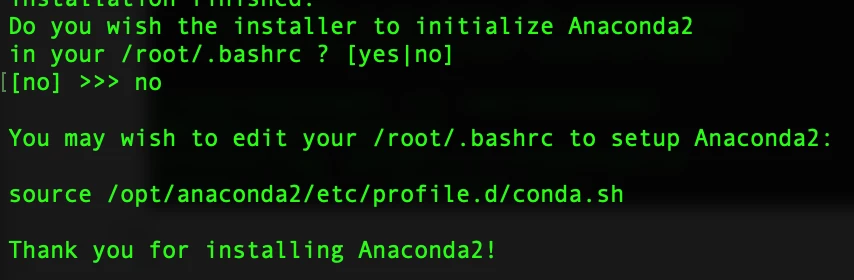
At the very end of the installation it will prompt the user to initialize the install in the installing users basrc file.
If you have a mulit-node environment, please re-run this process on the remaining nodes.
Step 2. Configure Zeppelin
Log into Zeppelin and open the page for interpreters. Scroll down to the spark interpreter and look for the zeppelin.pyspark.python. This parameter points to the python binary that is used when executing python applications. This is defaulted to the python binary bundled with the OS. This will need to be updated to the anaconda python binary.

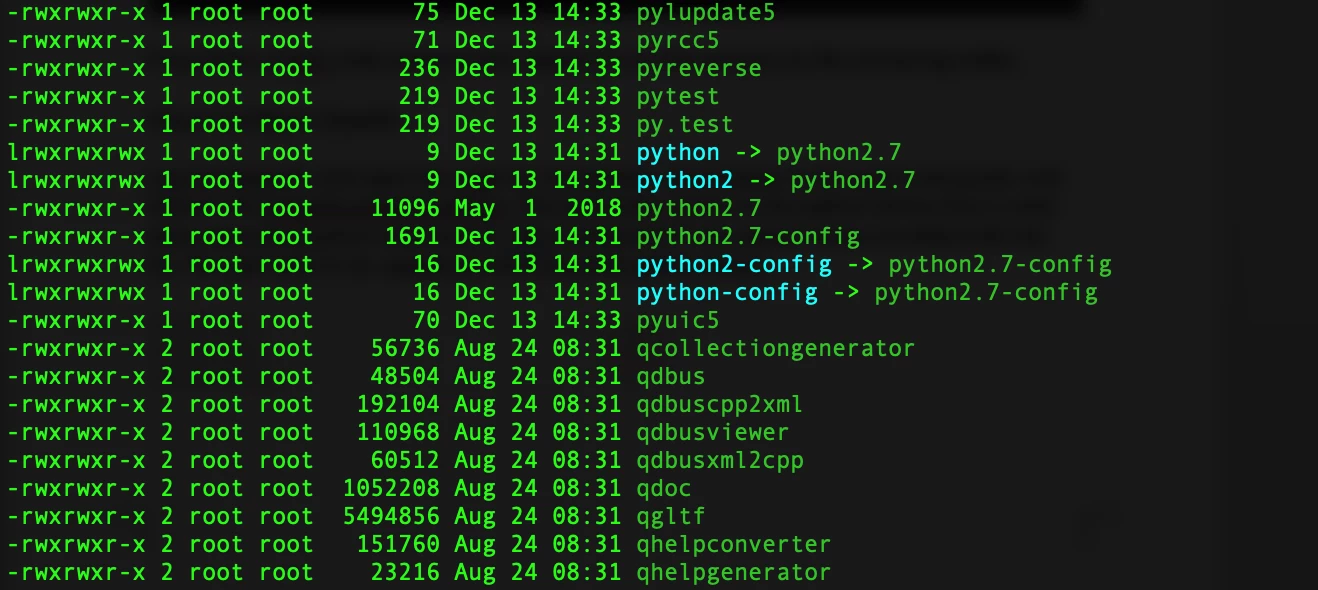
Next, navigate to the location you installed anaconda. In this example the location is /opt/anaconda2/bin.
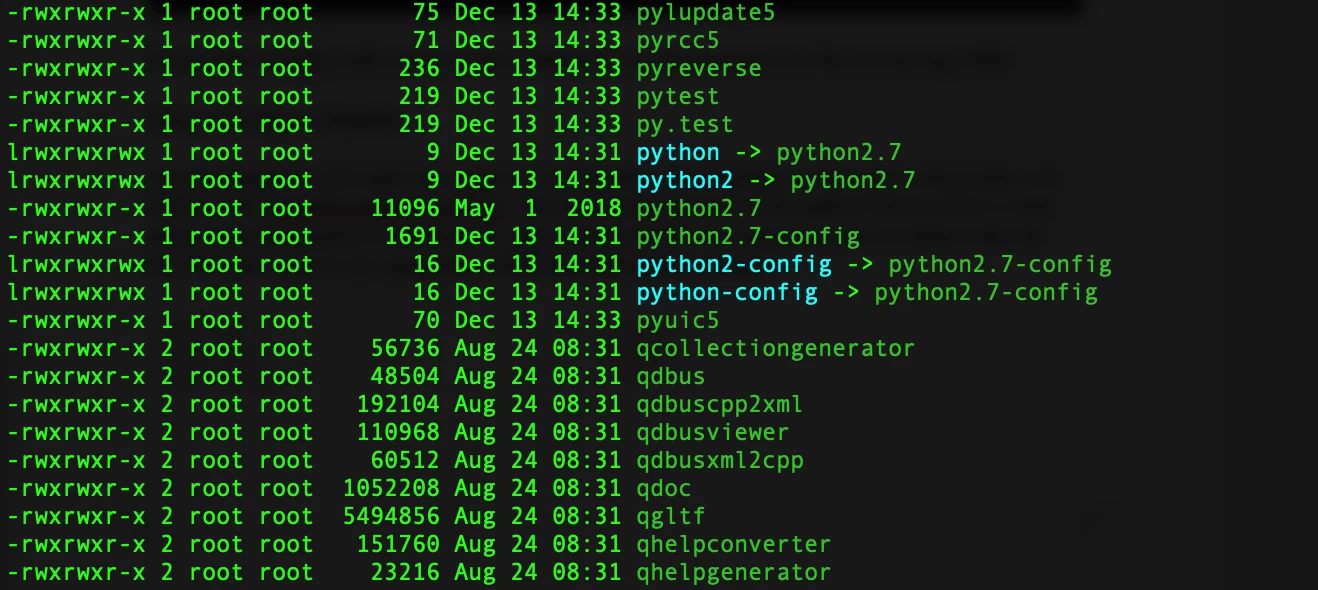
Add the full path to the python binary in the /opt/anaconda2/bin directory.

Make the changes and save the settings for the interpreter. Finally, restart the interpreter and you should be good to go!

If you run into any issues, make sure that zeppelin has the correct file permissions to run the new python libraries.