


Configure Knox with OpenID Connect
Introduction
OpenID Connect (OIDC) is an authentication layer on top of OAuth 2.0, an authorization framework.
It uses simple JSON Web Tokens (JWT), which is an open standard for securely transmitting information as a JSON object. These objects are normally signed with an RSA key and contain information such as if the user was authenticated or the user's id and email. More information and examples can be found here: https://auth0.com/docs/tokens/concepts/jwts
Knox, together with pac4j, a Java security engine, uses OpenID Connect (and also SAML, CAS, OAuth) to enable Single Sign On using a variety of 3rd party Identity Providers that support these protocols.
For example, Knox can be integrated with a service such as https://auth0.com to provide users authenticated to auth0 access to Hadoop resources (without a need to enter their credentials again or even integrate Knox with an LDAP).
Following is an example of how Knox can integrate with auth0 using OpenID Connect.
Setup auth0
Sign up
The first step is to sign up to https://auth0.com and create an account to manage the identity provider.
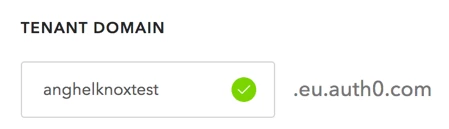
Since this a public SaaS based service, it needs a unique identifier to distinguish between clients (it will form its own unique subdomain):
Add the first user
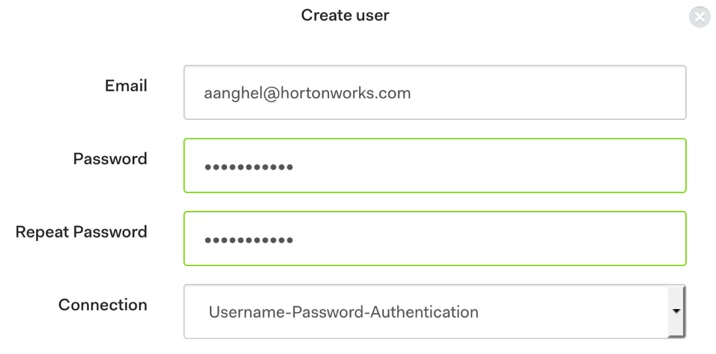
Once the account is created, add a new user in the auth0 internal database. This user will be used to login in Knox. auth0 can integrate with a variety of sources (including AD/LDAP) and Social (Google, Facebook). However, for this test, we define the user in the default auth0 internal Database.
Go to Users section and create your first user:
Define the client
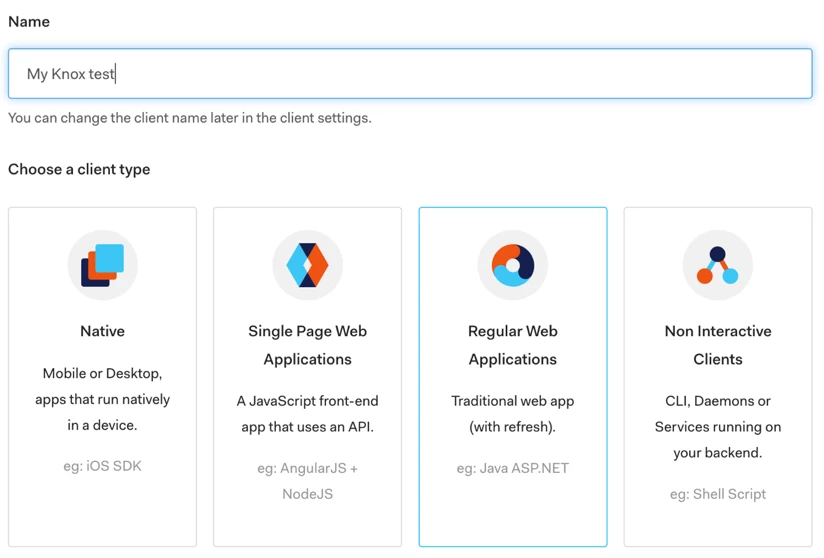
Once we have a new user, the next step is to define a new client, in this case Knox, which is a Regular Web Application:

Client id and secret
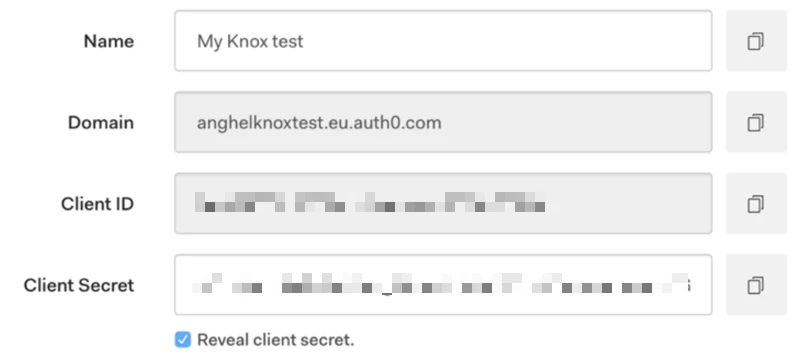
Once the application is created, go to the Settings tab and note down the information that Knox will use to authenticate itself, as a client application, to auth0 (these will later be used in Knox's configuration):
Callback URLs
Then there is one setting that needs defined here - Allowed Callback URLs - which is the Knox URL that auth0 will redirect the user back to after successful authentication. This URL is in the following format:

discoveryUri
Lastly, one other piece of configuration required by Knox is discoveryUri, which can be found at the end of the configuration page, in the Show Advanced Settings section -> Endpoints -> OpenID Configuration (typically in the format https://anghelknoxtest.eu.auth0.com/.well-known/openid-configuration
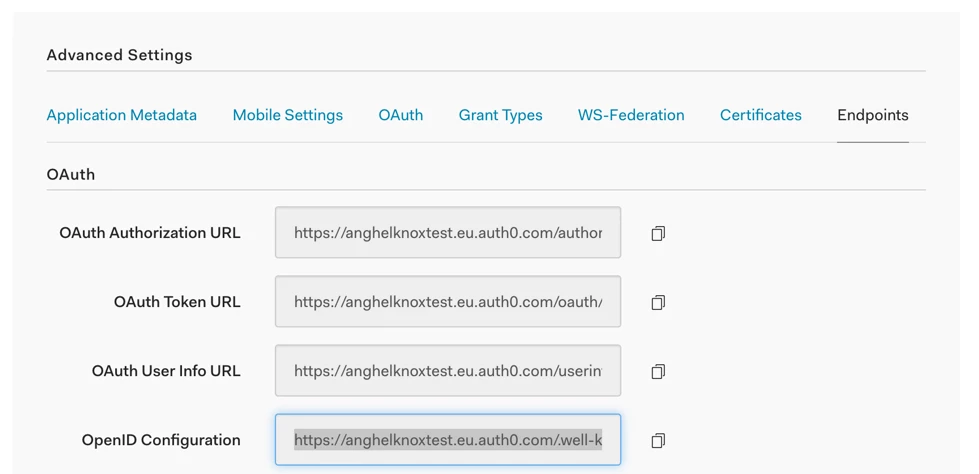
This process, creating an application, getting its ID and Secret, configuring the allowed callback URL and finding out the discoveryUri are steps for any OpenID Connect identity provider. These have also been tested with NetIQ for instance.
Knox Configuration
To enable any SSO type authentication in Knox (be it OpenID Connect, SAML or other pac4j IdP), the Knox default topology must be configured to use the SSOCookieProvider and then the knoxsso.xml topology must be configured to use the OpenID Connect provider.
default topology
Set the following in the default topology (Advanced topology in Ambari) so that it uses SSOCookieProvider. Replace any other authentication providers (by default it's the ShiroProvider) with the ones bellow and set the sso.authentication.provider.url to the correct Knox IP/FQDN):
  <provider>
    <role>webappsec</role>
    <name>WebAppSec</name>
    <enabled>true</enabled>
    <param>
      <name>cors.enabled</name>
      <value>true</value>
    </param>
  </provider>
  <provider>
    <role>federation</role>
    <name>SSOCookieProvider</name>
    <enabled>true</enabled>
    <param>
      <name>sso.authentication.provider.url</name>
      <value>https://00.000.000.000:8443/gateway/knoxsso/api/v1/websso</value>
    </param>
  </provider>
knoxsso topology
And then configure the pac4j provider for OpenID Connect in your knoxsso.xml topology (Advanced knoxsso-topology in Ambari) - as per documentation.
Set the following:
- pac4j.callbackUrl should point to the Knox IP or FQDN in this format: <topology>
<gateway>
<provider>
<role>webappsec</role>
<name>WebAppSec</name>
<enabled>true</enabled>
<param><name>xframe.options.enabled</name><value>true</value></param>
</provider>
<provider>
<role>federation</role>
<name>pac4j</name>
<enabled>true</enabled>
<param>
<name>pac4j.callbackUrl</name>
<value>https://00.000.000.000:8443/gateway/knoxsso/api/v1/websso</value>
</param>
<param>
<name>clientName</name>
<value>OidcClient</value>
</param>
<param>
<name>oidc.id</name>
<value>8CD7789Nyl5QZd0Owuyamb7E0Qi29F9t</value>
</param>
<param>
<name>oidc.secret</name>
<value>CSIR3VtIdEdhak6LWYgPEv69P4J0P7ZcMOVnQovMoAnZGVOtCjcEEWyPOQoUxRh_</value>
</param>
<param>
<name>oidc.discoveryUri</name>
<value>https://anghelknoxtest.eu.auth0.com/.well-known/openid-configuration</value>
</param>
<param>
<name>oidc.preferredJwsAlgorithm</name>
<value>RS256</value>
</param>
</provider>
</gateway>
<application>
<name>knoxauth</name>
</application>
<service>
<role>KNOXSSO</role>
<param>
<name>knoxsso.cookie.secure.only</name>
<value>false</value>
</param>
<param>
<name>knoxsso.token.ttl</name>
<value>3600000</value>
</param>
<param>
<name>knoxsso.redirect.whitelist.regex</name>
<value>^https?:\/\/(localhost|00\.000\.000\.000|127\.0\.0\.1|0:0:0:0:0:0:0:1|::1):[0-9].*$</value>
</param>
</service>
</topology>
Test
Now restart Knox and test if it works.
To test, go to any Knox page, like :8443/gateway/default/webhdfs/v1/tmp" target="_blank" rel="nofollow noopener noreferrer">https://<KNOX>:8443/gateway/default/webhdfs/v1/tmp
For example, going to https://00.000.000.000:8443/gateway/default/templeton/v1/status should redirect to the auth0 authentication page:
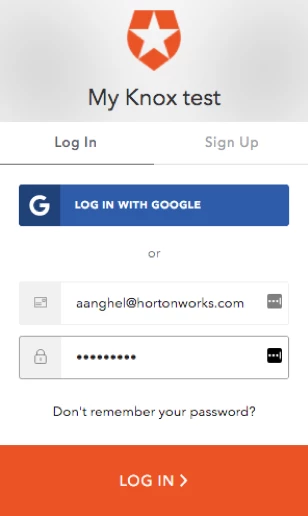
And once you input the user details for the user that was previously created, it should redirect back to the knox page that was originally requested:

The user id
There is one issue remaining, that of the user identifier that is being retrieved by Knox, which is then used to communicate with Hadoop services and Ranger.
If we look in the gateway-audit.log file, we can see the following entry for the above request:
WEBHCAT|auth0|5a79dd769bf9bc6ee2539f67|||access|uri|/gateway/default/templeton/v1/status|success|Response status: 200From the log, we can see that the user Knox actually "sees" is auth0|5a79dd769bf9bc6ee2539f67 which is the user id from auth0:
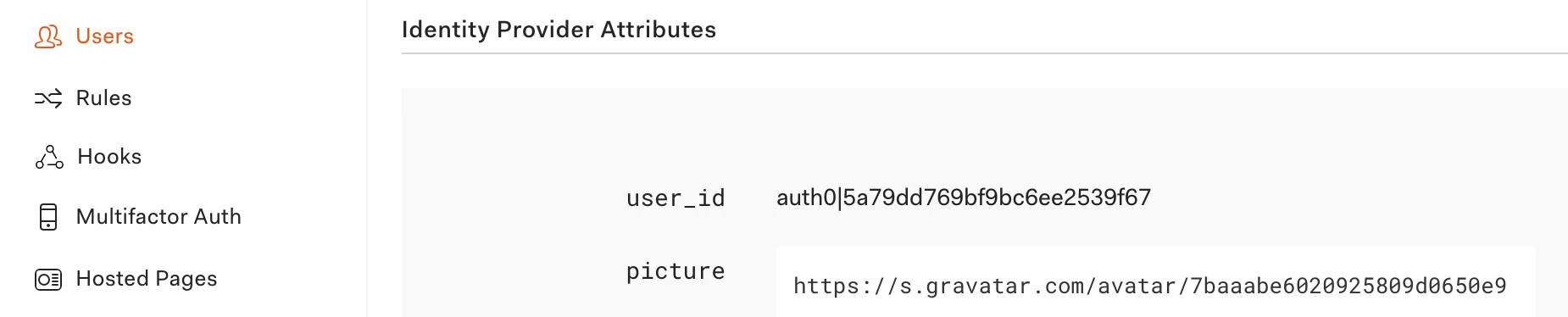
This is not exactly useful if we want to apply Ranger policies for example, or if we care about the user that Knox proxies to Hadoop services.
To understand better, if we enable DEBUG logging in Knox, we would see the following entry after the user authenticates:
DEBUG filter.Pac4jIdentityAdapter (Pac4jIdentityAdapter.java:doFilter(70)) - User authenticated as: <OidcProfile> | id: auth0|5a79dd769bf9bc6ee2539f67 |attributes: {sub=auth0|5a79dd769bf9bc6ee2539f67, email_verified=true, updated_at=2018-02-08T12:47:56.061Z, nickname=aanghel, name=aanghel@hortonworks.com, picture=https://s.gravatar.com/avatar/7baaabe6020925809d0650e9d4cefe9c?s=480&r=pg&d=https%3A%2F%2Fcdn.auth0.com%2Favatars%2Faa.png, email=aanghel@hortonworks.com} | roles: [] | permissions: [] | isRemembered: false |From the above, we can see that the OpenID Connect implementation in Knox uses a Profile which has an id and many attributes. To be able to use any of these attributes, Knox 0.14 is required or at least the KNOX-1119 patch, which adds a new configuration variable - pac4j.id_attribute, that allows us to pick the attribute that we want from the session above.
We can define this configuration in the knoxsso topology, after pac4j.callbackUrl:<param>
<name>pac4j.id_attribute</name>
<value>nickname</value>
</param>With the above, a Knox 0.14 will use the actual username when communicating with Hadoop or Ranger.

