


Connecting DBeaver to Cloudera Data Platform, Operational Database Instance
jdbc:phoenix:thin:url=https://<knox endpoint>:443/<cluster name>/cdp-proxy-api/avatica/;serialization=PROTOBUF;authentication=BASIC;avatica_user=<workload username>;avatica_password=<workload password>
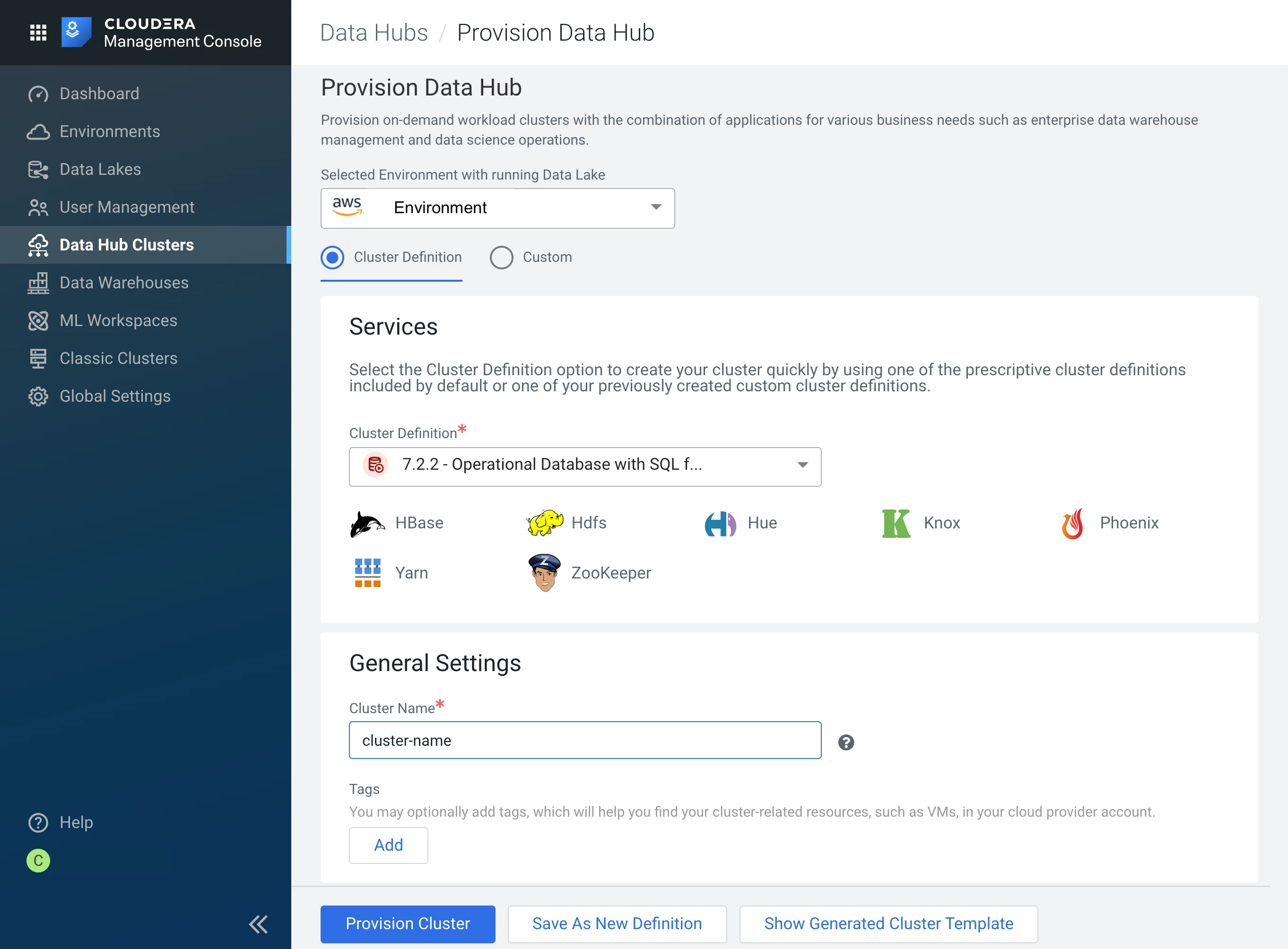
Once the cluster has started, select Endpoints and make a note of the Phoenix Query Server URI. It should look like this:
https://<server>/opdbtest/cdp-proxy-api/avatica/
The path details here are important as they provide the proxy and the cluster name format that we need.
The next piece of information we need is the Knox server endpoint. This can be found in the Cloudera Manager Console, under Knox/ Instances. This will replace the <server> part above.
The final component we need is the JAR file containing the Phoenix Thin Client, and that can be sourced from the Cloudera repository here.
https://repository.cloudera.com/
Search for phoenix-queryserver-client
Download the latest release.
Configuring DBeaver
To Install DBeaver, you can download a version from https://dbeaver.io/
In this example, we are using the OSX version. Configuration fields and terms may vary my installed type.
- Create. new Apache Phoenix connection to provide a baseline
- For the host, use the machine that Knox is running on
- For the port, use 443 (default https port)
- Provide your workload username and password
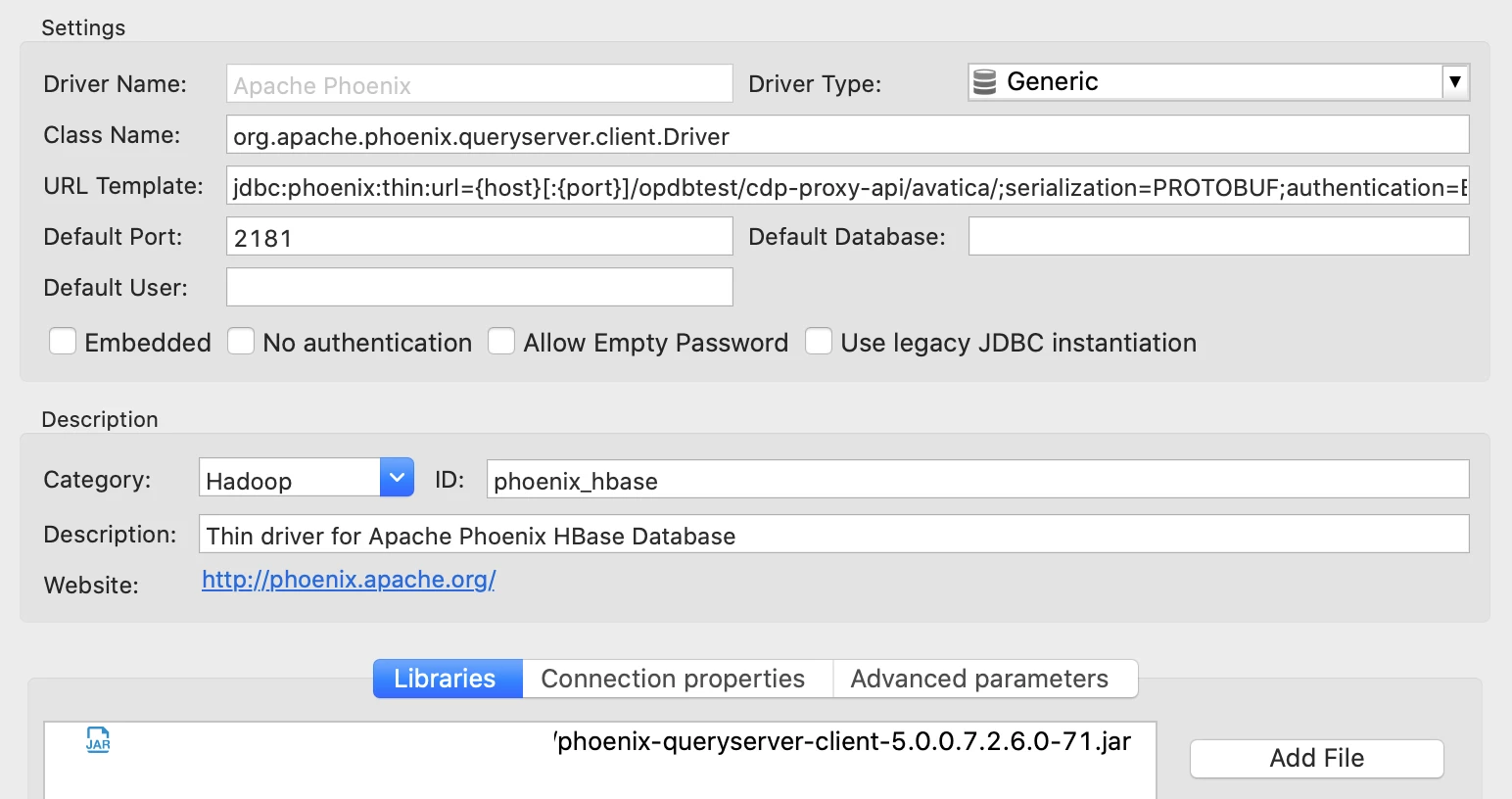
- Edit Driver Configuration and set
Class name: org.apache.phoenix.queryserver.client.Driver
URL Template:
jdbc:phoenix:thin:url={host}[:{port}]/opdbtest/cdp-proxy-api/avatica/;serialization=PROTOBUF;authentication=BASIC;avatica_user={user};avatica_password={password} - Add the driver JAR using add File and select the JAR downloaded from the Cloudera repository
Note: Don't search for class as it may automatically discover an invalid Driver class. The Class name configuration will override this. You may need to restart DBeaver, if the class is set incorrectly. - Close the configuration and test the connection.
The URL uses Knox so that access control can be managed centrally. Knox takes the https:// messages and proxies them through to the backend Phoenix services automatically.
A note on Operational Database Experience
Shortly we will be providing an Operational Database Experience. We have significantly streamlined the provisioning of the Datahubs and publish a lot more metadata to help with configuring external clients. For example, the Maven links to the correct clients are provided directly and examples of the JDBC links are presented right in the user interface.
All of these improvements have been made to help make provisioning new instances easy, and to make connecting to those instances from applications and tools very quick. Our objective is to help you integrate CDP with your applications quickly and efficiently. We welcome your feedback on areas of our platform and documentations, which can be improved to help us with this goal.
Tips
- If you receive 404 or 401 errors, please check you are connecting to Knox, and that the full https:// url is correct.
- If you receive errors related to serialisation, make sure you have serialization=PROTOBUF set.
Documentation references
Setting up connections with a CDP Datahub
Connect to PQS through Apache Knox
Connecting to Apache Phoenix Query Server using the JDBC client
Setting up connections with CDP Operational Database Experience

