


Connecting Informatica IDMC (CDI) to Cloudera Data Warehouse & Iceberg
Purpose
- Demonstrate end-to-end connectivity from the latest versions of Informatica and Cloudera Data Warehouse (CDW) – Impala Virtual Warehouse & Iceberg table format using JDBC.
- Validate: network path, authentication, driver compatibility, and a minimal pipeline
Scope
In scope
- Establish JDBC connectivity from Informatica runtime (Secure Agent) to CDW Impala WaaS endpoint
- Run a minimal data pipeline
- Provide a repeatable runbook + troubleshooting notes
Out of scope
- Spark execution on CDP Data Engineering / Data Hub
- Advanced governance/lineage/catalog integrations
- Production hardening (HA, DR, advanced CI/CD), unless required later
- Business-case functional testing
Assumptions and Prerequisites
Cloudera Data Warehouse (CDW)
- CDW environment exists and is reachable from where the Informatica Secure Agent runs.
- An Impala Virtual Warehouse is created and running.
- You have a CDW user with Ranger-RAZ permissions to:
- create schema/table (or write into an existing one)
- insert/select data for validation
Informatica
- You have access to IDMC/IICS tenant with the ability to create connections and mappings
- A Secure Agent is installed in an environment with network reachability to the CDW endpoint.
Connectivity
- Required outbound/inbound rules opened between Secure Agent host/network and CDW Impala endpoint (port depends on your CDW/JDBC URL)
- DNS resolution works for the CDW endpoint hostnames and Informatica ones
Roles and Responsibilities
- Informatica Administrator: create Secure Agent, JDBC connector, mapping, schedule.
- Cloudera CDW admin: provide Impala VW endpoint/JDBC URL, auth method, Ranger policies for permissions on the data.
Optional: Networking/SecOps: firewall, proxy rules, certificates if needed
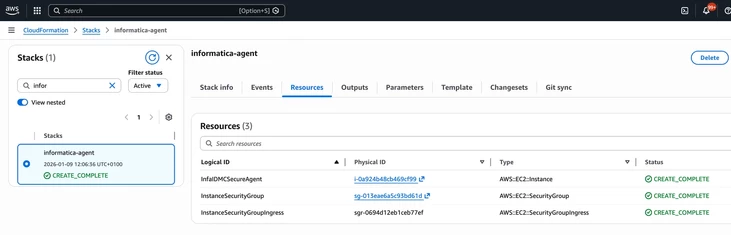
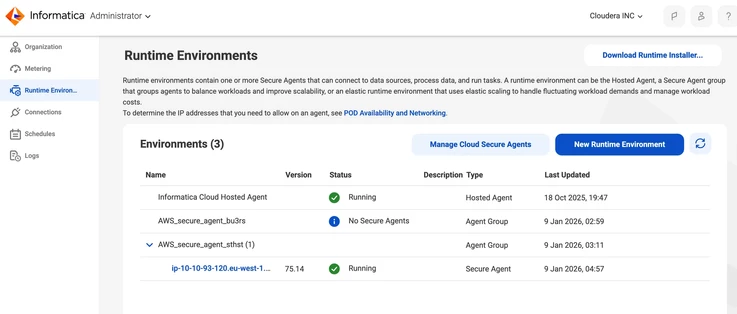
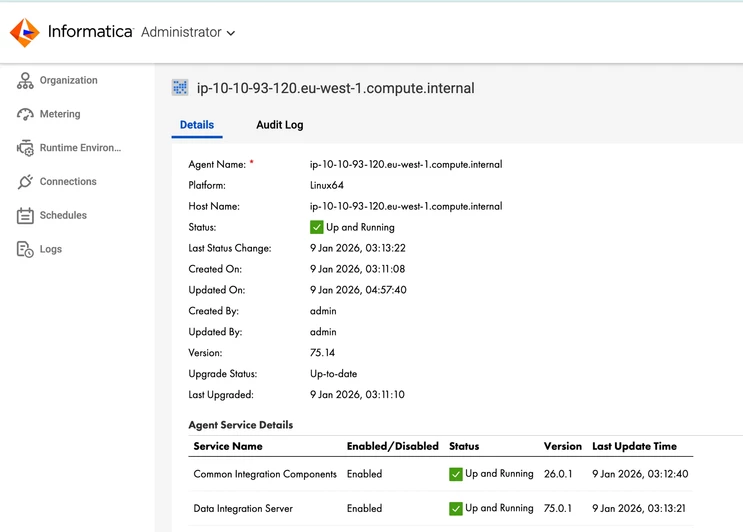
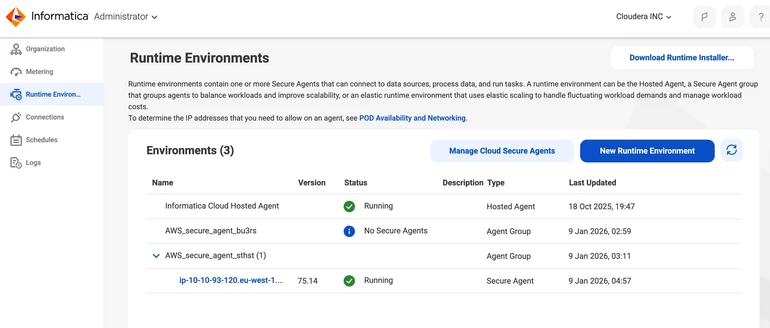
Installation of Informatica Secure Agent
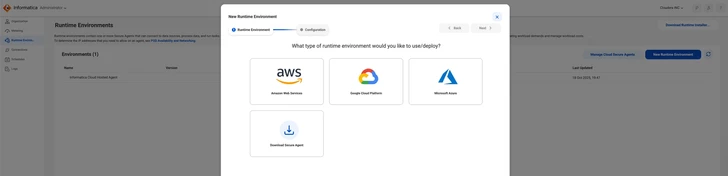
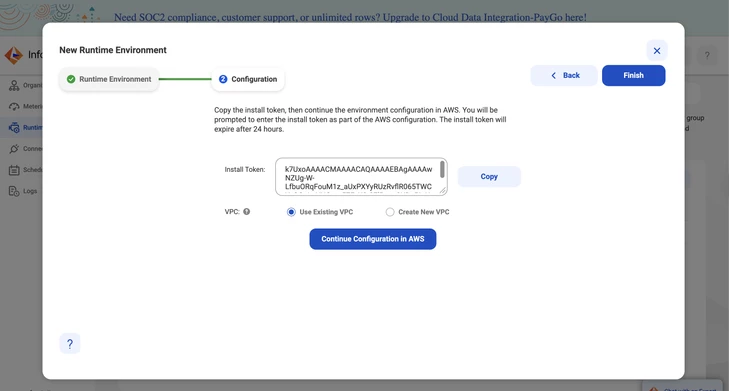
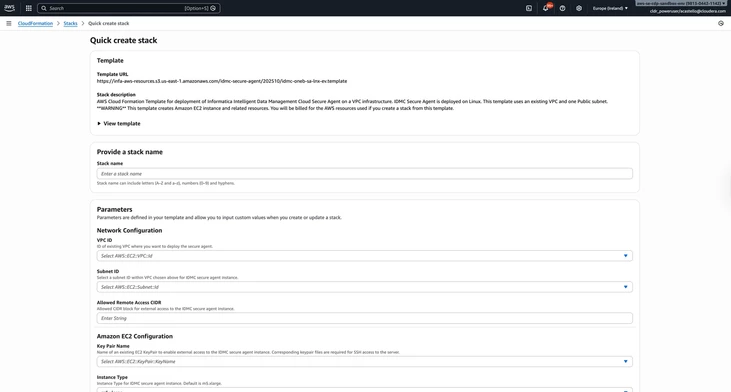
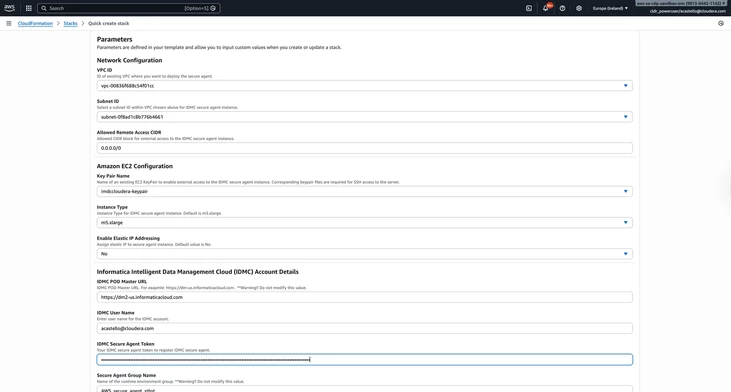
Details to install Informatica Secure Agent on AWS
Below images are examples; You'll need to customise the parameters to your needs
How To / Integration steps
Once the prerequisites have been fulfilled, let’s start integrating Informatica & Cloudera Data Warehouse.
Pre-reqs
Note: There are no Hive or Impala JDBC jar drivers installed on the Informatica Cloud Secure Agent by default.
-
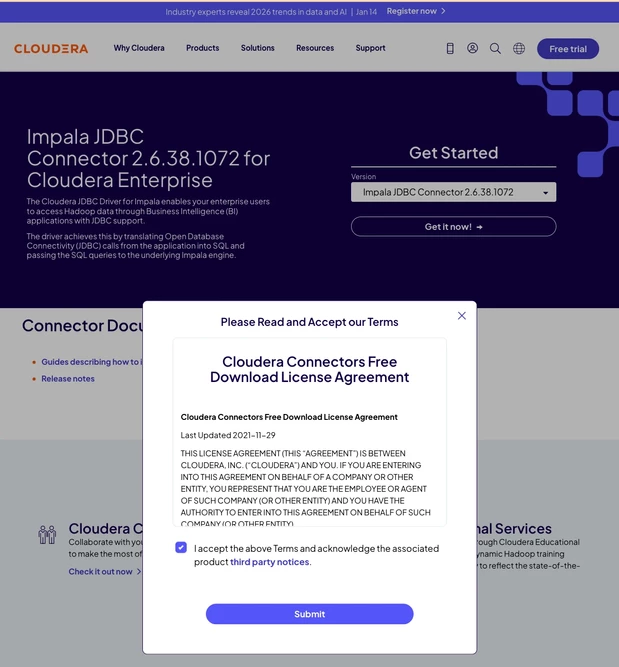
You need to download Impala and/or Hive drivers from Cloudera Downloads Portal
-
Upload it to the Informatica Cloud Secure agent, probably via a Jump host, as it doesn’t have a public IP
scp -i "imdccloudera-ssh-key.pem" ClouderaImpalaJDBC42-2.6.38.1072.zip ec2-user@ec2-3-249-227-188.eu-west-1.compute.amazonaws.com:/tmp/ClouderaImpalaJDBC42-2.6.38.1072.zip
scp -i "imdccloudera-ssh-key.pem" ClouderaHiveJDBC42-2.6.29.1037.zip ec2-user@ec2-3-249-227-188.eu-west-1.compute.amazonaws.com:/tmp/ClouderaHiveJDBC42-2.6.29.1037.zip-
Unzip the files, and move the .jar to the Informatica drivers folder
Note: Based on Informatica docs, a specific folders structure is needed or driver class won’t be found
/opt/infaagent/ext/connectors/thirdparty/informatica.jdbc_v2/common
/opt/infaagent/ext/connectors/thirdparty/informatica.jdbc_v2/spark- Copy the JARs ImpalaJDBC42.jar & LeanImpalaJDBC42.jar into both folders
- Copy Hive drivers if needed too:
sudo cp -f /tmp/HiveJDBC42.jar \
/opt/infaagent/ext/connectors/thirdparty/informatica.jdbc_v2/common/

sudo cp -f /tmp/HiveJDBC42.jar \
/opt/infaagent/ext/connectors/thirdparty/informatica.jdbc_v2/spark/

sudo chmod 644 /opt/infaagent/ext/connectors/thirdparty/informatica.jdbc_v2/common/*.jar
sudo chmod 644 /opt/infaagent/ext/connectors/thirdparty/informatica.jdbc_v2/spark/*.jar
References
Create an Informatica JDBCv2 connector for Impala
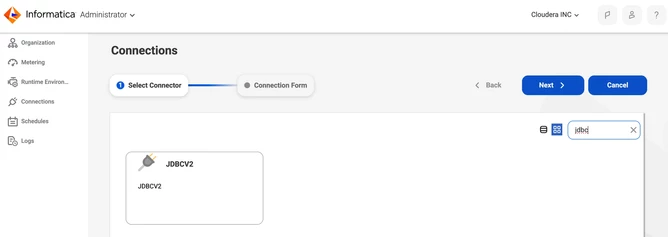
Note: To authenticate the JDBC string against Cloudera Data Warehouse, you have two common options:
- JWT tokens: More secure because they expire, and it is harder for a possible thread actor to reuse them, but you’d need to handle the creation and refresh of the tokens via Cloudera CLI/API.
- For a permanent connection without JWT tokens, you can use a dedicated LDAP service account integrated with a corporate IdP.
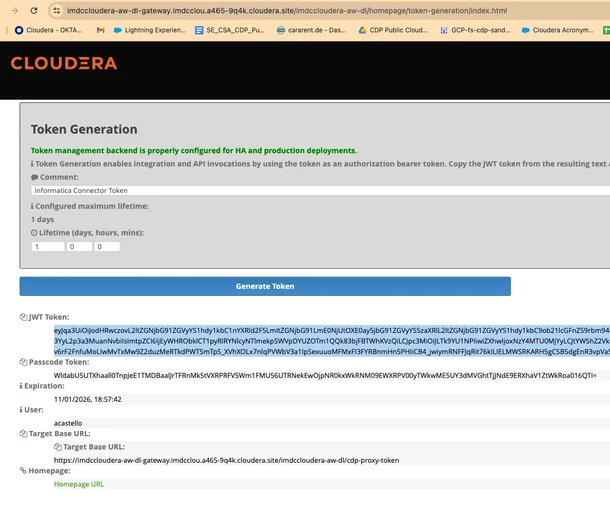
- Create JWT for authentication
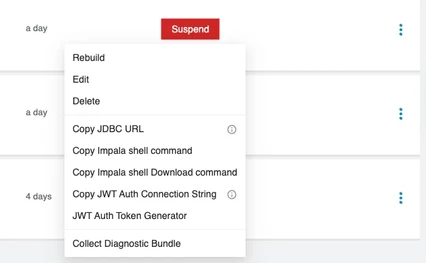
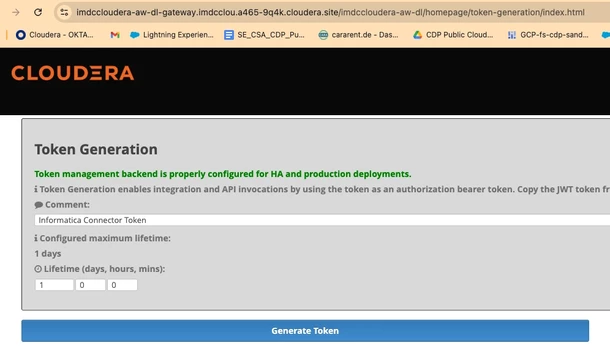
4. Copy JDBC URL from the target Virtual Warehouse
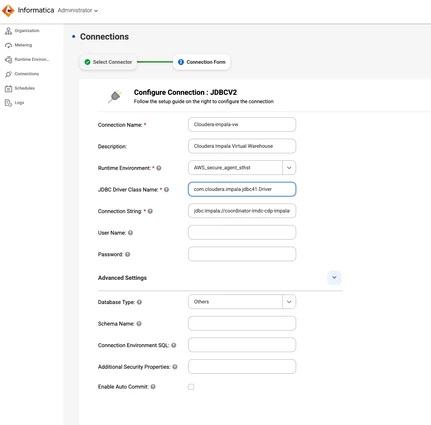
For CDW Impala via JDBC, the correct JDBC Driver Class Name is:
com.cloudera.impala.jdbc.DriverJDBC Connection String with JWT authentication example:
jdbc:impala://coordinator-imdc-cdp-impalawaas.dw-imdccloudera-cdp-env.a465-9q4k.cloudera.site:443/default;ssl=1;transportMode=http;httpPath=cliservice;AuthMech=14;JWTString=eyJqa3UiOiJodHRwczovL2ltZGNjbG91ZGVyYS1hdy1kbC1nYXRld2F5LmltZGNjbG91LmE0NjUtOXE0ay5jbG91ZGVyYS5zaXRlL2ltZGNjbG91ZGVyYS1hdy1kbC9ob21lcGFnZS9rbm94dG9rZW4vYXBpL3YyL2p3a3MuanNvbiIsImtpZCI6IjEyWHRObklCT1pyRlRYNlcyNTlmekp5WVpDYUZOTm1QQk83bjFBTWhKVzQiLCJ0eXAiOiJKV1QiLCJhbGciOiJSUzI1NiJ9.eyJzdWIiOiJhY2FzdGVsbG8iLCJhdWQiOiJjZHAtcHJveHktdG9rZW4iLCJqa3UiOiJodHRwczovL2ltZGNjbG91ZGVyYS1hdy1kbC1nYXRld2F5LmltZGNjbG91LmE0NjUtOXE0ay5jbG91ZGVyYS5zaXRlL2ltZGNjbG91ZGVyYS1hdy1kbC9ob21lcGFnZS9rbm94dG9rZW4vYXBpL3YyL2p3a3MuanNvbiIsImtpZCI6IjEyWHRObklCT1pyRlRYNlcyNTlmekp5WVpDYUZOTm1QQk83bjFBTWhKVzQiLCJpc3MiOiJLTk9YU1NPIiwiZXhwIjoxNzY4MTU0MjYyLCJtYW5hZ2VkLnRva2VuIjoidHJ1ZSIsImtub3guaWQiOiJlZmY1MzFmNi03MjExLTRmNGQtODY2ZS04NTJmYTU3NDgzMDQifQ.o8drQwfNGo5XlbyGSV8Oj2v7RMchUpJmr6Zx4nrlQM5LX9O6FhHeclIB5xzMbEf3Y0aU-CSt-ych6y_hjJOKM5vEIghEyMEWA8dN8FlEIx9-j-v6rF2FnfuMoLIwMvTxMw9Z2duzMeRTkdPWTSmTpS_XVhXOLx7nlqPVWbV3a1IpSexuuoMFMxFI3FYRBnmHn5PHIiCB4_jwiymRNFFJqRit76kILIELMWSRKARH5gCSB5dgEnR3vpVa5GNpvo-d5lqeAoapU0PyLtIRJWWNodASv8ltN0Gnncj2PCIEhboZxzvNMBiZFSi5hf7H5_gcv6k7oaCbFZ19WCcIkYmx0AFull details of JDBC Impala configurations can be found here
Note: Authentication
-
Authentication mechanism: JWT (AuthMech=14)
-
Username/password fields can be left empty
-
JWT token must be valid and unexpired
Note 2: For Informatica JDBC v2, the driver must be installed in the JDBC_V2-specific Secure Agent directories; generic classpath or Tomcat-based placement is insufficient. Come back to 0) Pre-reqs section

