Connecting to Hive via Knox from Tableau
Apache Knox provides a gateway to HiveServer2 which can be used to proxy connections to Hive from BI tools like Tableau Desktop. With a secure cluster HiveServer2 is kerberized, which usually means the client must have a valid TGT in their ticket cache in order to authenticate to HiveServer2.
The Knox gateway can simplify this in many environments, by supporting client authentication to kerberized Hive without a TGT. The client authenticates to Knox via, say, LDAP authentication, and HiveServer2 trusts Knox to proxy connections on behalf of this user. Another benefit of using Knox is that client doesn't need to know where HiveServer2 is hosted, so if an administrator needs to move it to another master node, this is transparent to the applications connecting via Knox.
In the environment for this walkthrough, I have Tableau Desktop 10.0.1 installed, and I'll be using HDP 2.5. The first step is to ensure you have the latest Hortonworks ODBC Driver for Apache Hive, 2.1.5 at the time of this writing, which can be downloaded from https://hortonworks.com/downloads/
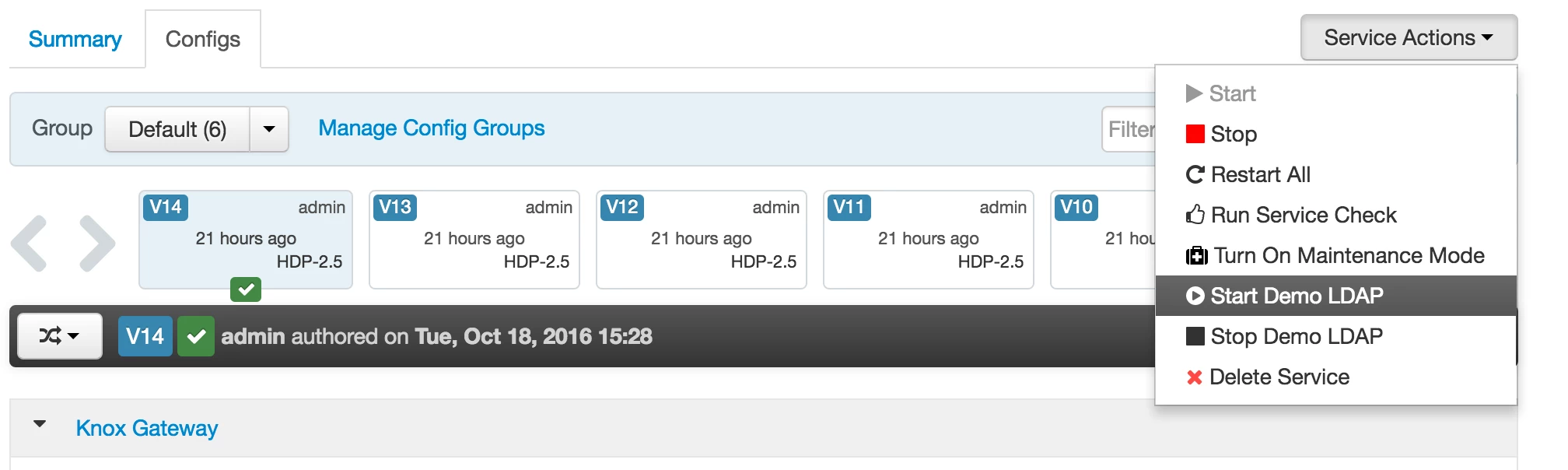
I will assume that Knox has already been installed. If you don't have a LDAP server in your environment for testing, Ambari includes a Demo LDAP service that can be started from the Knox service.
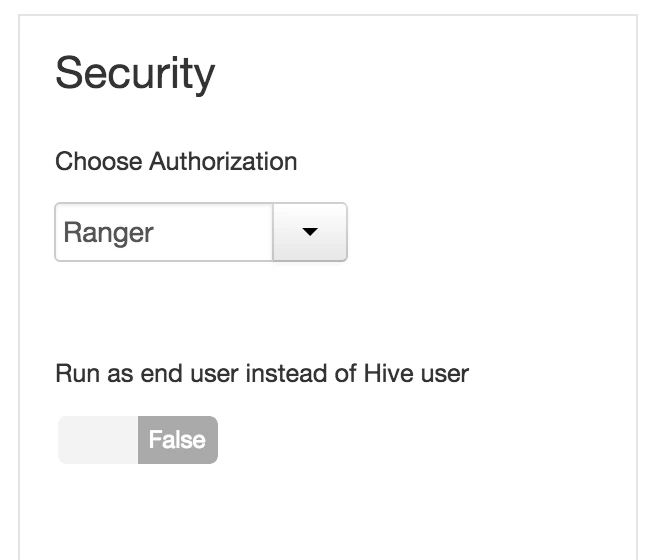
Further, we assume Ranger is being used for Hive authentication (so Hive impersonation is disabled, i.e., hive.server2.enable.doAs is false).
In order to configure Hive for Knox, we'll need to change the transport mode (hive.server2.transport.mode) to 'http' (it is set to 'binary' by default) and then restart Hive.
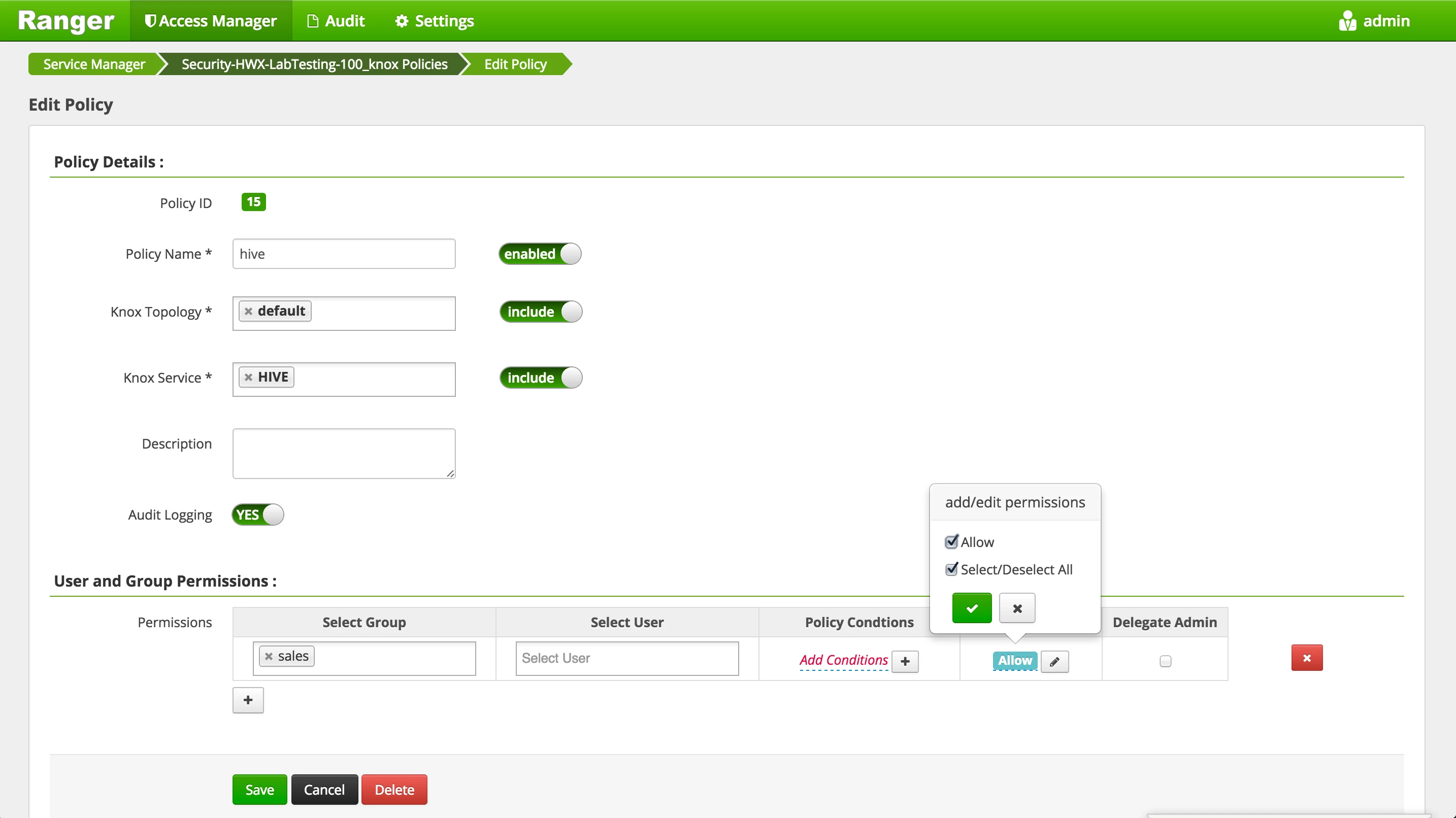
Assuming Ranger is being used to authorize access to Knox, we'll need to create an appropriate policy in Ranger for the users and groups which require access.
On our local machine, we'll need access to the certificate Knox is using for TLS. In production environments, your Desktop and PKI administrators may already have taken steps to assure that your system has the appropriate certificate installed.
By default, Knox uses a self-signed certificate which is not trusted by our system. We can extract this certificate from the Knox server (assuming we have appropriate access) and then specify its location when connecting from Tableau Desktop. Please note this certificate does not contain sensitive data such as private key material.
We can execute the following commands to extract the certificate on the Knox server host.
knoxserver=$(hostname -f)
openssl s_client -connect ${knoxserver}:8443 <<<'' | openssl x509 -out /tmp/knox.crt
We then need to copy the certificate to our local environment, using scp or some other utility, and take note of its location. We are now ready to connect to Hive from Tableau Desktop. You may want to test connectivity from beeline to ease later troubleshooting, to assure any issues identified are specific to Tableau (although please note beeline will use JDBC).
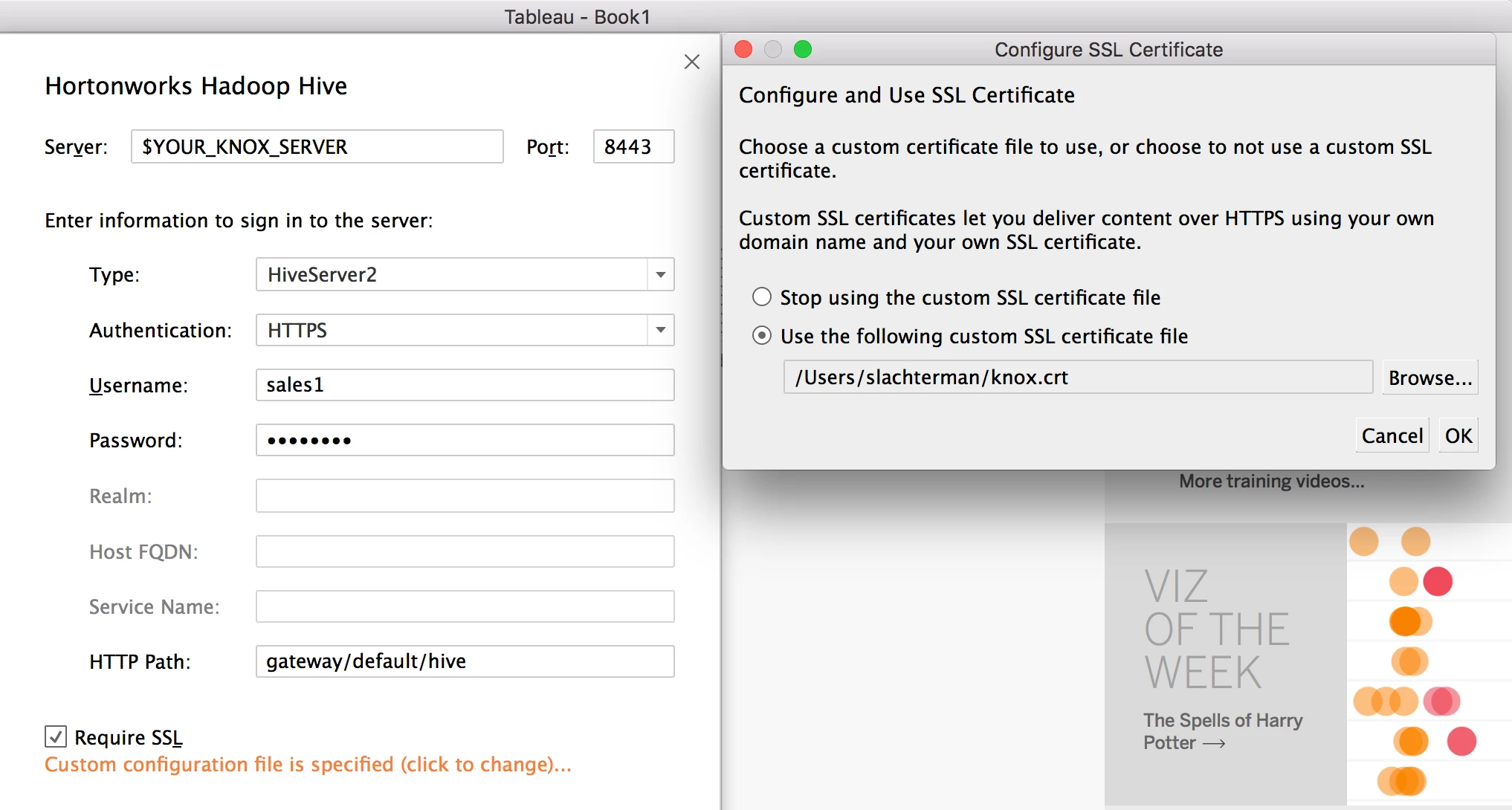
We will use the Hortonworks Hadoop Hive native connector. We will specify our Knox Server hostname in the Server field, the port over which we are connecting to Knox using TLS, an Authentication method of HTTPS, and the username and password of the LDAP user that has access (via the Ranger policies for Knox and for Hive that have been configured).
Please see the Advanced users-ldif within Knox configuration for identifying appropriate users in the Demo LDAP (such as guest, sam, and tom).
We need to specify the HTTP path of gateway/default/hive, select the Require SSL checkbox, and click the "No custom configuration . . ." orange link to specify the path at which we've saved the Knox certificate (or at which our Desktop Administrator has provided a root certificate that was used to sign Knox's certificate), as seen in the screenshot below.