


Connecting to Phoenix Query Server via DBVisualizer
HDP 2.5 GA'd phoenix query server. This makes connecting to phoenix much easier. Article will walk through steps on how to connect to phoenix Phoenix Query Server via DBVisualizer.
Grab the phoenix thin jdbc driver onto your desktop. On the HDP 2.5 here is the location of the jdbc driver

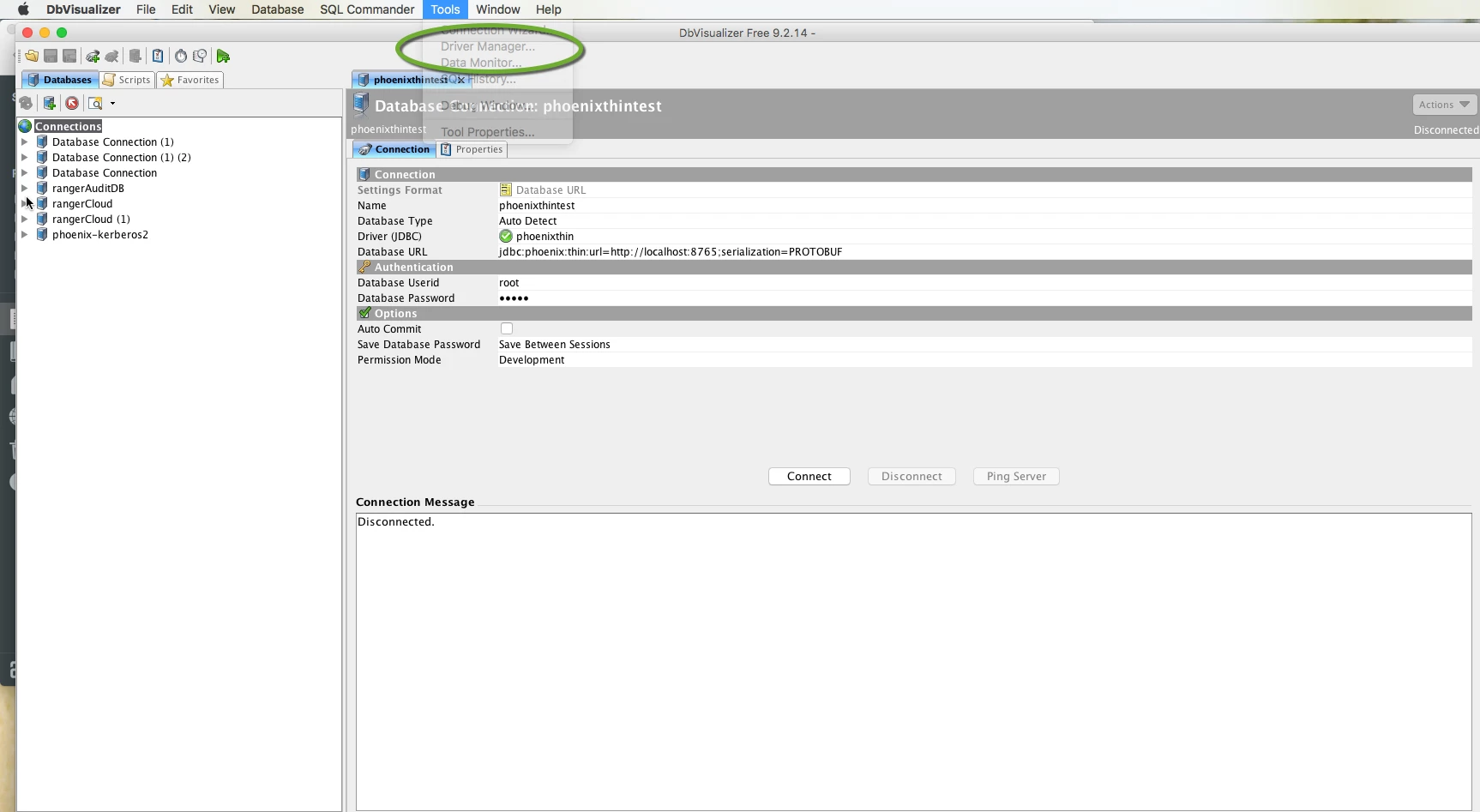
Start up DBVisualizer. From the top menu bar select Tools->Driver Manager
Popoluate the fields:
Name:Apache Phoenix Thin Client
I used phoenixthin.
URL Format: jdbc:phoenix:thin:url=<scheme>://<server-hostname>:<port>[...]
Client on the folder icon
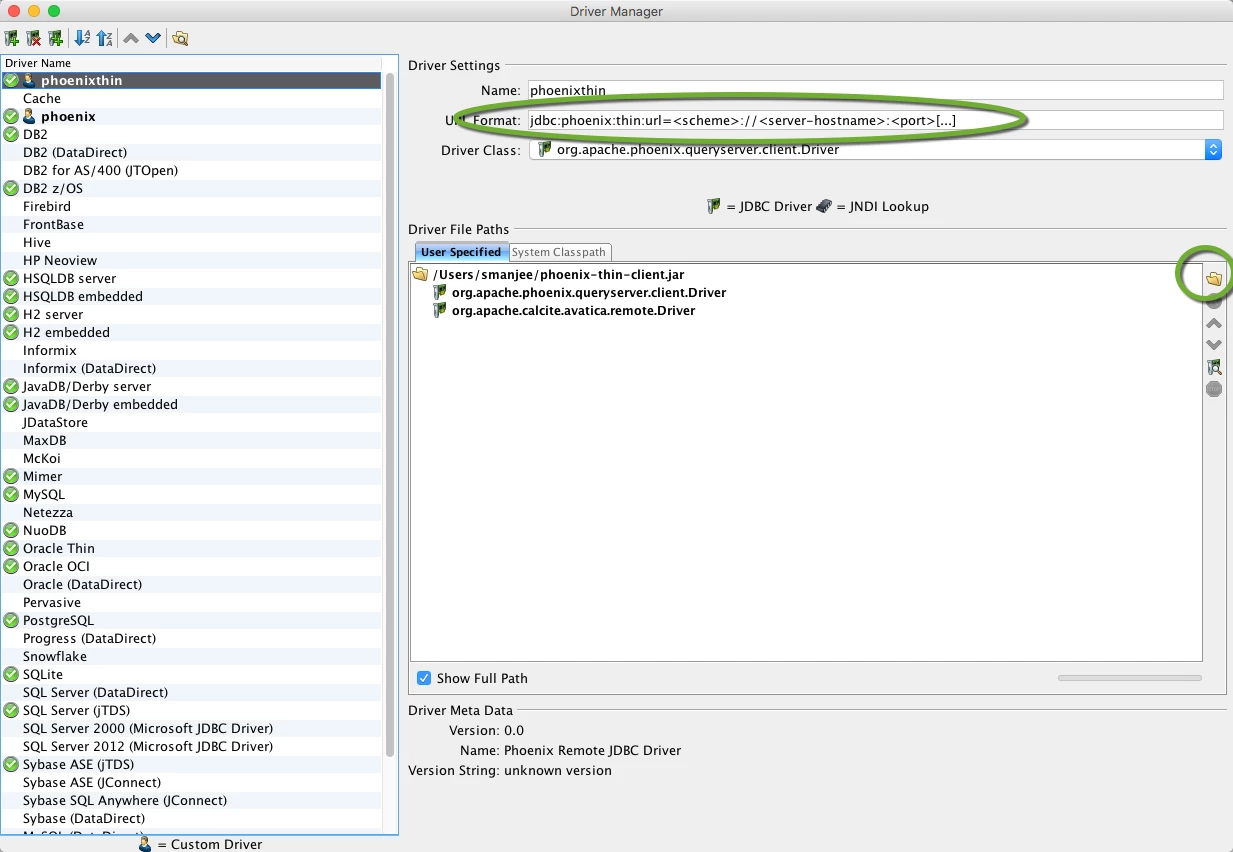
Locate your phoenix thin jdbc driver you downloaded to your desktop. Once selected click on ok and and now you have the driver loaded.
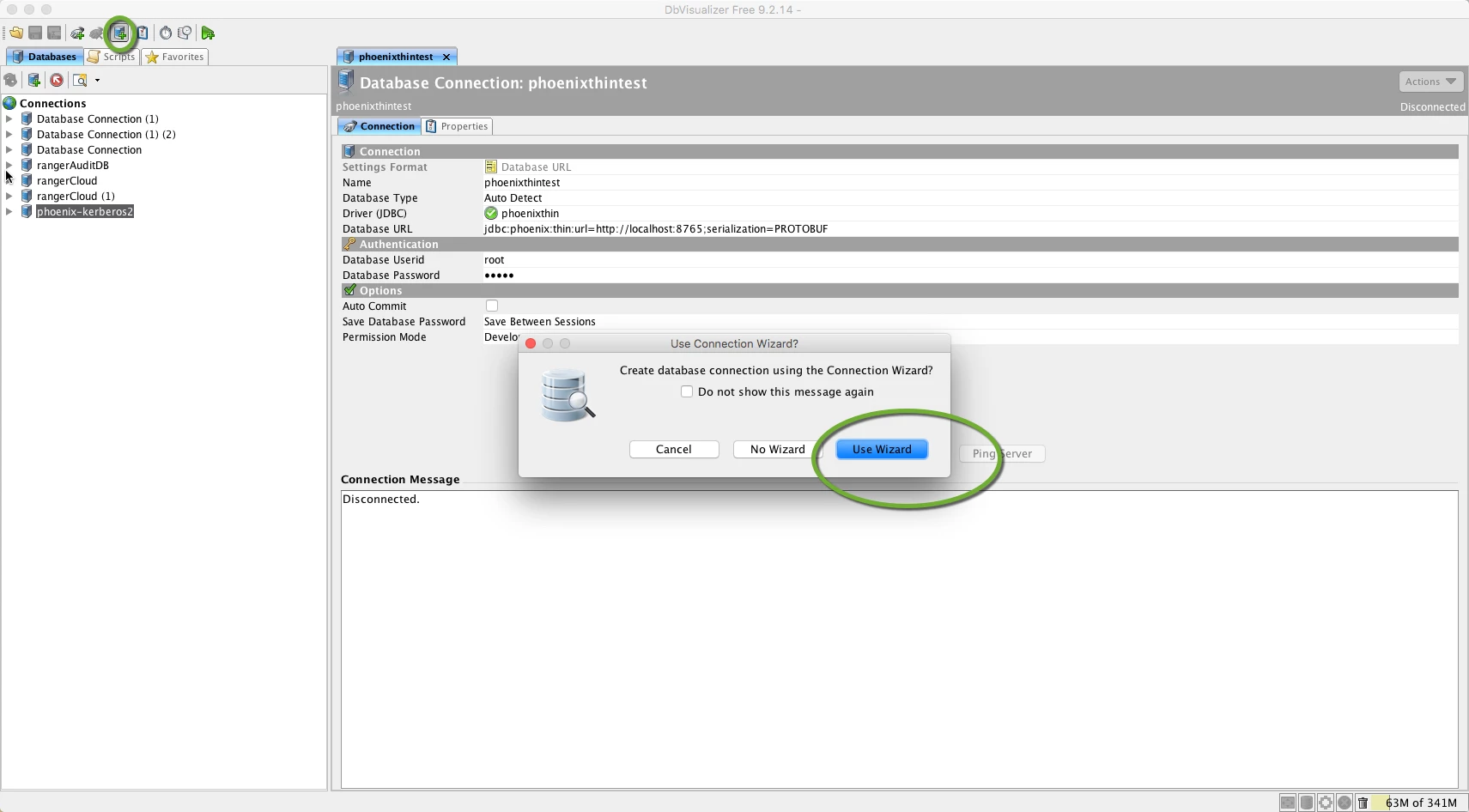
Lets connect to phoenix. Click on the icon shown below which creates a new db connection. Then select "Use Wizard".
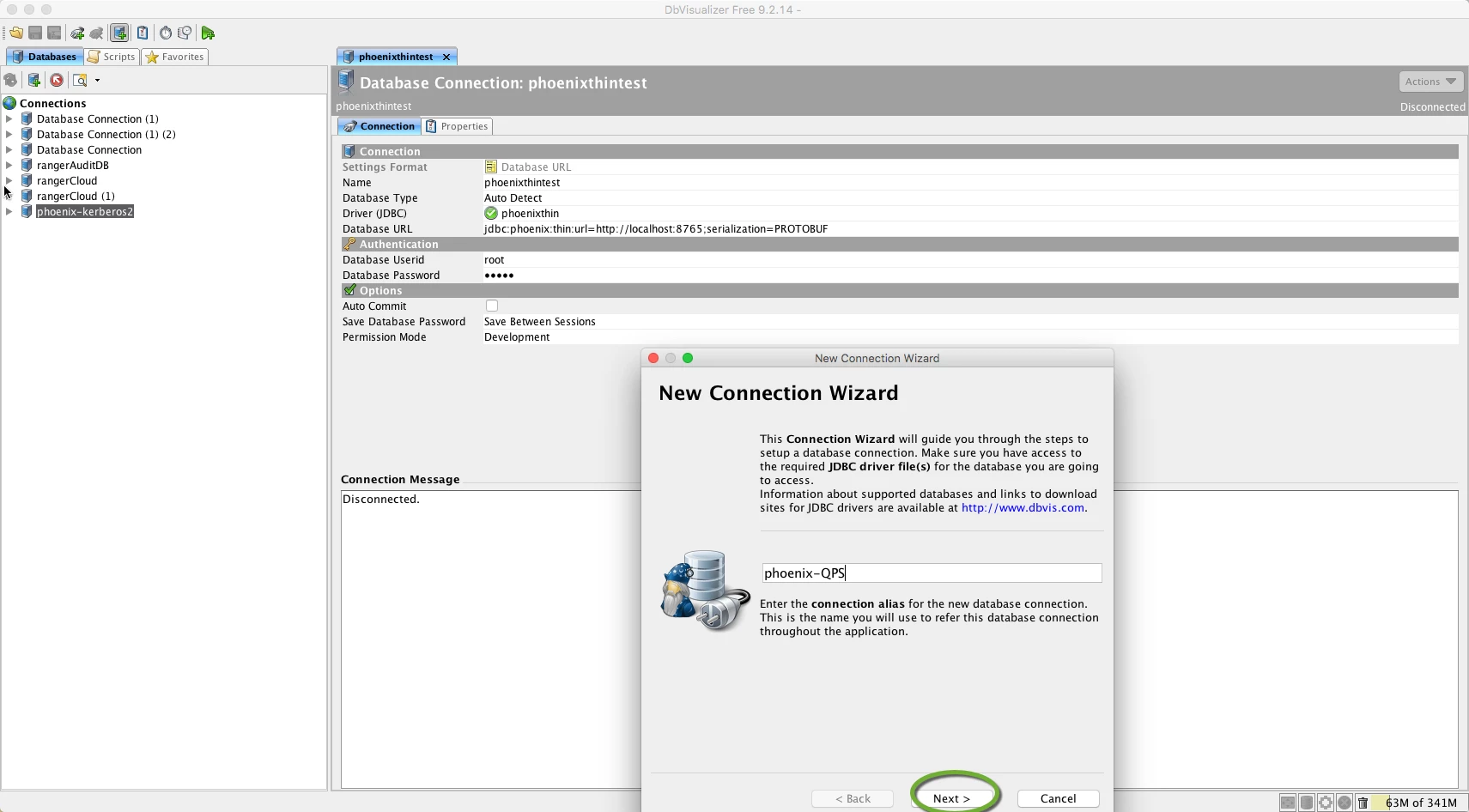
Enter a connection name. I used phoenix-QPS
Now select the driver you loaded in the previous steps. I named my driver phoenixthin
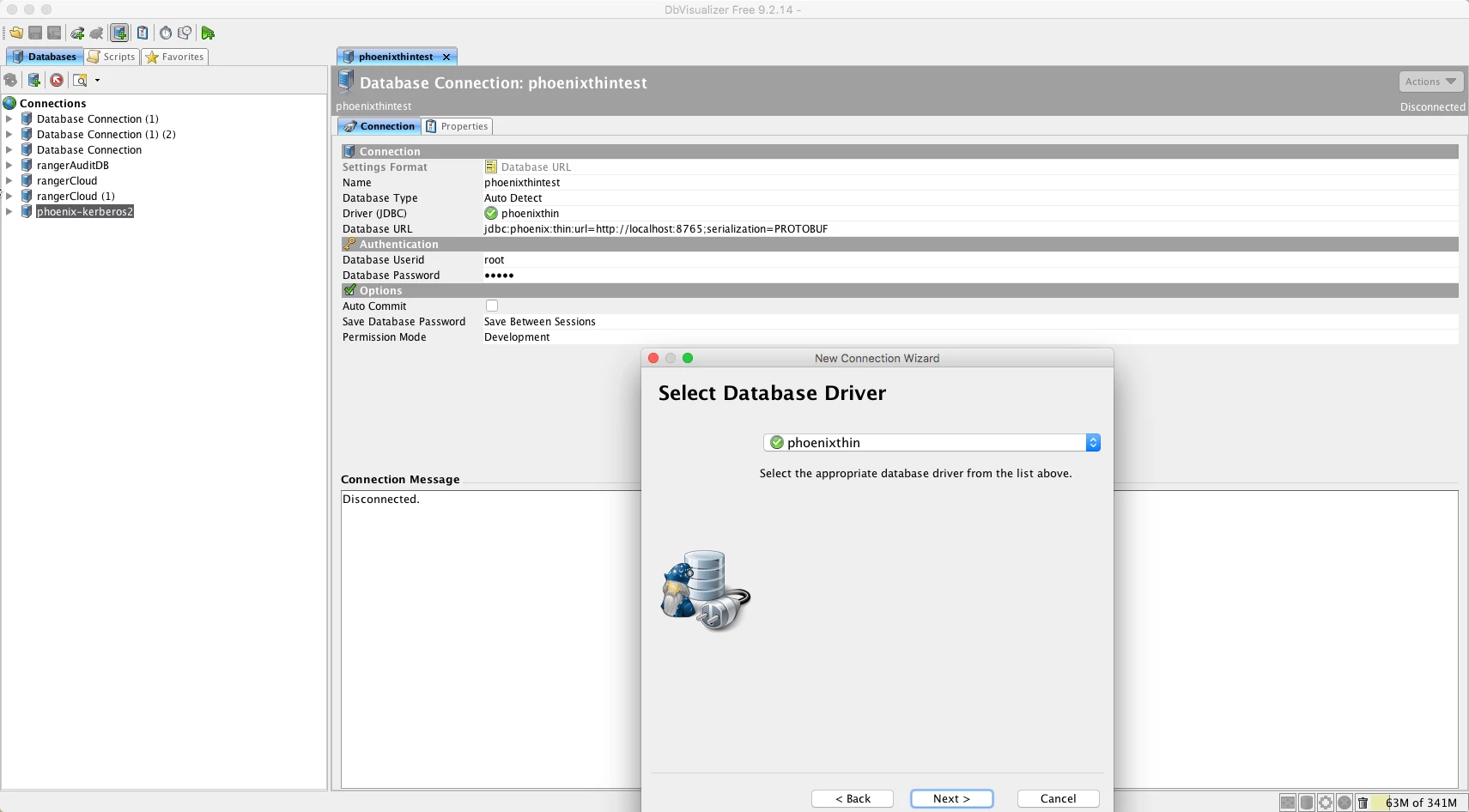
Next enter your userid & password. For this example I use the root user ID
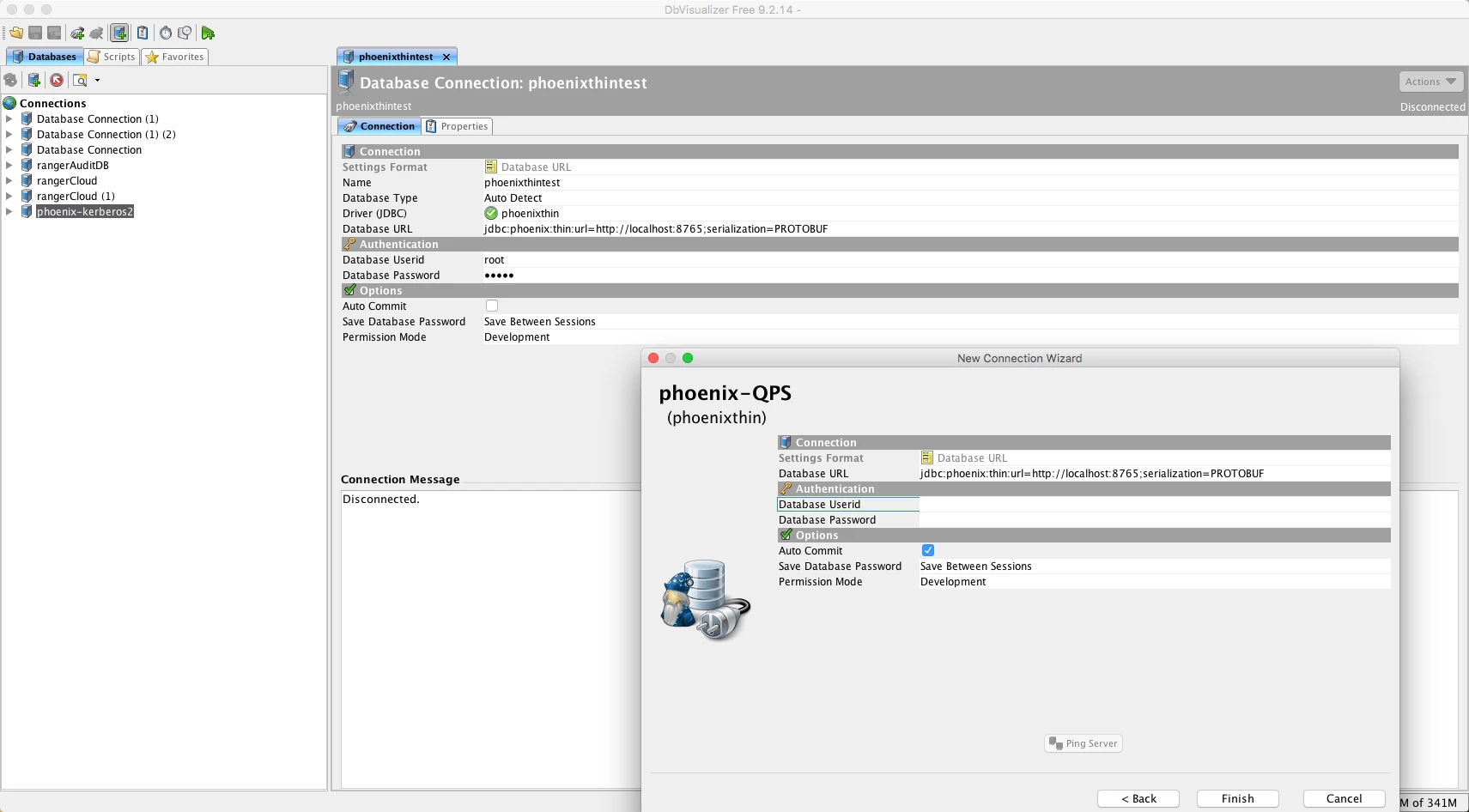
Now a data connection has been created. Lets connect to phoenix using that connection alias. Go to your connection alias shown on the left pane. Right click and select "Connect"
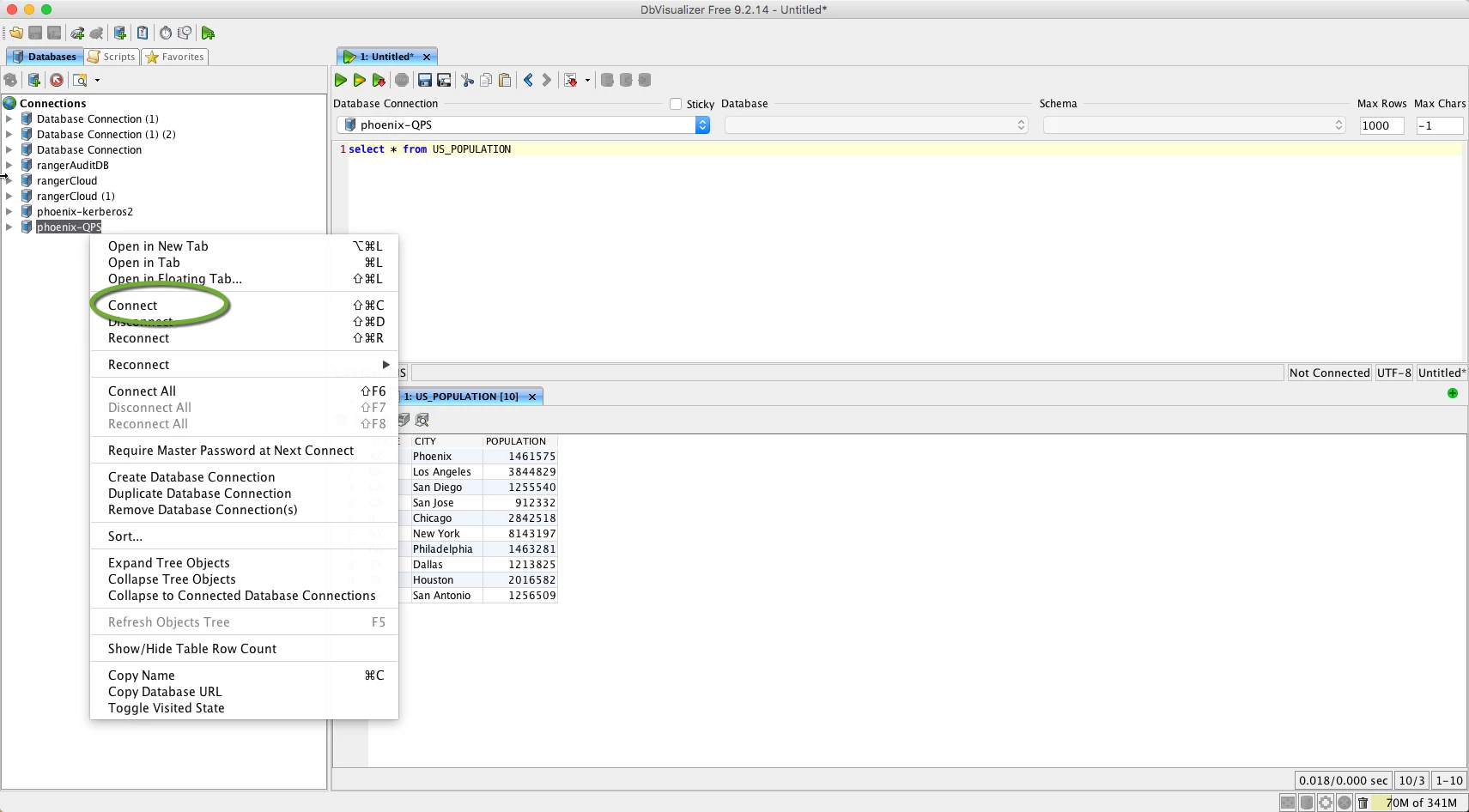
You are now connected! Start having fun and open up some name spaces. Select * from tables
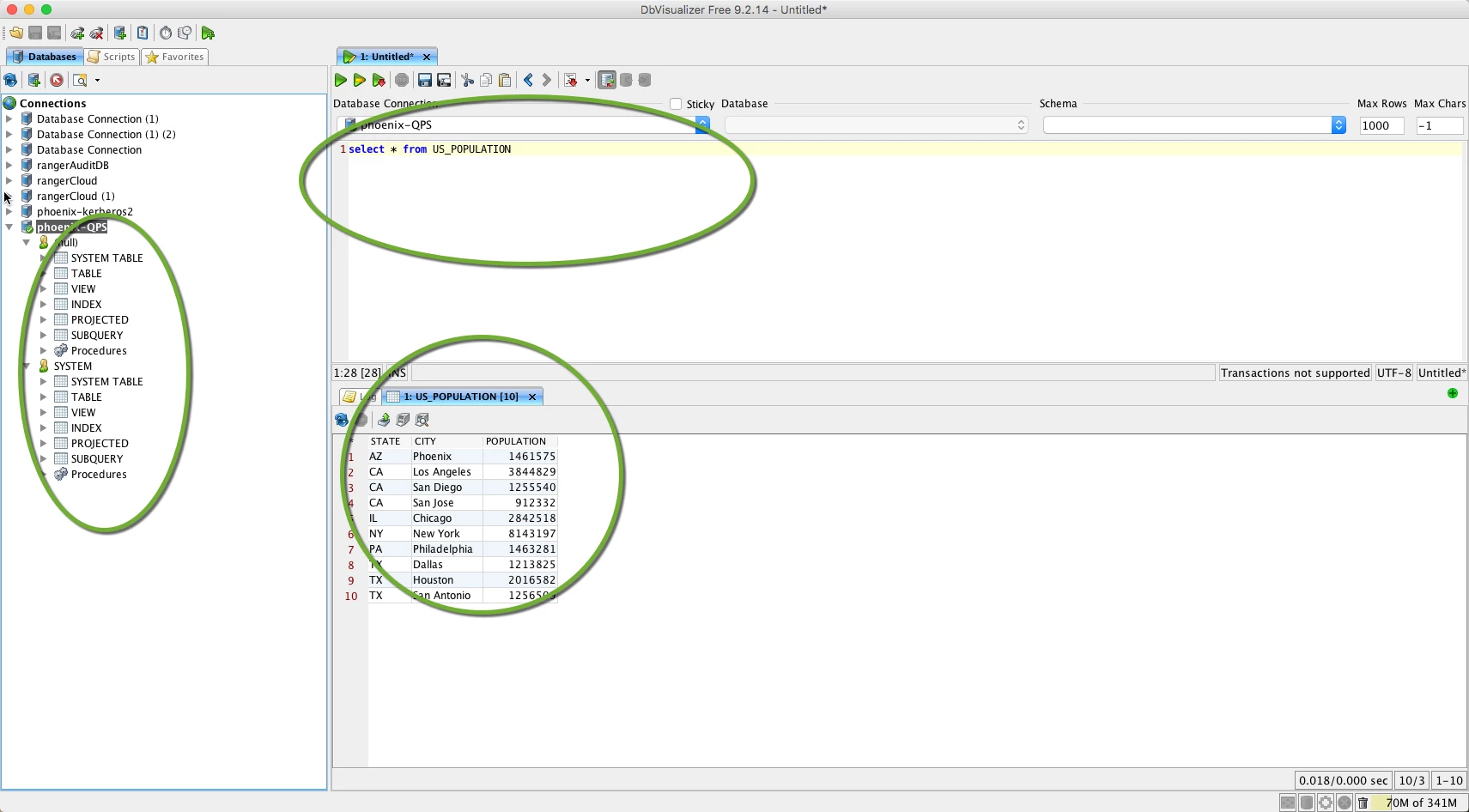
It is clear connecting to Phoenix is much easier now thanks to the community building Phoenix Query Server. Happy Phoenix-ing

