

External AWS Bucket Access in CDP Public Cloud
{
    "Version": "2012-10-17",
    "Statement": [
        {
            "Effect": "Allow",
            "Action": [
                "s3:CreateJob",
                "s3:GetAccountPublicAccessBlock",
                "s3:HeadBucket",
                "s3:ListJobs"
            ],
            "Resource": "*"
        },
        {
            "Sid": "AllowListingOfDataLakeFolder",
            "Effect": "Allow",
            "Action": [
                "s3:GetAccelerateConfiguration",
                "s3:GetAnalyticsConfiguration",
                "s3:GetBucketAcl",
                "s3:GetBucketCORS",
                "s3:GetBucketLocation",
                "s3:GetBucketLogging",
                "s3:GetBucketNotification",
                "s3:GetBucketPolicy",
                "s3:GetBucketPolicyStatus",
                "s3:GetBucketPublicAccessBlock",
                "s3:GetBucketRequestPayment",
                "s3:GetBucketTagging",
                "s3:GetBucketVersioning",
                "s3:GetBucketWebsite",
                "s3:GetEncryptionConfiguration",
                "s3:GetInventoryConfiguration",
                "s3:GetLifecycleConfiguration",
                "s3:GetMetricsConfiguration",
                "s3:GetObject",
                "s3:GetObjectAcl",
                "s3:GetObjectTagging",
                "s3:GetObjectVersion",
                "s3:GetObjectVersionAcl",
                "s3:GetObjectVersionTagging",
                "s3:GetReplicationConfiguration",
                "s3:ListBucket",
                "s3:ListBucketMultipartUploads",
                "s3:ListMultipartUploadParts",
                "s3:PutObject",
                "s3:PutObjectAcl"
            ],
            "Resource": [
                "arn:aws:s3:::commoncrawl",
                "arn:aws:s3:::commoncrawl/*"
            ]
        }
    ]
}
And attached it to a corresponding role: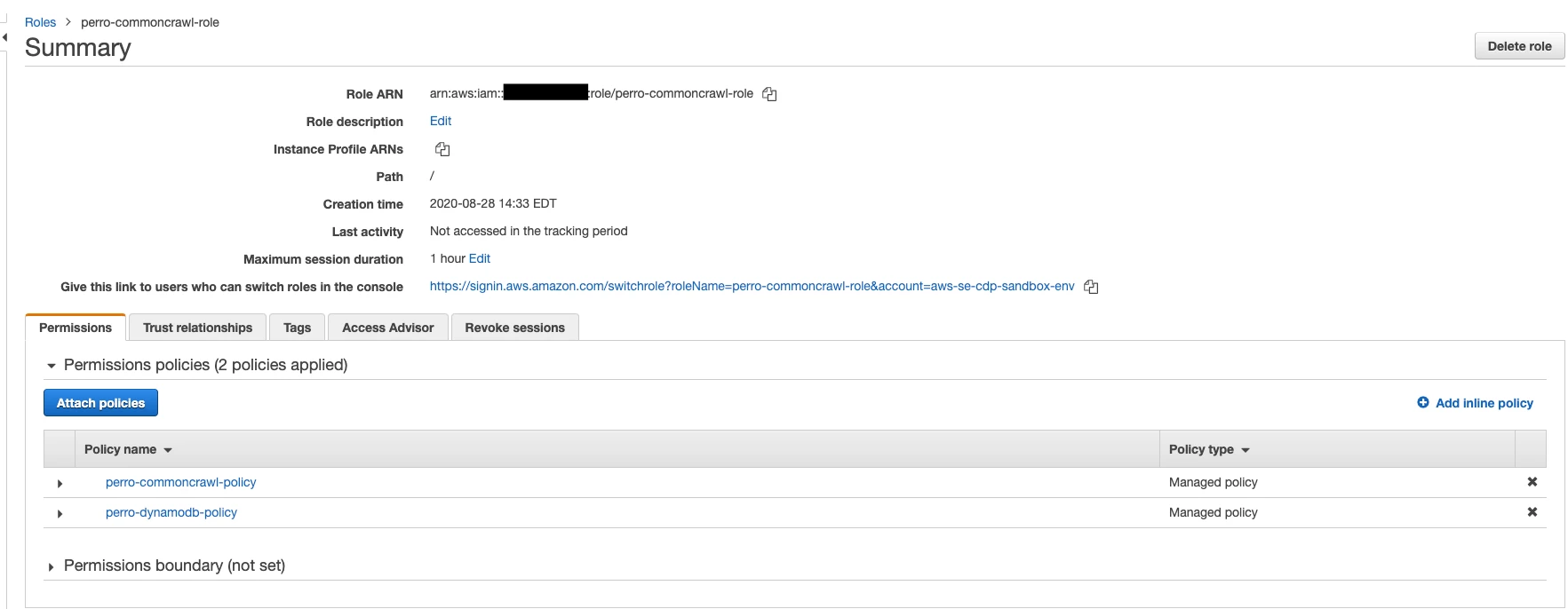
A few notes about this role:
- It's a role much like your "Datalake Admin Role", i.e. its trusted entity type is "Another AWS Account" where the account number is your account number.
I've attached the dynamodb policy here as well since my ultimate goal is to be able to interact with this bucket via the hdfs CLI (and that involves the use of s3Guard)No longer needed. S3Guard is no longer needed.- Here is the trust relationship (the same as your "Datalake Admin Role)
{
  "Version": "2012-10-17",
  "Statement": [
    {
      "Effect": "Allow",
      "Principal": {
        "AWS": "arn:aws:iam::<Your Acct Number>:role/<Your ID Broker Role>"
      },
      "Action": "sts:AssumeRole"
    }
  ]
}
Now, we can head back to CDP and update our IDBroker Mappings.
From your environment overview, click "Actions" and "Manage Access".
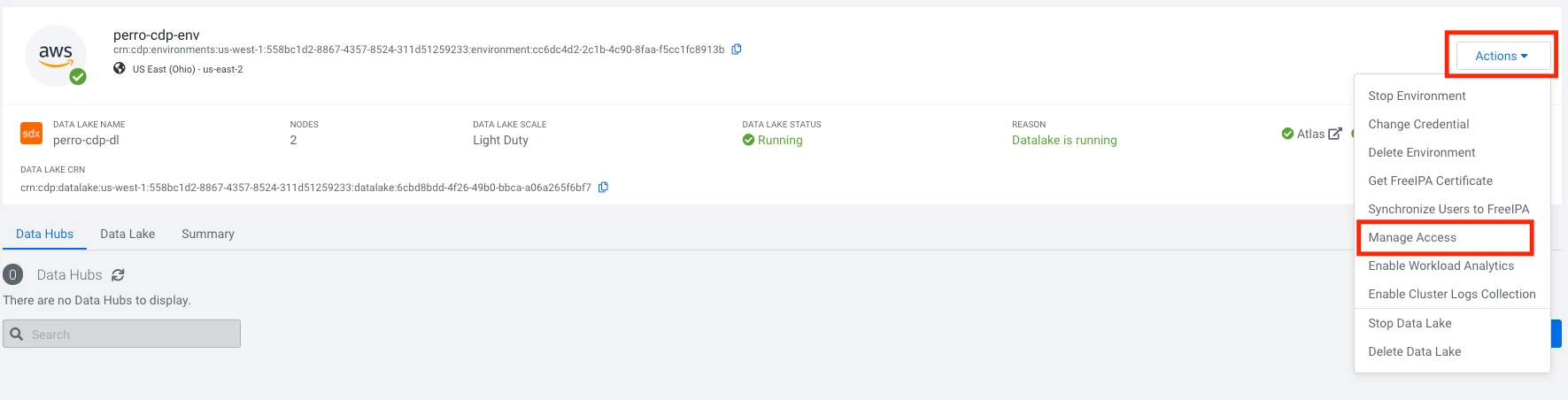 Click on "ID Broker Mappings" and then click "Edit"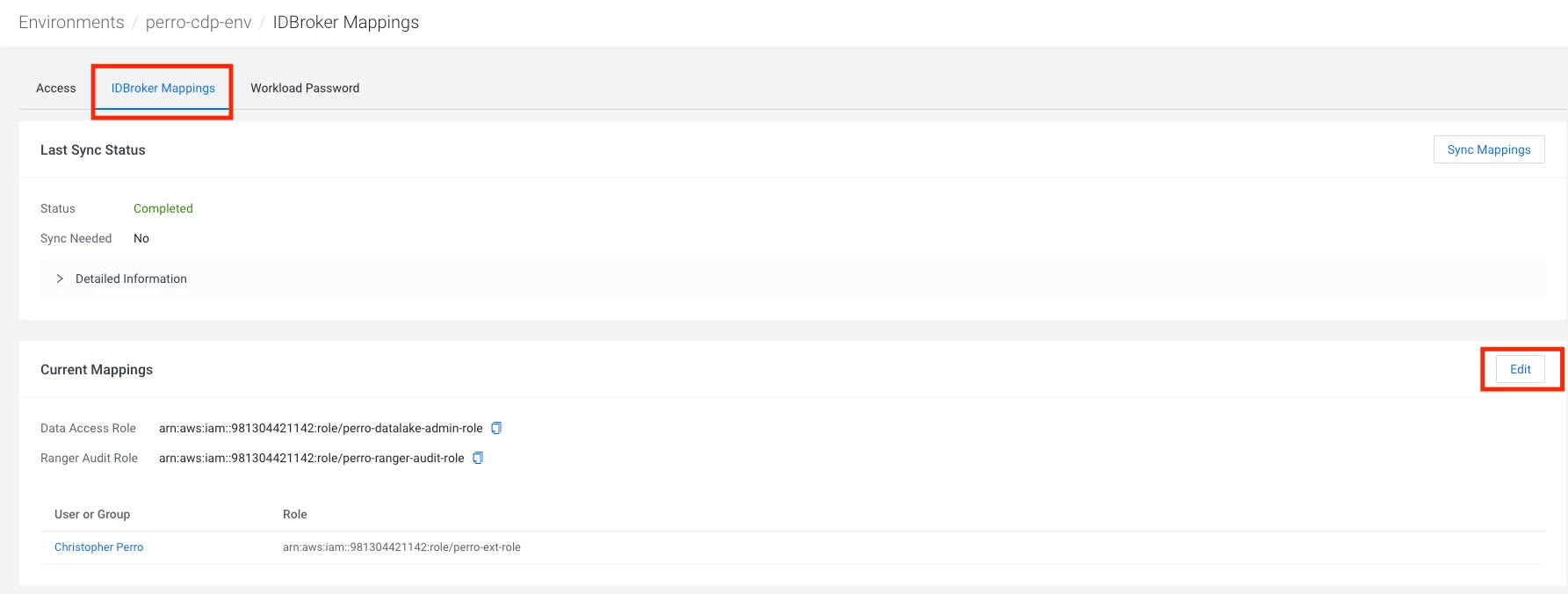
From here, you can add the user (or group) you'd like to give access to the bucket in question as well as the role we just created:
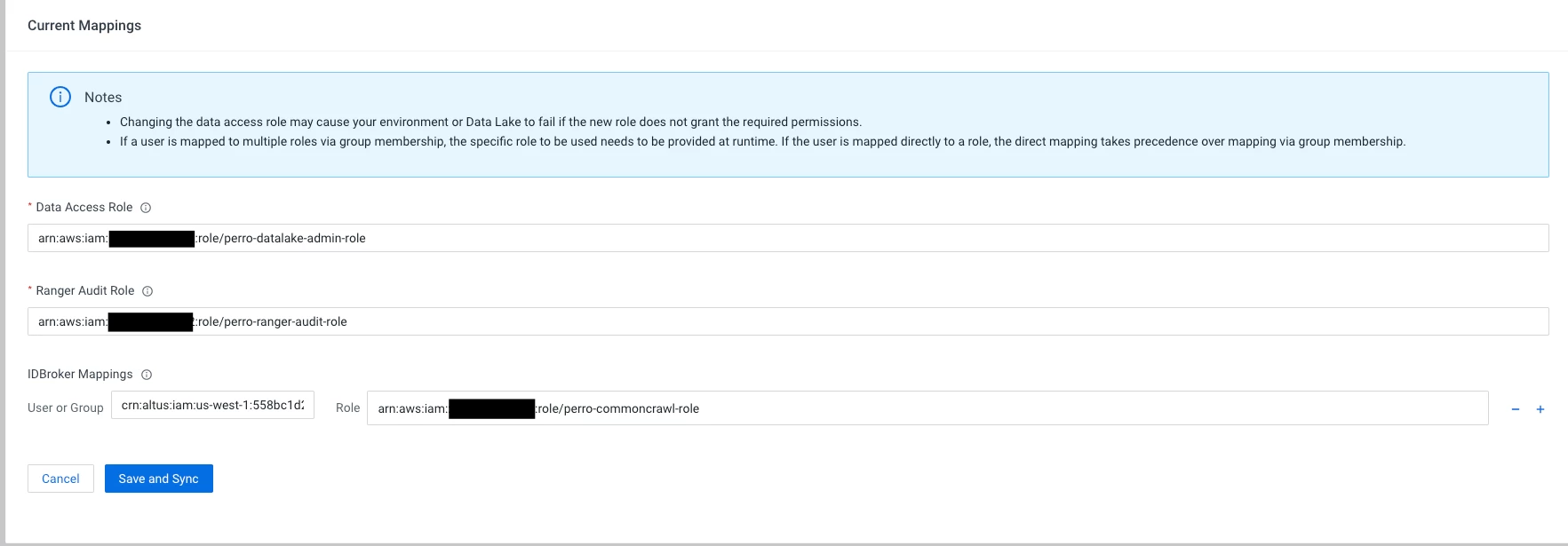
Click "Save & Sync" and you're good to go!
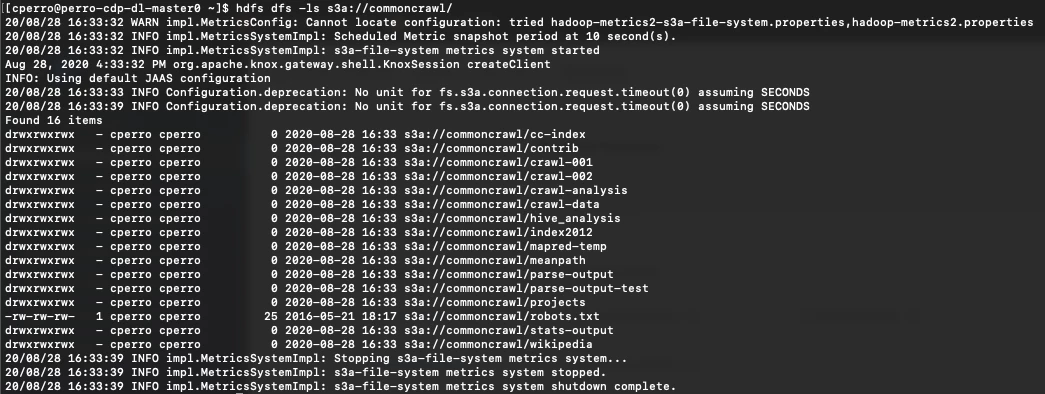
You can now interact with this bucket via the hdfs CLI (here's an example from my Data Lake "master" node)
Bucket in a Different Account
But what about a bucket that's in a different account, you say? The process is very similar...
(Thanks to Nathan Anthony (
Again, first, identify the bucket. I'll be using a bucket called "perro-ext" in an account that is different than the account that hosts my CDP environment. I will refer to the accounts as "CDP Account" and "External Account".
Next, create a policy (in the CDP Account) for accessing the bucket in the External Account:
{
    "Version": "2012-10-17",
    "Statement": [
        {
            "Effect": "Allow",
            "Action": [
                "s3:GetObject",
                "s3:PutObject",
                "s3:PutObjectAcl",
                "s3:ListBucket",
                "s3:ListBucketMultipartUploads",
                "s3:ListMultipartUploadParts",
                "s3:PutObject",
                "s3:PutObjectAcl"
            ],
            "Resource": [
                "arn:aws:s3:::perro-ext",
                "arn:aws:s3:::perro-ext/*"
            ]
        }
    ]
}
And attach it to a role in the same way as above: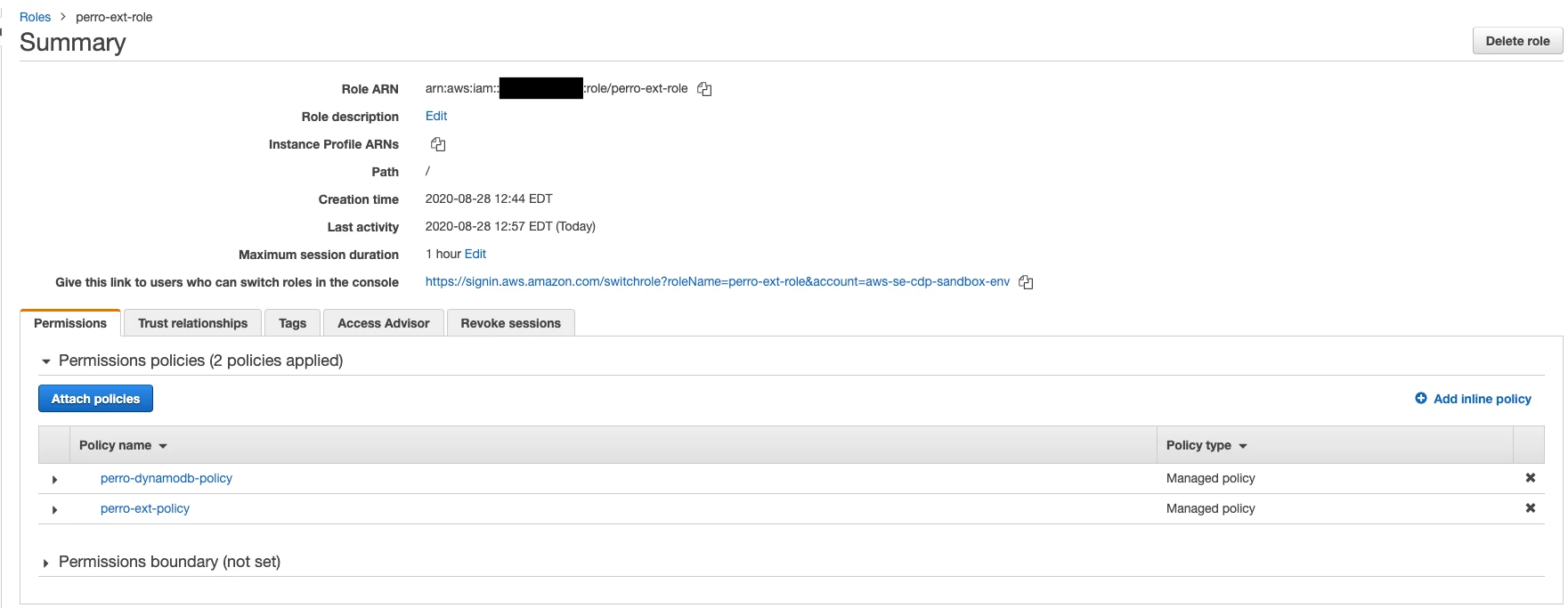
With the exact same trust policy as above:
{
  "Version": "2012-10-17",
  "Statement": [
    {
      "Effect": "Allow",
      "Principal": {
        "AWS": "arn:aws:iam::<CDP Account Number>:role/<Your ID Broker Role>"
      },
      "Action": "sts:AssumeRole"
    }
  ]
}
Here's where we briefly divert from the first scenario. We need to edit the Bucket Policy on the bucket in the External Account.
In the External Account, head to the bucket and click on "Permissions" and "Bucket Policy"
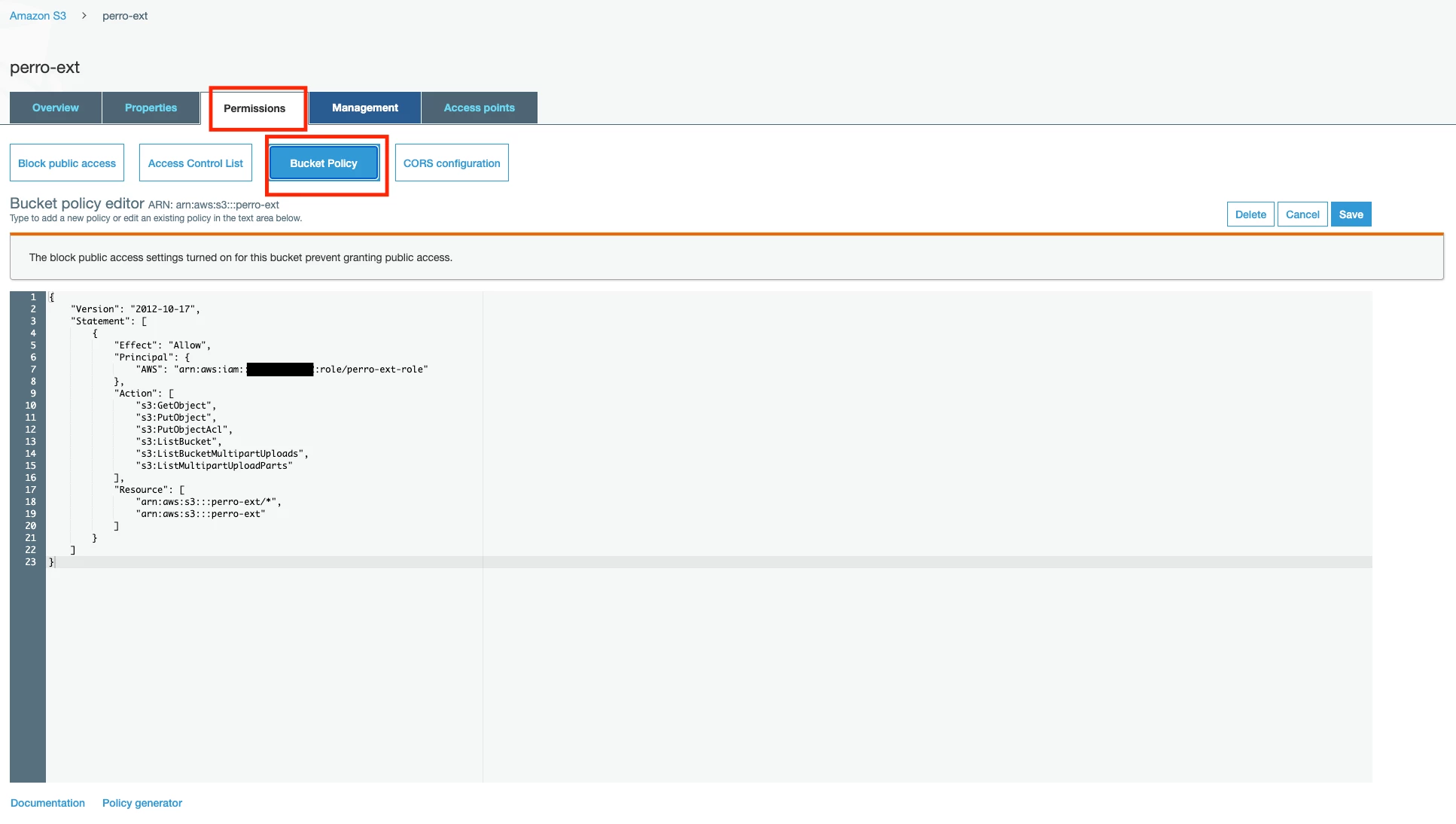
Here's the policy I used:
{
    "Version": "2012-10-17",
    "Statement": [
        {
            "Effect": "Allow",
            "Principal": {
                "AWS": "arn:aws:iam::<Your CDP Account>:role/<Your CDP Account Role>"
            },
            "Action": [
                "s3:GetObject",
                "s3:PutObject",
                "s3:PutObjectAcl",
                "s3:ListBucket",
                "s3:ListBucketMultipartUploads",
                "s3:ListMultipartUploadParts",
                "s3:GetBucketLocation"
            ],
            "Resource": [
                "arn:aws:s3:::perro-ext/*",
                "arn:aws:s3:::perro-ext"
            ]
        }
    ]
}
(The steps are loosely based on the first resolution method here).
Now we're back to the same steps as the method above. Head back to the ID Broker mappings tab in Manage Access under your Environment and add the role to the user or group of your choice:
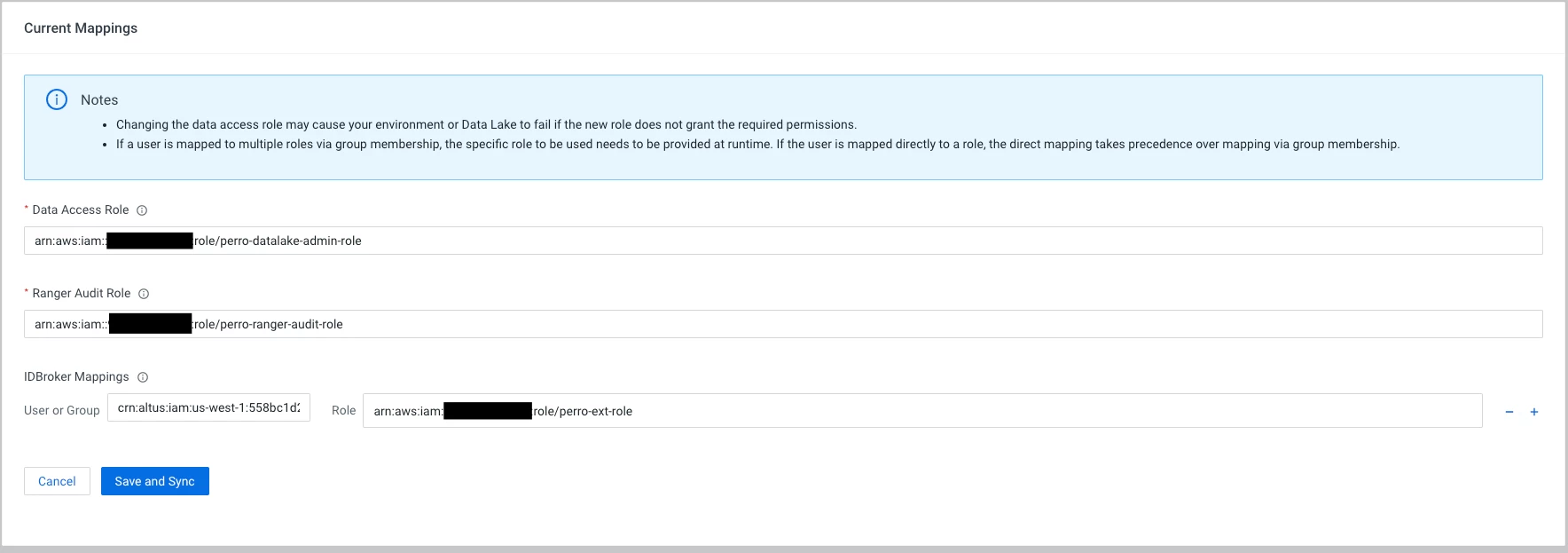
"Save and Sync" and now you can access the bucket in the "External Account" from the hdfs CLI:

But What About RAZ?
If you have RAZ enabled in your environment, the steps are largely the same, but you must add a policy to access the bucket in question to the RAZ role. The Bucket Policy (if reading/writing to a bucket in a different account) is the same.
And don't forget to update your cm_s3 ranger policies!
DISCLAIMER: This article is contributed by an external user. The steps may not be verified by Cloudera and may not be applicable for all use cases and may be very specific to a particular distribution. Please follow with caution and at your own risk. If needed, raise a support case to get confirmation.

