


HDF on HDI - NiFi
To begin you have 2 options.
1. Download the Apache NiFi package onto hn0 of your HDI cluster and start nifi using
"NIFIHOME"/bin/nifi.sh start
2. Install NiFi through Ambari
See this link for a walkthrough of getting the Ambari nifi installer loaded. : https://community.hortonworks.com/content/kbentry/1282/sample-hdfnifi-flow-to-push-tweets-into-solrbanana.html
To install Nifi, start the 'Install Wizard': Open Ambari then:
- On bottom left -> Actions -> Add service -> check NiFi server -> Next -> Next -> Change any config you like (e.g. install dir, port, setup_prebuilt or values in nifi.properties) -> Next -> Deploy. This will kick off the install which will run for 5-10min.
That will get you a NiFi instance on your Cluster hn0 and next you will want to set up your laptop to be able to connect to NiFi.
To do this you first need to set up an ssh tunnel into hn0.
Ex.
ssh -L
9000:localhost:22 user@example.azurehdinsight.net
this will route all traffic from localhost 9000 into Azure and also encrypt it.
next go to your network settings.
click Proxy Setting Tab
Create new proxy
(server) localhost (port) 9000
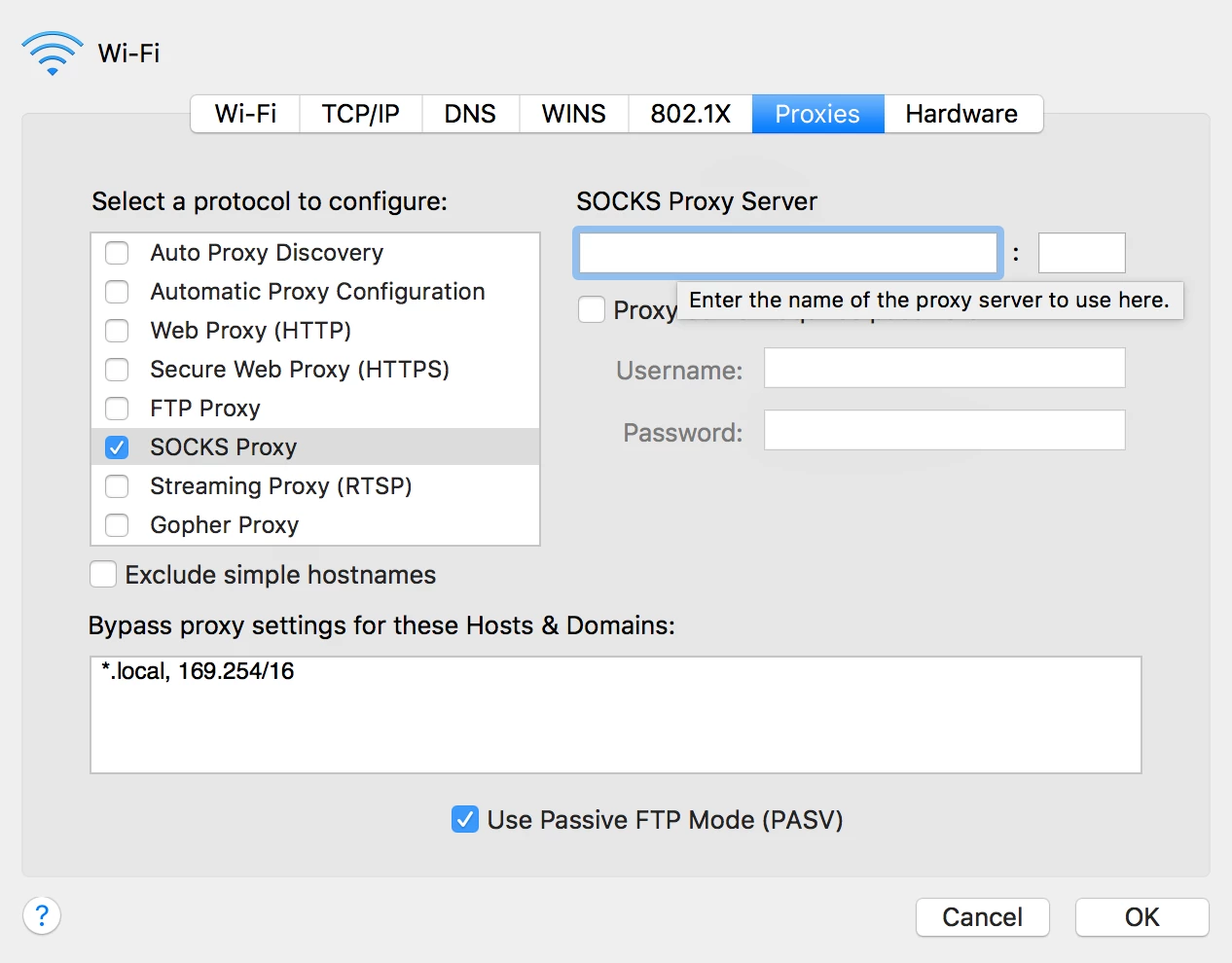
Now from your browser navigate to
http://hn0-"serveraddress".com:8080/nifi
* Of course substitute the proper "serveraddress".
From here you can begin building workflows and ingesting data into HDI.
If you wish to write to HDFS on your HDI cluster you will need to also update some library files in NiFi in order to use WASB.
https://github.com/jfrazee/nifi/releases/tag/v0.6.x
Verify that the checksum is correct and replace the following two files in your $NIFI_HOME/lib directory.
62f1261b837f3b92f4ee1decc708494c
        ./nifi-hadoop-libraries-nar-0.6.1.nar

efdb9941185100c1a2432f408b9db187
        ./nifi-hadoop-nar-0.6.1.nar
And if the head node has unzip, check that
unzip -t
.//nifi-assembly/target/nifi-0.6.1-bin/nifi-0.6.1/lib/nifi-hadoop-nar-0.6.1.nar
| grep -i azure
returns:
testing:
META-INF/bundled-dependencies/azure-storage-2.0.0.jar  OKtesting:
META-INF/bundled-dependencies/hadoop-azure-2.7.2.jar  OK
Now inside of your PutHDFS processor you will need to point to the location of your hdfs-site.xml and core-site.xml files (Full Path) and also the directory you wish to write in.
Tutorials on what to do next can be found all over HCC.
Try importing Twitter data by following along with this tutorial : Twitter Ingest Tutorial

