
How to configure networks on the VirtualBox HDP 2.6 Sandbox
NOTE: This issue was found in the HDF Sandbox. A new Sandbox will be posted soon. Until then, please use the instructions below.
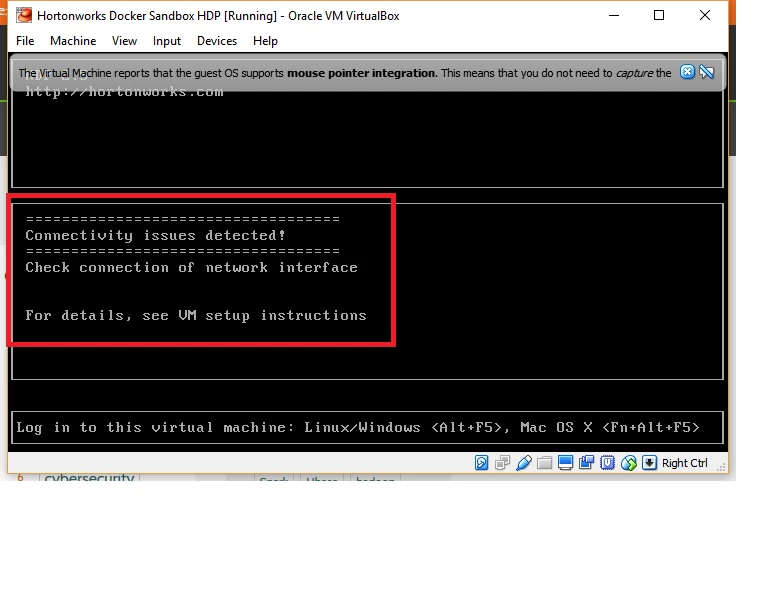
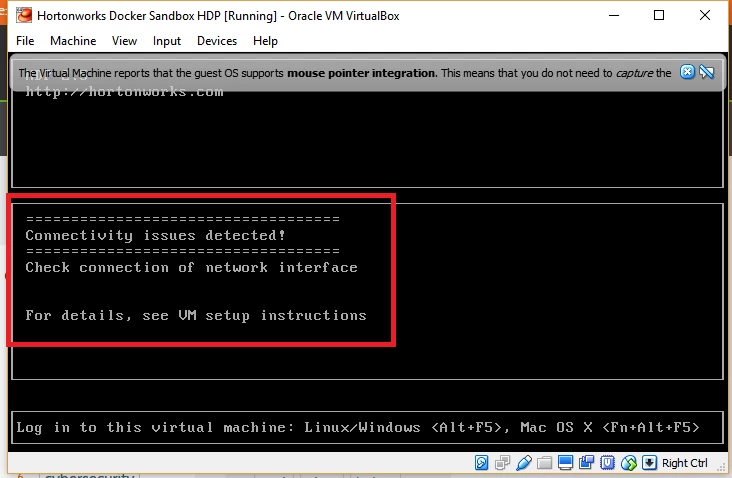
After importing the HDP 2.6 Sandbox hosted in Oracle VirtualBox and starting the VM, I saw the message "Connectivity issues detected!" in the console and when I tried to connect to Ambari in the web browser, I was not able to connect.
To correct the connectivity:
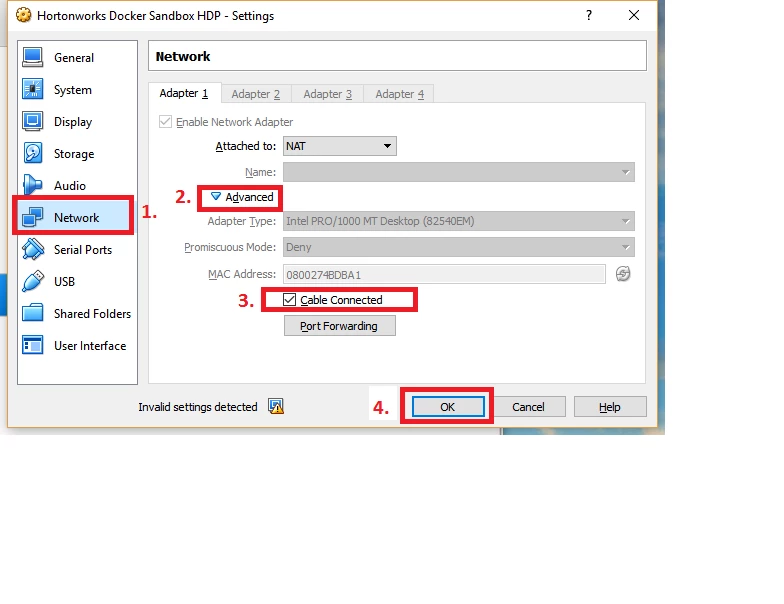
1. Go to the Oracle VM VirtualBox Manager. Select the sandbox virtual machine. Right click and select Close > Power off to shut down the VM.
2. Right click on the sandbox virtual machine and select Setting. The VM Settings dialog displays.
3. Click on Network from the list on the left side of the dialog.
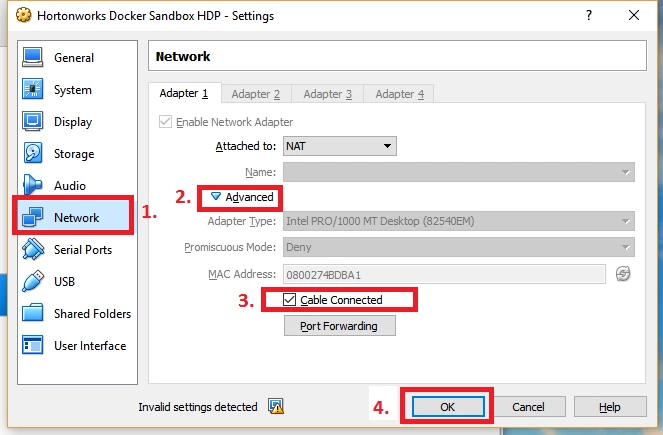
4. Click on Advanced to unfold the Advanced network settings.
5. Check Cable Connected.
6. Click OK to save the setting.
7. Restart the VM.
8. You should now be able to connect to Ambari by entering the url http://127.0.0.1:8080 in your browser.