


How to configure SmartSense Gateway to upload bundles
There are 4 options available for SmartSense Server to upload bundles to Hortonworks Datalake, depending on the
HDP environment and customer preference. Below are more details about each options and how to configure the same.
Option 1: Direct Connection from SmartSense Server
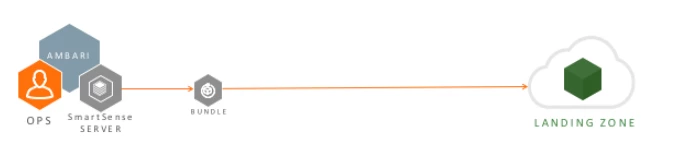
SmartSense Server (with embedded Gateway in 1.3.0 and above) having direct connection to Hortonworks Datalake.
No additional configurations needed. SmartSense is preconfigured to connect to Datalake via HTTPS protocol
Option 2: Dedicated Gateway Server with direct connection
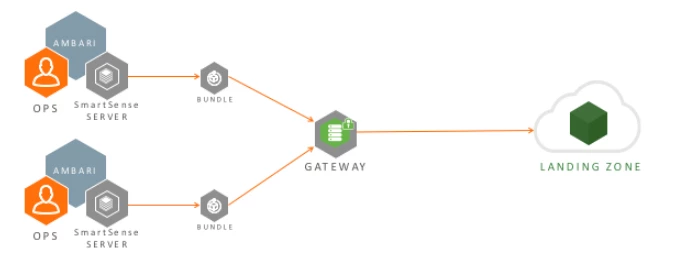
When using SmartSense version earlier to 1.3.0, we need a gateway host to be configured to upload bundles.
Also in an SmartSense 1.3.0 environment with multiple HDP clusters running, they can be configured to share
a dedicated Gateway Server to upload the bundles. If needed the Gateway Server can be located in DMZ area as well.
Step 1: Install / Configure SmartSense Gateway Software.
To install and configure SmartSense Gateway Software on the Dedicated Gateway Server use the procedures from below links, corresponding to the SmartSense version used.
SmartSense 1.2.0 :
SmartSense 1.3.0 :
Step 2: Configure SmartSense Server to use the Dedicated Gateway Host
Use the below links to configure SmartSense Server, corresponding to versions
SmartSense 1.2.0:
SmartSense 1.3.0 :
Option 3: Embedded Gateway Server via Proxy
When the SmartSense Server with Embedded Gateway doesn't have direct connection to Internet, it can be configured
to use an existing HTTP / HTTPS Proxy server to reach Hortonworks Datalake Server.
Configure /etc/hst/conf/gateway.ini file on the SmartSense Server host as below.
; All proxy configurations are applicable only for HTTPS provider type
; set to true to set up a proxy between gateway and SmartSense environment
provider.https.proxy.enabled=true
; fully qualified proxy hostname
provider.https.proxy.hostname= mysquid.mydomain.com
; proxy port that will be used by gateway for outbound access
provider.https.proxy.port= 3128
; supported proxy types : HTTP / HTTPS [default:HTTP]
provider.https.proxy.type=HTTP
; supported proxy authentication types : NONE / BASIC / DIGEST [default:NONE]
provider.https.proxy.auth.type= NONE
; proxy username for identified auth.type
provider.https.proxy.auth.username= <proxy_user_name_if_needed>
; proxy password for identified auth.type
provider.https.proxy.auth.password= <proxy_user_password>
; [optional] any additional proxy setup parameters
; use "|" to separate multiple parameters
; for example: digest requires parameters such as
; realm=default|nonce=12GHtqeZA!7Ke43
provider.https.proxy.auth.parameters=
Also add the following parameter under [gateway] section
[gateway]
start.validation.enabled=false
Option 4: Dedicated Gateway Server via Proxy
When the Dedicated Gateway Server doesn't have direct connection to Internet, it can configured to
use an existing HTTP / HTTPS Proxy server to reach Hortonworks Datalake server.
Configure /etc/hst/conf/gateway.ini file on the Gateway host as below.
; All proxy configurations are applicable only for HTTPS provider type
; set to true to set up a proxy between gateway and SmartSense environment
provider.https.proxy.enabled=true
; fully qualified proxy hostname
provider.https.proxy.hostname= mysquid.mydomain.com
; proxy port that will be used by gateway for outbound access
provider.https.proxy.port= 3128
; supported proxy types : HTTP / HTTPS [default:HTTP]
provider.https.proxy.type=HTTP
; supported proxy authentication types : NONE / BASIC / DIGEST [default:NONE]
provider.https.proxy.auth.type= NONE
; proxy username for identified auth.type
provider.https.proxy.auth.username= <proxy_user_name_if_needed>
; proxy password for identified auth.type
provider.https.proxy.auth.password= <proxy_user_password>
; [optional] any additional proxy setup parameters
; use "|" to separate multiple parameters
; for example: digest requires parameters such as
; realm=default|nonce=12GHtqeZA!7Ke43
provider.https.proxy.auth.parameters=
Also add the following parameter under [gateway] section
[gateway]
start.validation.enabled=false
Notes:

1. From SmartSense 1.3.0, SmartSense Gateway uses HTTPS protocol by default. Earlier versions used SFTP protocol.

2. For configuring HTTPS Proxy with HST Gateway, please contact Hortonworks Support to import the Proxy servers SSL certificate.

