


How to configure Zeppelin for Active Directory user authentication
This article applies to HDP 2.5.x and below. For HDP 2.6, please check new article.
Zeppelin can be configured to leverage an organization's Active Directory infrastructure for user authentication. By doing this, the existing Active Directory users can login to Zeppelin UI using their Active Directory credentials. This article discuss how to configure this kind of setup.
Environment Setup:
HDP 2.5 cluster / Sandbox
- I'm using HDP 2.5 Sandbox on VirtualBox. Get one from here !
Ambari 2.4+
- I'm using Ambari 2.4.0.0 which comes with HDP 2.5 Sandbox
'Zeppelin Notebook' Service installed in Ambari
- With HDP 2.5 Sandbox, it will be Zeppelin version 0.6.0
- If you don't have Zeppelin installed, it can be installed via 'Add Service' option in Ambari
Active Directory
- I'm using Active Directory 2012 R2 version
- Make sure that you have 'working' Active Directory details handy like URI, bind DN/password, search base etc.
Configuration Steps:
1. From Ambari Dashboard, navigate to Zeppelin Notebook > Configs > Advanced zeppelin-config section.
2. Locate & set property "zeppelin.anonymous.allowed=false". By default, this is set to true so that any user can login to Zeppelin UI as anonymous user.
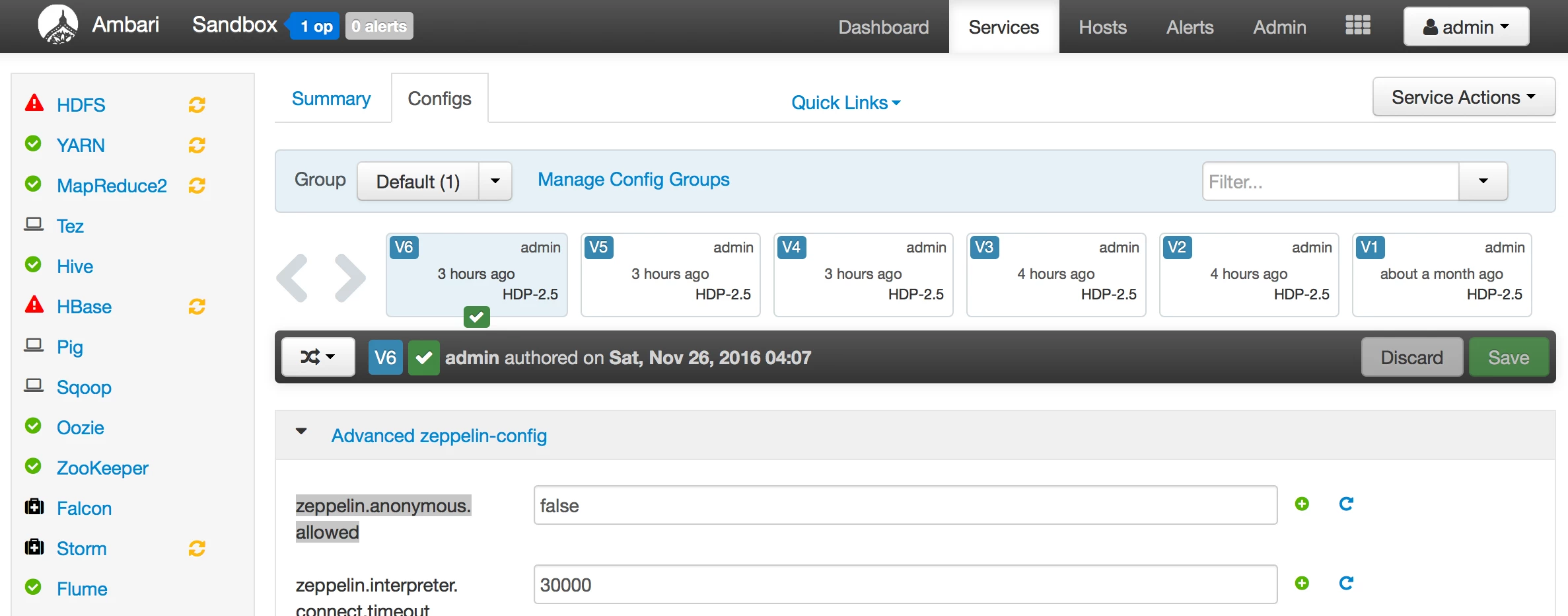
3. On the same Ambari page, navigate to next section called "Advanced zeppelin-env".
4. Locate a property called "shiro_ini_content". It contains an Apache Shiro configuration which Zeppelin uses to perform LDAP/AD authentication and authorization. Make the following changes to configure Zeppelin for Active Directory:
- Add following Active Directory related information in the [main] section -
activeDirectoryRealm = org.apache.zeppelin.server.ActiveDirectoryGroupRealm
activeDirectoryRealm.systemUsername = cn=ldap-reader,ou=ServiceUsers,dc=lab,dc=hortonworks,dc=net
activeDirectoryRealm.systemPassword = badPassword
#activeDirectoryRealm.hadoopSecurityCredentialPath = jceks://file/etc/zeppelin/conf/zeppelin.jceks
activeDirectoryRealm.searchBase = dc=lab,dc=hortonworks,dc=net
activeDirectoryRealm.url = ldap://ad.example.net:389
activeDirectoryRealm.authorizationCachingEnabled = false
- Tip: For the above section, any working Shiro configuration would work (For example, Shiro configuration used by Knox). If you have a working Knox configuration, you can consider referring that here.
Another working Shiro configuration could be:
contextFactory = org.apache.shiro.realm.ldap.JndiLdapContextFactory
contextFactory.url = ldap://ad.example.net:389
contextFactory.systemUsername = cn=ldap-reader,ou=ServiceUsers,dc=lab,dc=hortonworks,dc=net
contextFactory.systemPassword = badPassword
contextFactory.authenticationMechanism = SIMPLE
activeDirectoryRealm = org.apache.shiro.realm.activedirectory.ActiveDirectoryRealm
activeDirectoryRealm.ldapContextFactory = $contextFactory
activeDirectoryRealm.searchBase = dc=lab,dc=hortonworks,dc=net - Uncomment sessionManager lines and add "securityManager.realms" line.
sessionManager = org.apache.shiro.web.session.mgt.DefaultWebSessionManager
securityManager.sessionManager = $sessionManager
securityManager.realms = $activeDirectoryRealm
- Under [urls] section, comment out "/** = anon" line and un-comment "/** = authc" line.
The final shiro_ini_content should look like this:
[users]
# List of users with their password allowed to access Zeppelin.
# To use a different strategy (LDAP / Database / ...) check the shiro doc at http://shiro.apache.org/configuration.html#Configuration-INISections
#admin = password1
#user1 = password2, role1, role2
#user2 = password3, role3
#user3 = password4, role2
# Sample LDAP configuration, for user Authentication, currently tested for single Realm
[main]
activeDirectoryRealm = org.apache.zeppelin.server.ActiveDirectoryGroupRealm
activeDirectoryRealm.systemUsername = cn=ldap-reader,ou=ServiceUsers,dc=lab,dc=hortonworks,dc=net
activeDirectoryRealm.systemPassword = badPassword
#activeDirectoryRealm.hadoopSecurityCredentialPath = jceks://user/zeppelin/conf/zeppelin.jceks
activeDirectoryRealm.searchBase = dc=lab,dc=hortonworks,dc=net
activeDirectoryRealm.url = ldap://ad.example.net:389
activeDirectoryRealm.authorizationCachingEnabled = false
sessionManager = org.apache.shiro.web.session.mgt.DefaultWebSessionManager
securityManager.sessionManager = $sessionManager
securityManager.realms = $activeDirectoryRealm
# 86,400,000 milliseconds = 24 hour
securityManager.sessionManager.globalSessionTimeout = 86400000
shiro.loginUrl = /api/login
[urls]
# anon means the access is anonymous.
# authcBasic means Basic Auth Security
# To enfore security, comment the line below and uncomment the next one
/api/version = anon
#/** = anon
/** = authc
5. Save the configuration changes and restart Zeppelin Notebook service.
6. If something goes wrong, check Troubleshooting section at the end.
Test the configuration:
1. Once Zeppelin service is restarted, open the Zeppelin UI in a new browser tab by typing http://zeppelin-hostname:9995. Since I'm using HDP 2.5 Sandbox, for me it is http://127.0.0.1:9995
2. Click on "Login" button in the top right corner.
3. Specify any valid Active Directory username and password in the Login window. Make sure to provide the fully qualified user name like "ad-username@AD.DOMAIN.COM", a short username like "ad-username" will give an error (check next section).
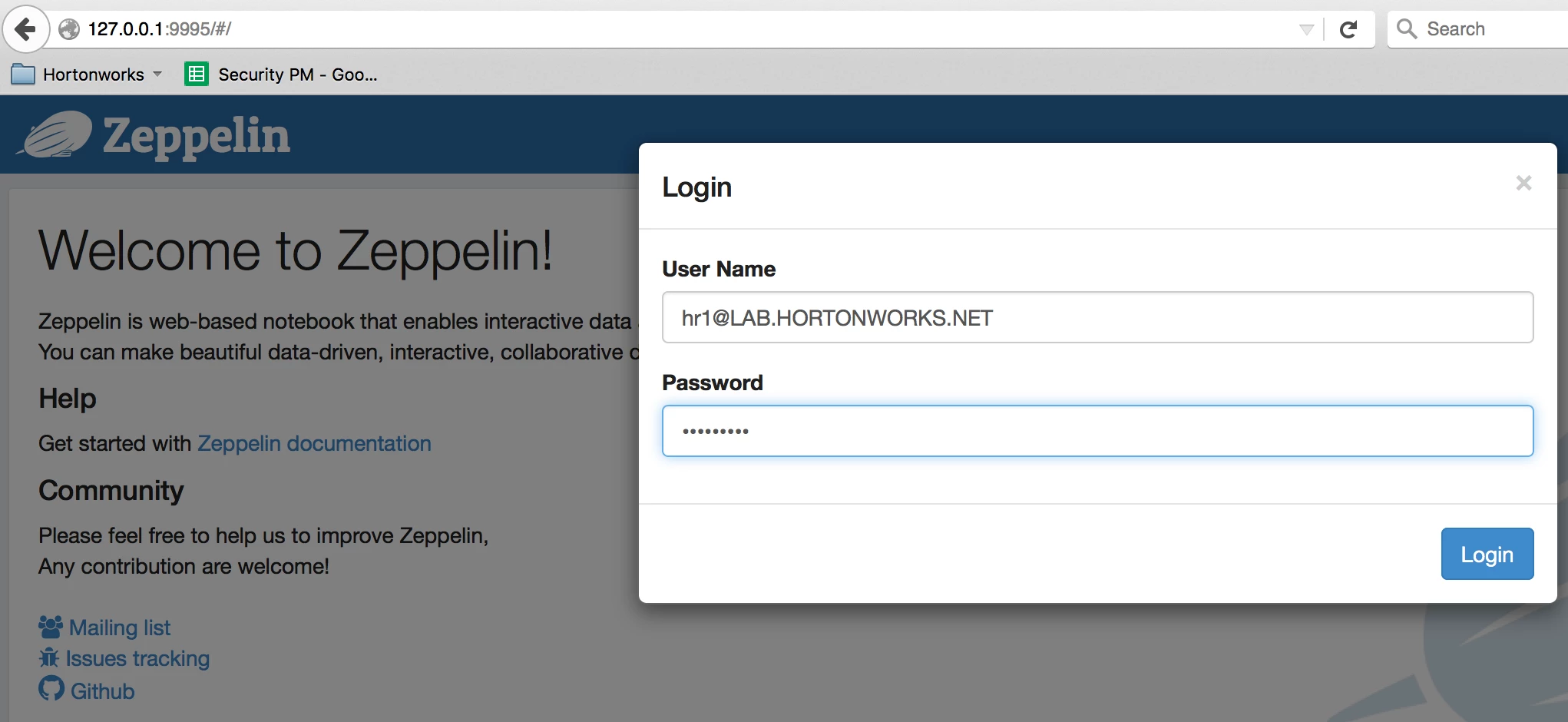
If everything goes fine, user will be able to login using their Active Directory credentials. At the same time, the log file will show a success message like this:
WARN [2016-11-26 01:06:27,563] ({qtp627185331-13 - /api/login} LoginRestApi.java[postLogin]:111) - {"status":"OK","message":"","body":{"principal":"hr1@EXAMPLE.NET","ticket":"cc231146-293a-4f5e-8045-aea4b0fea37a","roles":"[]"}}
Troubleshooting:
In case of any error during service restart after configuration changes, most probably it will be due to incorrect / incomplete configuration. Zeppelin log file can be found at /var/log/zeppelin/zeppelin-zeppelin-sandbox.hortonworks.com.log location on the Zeppelin host. Please check log file for error(s).
Common Issues & Resolution:
1. Incorrect Realm class name
- Upon restart, Zeppelin service will die and while there will be no logs in /var/log/zeppelin/zeppelin-zeppelin-sandbox.hortonworks.com.log, but the /var/log/zeppelin/zeppelin-zeppelin-sandbox.hortonworks.com.out will have an error saying ClassNotFoundException for Realm class.
- Make sure that Realm class name is spelled correctly. Valid realm class names are:
org.apache.zeppelin.server.ActiveDirectoryGroupRealm
org.apache.shiro.realm.activedirectory.ActiveDirectoryRealm
Please note that based on the Realm class used, the Shiro configuration properties might change slightly. So check the relevant documentation before using.
2. "The username and password that you entered don't match."
- At the time of login, if user get this message in UI then check the log file. If it has a line,
"Caused by: javax.naming.AuthenticationException: [LDAP: error code 49 - 80090308: LdapErr: DSID-0C0903C8, comment: AcceptSecurityContext error, data 52e, v2580^@]"
This means that username or password specified at Login window is not correct. Make sure to use the fully qualified username with domain name and right password.

