


How to deploy an R script/model in CML that interacts with DataViz (Visuals/Graphs/Charts)
Shaun goes into great depth on all the capabilities of CML and DataViz in this blog, using a Python model or script. Here, I'll write the script in R instead of the sample Python script Shaun shares.
There is no need to have an R script with predictive model capabilities. While an R script with predictive model capabilities is an option, I'll demonstrate deploying a simple R script in CML that adds two columns together.
Step 1: Write your R script
As explained above, this script adds two columns together (assuming both columns are of type integer). Within DataViz, we'll pass two columns (of type integer). The cml_model wrapper is necessary with the PBJ runtime, as explained here.
- Notice the "json" is what we'll be returning to DataViz, where we expect the "numbers_added" column
- input[1] and input[2] are representing the two integer columns being passed
library(cml)


add_numbers <- cml_model(function(args) {
    json <-
'{
    "data": {
        "colnames": [
            "numbers_added","tester"
        ],
        "coltypes": [
            "INT","STRING"
        ],
        "rows": [
        ]
    }
}
'

  mydf <- fromJSON(json)

  for(row in 1:nrow(args$data$rows)) {
        inputs = args$data$rows[row,]
        together <- matrix(list(inputs[1]+inputs[2]))
        mydf$data$rows <- rbind(mydf$data$rows, together)

  }

  mode(mydf$data$rows) <- "integer"

  return(mydf)


    })
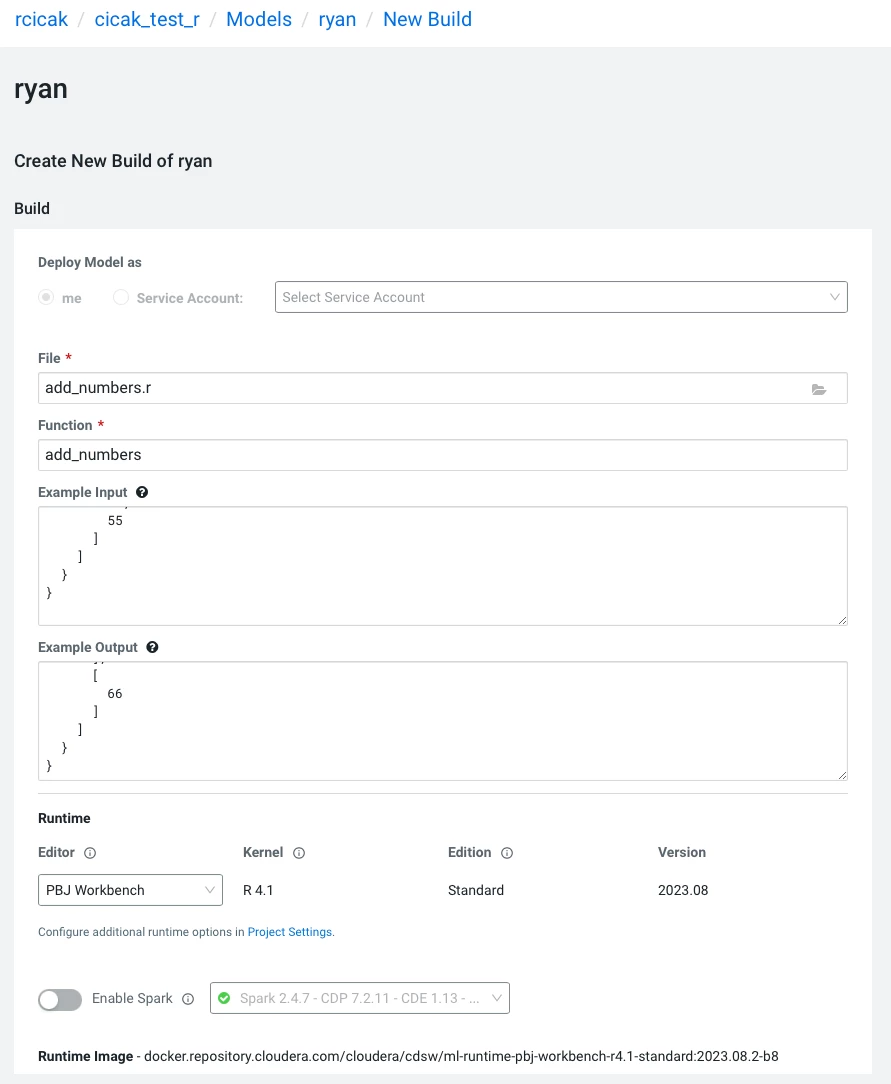
Step 2: Deploy your R script as a Model in CML
- Notice PBJ as the runtime
Step 3: Testing your deployed R script/model via CML and/or Postman
- Below is the JSON input and output:
{
  "data": {
    "colnames": [
      "week",
      "depttime"
    ],
    "rows": [
      [
        1,
        7
      ],
      [
        2,
        8
      ],
      [
        11,
        55
      ]
    ]
  }
}
output:
{
    "data": {
        "colnames": [
            "numbers_added",
            "tester"
        ],
        "coltypes": [
            "INT",
            "STRING"
        ],
        "rows": [
            [
                8
            ],
            [
                10
            ],
            [
                66
            ]
        ]
    }
}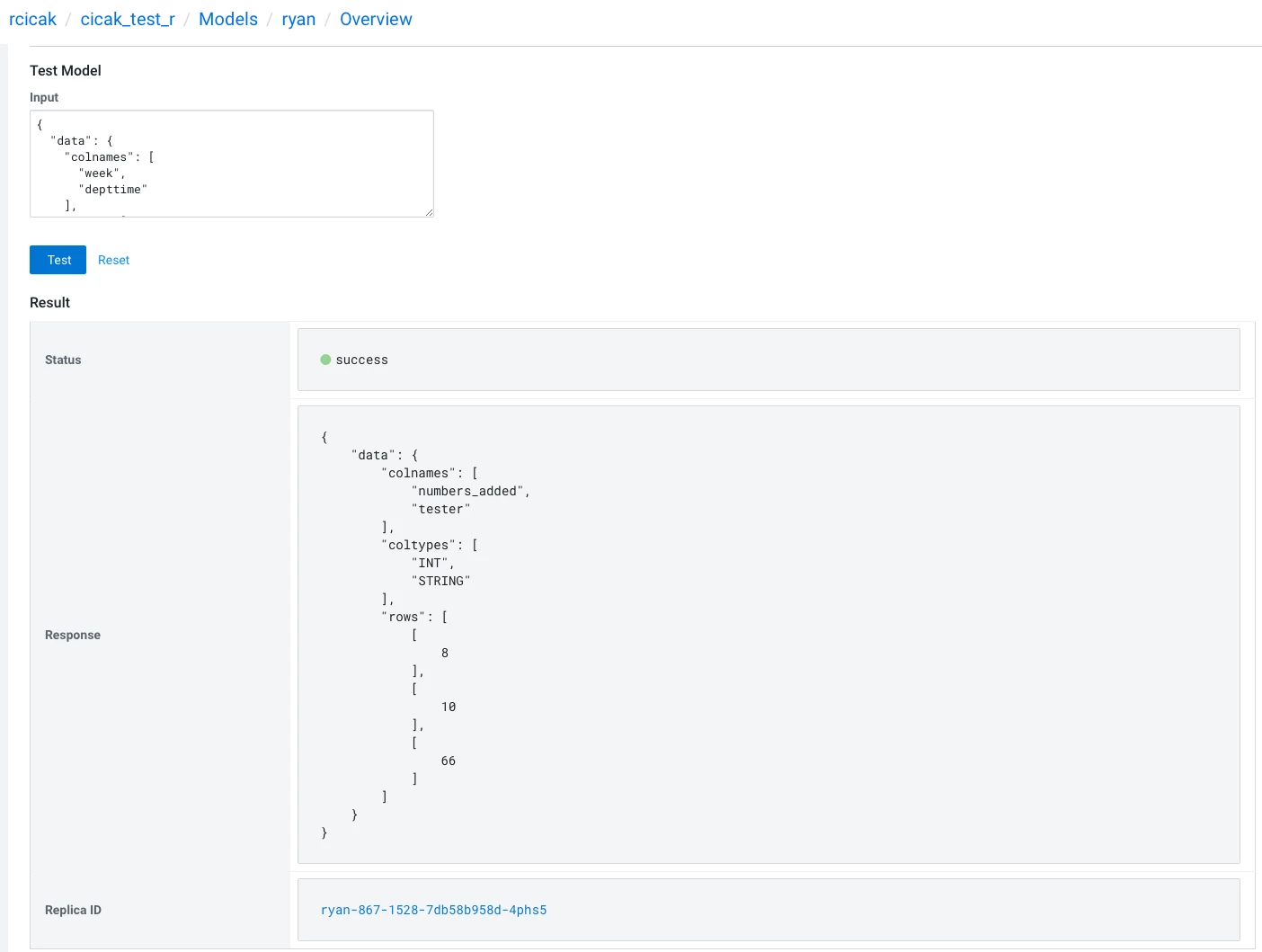
*The second column "tester" is required from DataViz (where you need more than one column returned)
Step 4: Build a Dataset in DataViz using your deployed model
- Using my deployed model's URL and key, I'll plug this into the built-in function within DataViz, passing two columns:
https://modelservice.ml-b74f8940-b97.go01-dem.ylcu-atmi.cloudera.site/model
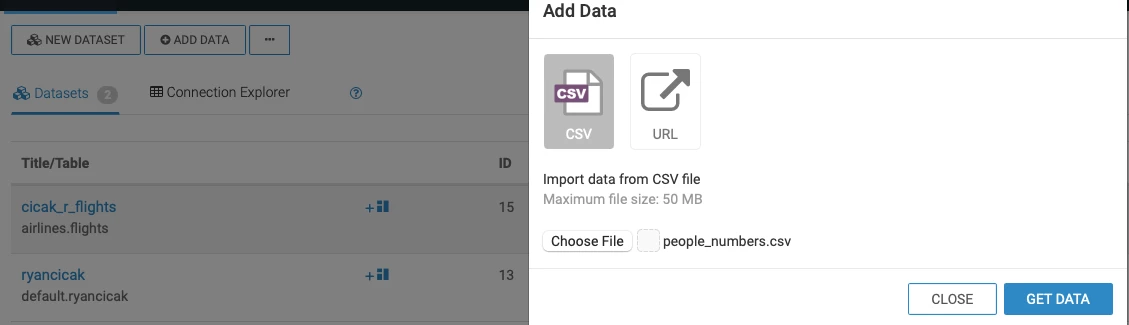
{"accessKey":"mxyouraccesskey724mext3y8"} - Within DataViz, I'll upload my CSV file called "people_numbers.csv":
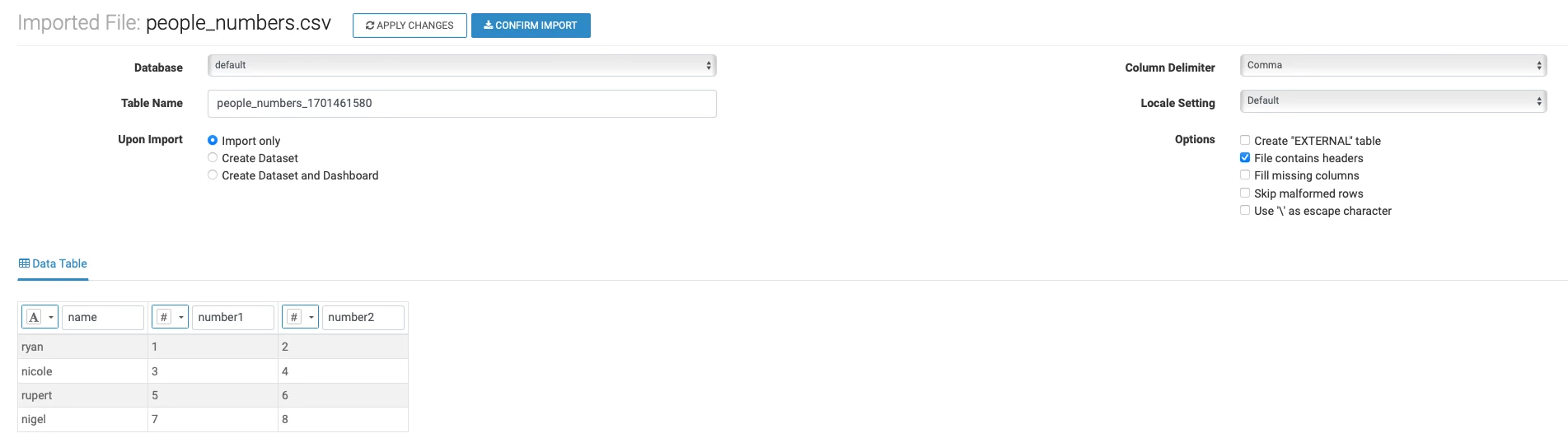
name,number1,number2
ryan,1,2
nicole,3,4
rupert,5,6
nigel,7,8
- Creating a new table based on the CSV
- Dataset is created from the people_numbers table:
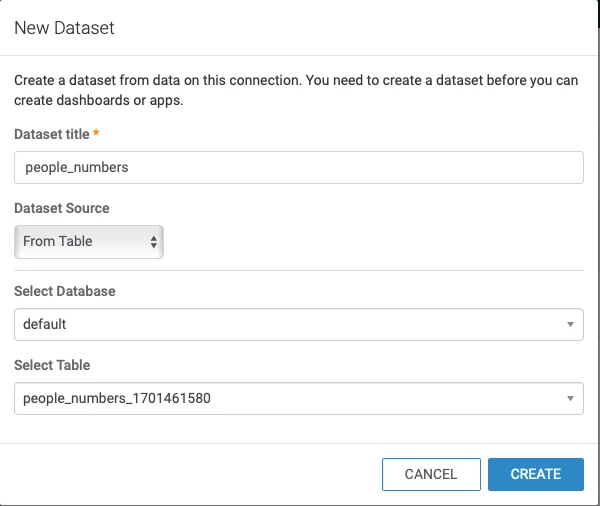
Step 4: Modify the Dataset with a new column called "numbers_added", which will call the CML R model
- Clone one of the measure columns (number1 or number2)


- Edit the "Copy of number#" column
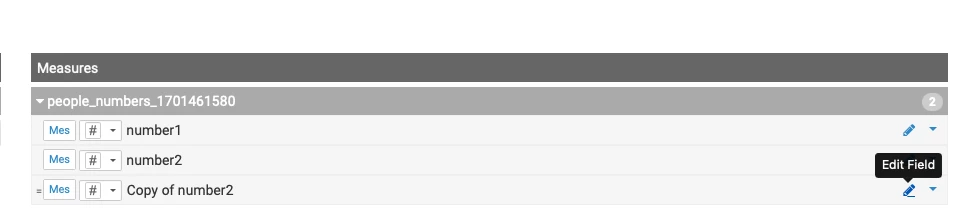
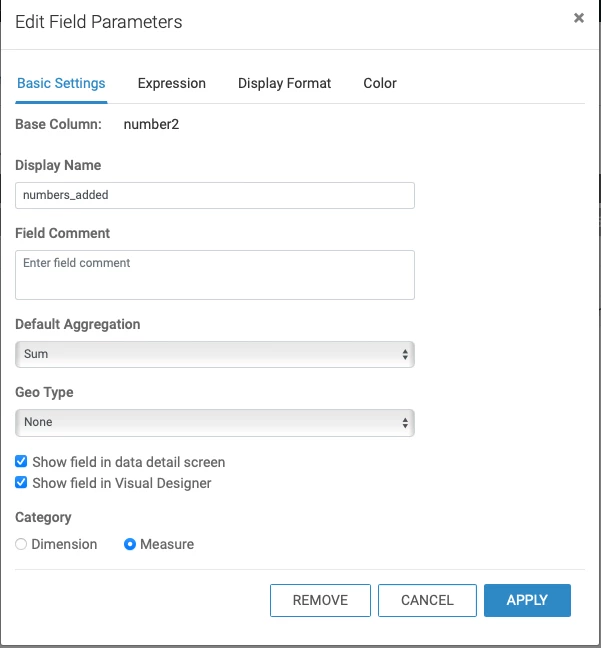
- Change the column name to "numbers_added"
- Go to the expression and enter the following then click "APPLY":
cviz_rest('{"url":"https://modelservice.ml-b74f8940-b97.go01-dem.ylcu-atmi.cloudera.site/model","accessKey":"withyouraccesskey","colnames":["number1","number2"],"response_colname":"numbers_added"}')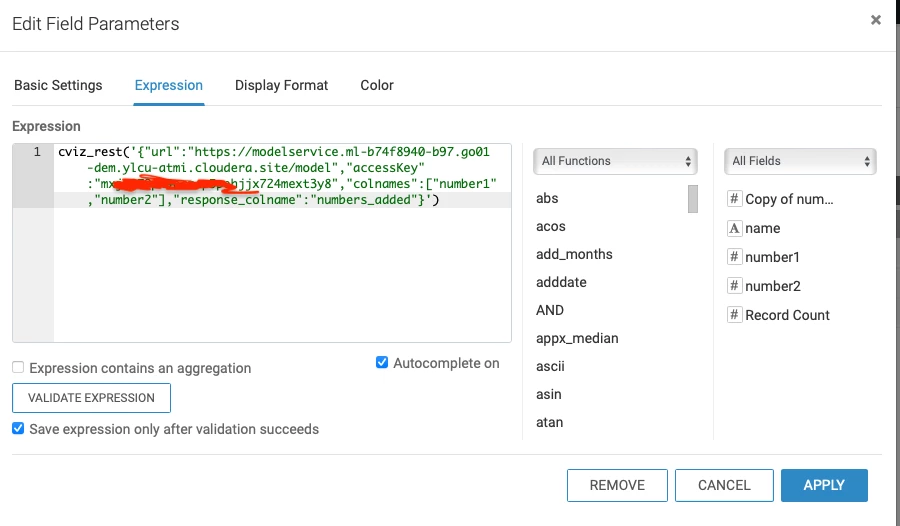
- Validate the numbers_added is defined as a Mes and #, then click "SAVE"

Step 5: Add a dashboard with your dataset
- Within the last step 4, click the "NEW DASHBOARD" button

- The new column "numbers_added" shows the results from the CML R model deployed within step 4.
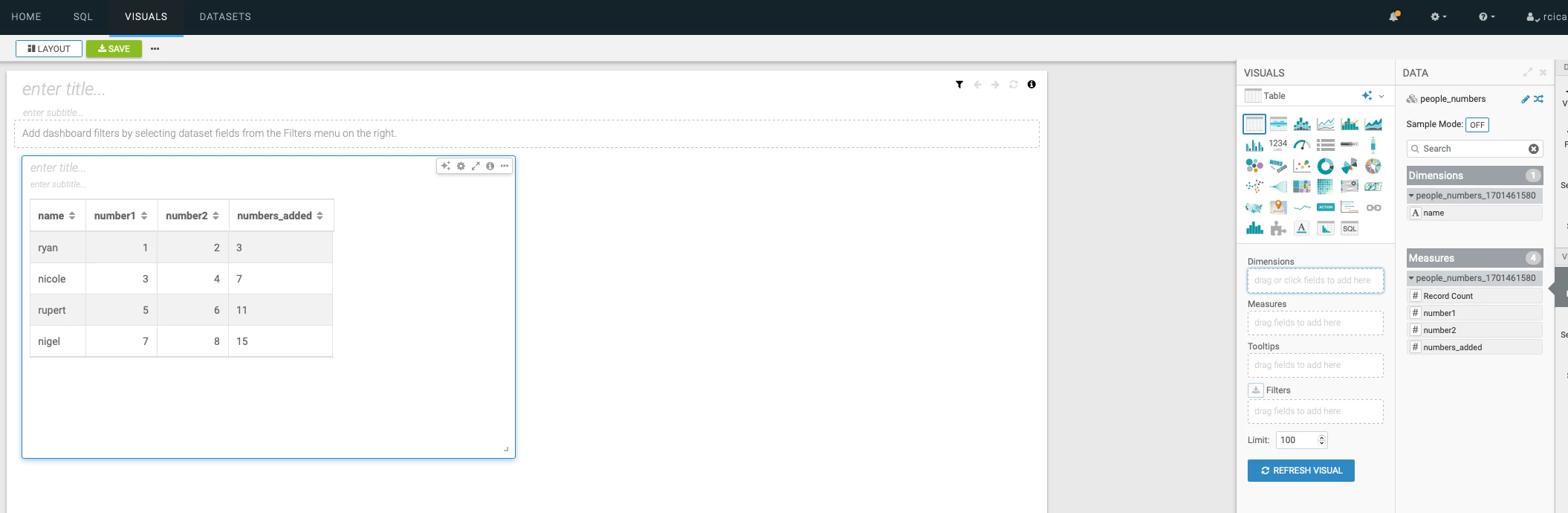
- We're able to create visuals based on the dimensions and measures we choose
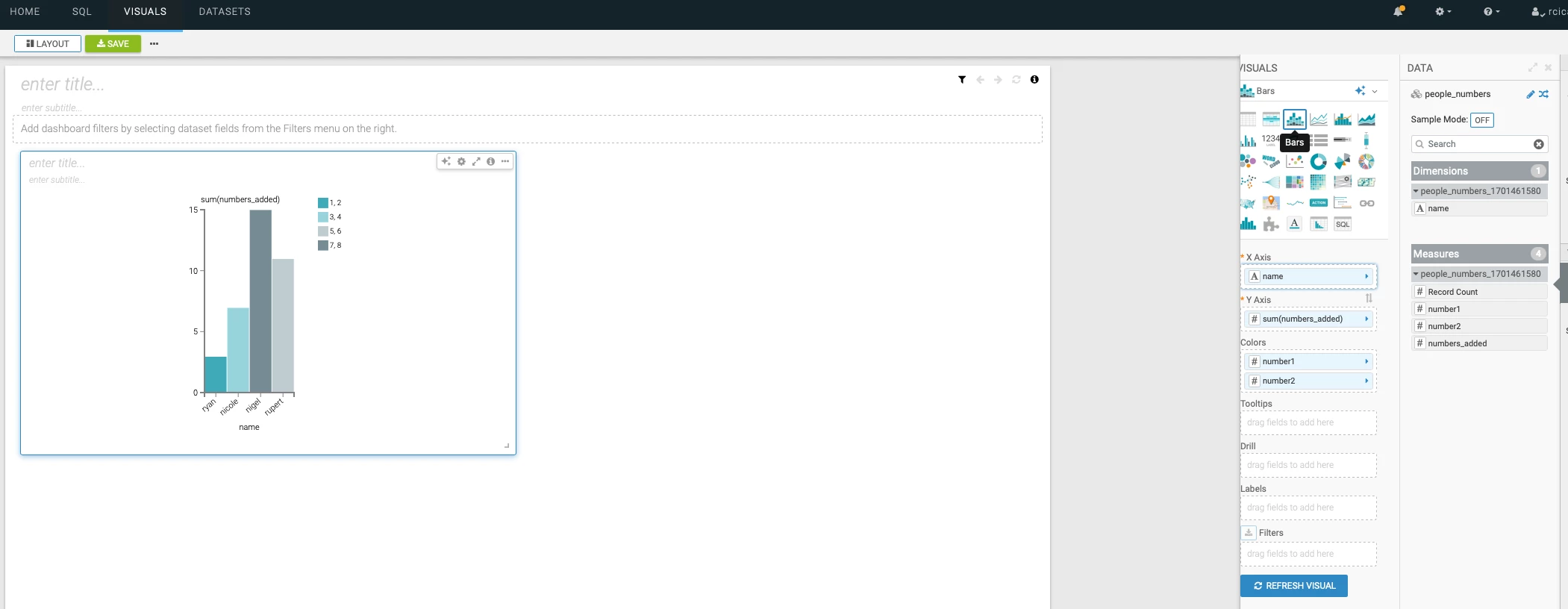
That's it! Feel free to import your own R script into CML as a model, and build charts/graphs within DataViz!

