


Import ESRI Spatial Framework functions in Cloudera Data Warehouse
- Oct 5, 2026 8:54 AM UTC
- 0 replies
- 3035 views
- Translate All
Introduction
Cloudera Data Warehouse architecture leverage compute/storage separation, this is different from the standard Hadoop architecture.
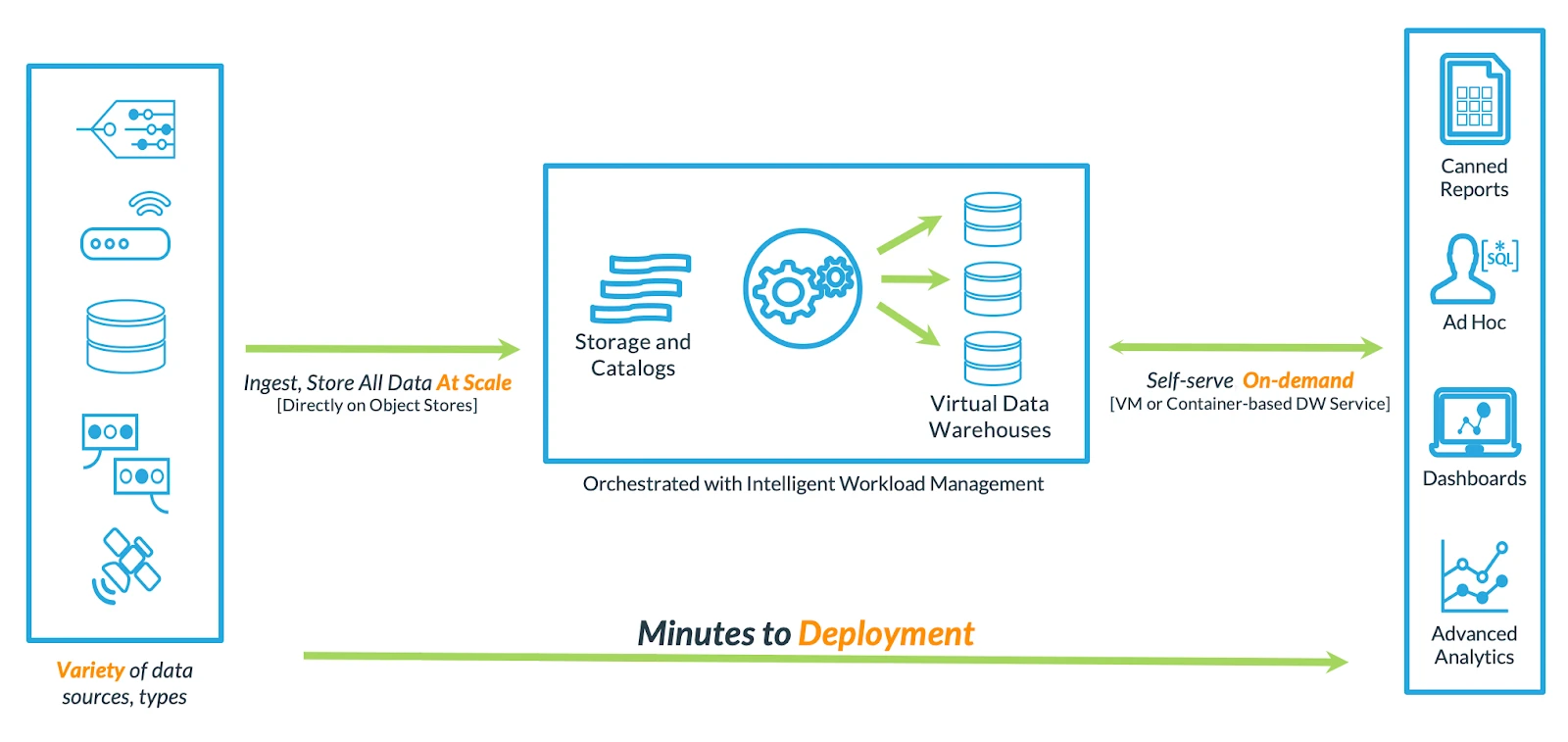
Figure 1: Cloudera Modern Data Warehouse Architecture
The objective of this post is to show how to import the wide functions and code material that we have on the open-source community inside Cloudera Data Warehouse using the object storage architecture. For this, we'll use ESRI Spatial Framework as an example.
Prerequisites
We'll use github to download the ESRI project, Java and maven to build the necessary JAR files.
Step 1: Download the files from ESRI Github repository
Download the necessary files from ESRI Spatial Framework Github repository, this can be done using the following command:
$ git clone https://github.com/Esri/spatial-framework-for-hadoop.git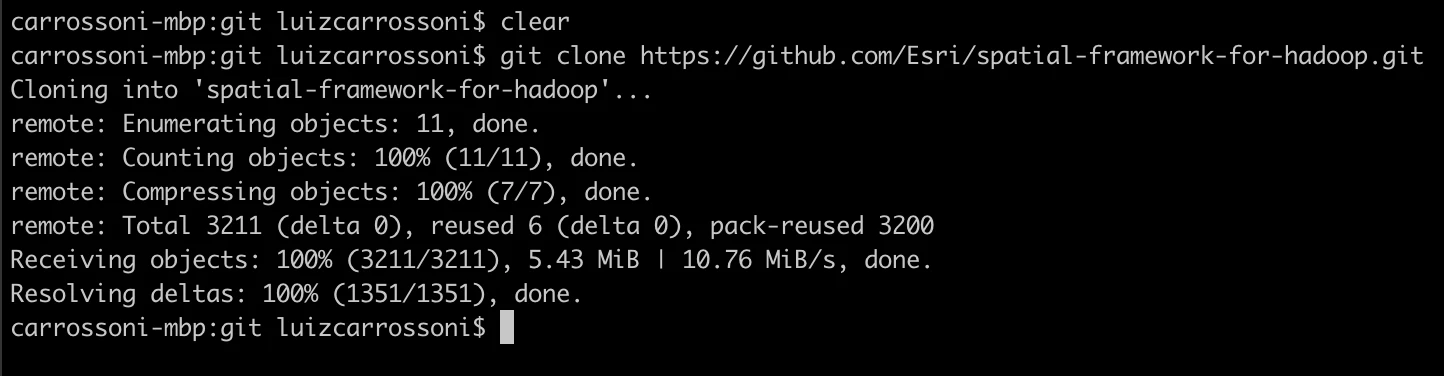
Figure 2: Cloning ESRI project
This will create a dir called "spatial-framework-for-hadoop", enter in this directory to build the project, and generate the JAR files that will be used for the functions.
Step 2: Build the project using Maven
To build the project using Apache Maven,
- Install it from the Maven website and perform the installation according to your OS.
- Within the ESRI github project directory, you can perform the build using the following:
$ mvn package - After a successful run you should see something like this:
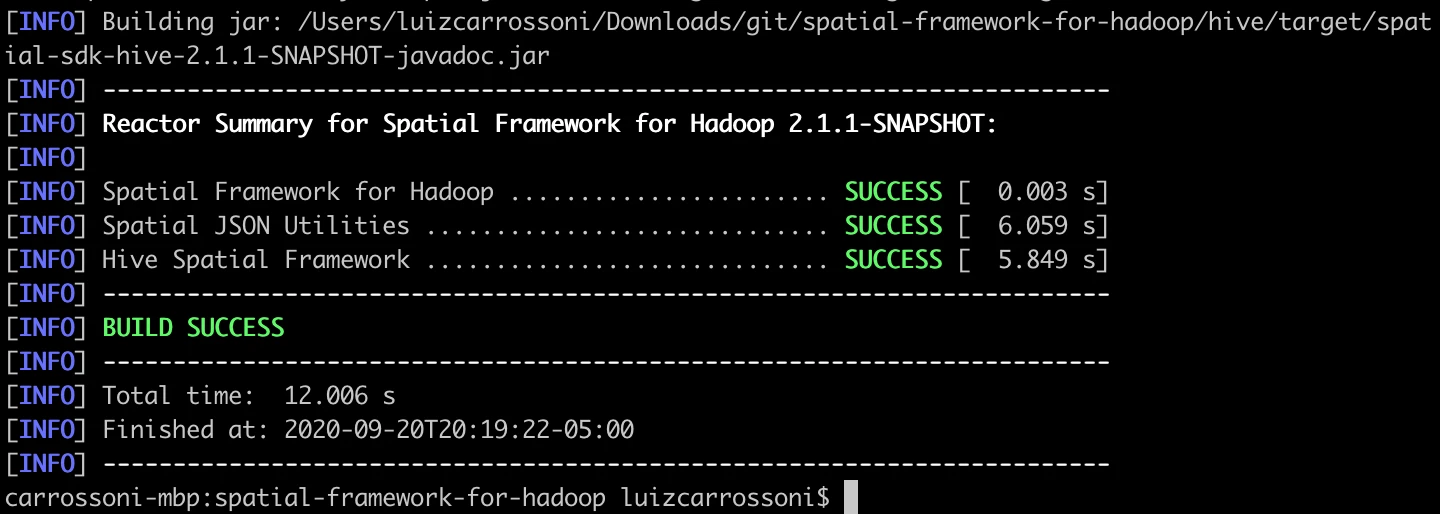
Figure 3: Building ESRI project
Step 3: Copy the JAR files to the Cloudera Data Warehouse Object Storage
- After creating the JAR files containing the functions that will be used, copy them to the object storage that is being used. In this example, we're using AWS S3.
- You can use the same bucket that is being used by Cloudera Data Warehouse for External Data or add in another bucket. For more information, see Adding access to external S3 buckets for Cloudera Data Warehouse clusters on AWS.
- The build will create the JAR file that will be necessary to upload to the object storage:
spatial-sdk-hive-2.1.1-SNAPSHOT.jar -> Located in <path/to/githubproject>/spatial-framework-for-hadoop/hive/target - In my example, I've created a jars folder in my bucket and uploaded using the AWS S3 Console upload tool.
- Upload JAR in the object storage bucket:
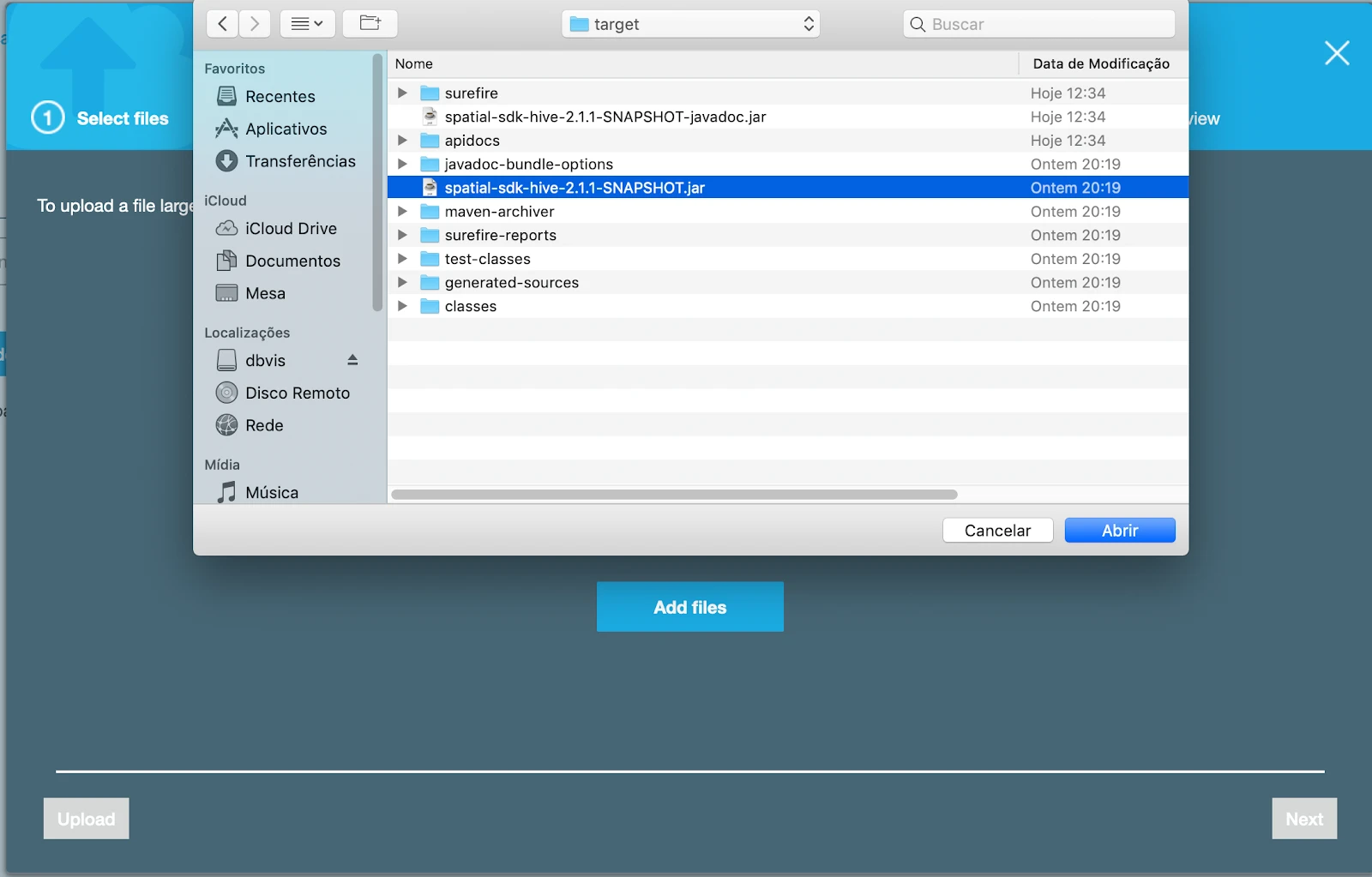
Figure 4: Upload JAR File into the object storage.
File uploaded:
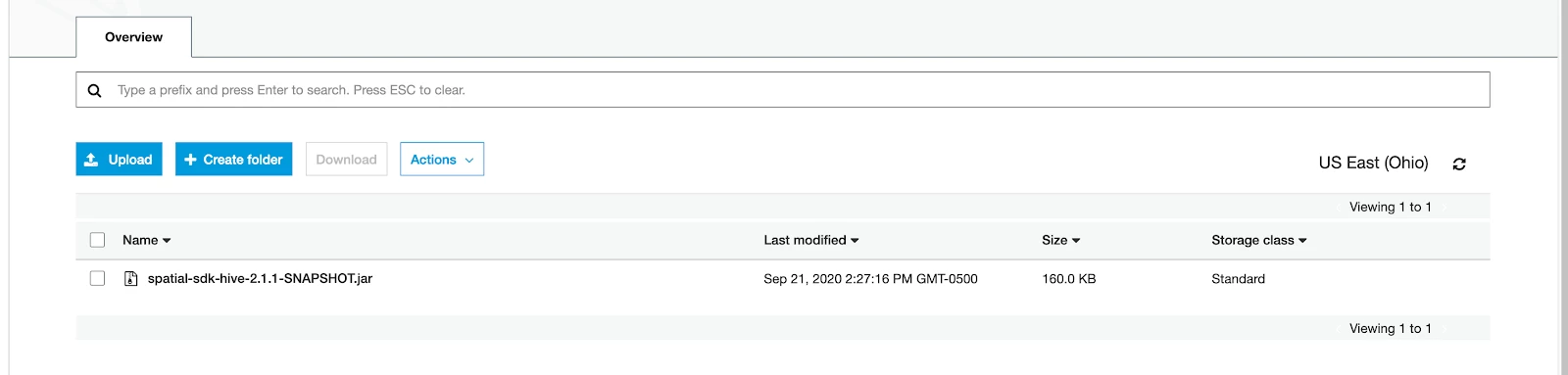
Figure 5: JAR uploaded in the object storage.
Step 4: Create the Functions
Now that the JAR file is in the object storage, you need just to create the functions inside Cloudera Data Warehouse pointing to the JAR that is uploaded.
- In the Virtual Warehouse DAS or HUE you can use the following syntax to create the functions (this example creates the ST_Geometry function):
CREATE FUNCTION ST_Geometry AS 'com.esri.hadoop.hive.ST_Geometry' USING JAR 's3a://<BucketName>/warehouse/tablespace/external/jars/spatial-sdk-hive-2.1.1-SNAPSHOT.jar';
For more CREATE FUNCTION statements for ESRI you can visit my Github link.
Step 5: Test the Functions
- Now the functions are ready to be used. Run the following to test if it's working submitting:
SELECT ST_AsText(ST_Point(1, 2));
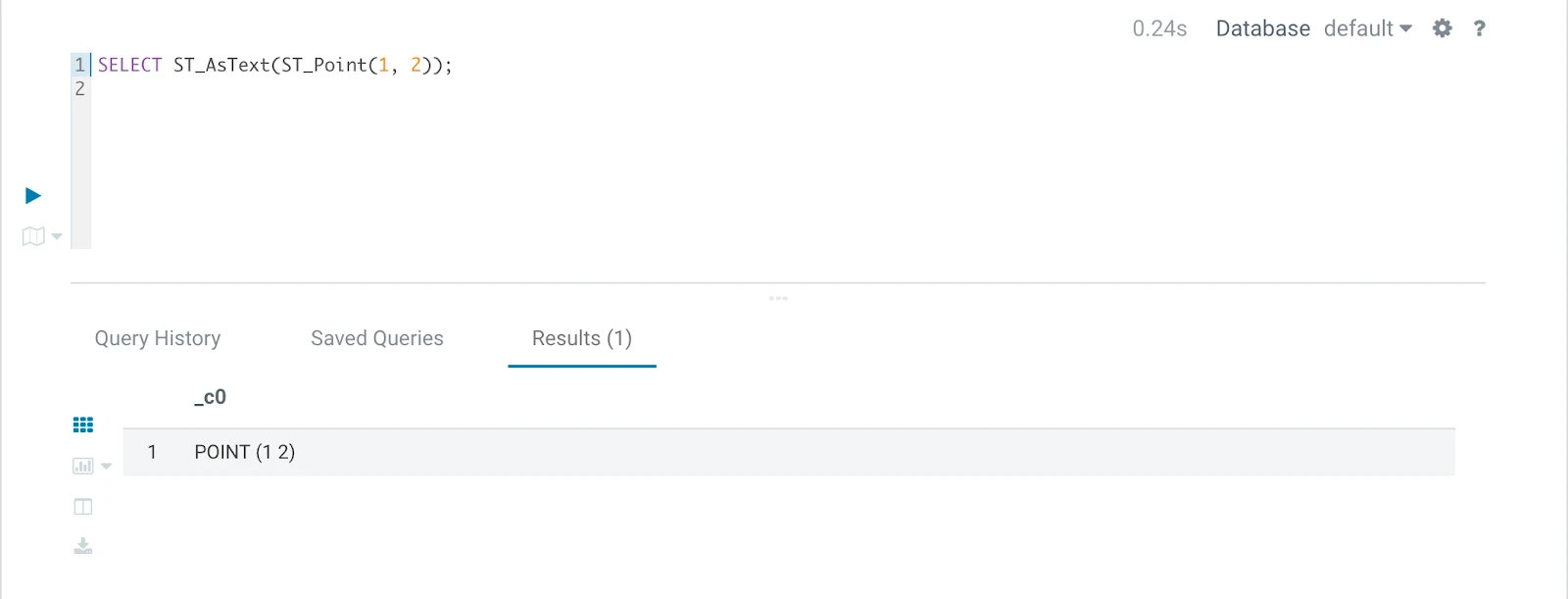
Figure 6: Functions working
Summary
In this article we saw how easy it is to import/create the vast functions ecosystem in the open-source community inside Cloudera Data Warehouse, we used specifically the ESRI Spatial functions.
For more information on how to use ESRI functions in Cloudera Data Platform you can check Geo-spatial Queries with Hive using ESRI Geometry and Spatial Framework for Hadoop or Esri/gis-tools-for-hadoop.