

Next Steps after deploying Hortonworks Data Platform Standard on Azure
I've received a couple of "how to" questions after folks successfully deploy the Hortonworks Data Platform Standard on Microsoft's Azure. I've collected my responses here as a reference to others:
What is Hortonworks Data Platform (HDP) Standard?
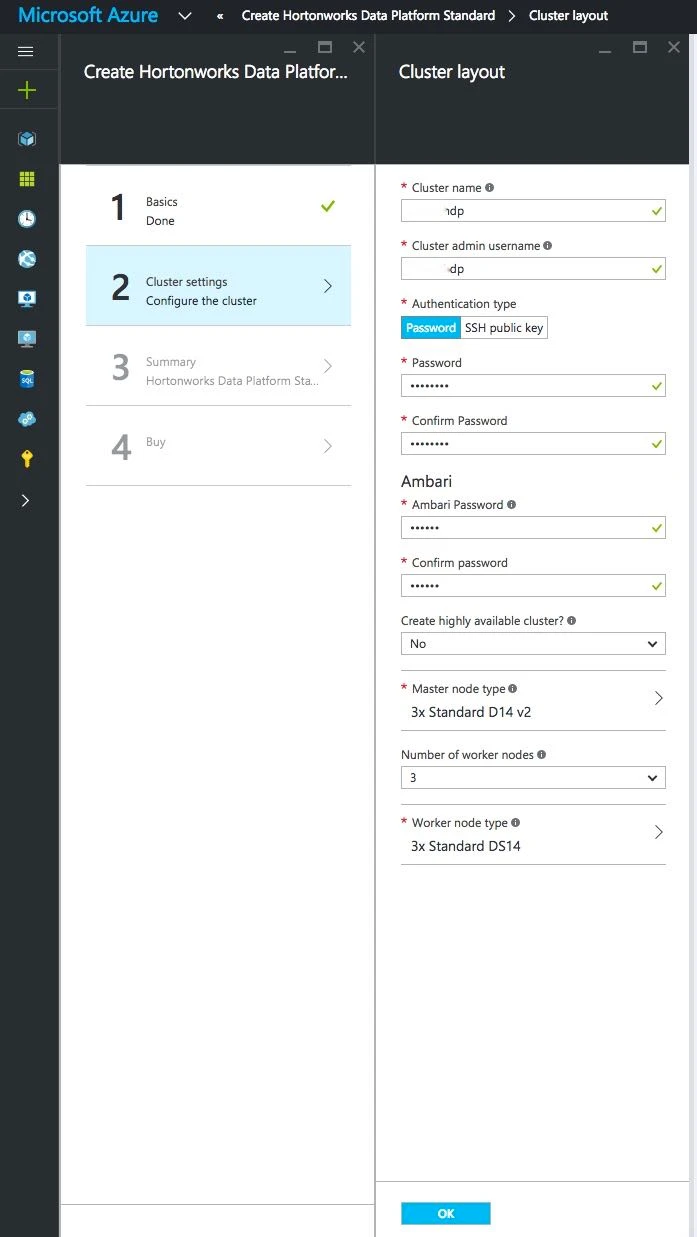
It is a muti-node HDP 2.4/Ambari 2.2.1 cluster on Microsoft’s Azure Cloud launched in a few mouse clicks. Hortonworks aims to match this service with the latest version of HDP.
You provide:
- your name
- passwords or ssh key
- the number of nodes
- the VM types for your masters and workers
- should your cluster be HA or not
as shown in this screenshot:
Where's Ambari?
Once the cluster is successfully deployed, the Azure Dashboard will go from something like:
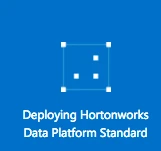
to
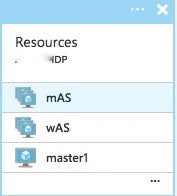
the Ambari service is located on the first master server. In the Azure portal goto Resource group, <your resource group name which was selected at first "Basics" step>, master1, settings and look for Public IP address. Use a web browser to access Ambari with:
<master1 Public IP address>:8080
What's the Ambari username?
The default username is "admin". The password was set under "Ambari password" in the screenshot above.
What are my ssh parameters?
The HDP service ports are enabled by default during the cluster installation. The master nodes allow external ssh access so use the cluster creation fields in the screenshot above in a terminal:
ssh <cluster admin username>@<your cluster name>-master-01.cloudapp.net
Worker nodes are only accessible via ssh from any of the master nodes.
Why am I receiving "Operation result in exceeding quota limits on Core"?
The default Azure Resource Manager (ARM) cores is 20 and not enough to deploy an HDP Standard cluster. Prior to deploying the cluster, request a ARM core quota increase to at least 120. Details to request a quota increase are here and remember ARM core resources are Azure region specific.