
Nifi Flow for writing to S3, WASB and Google Storage.
Nifi Flow for writing to S3, WASB and Google Storage.
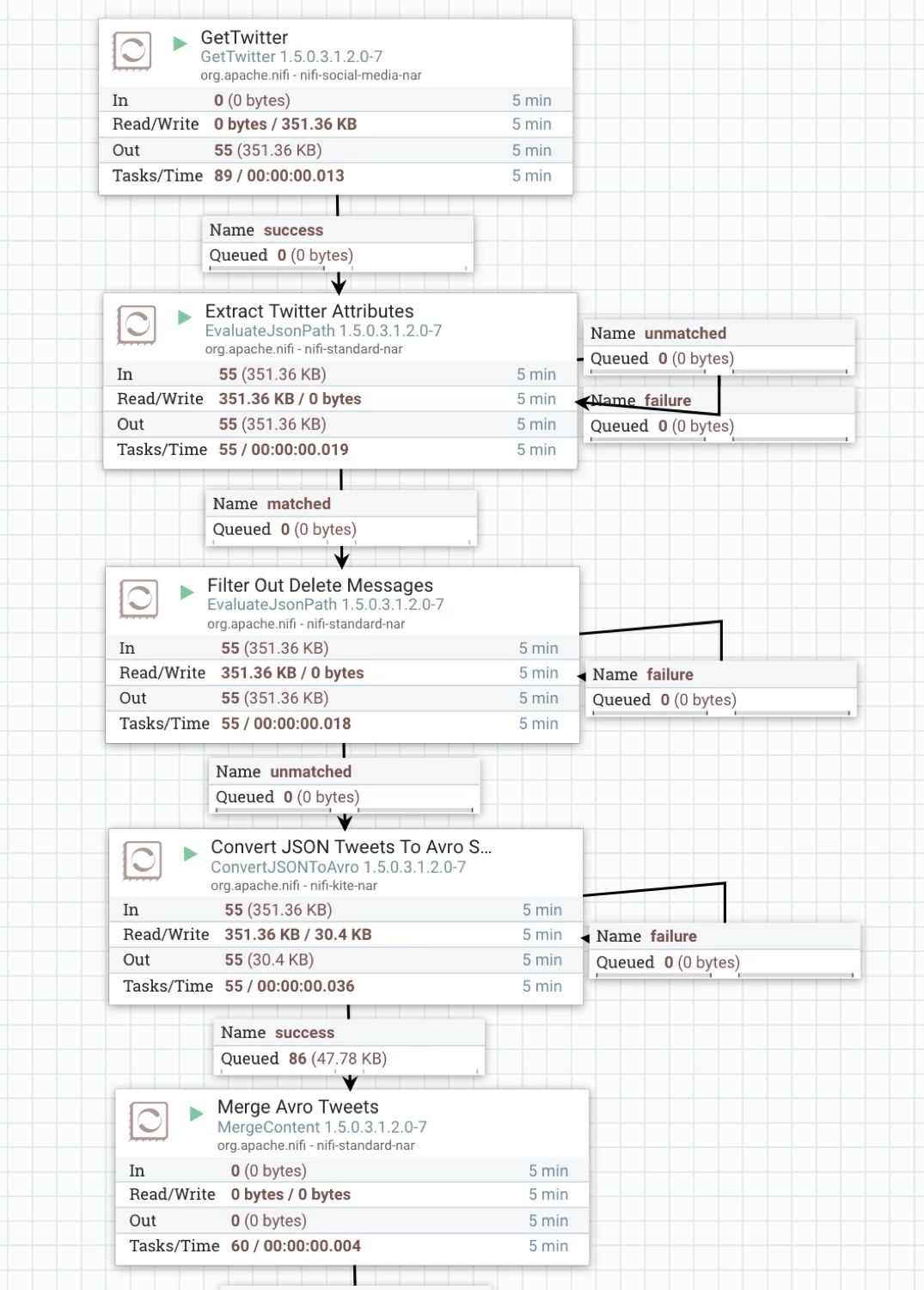
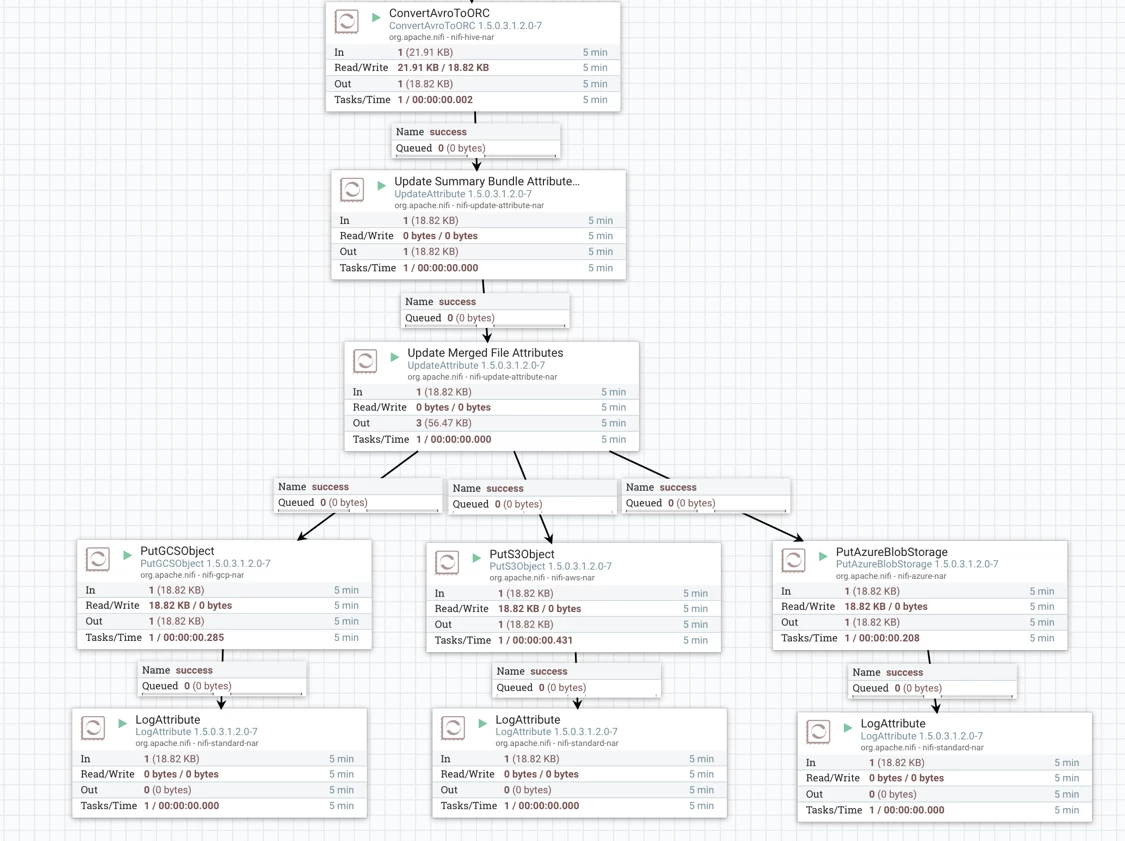
Run the flow, watch as the twitter messages are captured and then aggregated before putting them in storage.
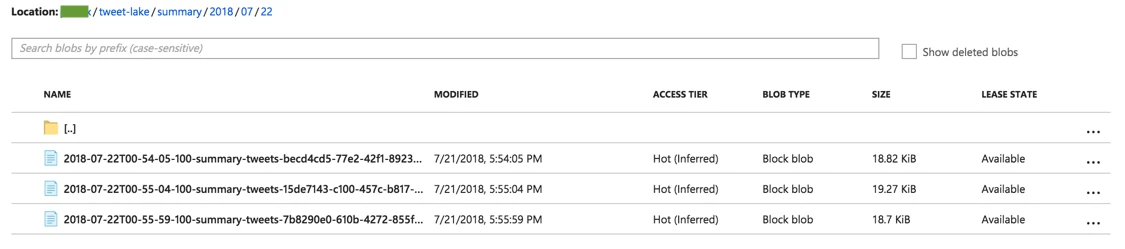
Azure Storage:
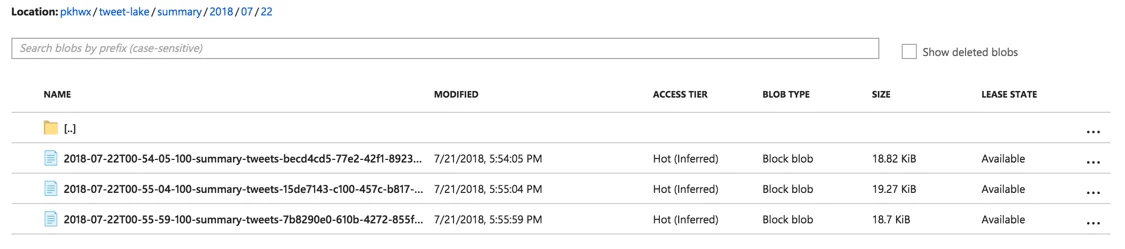
Now you can go to your Azure Portal and look in the container and you should see aggregated messages organized by year/month/day.
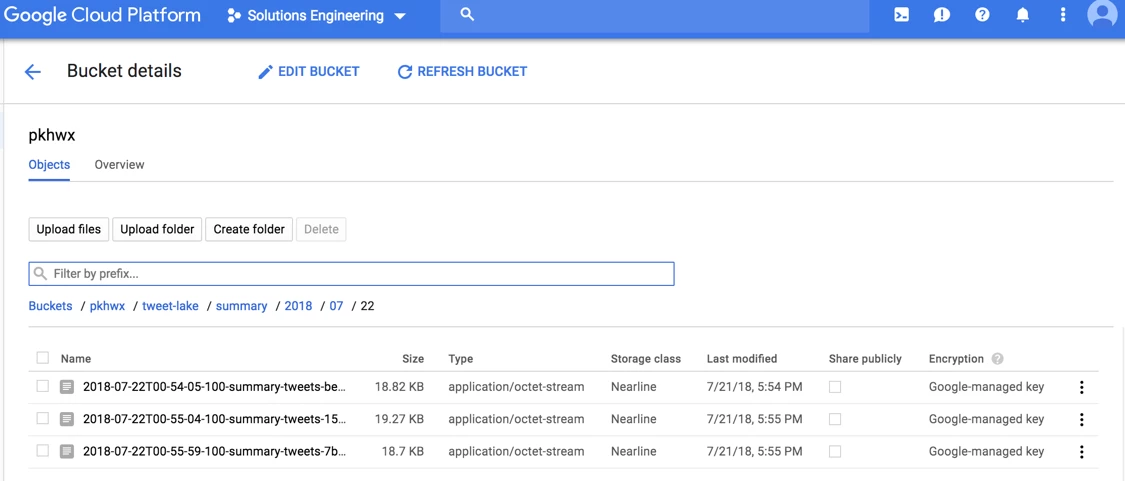
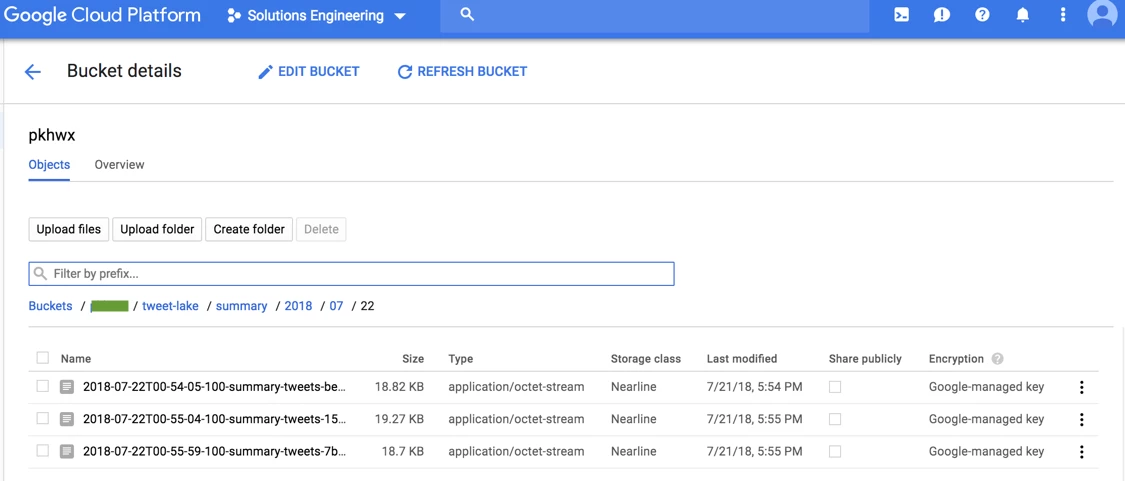
Google Storage:
Open Google Cloud Platform and go to your Storage service. Google Storage will now contain. the aggregated messages organized by year/month/day.
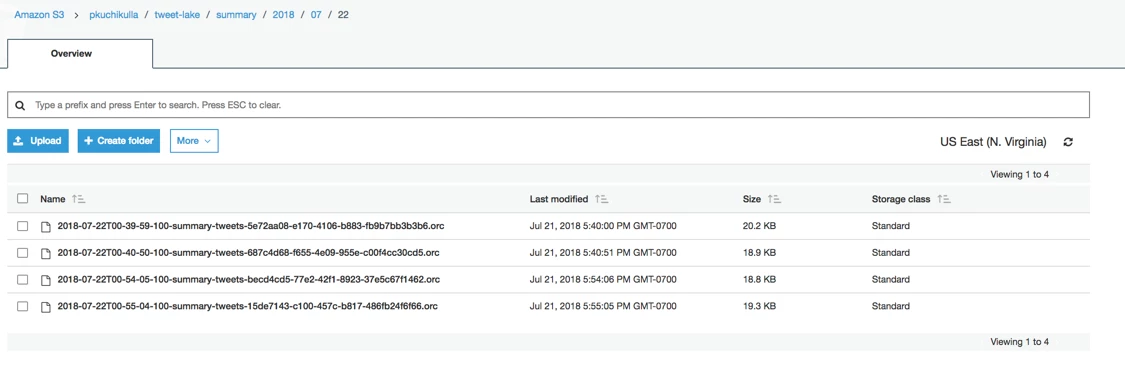
AWS Storage:
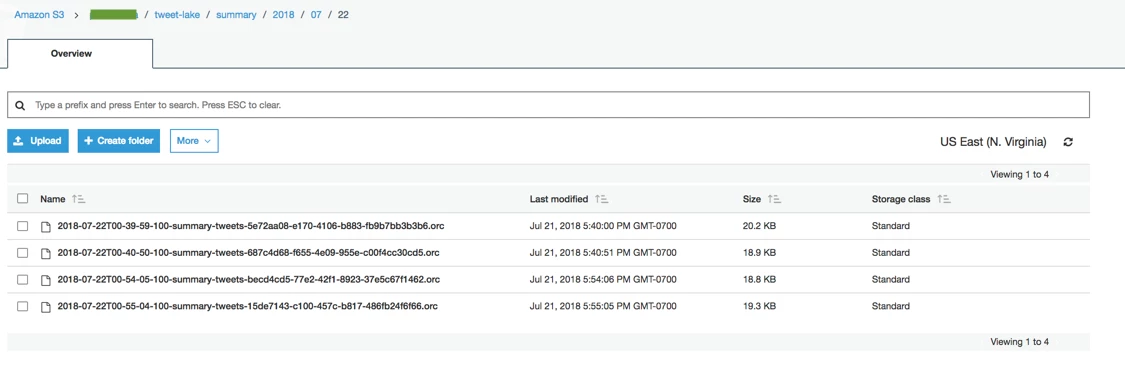
S3 bucket in your AWS account will now have aggregated Twitter messages organized by year/month/day.
Now let’s see what’s happening here. I will only focus on the three main important processors as the others make up the simple flow. The entire flow template is available as an xml file and you can download: nificloudstorage.xml
PutAzureStorage Processor:
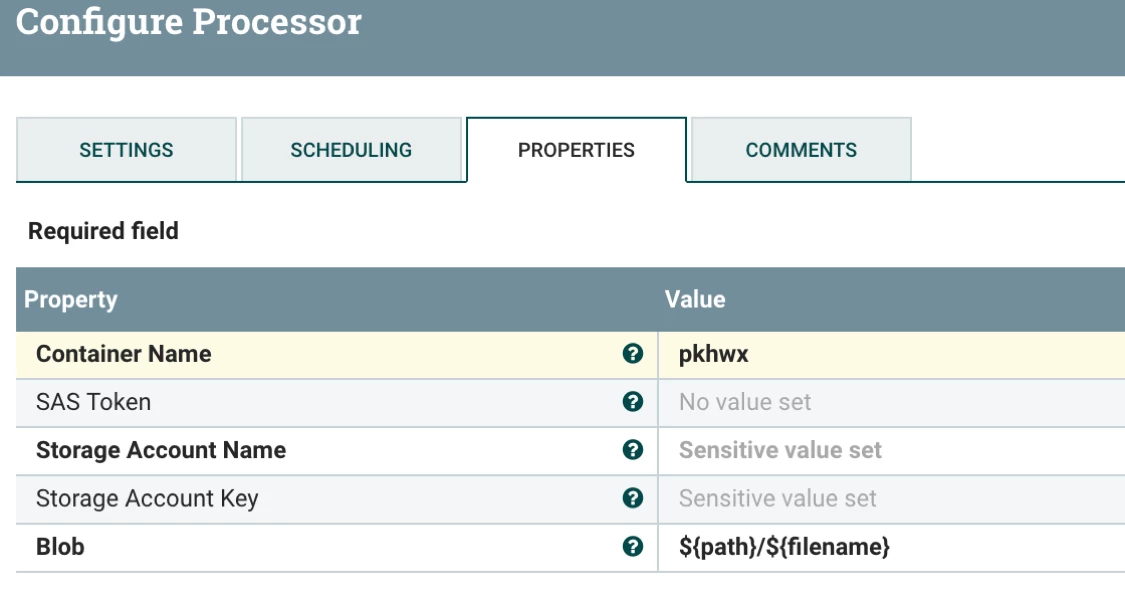
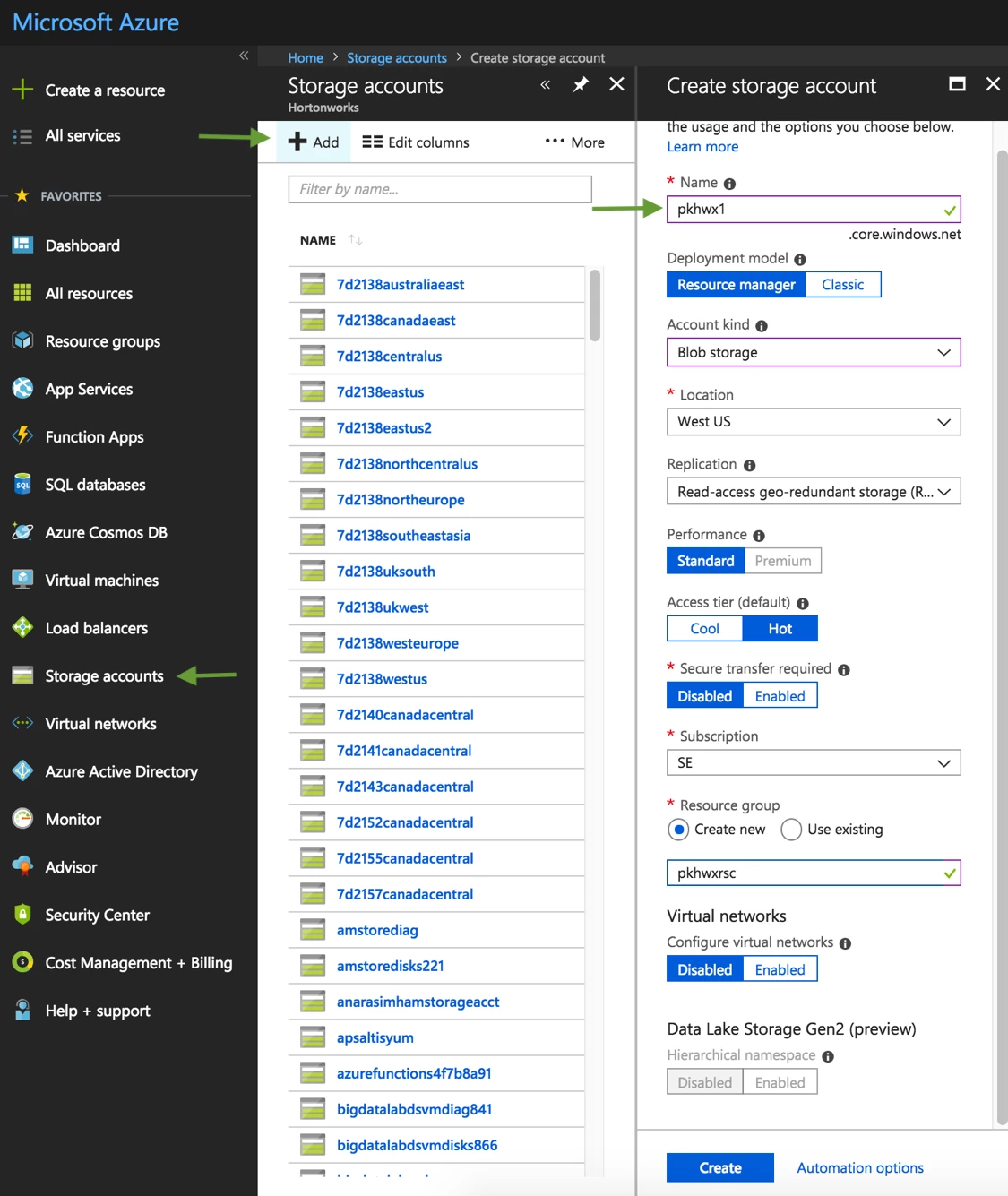
Azure:
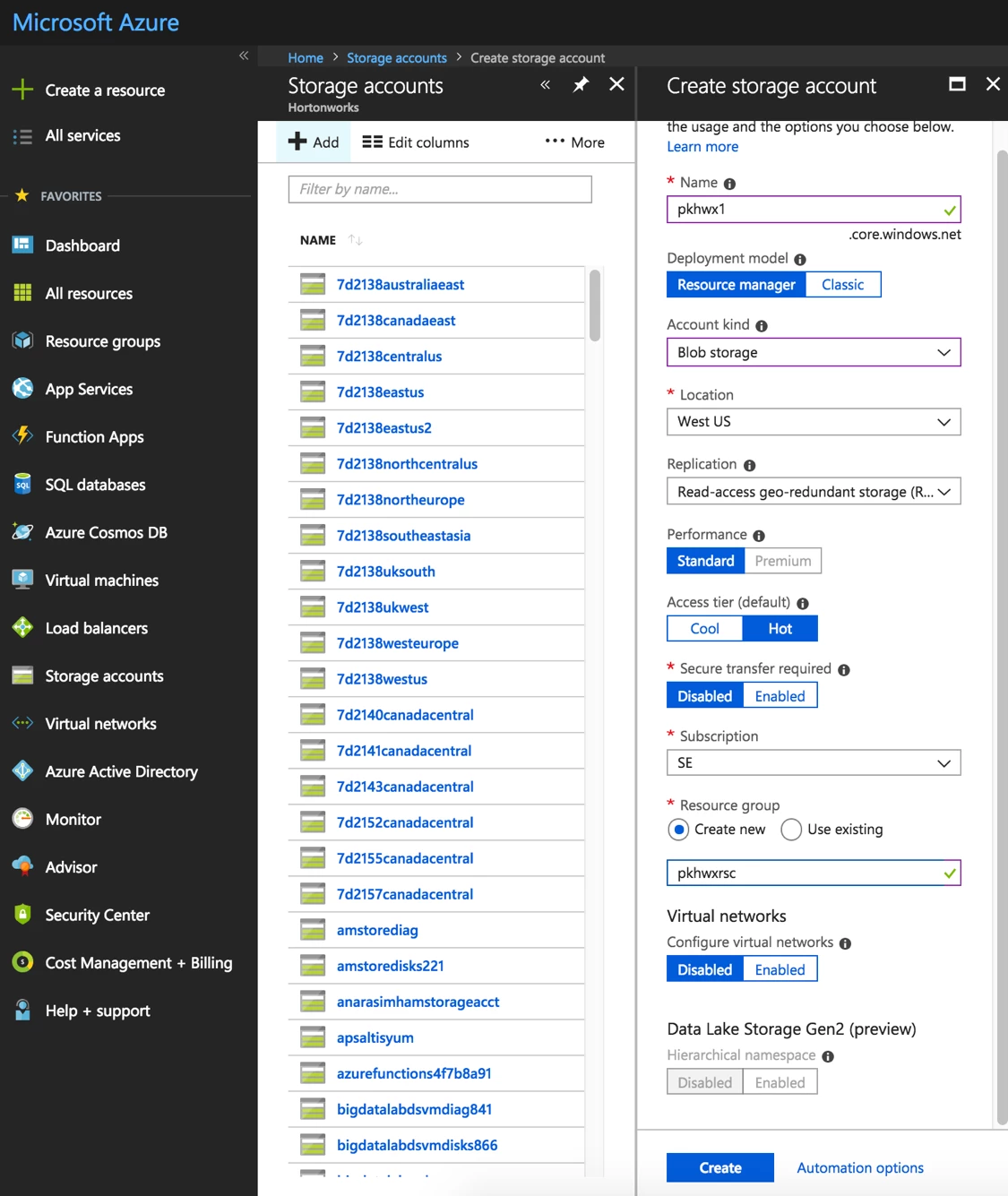
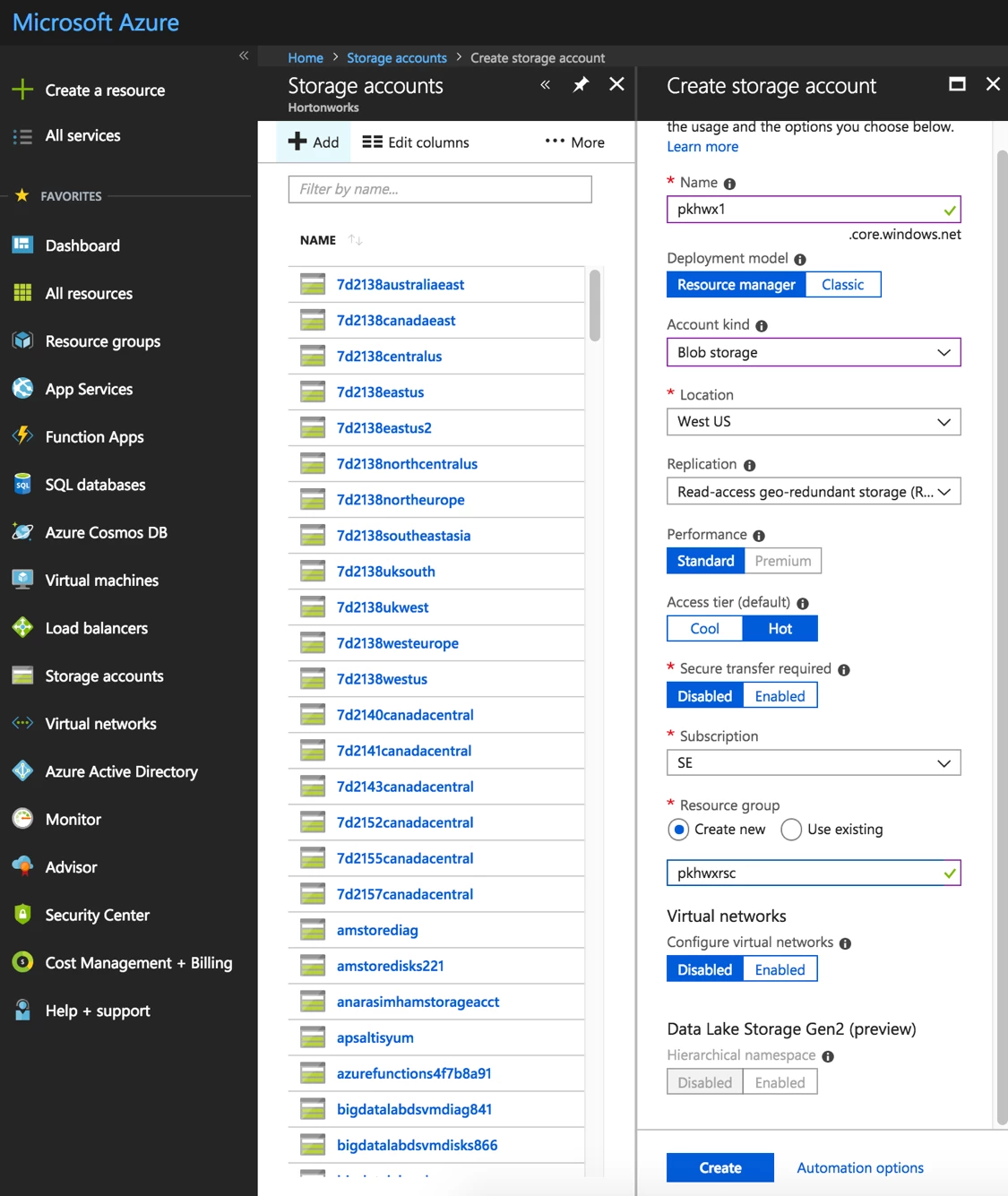
Create a Storage Account
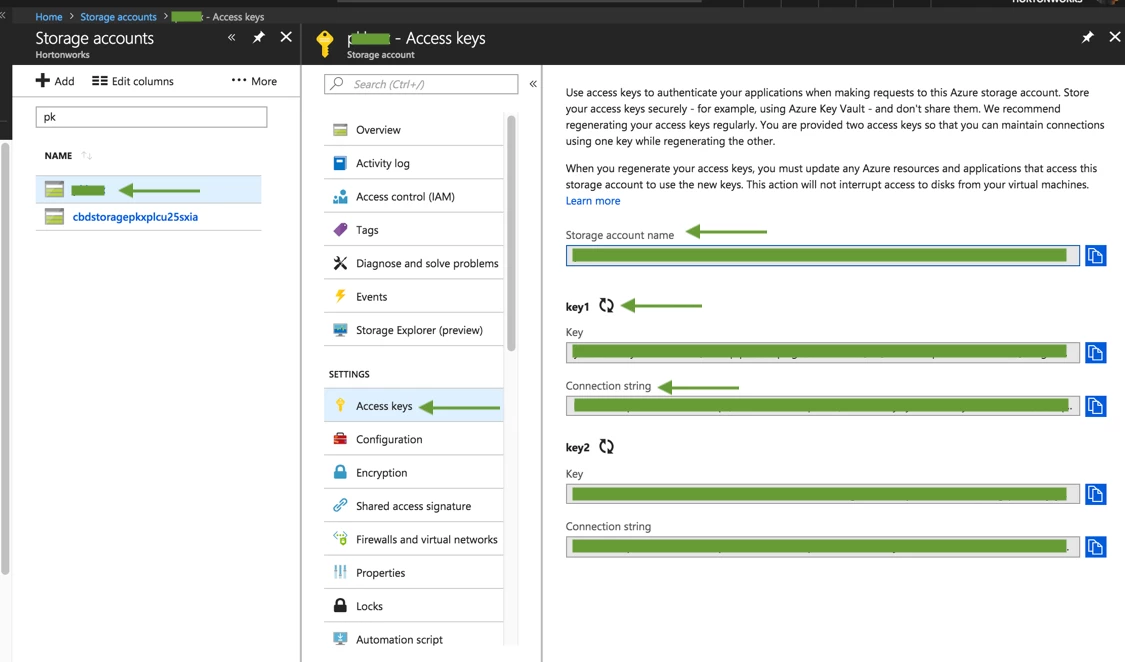
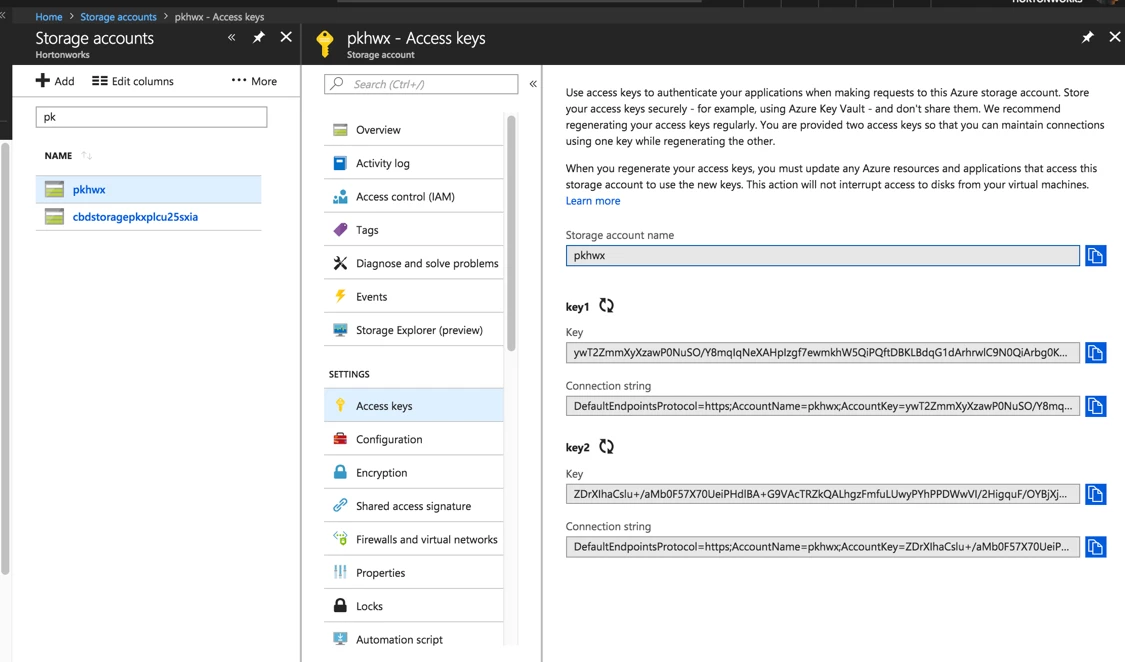
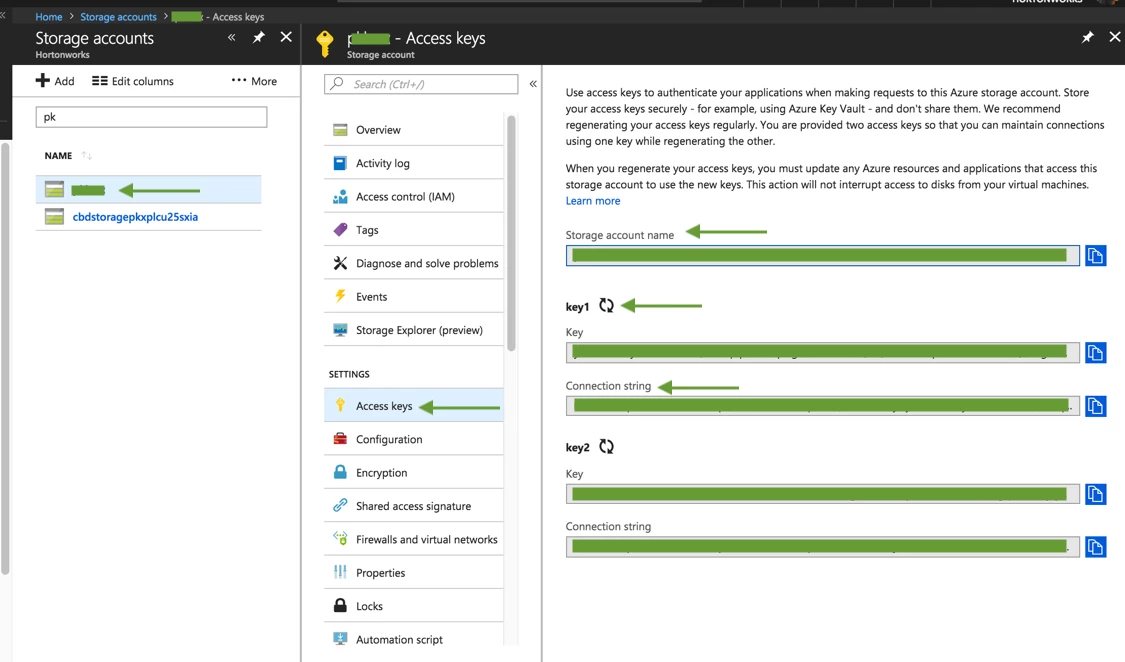
Get the Storage Account name and Key as shown in this screenshot. This is needed in the PutAzureObject Processor.
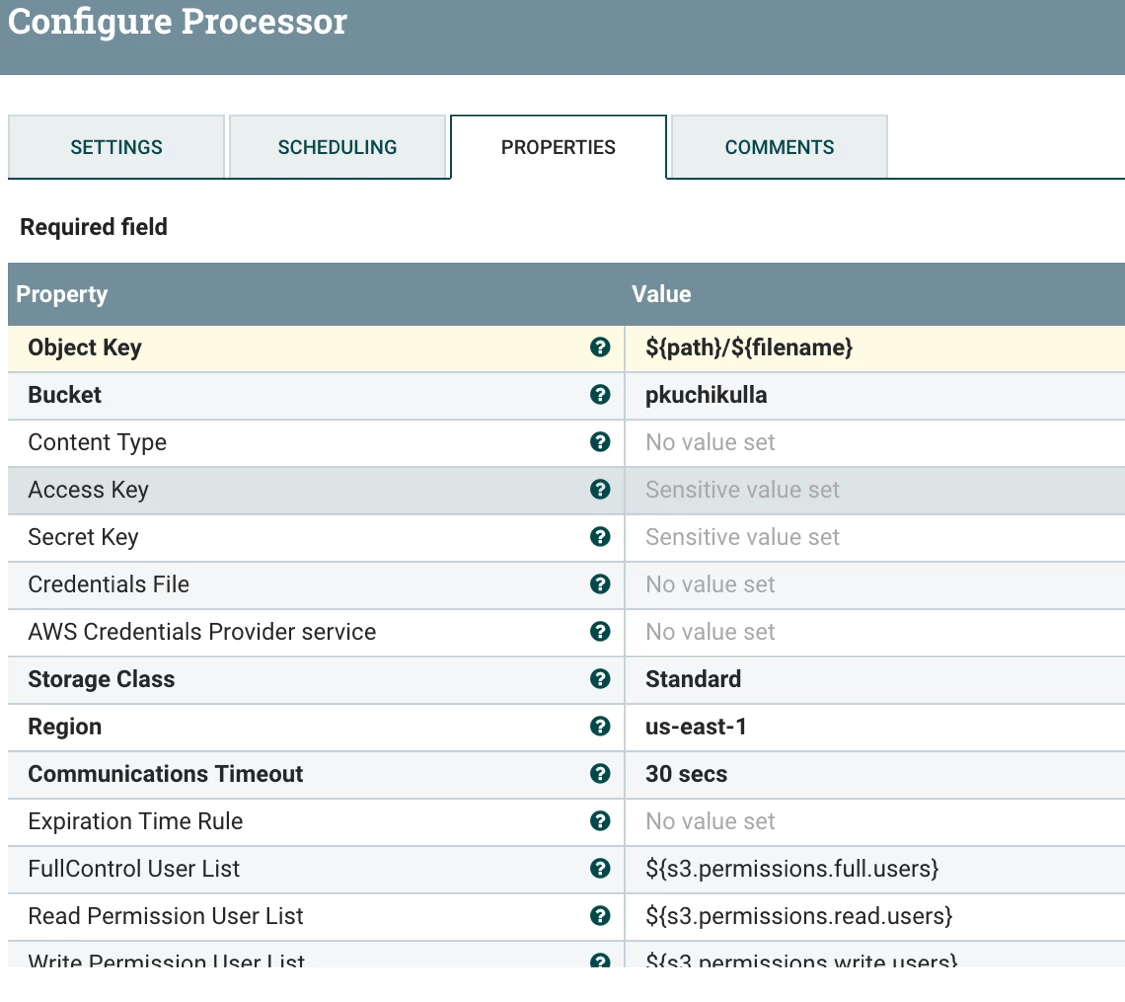
PutS3Object Processor
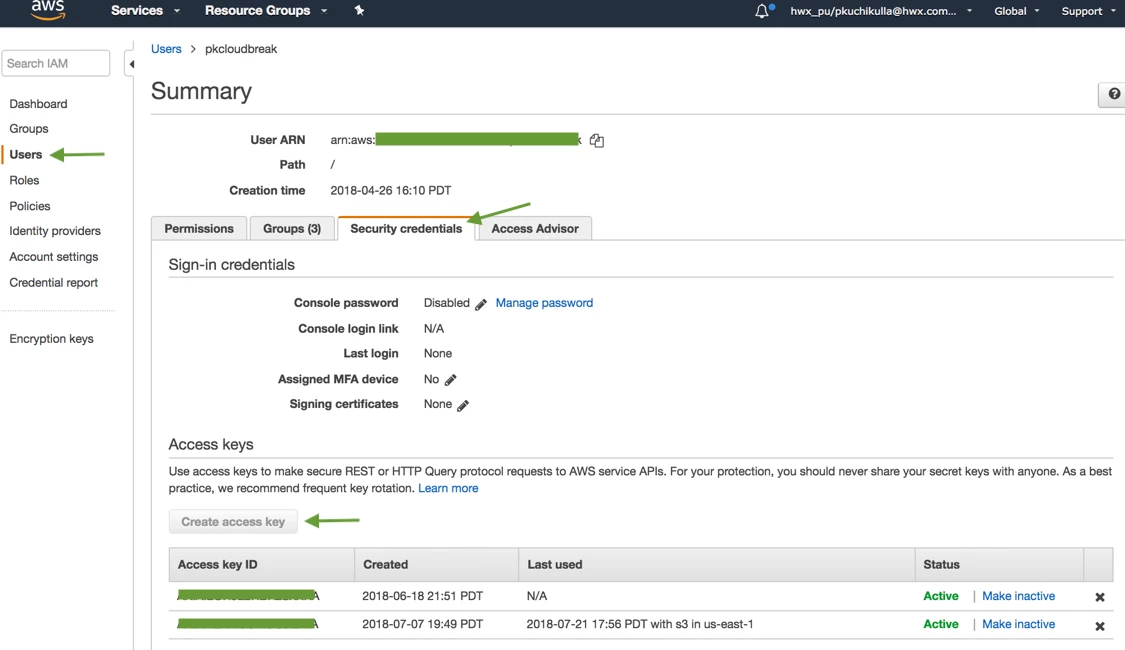
From AWS dashboard, go to Users, pick your user, click on Security Credentials. If you have not saved the Secret Access key then use Create Access key button to generate it again. There is a limit of only 2 keys.
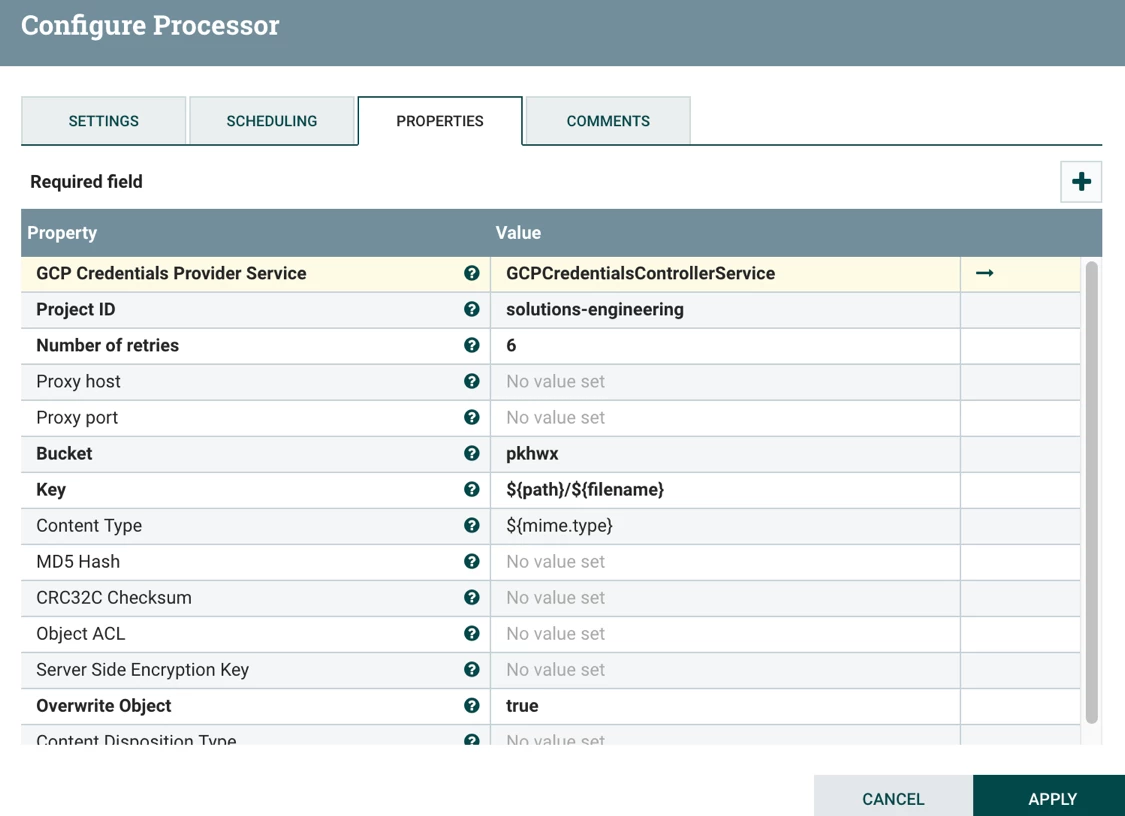
PutGCSObject Processor
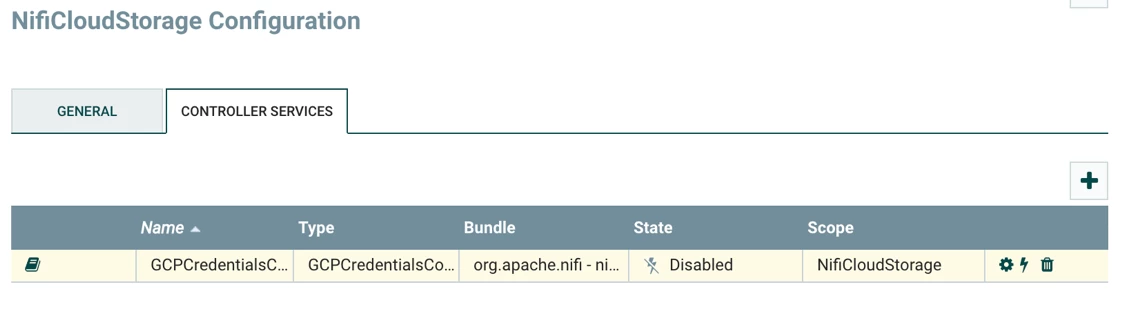
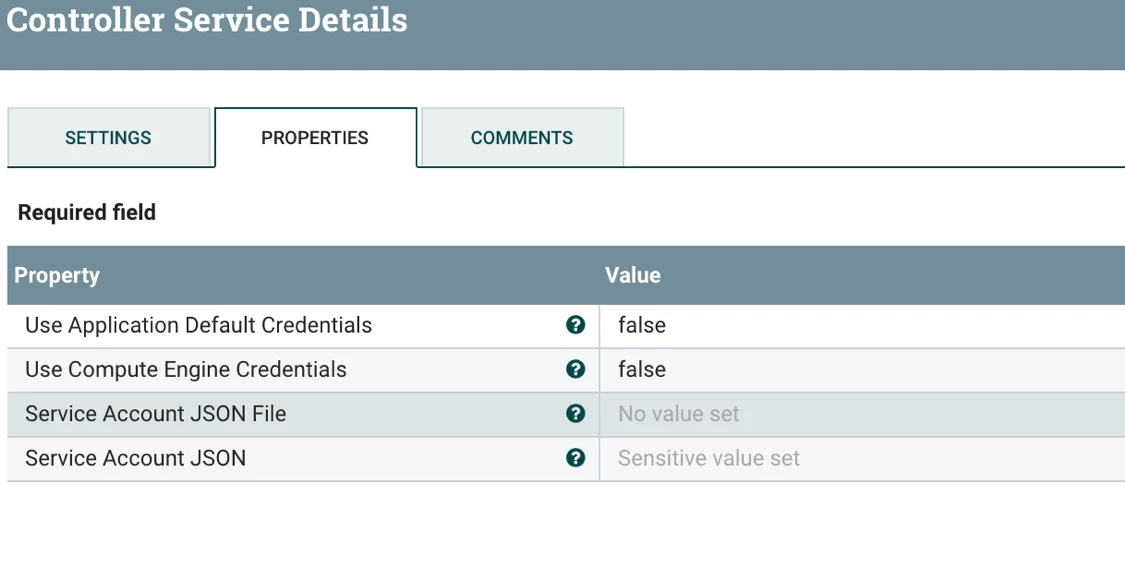
Setting up GCS credentials is slightly different. A Controller Service is made use of. Click on the arrow in GCPCredentialsControllerService. That will take you to the next screenshot.
Controller Services
Click on the gears icon to take you to the properties.
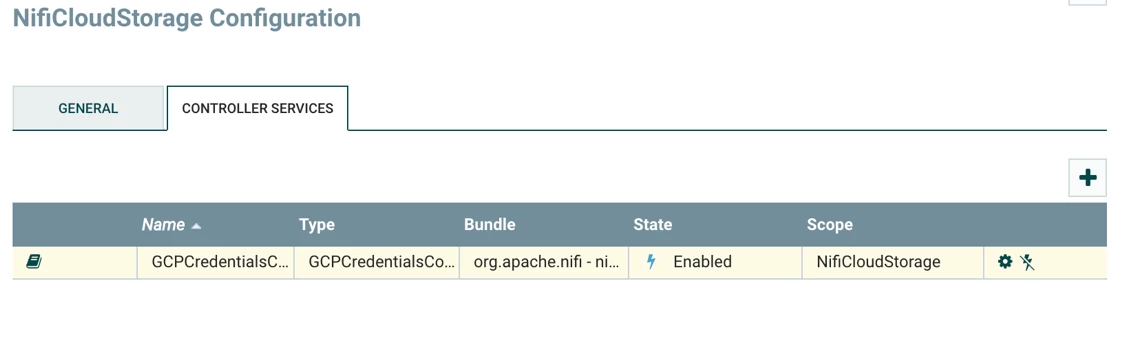
Use the JSON file created from your GCS credentials. You can follow this article Creating GCS credentials to find out to get this JSON
Click on the lightning icon to enable this Controller Service