

NiFi Security: User Authentication with Kerberos
Prerequisite
1. You have HDF-1.2 installed on your server
2. Make sure KDC is installed on your server and is started, will try to describe steps briefly in the tutorial, below is the link to detailed steps from HDP documentation:
Installing and Configuring KDC:
1. Lets install a new version of KDC server:
# yum -y install krb5-server krb5-libs krb5-auth-dialog krb5-workstation
2. Using a text editor, open the KDC server configuration file, located by default here:
# vi /etc/krb5.conf
[realms]
EXAMPLE.COM = {
kdc = node1
admin_server = node1 }
add your host name, mine is node1.
3. Use the utility kdb5_util to create the Kerberos database, when asked lets put password ‘hadoop’:
# kdb5_util create –s
4. Lets Start the KDC server and the KDC admin server, set them to auto-start on boot
# /etc/rc.d/init.d/krb5kdc start
# /etc/rc.d/init.d/kadmin start
# chkconfig krb5kdc on
# chkconfig kadmin on
5. Lets add a service principal for a server and export the keytab from the KDC:
# kadmin.local
# addprinc -randkey nifi/HDF
# ktadd -k /opt/nifi-HDF.keytab nifi/HDF
# q
6. Make sure “/opt/nifi-HDF.keytab” is generated and is available.
7. Lets make some login Identities and set password as ‘hadoop’ which we will be using to login in the UI:
# kadmin.local -q "addprinc jobin/node1"
# kinit jobin/node1@EXAMPLE.COM
# kadmin.local -q "addprinc george/node1"
# kinit george/node1@EXAMPLE.COM
Configuring NiFi:
1. NiFi will only respond to Kerberos SPNEGO negotiation over an HTTPS connection, as unsecured requests are never authenticated. For that you will need to enable 2-way SSL.
I already did created Certification Authorities and client certificates at www.tinycert.org
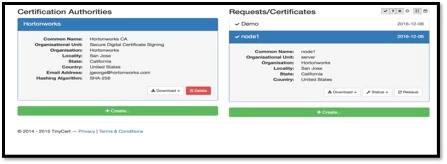
If you are too lazy to create them, try with mine 🙂 [Attached as certificates.zip]
- Use cert-browser.pfx to load into browser to be a NiFi administrator 'DEMO'
- Upload other two certificates to your server under '/root/scripts/' and execute below commands, while executing last command enter 'hadoop' as password and 'yes' when asked if it can be trusted.
# cd /root/scripts/
# mv cert.pfx cert.p12
# openssl x509 -outform der -in cacert.pem -out cacert.der
# keytool -import -keystore cacert.jks -file cacert.der
2. My keystore is saved as ‘/root/scripts/cert.p12’ and a truststore is saved as ‘/root/scripts/cacert.jks’. and password is set as hadoop.
3. Below are the configuration updates you have to do in nifi.properties file in node1:
# vi /opt/nifi-1.1.0.0-10/conf/nifi.properties
4. Once opened in editor update below properties to given values [updating https port and certificate details]:
nifi.web.http.host=
nifi.web.http.port=
nifi.web.https.host=node1
nifi.web.https.port=9090
nifi.security.keystore=/root/scripts/cert.p12
nifi.security.keystoreType=PKCS12
nifi.security.keystorePasswd=hadoop
nifi.security.keyPasswd=hadoop
nifi.security.truststore=/root/scripts/cacert.jks
nifi.security.truststoreType=JKS
nifi.security.truststorePasswd=hadoop
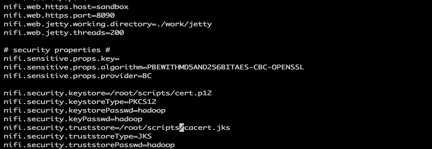
Now Lets put Kerberos details in nifi.properties in “kerberos” section:
# kerberos #
nifi.kerberos.krb5.file=/etc/krb5.conf
nifi.kerberos.service.principal=nifi/HDF@EXAMPLE.COM
nifi.kerberos.keytab.location=/opt/nifi-HDF.keytab
nifi.kerberos.authentication.expiration=12 hours
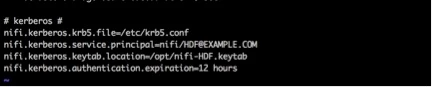
Also make sure you update two properties as below:
nifi.security.user.login.identity.provider=kerberos-provider
nifi.login.identity.provider.configuration.file=./conf/login-identity-providers.xml
5. Now configure the authorized users in ‘authorized-users.xml’ file, configuration of user is based on certificate. Configure it exactly as below you have in certificate I have attached in step1.
vi /opt/nifi-1.1.0.0-10/conf/authorized-users.xml
<user dn="CN=Demo, OU=Demo,O=Hortonworks, L=San Jose, ST=California, C=US">
<role name="ROLE_ADMIN"/>
</user>

6. Above configuration is to login as NiFi Administrator, every other users can be pulled from Kerberos after this administrator assigns roles on request.
7. Configure ./conf/login-identity-providers.xml as below with reference to Kerberos Configured [Make sure you have removed xml comments tag].
<provider>
<identifier>kerberos-provider</identifier>
<class>org.apache.nifi.kerberos.KerberosProvider</class>
<property name="Default Realm">EXAMPLE.COM</property>
<property name="Kerberos Config File">/etc/krb5.conf</property>
<property name="Authentication Expiration">12 hours</property>
</provider>
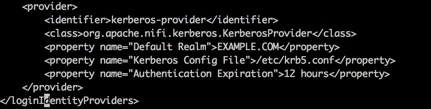
8. Once configured, restart NiFi server.
# /opt/HDF-1.2.0.0/nifi/bin/nifi.sh restart
9. Now say open ‘Chrome’ browser and load client certificate [cert-browser.pfx] associated with ADMIN user and login to secure https url of NiFi running on node1:
10. When asked, confirm for security exception and proceed. Now you are securely logged in as Demo user with admin privileges. You can now grant access to any user requesting access.
11. Open another browser say ‘Safari’ to establish another session
It will popup below screen for login, enter any of the credentials for identities we just created in step 7, “Configuring KDC”
Username: jobin/node1 Password: hadoop
Username: george/node1 Password: hadoop
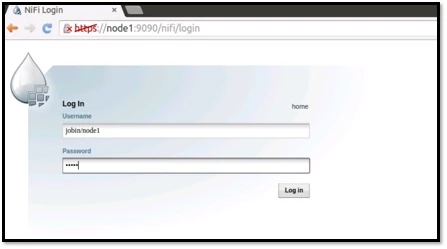
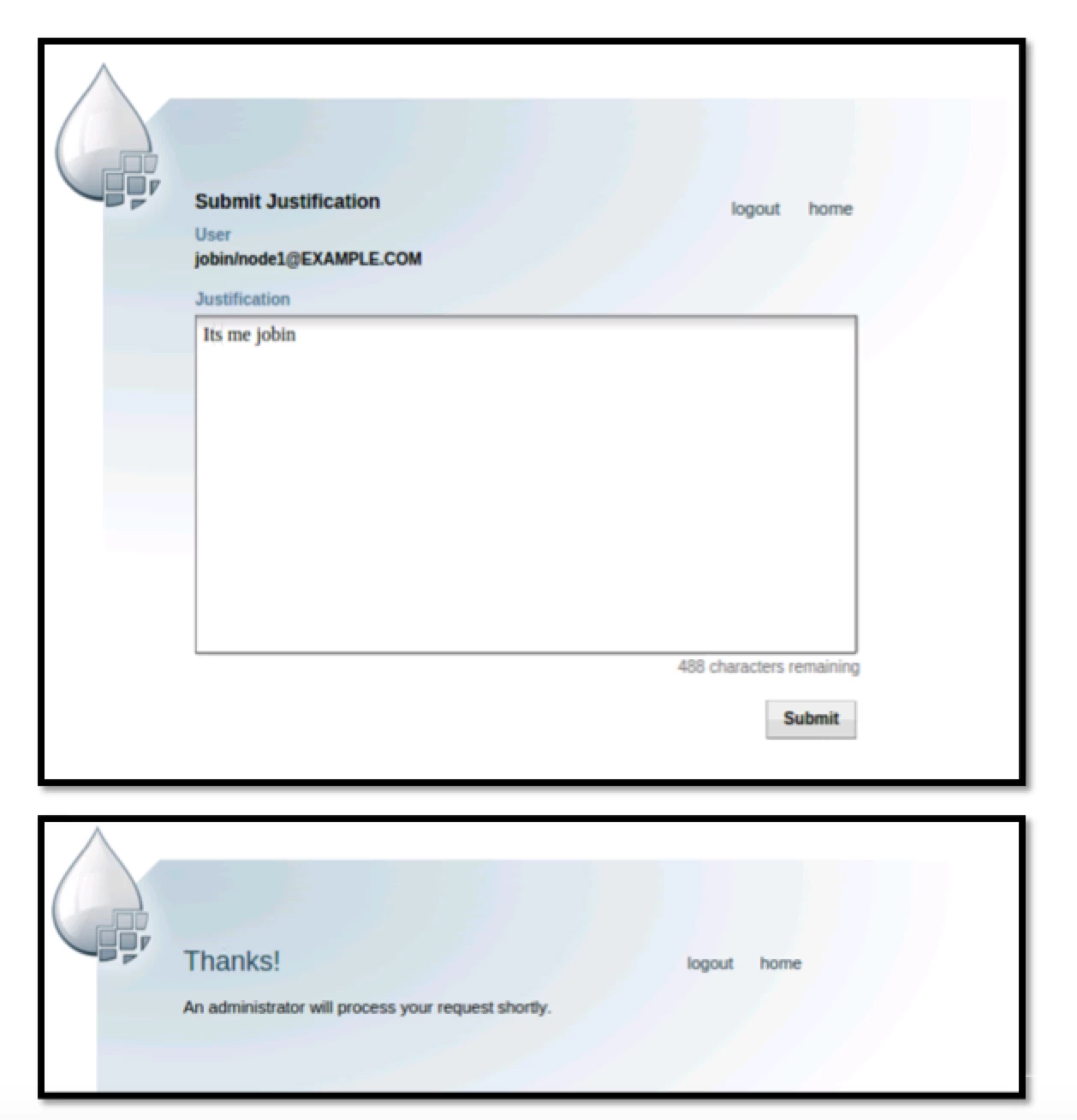
12. Enter the password as hadoop and hit login, enter justification and it will show up below screen that request is pending with Admin who already have access using certificates.
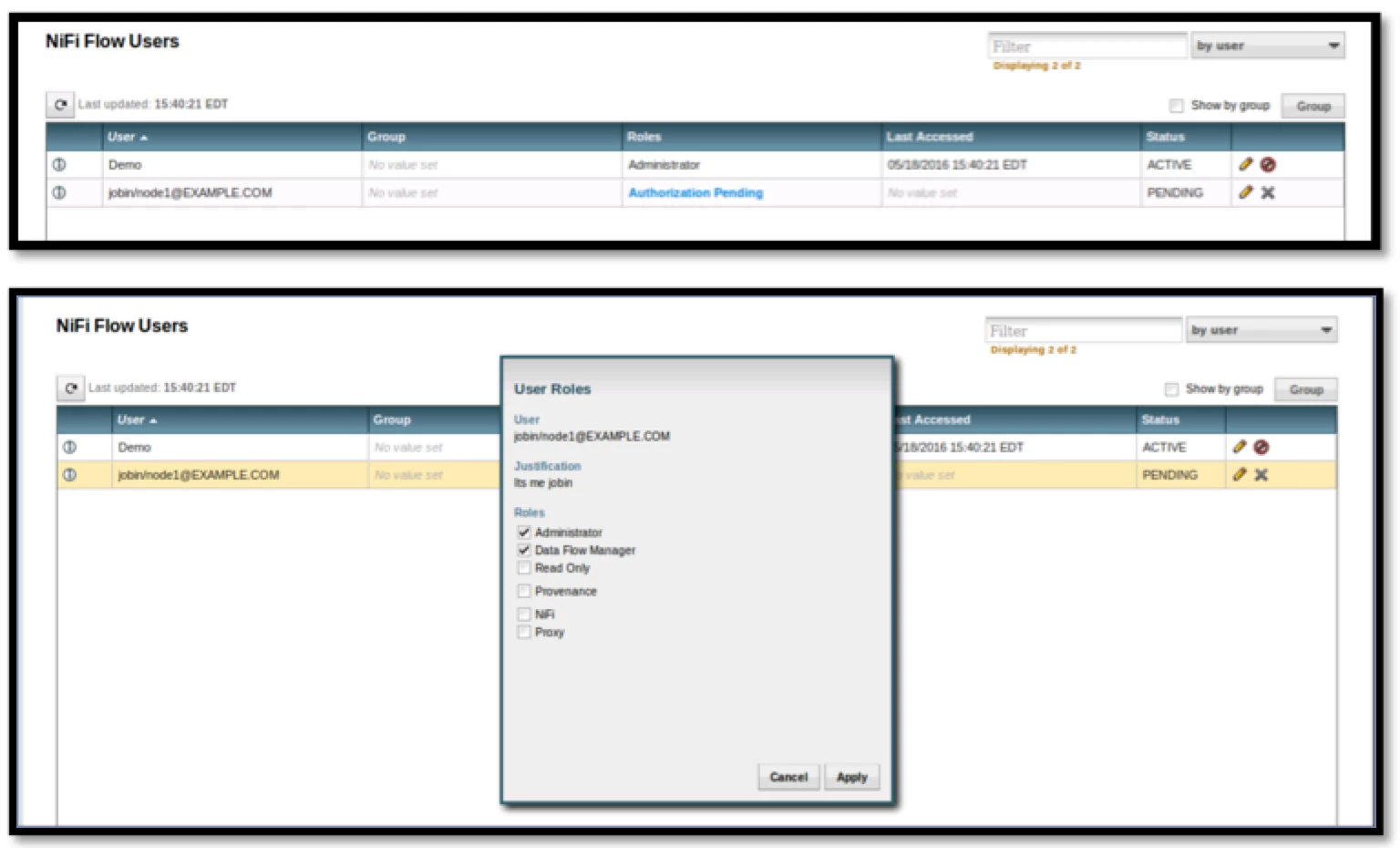
13. Now go back to chrome browser where ‘Demo’ user is NiFi Administrator and assign role to jobin.
14. Now you can see that the user is active:
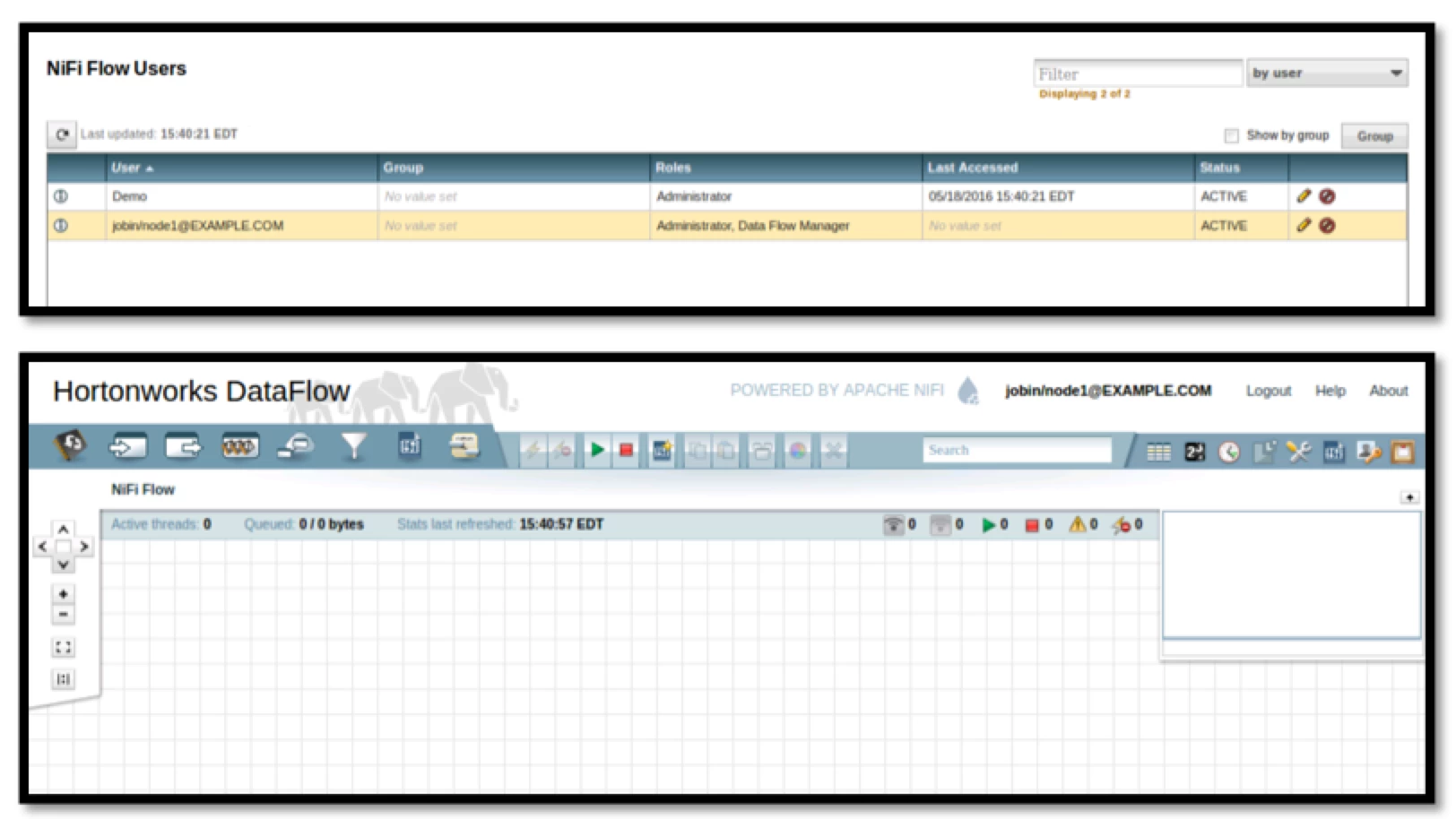
15. Go back to the old session, as tom in safari, refresh the browser and you will be logged in as ‘jobin’ with privileges assigned by NiFi administrator. You can test if for other user ‘george’ as well.
Now you have Authenticated two users jobin and george to access NiFi User Interface.
Hope this will be useful !!
Thanks,
Jobin George

