


Partner Tools Series: How to connect to CDW Hive using ODBC on your Mac
Background:
This is a new article from the Partner Solutions Engineering Team describing how to connect to CDW Hive using ODBC on your Mac. In this series, we will explore client-side activities and Partner integrations that may sometimes be atypical. Our goal is to offer convenient approaches that reduce time and research on your part.
Step 0:
Ensure that homebrew and keytool are installed on your Mac and in your path.
% export PATH=$PATH:/opt/homebrew/bin
% which keytool
/opt/homebrew/opt/openjdk/bin/keytool
Step 1:
Download the CDW certificates for the Hive virtual cluster you want to connect to.
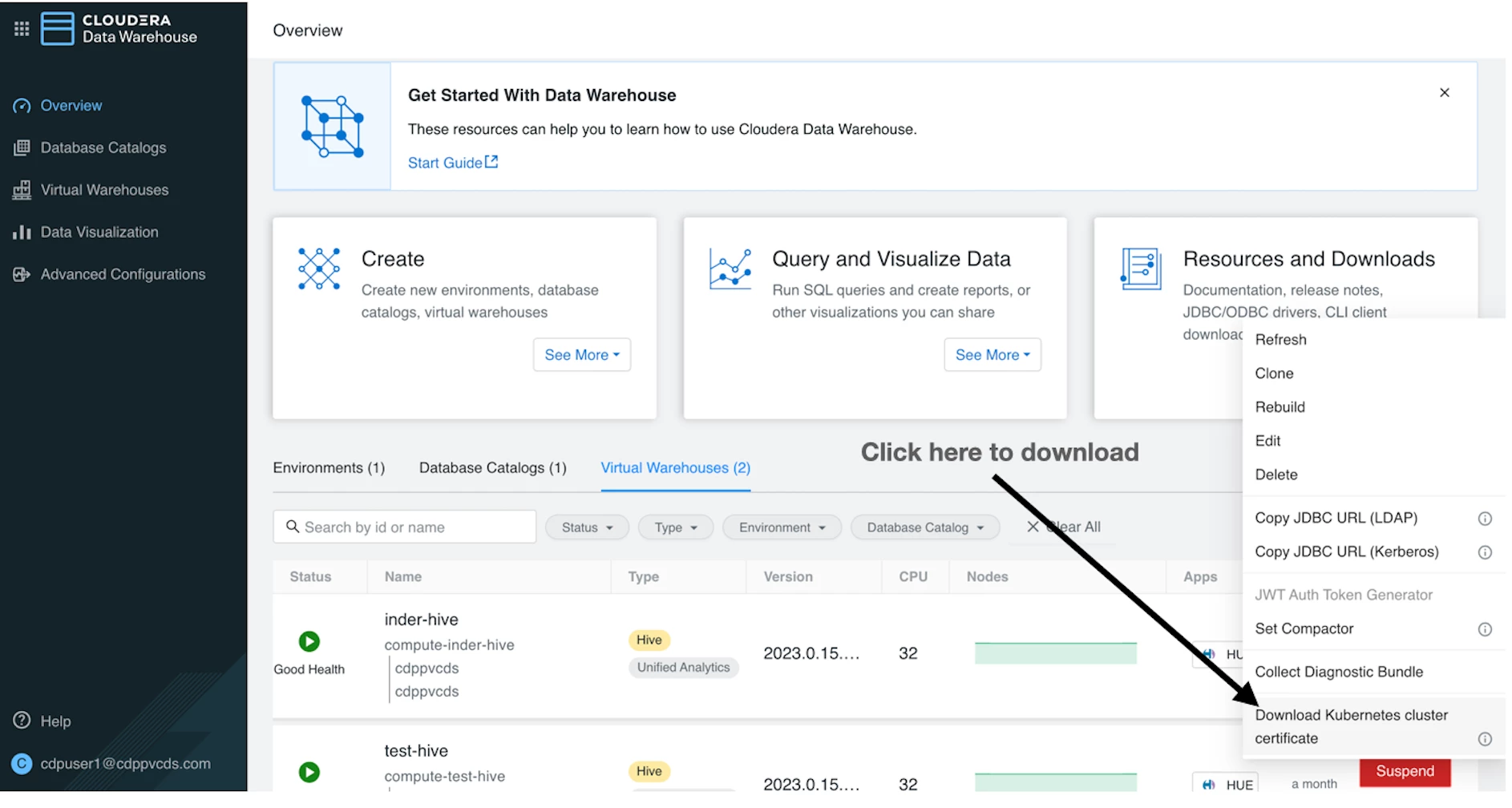
Assuming you downloaded the certificate chain into a file called truststore.jks (can be any name you want), create a PEM file:

% keytool -list -rfc -keystore truststore.jks | sed -ne '/-BEGIN CERTIFICATE-/,/-END CERTIFICATE-/p' > cdw-certs.pem

You should see multiple certificates in this file. Please also note that the /etc/hosts file on your ODBC client should be
able to resolve the virtual URLs exposed by CDW.

keytool prompts you for a password. Here, the default password of 'changeit' was used.
Install the ODBC driver for use on a Mac.
% brew install unixodbc

You should now see the below on your ODBC client machine:

% ls -al /opt/cloudera/hiveodbc
total 1624
drwxr-xr-x  10 root  wheel     320 May 19 10:53 .
drwxr-xr-x   4 root  wheel     128 Dec 21  2021 ..
-rwxrwxrwx   1 root  wheel  700125 Jul  5 2023 Cloudera-ODBC-Driver-for-Apache-Hive-Install-Guide.pdf
-rwxrwxrwx   1 root  wheel   11995 Jul  5  2023 EULA.txt
drwxr-xr-x   3 root  wheel      96 Mar 31  2021 ErrorMessages
-rwxrwxrwx   1 root  wheel   22161 Jul  5  2023 Release-Notes-Hive-ODBC.txt
drwxr-xr-x   4 root  wheel     128 May 19 10:53 Setup
drwxr-xr-x   3 root  wheel      96 May 19 10:53 Tools
drwxr-xr-x   3 root  wheel      96 Mar 31  2021 lib
-rwxrwxrwx   1 root  wheel   93490 Jul  5  2023 third-party-licenses.txt
Step 3:
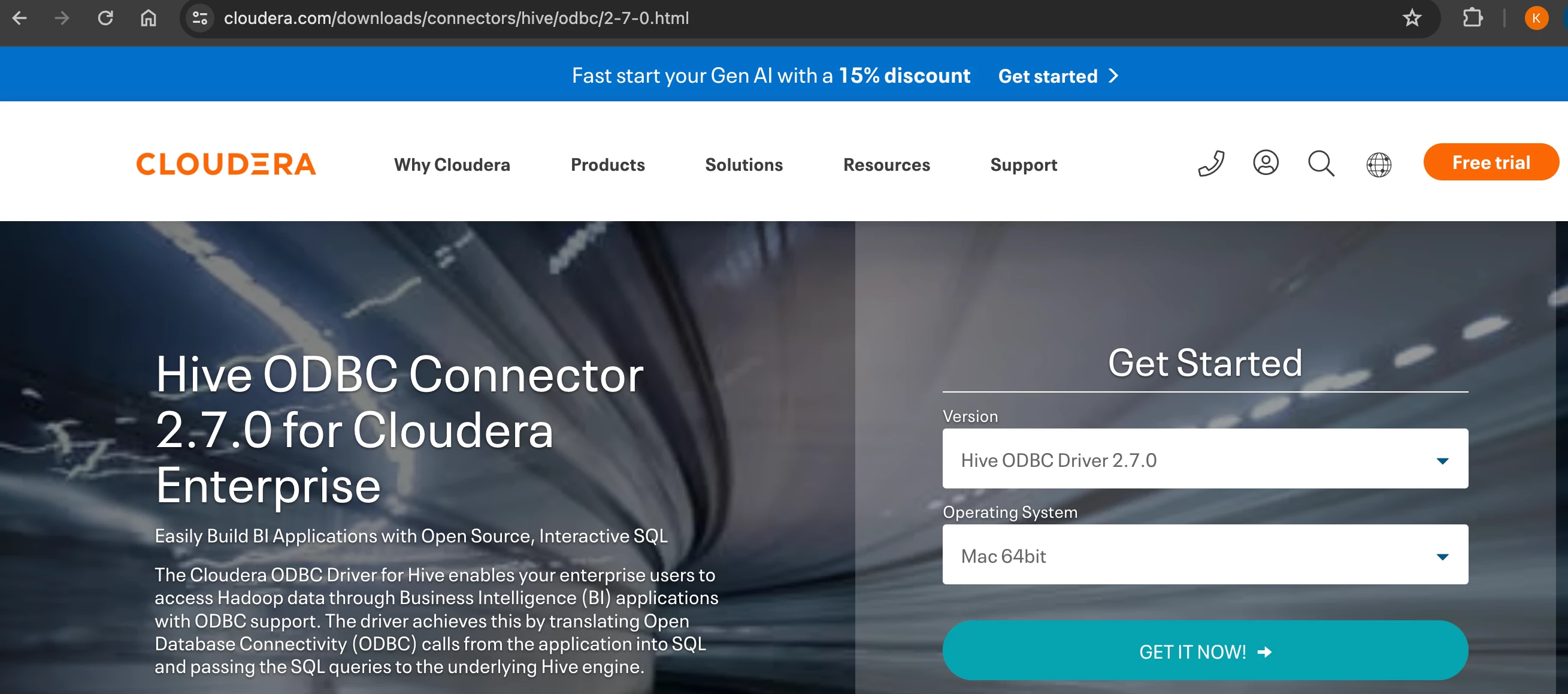
Download the Cloudera ODBC Driver for Hive,
e.g. try https://www.cloudera.com/downloads/connectors/hive/odbc/2-7-0.html

To ensure that the driver was installed, run:

% pkgutil --info cloudera.hiveodbc
package-id: cloudera.hiveodbc
version: 2.7.0
Step 4:
Locate the files used to configured ODBC Data Source Names
% which odbc_config
/opt/homebrew/bin/odbc_config

% odbcinst -j
unixODBC 2.3.12
DRIVERS............: /opt/homebrew/etc/odbcinst.ini
SYSTEM DATA SOURCES: /opt/homebrew/etc/odbc.ini
FILE DATA SOURCES..: /opt/homebrew/etc/ODBCDataSources
USER DATA SOURCES..: /Users/kdavis/.odbc.ini
SQLULEN Size.......: 8
SQLLEN Size........: 8
SQLSETPOSIROW Size.: 8
Step 5:
Configure an ODBC DSN using the paths cited in the previous step above.

% cat /opt/homebrew/etc/odbc.ini
[ODBC Data Sources]
CDW_Hive_DSN=Cloudera Hive ODBC Driver

[CDW_Hive_DSN]
Driver=/opt/cloudera/hiveodbc/lib/universal/libclouderahiveodbc.dylib
Host=hs2-test-hive.apps.cdppvcds.com
Port=443
HiveServerType=2
ServiceDiscoveryMode=0
AuthMech=3
ThriftTransport=2
HttpPath=cliservice
SSL=1
AllowSelfSignedServerCert=1
CAIssuedCertNamesMismatch=1
TwoWaySSL=0
TrustedCerts=/Users/kdavis/Documents/Partners/Protegrity/cluster-build/cdw-certs.pem
Min_TLS=1.2

For a detailed explanation of the settings above, please see an example reference doc at:
https://downloads.cloudera.com/connectors/impala_odbc_2.6.14.1016/Cloudera-ODBC-Connector-for-Impala-Install-Guide.pdf

Next, the odbcinst.ini file should be automatically updated as you install the drivers for
Hive, Impala, Postgres, etc.

% cat /opt/homebrew/etc/odbcinst.ini
[ODBC Drivers]
PostgreSQL Unicode                   = Installed
Cloudera ODBC Driver for Impala      = Installed
Cloudera ODBC Driver for Apache Hive = Installed

[PostgreSQL Unicode]
Description = PostgreSQL ODBC driver
Driver      = /usr/local/lib/psqlodbcw.so

[Cloudera ODBC Driver for Impala]
Driver = /opt/cloudera/impalaodbc/lib/universal/libclouderaimpalaodbc.dylib

[Cloudera ODBC Driver for Apache Hive]
Driver = /opt/cloudera/hiveodbc/lib/universal/libclouderahiveodbc.dylib
Configure the system paths and environment variables.

Note that the library for the Cloudera Hive Driver is installed at:
/opt/cloudera/hiveodbc/lib/universal/libclouderahiveodbc.dylib

For convenience, use the path /usr/local/lib as a central point to reference the libraries
needed:

% sudo ln -s /opt/cloudera/hiveodbc/lib/universal/libclouderahiveodbc.dylib
/usr/local/lib/libclouderahiveodbc.dylib

% sudo ln -s /opt/homebrew/opt/unixodbc/lib/libodbcinst.dylib /usr/local/lib/libodbcinst.dylib

Set the following environment variables:

export DYLD_LIBRARY_PATH=$DYLD_LIBRARY_PATH:/usr/local/lib
export ODBCINI=/opt/homebrew/etc/odbc.ini
export ODBCINSTINI=/opt/homebrew/etc/odbcinst.ini
export CLOUDERAHIVEINI=/opt/cloudera/hiveodbc/lib/universal/cloudera.hiveodbc.ini
Step 7:
Test the ODBC connection to CDW Hive using iSQL or any other desired ODBC tool.

% which isql
/opt/homebrew/bin/isql

% isql -v CDW_Hive_DSN <<username>> <<password>>
+---------------------------------------+
| Connected!                            |
|                                       |
| sql-statement                         |
| help [tablename]                      |
| echo [string]                         |
| quit                                  |
|                                       |
+---------------------------------------+
SQL>

