


Processing files within the CML EFS (better I/O performance) - Edge Case with non-tabular data
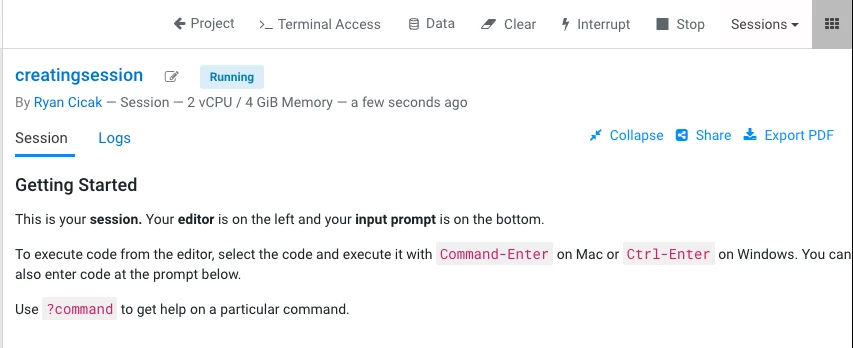
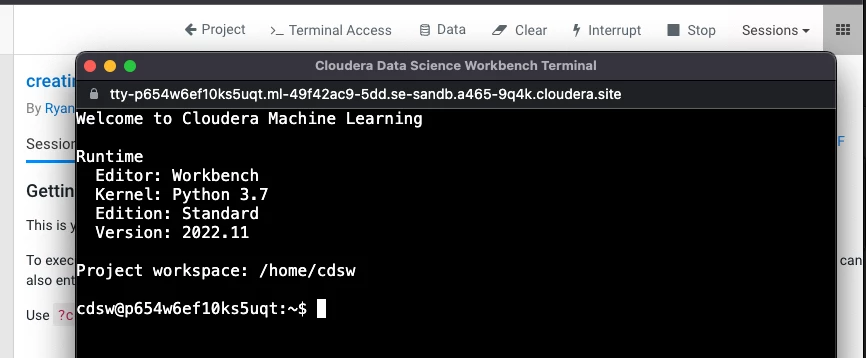
df -h | grep home

Step 5 - Using kubectl, you'll determine which node is running ds-vfs. In order to access kubectl on your laptop, you'll need to download the Kubeconfig for the workspace you're accessing.
Run the following command:
kubectl get pods -n mlx -o wide | grep ds-vfs
(In case you need to download the Kubeconfig on the workspace):
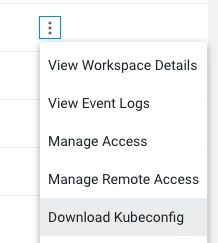
Step 6 - In case you do not have a security policy in place to access SSH on the node you found in step 3, you'll want to add a security policy (to SSH into the node). After you're done with these steps, feel free to remove this security policy (to SSH into the ds-vfs node.
Step 7 - SSH into the node from steps 3 & 4
Step 8 - Determine the EFS mount point, and then sudo su (so you're root moving forward)
cat /proc/mounts | grep projects-share | grep -v grafana
sudo su
My output:
127.0.0.1:/ /var/lib/kubelet/pods/eb4b15b6-631a-428b-92df-e0d31074e7f9/volumes/kubernetes.io~csi/projects-share/mount nfs4 rw,relatime,vers=4.1,rsize=1048576,wsize=1048576,namlen=255,hard,noresvport,proto=tcp,port=20081,timeo=600,retrans=2,sec=sys,clientaddr=127.0.0.1,local_lock=none,addr=127.0.0.1 0 0
127.0.0.1:/ /var/lib/kubelet/pods/d3c5b66c-c84a-40cc-bed9-79fb95f3a7ad/volumes/kubernetes.io~csi/projects-share/mount nfs4 rw,relatime,vers=4.1,rsize=1048576,wsize=1048576,namlen=255,hard,noresvport,proto=tcp,port=20246,timeo=600,retrans=2,sec=sys,clientaddr=127.0.0.1,local_lock=none,addr=127.0.0.1 0 0
127.0.0.1:/ /var/lib/kubelet/pods/1ff3a121-e7fb-4475-974f-92446f65a773/volumes/kubernetes.io~csi/projects-share/mount nfs4 rw,relatime,vers=4.1,rsize=1048576,wsize=1048576,namlen=255,hard,noresvport,proto=tcp,port=20316,timeo=600,retrans=2,sec=sys,clientaddr=127.0.0.1,local_lock=none,addr=127.0.0.1 0 0
127.0.0.1:/ /var/lib/kubelet/pods/96980148-9630-4f5e-90b6-05970eacdf1f/volumes/kubernetes.io~csi/projects-share/mount nfs4 rw,relatime,vers=4.1,rsize=1048576,wsize=1048576,namlen=255,hard,noresvport,proto=tcp,port=20439,timeo=600,retrans=2,sec=sys,clientaddr=127.0.0.1,local_lock=none,addr=127.0.0.1 0 0
Step 9 - Go to the projects file system in my case (you'll pull the last piece from your output in step 3)
cd /var/lib/kubelet/pods/eb4b15b6-631a-428b-92df-e0d31074e7f9/volumes/kubernetes.io~csi/projects-share/mount/projects/0/1
Step 10 - Create a new folder that you'll use to load your files
mkdir images
Step 11 - Validate the directory permissions are set correctly. Files and directories must be owned by 8536:8536
ls -l | grep images
output:
drwxr-sr-x 2 8536 8536 6144 Mar 13 21:01 images
IMPORTANT: If you're loading MANY files - it's beyond important to add this new directory to the gitignore - so these files don't get committed to GIT!
Step 12 - Copy your files into the new directory from step 7, from S3. You'll likely want to figure out S3 authn/authz for the copy. It would be a best practice to script this copy and run it with nohup as a background command. That way the copy doesn't get terminated if the SSH session times out.
Step 13 - Your files are now available in the new directory.
IMPORTANT: It's general best practice to not load all your files in one directory. Instead, create multiple subdirectories and load say 10k files per subdirectory. Within your code (say Python), you can iterate subdirectories and process the files. This way, you aren't overwhelming your code - loading all files at once!
Warning: Do the cost estimate on using EFS vs S3 - before going into sticker shock on using higher-cost storage within AWS. Again - after you're done processing your data within EFS/NFS, please remember to delete this data since large amounts of data on EFS/NFS negatively affect backup and recovery times.

