
Querying Data via SparkSQL with ODBC Tools
After completing this tutorial you will understand how to:
- leverage Spark to infer a schema on a CSV dataset and persist it to Hive without explicitly declaring the DDL
- deploy the Spark Thrift Server on the Hortonworks Sandbox
- connect and ODBC tool (Tableau) to the Spark Thrift Server via the Hive ODBC driver, leveraging caching for ad-hoc visualization
Assumption 1: It is assumed that you have downloaded and deployed the Hortonworks sandbox, installed the Hive ODBC driver on your host machine, and installed Tableau (or your preferred ODBC-based reporting tool).
Assumption 2: Please ensure that your host machine's /etc/hosts file has the appropriate entry mapping sandbox.hortonworks.com to the IP of your sandbox (e.g., 172.16.35.171 sandbox.hortonworks.com sandbox).
Deploying the Spark Thrift Server
- Within Ambari, click on the Hosts tab and then select the sandbox.hortonworks.com node from the list.
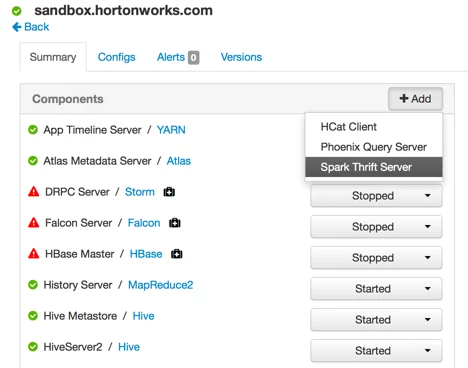
- Now you can click “Add” and choose Spark Thrift Server from the list to deploy a thrift server.
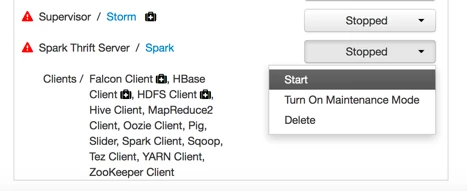
- After installing, start the thrift server via the service menu.
Loading the Data
The code blocks below are each intended to be executed in their own Zeppelin notebook cells. Each cell begins with a '%' indicating the interpreter to be used.
- Open Zeppelin and create a new notebook: http://sandbox.hortonworks.com:9995
- Download and take a peek at the first few lines of the data:
%sh
wget https://dl.dropboxusercontent.com/u/3136860/Crime_Data.csv
hdfs dfs -put Crime_Data.csv /tmp
head Crime_Data.csv
- Load the CSV reader dependency:
%dep
z.load("com.databricks:spark-csv_2.10:1.4.0")
- Read the CSV file and infer the schema:
%pyspark
sqlContext = HiveContext(sc)
data = sqlContext.read.load("/tmp/Crime_Data.csv", format="com.databricks.spark.csv", header="true", inferSchema="true")
data.printSchema()
- Persist the data to Hive:
%pyspark
data.registerAsTable("staging")
sqlContext.sql("CREATE TABLE crimes STORED AS ORC AS SELECT * FROM staging")
- Verify the data is present and able to be queried:
%sql
select Description, count(*) cnt from crimes
group by Description order by cnt desc
Connecting Tableau via ODBC
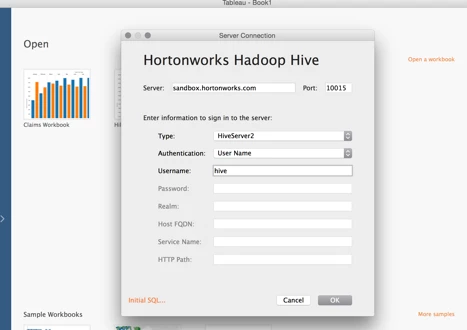
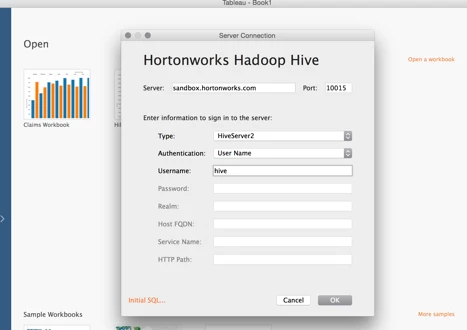
- Connect using the Hortonworks Hadoop Hive connector:
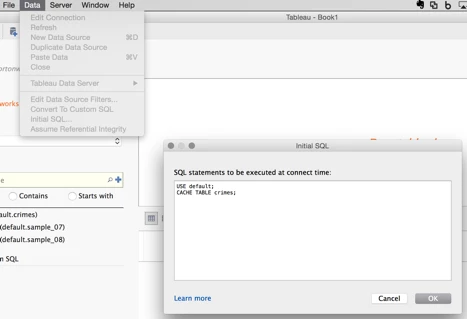
- Run the “Initial SQL” to cache the crimes table:
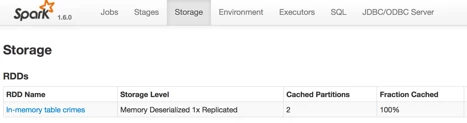
- Verify the table is cached in the Thrift Server UI: http://sandbox.hortonworks.com:4040/storage/
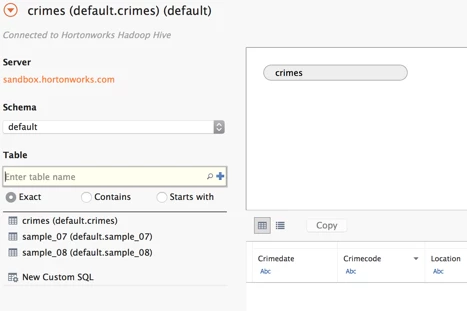
- Select the default schema and drag the crimes table into the tables area
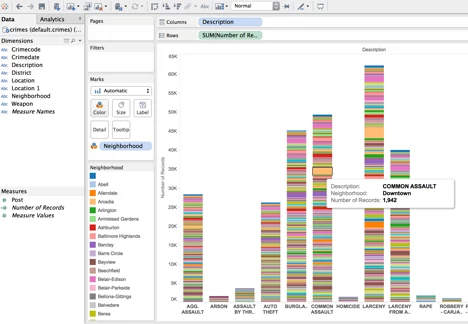
- Go to the worksheet and start exploring the data using the cached table!