

Securing Solr Collections with Ranger + Kerberos
This article shows how to setup and secure a SolrCloud cluster with Kerberos and Ranger. Furthermore it outlines some important configurations that are necessary in order to use the combination Solr + HDFS + Kerberos.
Tested on HDP 2.3.4, Ambari 2.1.2, Ranger 0.5, Solr 5.2.1; MIT Kerberos
Pre-Requisites & Service Allocation
You should have a running HDP cluster, including Kerberos, Ranger and HDFS.
For this article I am going to use a 6 node (3 master + 3 worker) cluster with the following service allocation.
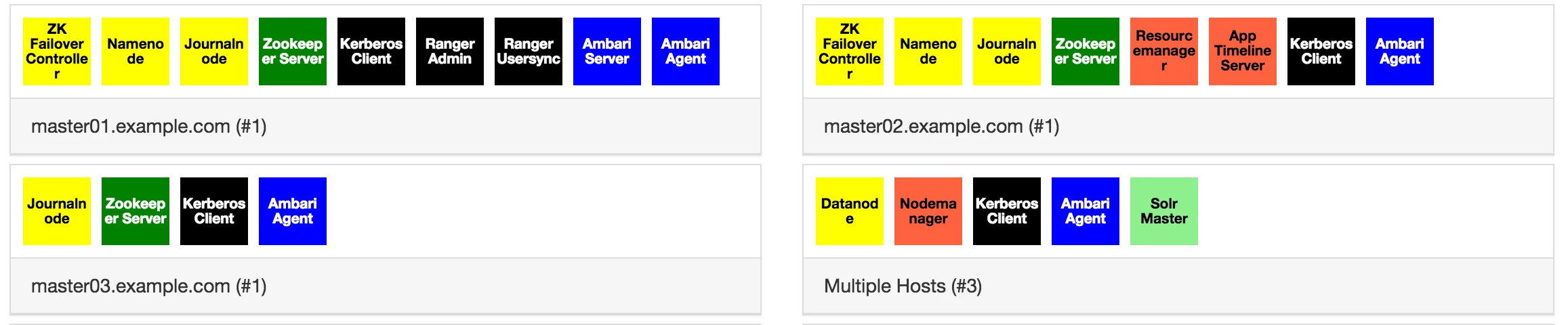
Depending on the size and use case of your Solr environment, you can either install Solr on separate nodes (larger workloads and collections) or install them on the same nodes as the Datanodes. For this installation I have decided to install Solr on the 3 Datanodes.
Note: The picture above is only showing the main services and components, there are additional clients and services installed (Yarn, MR, Hive, ...).
Installing the SolrCloud
Solr aka HDPSearch is part of the HDP-Utils repository (see http://docs.hortonworks.com/HDPDocuments/HDP2/HDP-2.3.0/bk_search/index.html).
Install Solr on all Datanodes
yum install lucidworks-hdpsearch
service solr start
ln -s /opt/lucidworks-hdpsearch/solr/server/logs /var/log/solr
Note: Make sure /opt/lucidworks-hdpsearch is owned by user solr and solr is available as a service ("service solr status" should return the Solr status)
Keytabs and Principals
In order for Solr to authenticate itself with the kerberized cluster, it is necessary to create a Solr and Spnego Keytab. The latter is used for authenticating HTTP requests. Its recommended to create a keytab per host, instead of a keytab that is distributed to all hosts, e.g. solr/myhostname@EXAMPLE.COM instead of solr@EXAMPLE.COM
The Solr service keytab will also be used to enable Solr Collections to write to the HDFS.
Create a Solr Service Keytab for each Solr host
kadmin.local
addprinc -randkey solr/horton04.example.com@EXAMPLE.COM
xst -k solr.service.keytab.horton04 solr/horton04.example.com@EXAMPLE.COM
addprinc -randkey solr/horton05.example.com@EXAMPLE.COM
xst -k solr.service.keytab.horton05 solr/horton05.example.com@EXAMPLE.COM
addprinc -randkey solr/horton06.example.com@EXAMPLE.COM
xst -k solr.service.keytab.horton06 solr/horton06.example.com@EXAMPLE.COM
exit
Move the Keytabs to the individual hosts (in my case => horton04,horton05,horton06) and save them under /etc/security/keytabs/solr.service.keytab
Create Spnego Service Keytab
To authenticate HTTP requests, it is necessary to create a Spnego Service Keytab, either by making a copy of the existing spnego-Keytab or by creating a separate solr/spnego principal + keytab. On each Solr host do the following:
cp /etc/security/keytabs/spnego.service.keytab /etc/security/keytabs/solr-spnego.service.keytab
Owner & Permissions
Make sure the Keytabs are owned by solr:hadoop and the permissions are set to 400.
chown solr:hadoop /etc/security/keytabs/solr*.keytab
chmod 400 /etc/security/keytabs/solr*.keytab
Configure Solr Cloud
Since all Solr data will be stored in the Hadoop Filesystem, it is important to adjust the time Solr will take to shutdown or "kill" the Solr process (whenever you execute "service solr stop/restart"). If this setting is not adjusted, Solr will try to shutdown the Solr process and because it takes a bit more time when using HDFS, Solr will simply kill the process and most of the time lock the Solr Indexes of your collections. If the index of a collection is locked the following exception is shown after the startup routine "org.apache.solr.common.SolrException: Index locked for write"
Increase the sleep time from 5 to 30 seconds in /opt/lucidworks-hdpsearch/solr/bin/solr
sed -i 's/(sleep 5)/(sleep 30)/g' /opt/lucidworks-hdpsearch/solr/bin/solr
Adjust Solr configuration: /opt/lucidworks-hdpsearch/solr/bin/solr.in.sh
SOLR_HEAP="1024m"
SOLR_HOST=`hostname -f`
ZK_HOST="horton01.example.com:2181,horton02.example.com:2181,horton03.example.com:2181/solr"
SOLR_KERB_PRINCIPAL=HTTP/${SOLR_HOST}@EXAMPLE.COM
SOLR_KERB_KEYTAB=/etc/security/keytabs/solr-spnego.service.keytab
SOLR_JAAS_FILE=/opt/lucidworks-hdpsearch/solr/bin/jaas.conf
SOLR_AUTHENTICATION_CLIENT_CONFIGURER=org.apache.solr.client.solrj.impl.Krb5HttpClientConfigurer
SOLR_AUTHENTICATION_OPTS=" -DauthenticationPlugin=org.apache.solr.security.KerberosPlugin -Djava.security.auth.login.config=${SOLR_JAAS_FILE} -Dsolr.kerberos.principal=${SOLR_KERB_PRINCIPAL} -Dsolr.kerberos.keytab=${SOLR_KERB_KEYTAB} -Dsolr.kerberos.cookie.domain=${SOLR_HOST} -Dhost=${SOLR_HOST} -Dsolr.kerberos.name.rules=DEFAULT"
Create Jaas-Configuration
Create a Jaas-Configuration file: /opt/lucidworks-hdpsearch/solr/bin/jaas.conf
Client {
     com.sun.security.auth.module.Krb5LoginModule required
     useKeyTab=true
     keyTab="/etc/security/keytabs/solr.service.keytab"
     storeKey=true
     debug=true
     principal="solr/<HOSTNAME>@EXAMPLE.COM";
};
Make sure the file is owned by solr
chown solr:solr /opt/lucidworks-hdpsearch/solr/bin/jaas.conf
HDFS
Create a HDFS directory for Solr. This directory will be used for all the Solr data (indexes, etc.).
hdfs dfs -mkdir /apps/solr
hdfs dfs -chown solr /apps/solr
hdfs dfs -chmod 750 /apps/solr
Zookeeper
SolrCloud is using Zookeeper to store configurations and cluster states. Its recommended to create a separate ZNode for Solr. The following commands can be executed on one of the Solr nodes.
Initialize Zookeeper Znode for Solr:
/opt/lucidworks-hdpsearch/solr/server/scripts/cloud-scripts/zkcli.sh -zkhost horton01.example.com:2181,horton02.example.com.com:2181,horton03.example.com:2181 -cmd makepath /solr
The security.json file needs to in the the root folder of the Solr-Znode. This file contains configurations for the authentication and authorization provider.
/opt/lucidworks-hdpsearch/solr/server/scripts/cloud-scripts/zkcli.sh -zkhost horton01.example.com:2181,horton02.example.com.com:2181,horton03.example.com:2181 -cmd put /solr/security.json '{"authentication":{"class": "org.apache.solr.security.KerberosPlugin"},"authorization":{"class": "org.apache.ranger.authorization.solr.authorizer.RangerSolrAuthorizer"}}'
Install & Enable Ranger Solr-Plugin
Log into the Ranger UI and create a Solr repository and user.
Create Ranger-Solr Repository (Access Manager -> Solr -> Add(+))
Service Name: <clustername>_solr
Username: amb_ranger_admin
Password: <password> (typically this is admin)
Solr Url: http://horton04.example.com:8983
Add Ranger-Solr User
Create a new user called " solr" with an arbitrary password.
This user is necessary to assign policy permissions to the Solr user
Add base policy
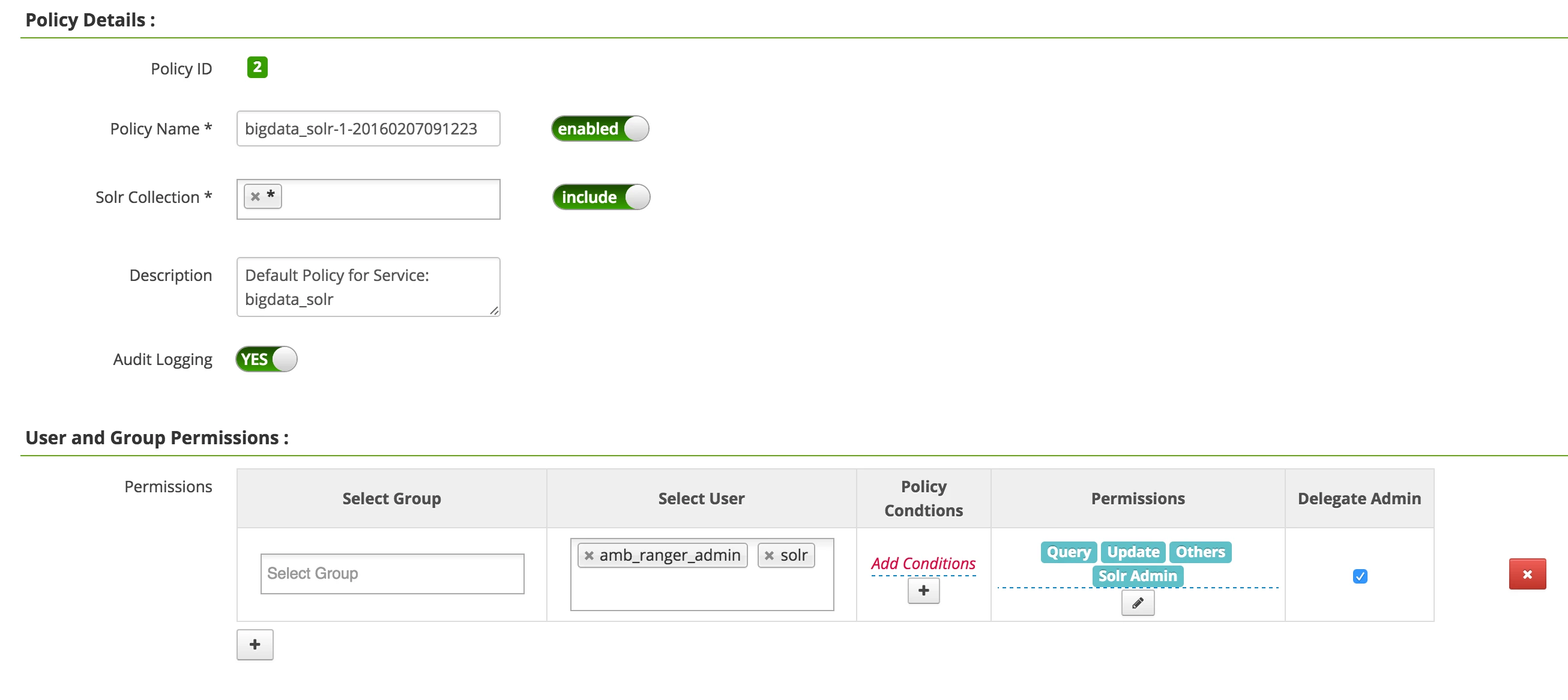
Creating a new Solr repository in Ranger usually creates a base policy as well. If you dont see a policy in the Solr repository, create a Solr Base policy with the following settings:
Policy Name: e.g. clustername
Solr Collections: *
Description: Default Policy for Service: bigdata_solr
Audit Logging: Yes
User: solr, amb_ranger_admin
Permissions: all permissions + delegate admin
Install Solr-Plugin
Install and enable the Ranger Solr Plugin on all nodes that have Solr installed.
yum -y install ranger_*-solr-plugin.x86_64
Copy Mysql-Connector-Java (optional, Audit to DB)
This is only necessary if you want to setup Audit to DB
cp /usr/share/java/mysql-connector-java.jar /usr/hdp/2.3.4.0-3485/ranger-solr-plugin/lib
Adjust Plugin Configuration
Plugin properties are located here: /usr/hdp/<hdp-version>/ranger-solr-plugin/install.properties
Change the following values:
SQL_CONNECTOR_JAR=/usr/share/java/mysql-connector-java.jar
COMPONENT_INSTALL_DIR_NAME=/opt/lucidworks-hdpsearch/solr/server
POLICY_MGR_URL=http://<ranger-host>:6080
REPOSITORY_NAME=<clustername>_solr
If you want to enable Audit to DB, also change:
XAAUDIT.DB.IS_ENABLED=true
XAAUDIT.DB.FLAVOUR=MYSQL
XAAUDIT.DB.HOSTNAME=<ranger-db-host>
XAAUDIT.DB.DATABASE_NAME=ranger_audit
XAAUDIT.DB.USER_NAME=rangerlogger
XAAUDIT.DB.PASSWORD=*****************
(set this password to whatever you set when running Mysql pre-req steps for Ranger)
Enable the Plugin and (Re)start Solr
export JAVA_HOME=<path_to_jdk>
/usr/hdp/<version>/ranger-solr-plugin/enable-solr-plugin.sh
service solr restart
The enable script will distribute some files and create sym-links in /opt/lucidwords-hdpsearch/solr/server/solr-webapp/webapp/WEB-INF/lib
If you go to the Ranger UI, you should be able to see whether your Solr instances are communicating with Ranger or not.

Smoke Test
Everything has been setup and the policies have been synced with the Solr nodes, its time for some smoke tests :)
To test our installation we are going to setup a test collection with one of the sample datasets from Solr, called "films".
Go to the first node of your Solr Cloud (e.g. horton04)
Create the initial Solr Collection configuration by using the basic_config, which is part of every Solr installation
mkdir /opt/lucidworks-hdpsearch/solr_collections
mkdir /opt/lucidworks-hdpsearch/solr_collections/films
chown -R solr:solr /opt/lucidworks-hdpsearch/solr_collections
cp -R /opt/lucidworks-hdpsearch/solr/server/solr/configsets/basic_configs/conf /opt/lucidworks-hdpsearch/solr_collections/films
Adjust solrconfig.xml (/opt/lucidworks-hdpsearch/solr_collections/films/conf)
1) Remove any existing directoryFactory-element
2) Add new Directory Factory for HDFS (make sure to modify the values for solr.hdfs.home and solr.hdfs.security.kerberos.principal)
<directoryFactory name="DirectoryFactory" class="solr.HdfsDirectoryFactory">
     <str name="solr.hdfs.home">hdfs://bigdata/apps/solr</str>
     <str name="solr.hdfs.confdir">/etc/hadoop/conf</str>
     <bool name="solr.hdfs.security.kerberos.enabled">true</bool>
     <str name="solr.hdfs.security.kerberos.keytabfile">/etc/security/keytabs/solr.service.keytab</str>
     <str name="solr.hdfs.security.kerberos.principal">solr/${host:}@EXAMPLE.COM</str>
     <bool name="solr.hdfs.blockcache.enabled">true</bool>
     <int name="solr.hdfs.blockcache.slab.count">1</int>
     <bool name="solr.hdfs.blockcache.direct.memory.allocation">true</bool>
     <int name="solr.hdfs.blockcache.blocksperbank">16384</int>
     <bool name="solr.hdfs.blockcache.read.enabled">true</bool>
     <bool name="solr.hdfs.blockcache.write.enabled">true</bool>
     <bool name="solr.hdfs.nrtcachingdirectory.enable">true</bool>
     <int name="solr.hdfs.nrtcachingdirectory.maxmergesizemb">16</int>
     <int name="solr.hdfs.nrtcachingdirectory.maxcachedmb">192</int>
</directoryFactory>
3) Adjust Lock-type
Search the lockType-element and change it to "hdfs"
<lockType>hdfs</lockType>
Adjust schema.xml (/opt/lucidworks-hdpsearch/solr_collections/films/conf)
Add the following field definitions in the schema.xml file (There are already some base field definitions, simply copy-and-paste the following 4 lines somewhere nearby).
<field name="directed_by" type="string" indexed="true" stored="true" multiValued="true"/>
<field name="name" type="text_general" indexed="true" stored="true"/>
<field name="initial_release_date" type="string" indexed="true" stored="true"/>
<field name="genre" type="string" indexed="true" stored="true" multiValued="true"/>
Upload Films-configuration to Zookeeper (solr-znode)
Since this is a SolrCloud setup, all configuration files will be stored in Zookeeper.
/opt/lucidworks-hdpsearch/solr/server/scripts/cloud-scripts/zkcli.sh -zkhost horton01.example.com:2181,horton02.example.com.com:2181,horton03.example.com:2181/solr -cmd upconfig -confname films -confdir /opt/lucidworks-hdpsearch/solr_collections/films/conf
Create the Films-Collection
Note: Make sure you have a valid Kerberos ticket from the Solr user (e.g. "kinit -kt solr.service.keytab solr/`hostname -f`")
curl --negotiate -u : "http://horton04.example.com:8983/solr/admin/collections?action=CREATE&name=films&numShards=1"
Check available collections:
curl --negotiate -u : "http://horton04.example.com:8983/solr/admin/collections?action=LIST&wt=json"
Response
{
   "responseHeader":{
      "status":0,
      "QTime":2
   },
   "collections":[
      "films"
   ]
}
Load data into the collection
curl --negotiate -u : 'http://horton04.example.com:8983/solr/films/update/json?commit=true' --data-binary @/opt/lucidworks-hdpsearch/solr/example/films/films.json -H 'Content-type:application/json'
Select data from the Films-Collection
curl --negotiate -u : http://horton04.example.com:8983/solr/films/select?q=*
This should return the data from the films-Collection.
Since the Solr-user is part of the base policy in Ranger, above commands should not bring up any errors or authorization issues.
Tests with new user (=> Tom)
To see whether Ranger is working or not, authenticate yourself as a different user (e.g. Tom) and select the data from "films"
kinit tom@EXAMPLE.COM
curl --negotiate -u : http://horton04.example.com:8983/solr/films/select?q=*
This should return "Unauthorized Request (403)"

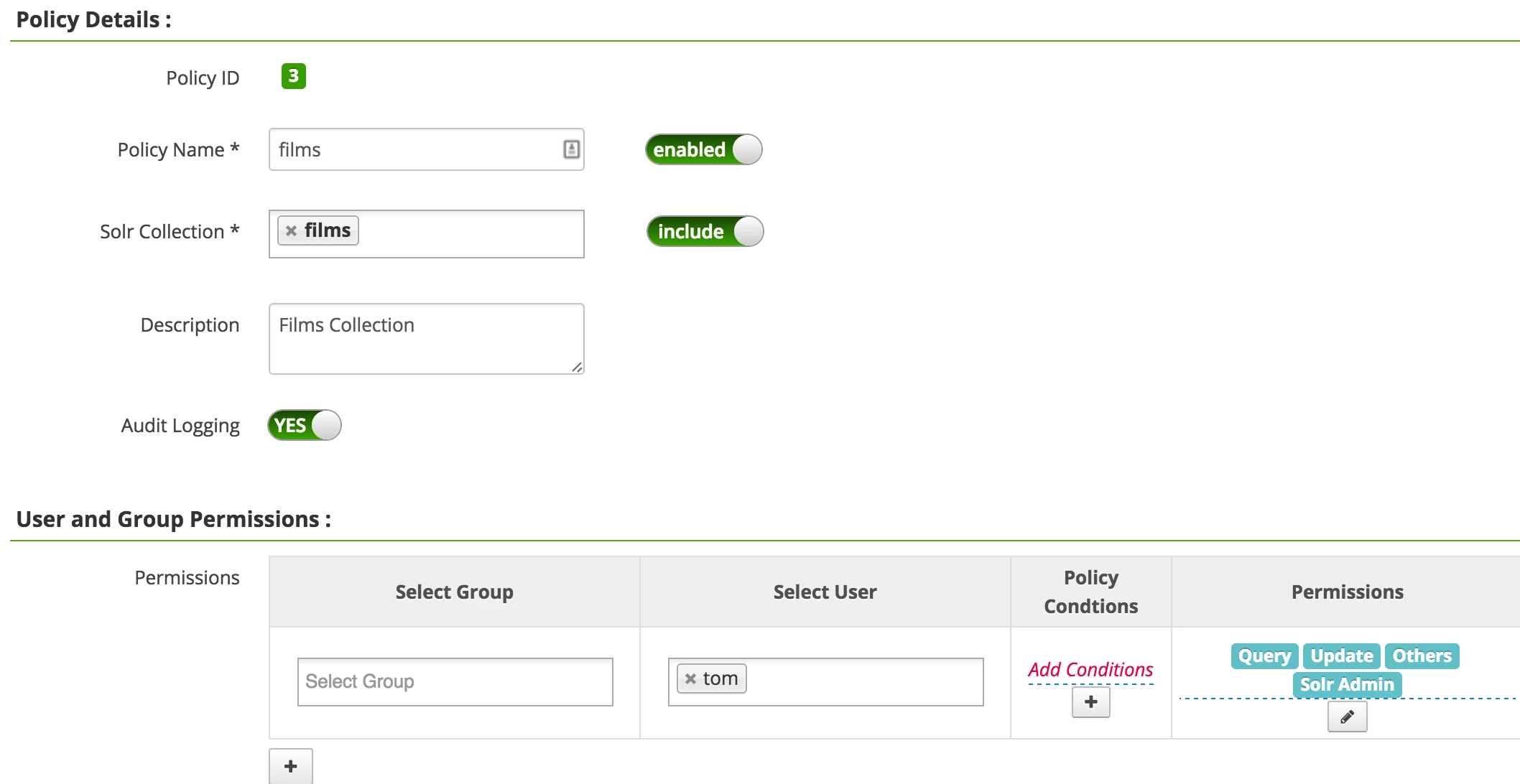
Add Policy
Add a new Ranger-Solr-Policy for the films collection and authorize Tom
Query the collection again
curl --negotiate -u : "http://horton04.example.com:8983/solr/films/select?q=*&wt=json"
Result:
{
   "responseHeader":{
      "status":0,
      "QTime":3,
      "params":{
         "q":"*",
         "wt":"json"
      }
   },
   "response":{
      "numFound":1100,
      "start":0,
      "docs":[
         {
            "id":"/en/45_2006",
            "directed_by":[
               "Gary Lennon"
            ],
            "initial_release_date":"2006-11-30",
            "genre":[
               "Black comedy",
               "Thriller",
               "Psychological thriller",
               "Indie film",
               "Action Film",
               "Crime Thriller",
               "Crime Fiction",
               "Drama"
            ],
            "name":".45",
            "_version_":1525514568271396864
         },
         ...
...
...
Common Errors
Unauthorized Request (403)
Ranger denied access to the specified Solr Collection. Check the Ranger audit log and Solr policies.
Authentication Required
Make sure you have a valid kerberos ticket!
Defective Token detected
Caused by: GSSException: Defective token detected (Mechanism level: GSSHeader did not find
the right tag)
Usually this issue surfaces during Spnego authentication, the token supplied by the client is not accepted by the server.
This error occurs with Java JDK 1.8.0_40 (http://bugs.java.com/view_bug.do?bug_id=8080122)
Solution: This bug was acknowledged and fixed by Oracle in Java JDK >= 1.8.0_60
White Page / Too many groups
Problem: When the Solr Admin interface ( badMessage: java.lang.IllegalStateException: too much data after closed for
HttpChannelOverHttp@69d2b147{r=2,c=true,=COMPLETED,uri=/solr/}
HttpParser Header is too large >8192
Also see:
- https://support.microsoft.com/en-us/kb/327825
- https://ping.force.com/Support/PingFederate/Integrations/IWA-Kerberos-authentication-may-fail-when-user-belongs-to-many-AD-groups
Possible solution:
Search for the file: /opt/lucidworks-hdpsearch/solr/server/etc/jetty.xml
Increase the "solr.jetty.request.header.size" from 8192 to about 51200 (should be sufficient for plenty of groups).
sed -i 's/name="solr.jetty.request.header.size" default="8192"/name="solr.jetty.request.header.size" default="51200"/g' /opt/lucidworks-hdpsearch/solr/server/etc/jetty.xml
Useful Links
https://cwiki.apache.org/confluence/display/solr/Collections+API
https://cwiki.apache.org/confluence/display/solr/Kerberos+Authentication+Plugin
https://cwiki.apache.org/confluence/display/solr/Getting+Started+with+SolrCloud
Looking forward to your feedback
Jonas

