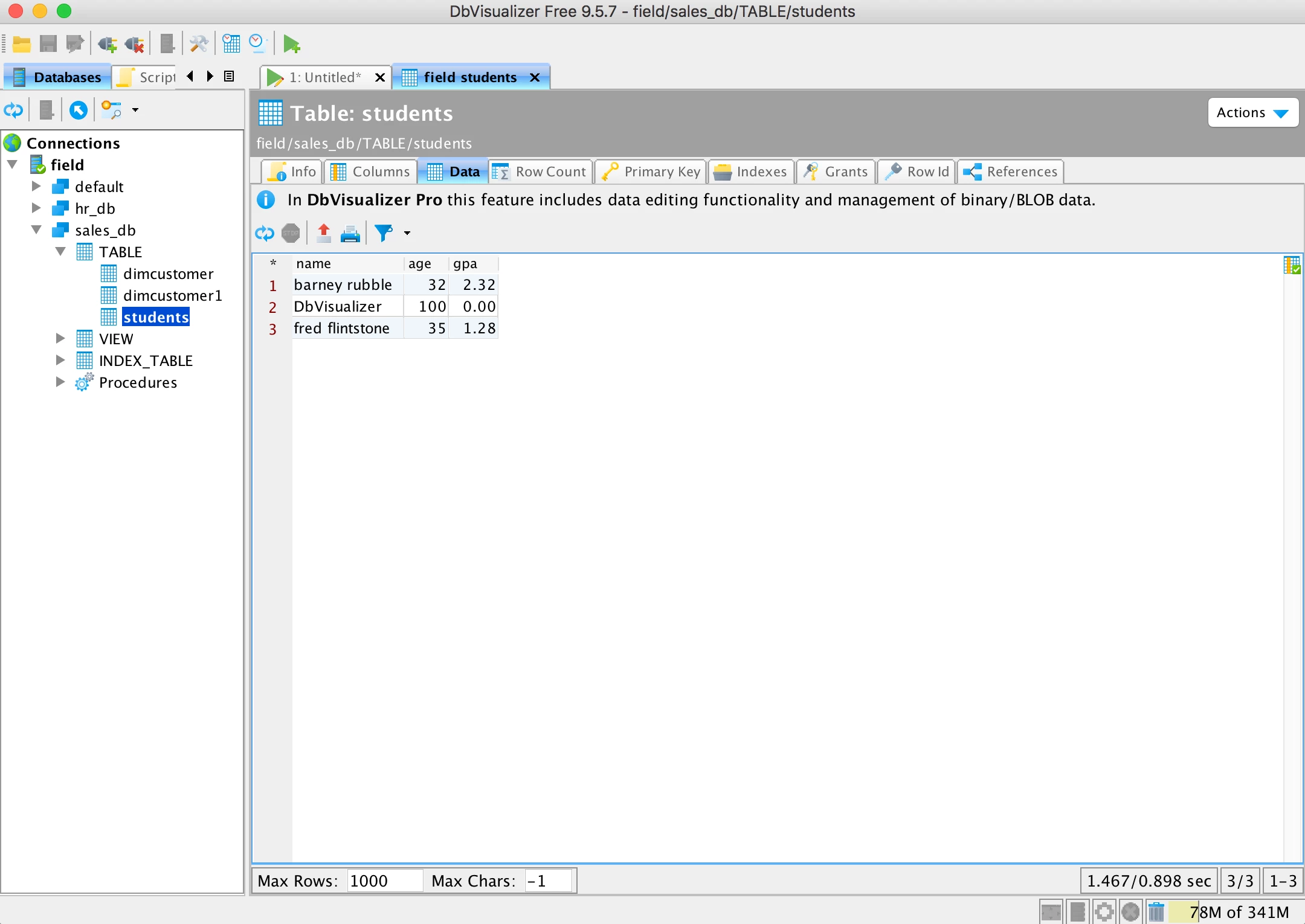

Setup DbVisualizer access HDP Hive via Knox
Short Description
How to setup popular SQL development tools, like DbVisualizer, to access HDP Hive in secured network zone via Knox.
Article
Most customers setup Hadoop/Hive cluster in secured network Zone. There's no direct network connection between office and Hadoop network. So Knox is always setup to proxy Hive connections from office network. This article will setup DbVisualizer to connect to Knox Hive URL step by step.
Download Hive Driver for HDP2.6.1
Download hive-jdbc.jar https://github.com/timveil/hive-jdbc-uber-jar/releases
The latest for HDP2.6.1 is https://github.com/timveil/hive-jdbc-uber-jar/releases/download/v1.6-2.6.1/hive-jdbc-uber-2.6.1.0-129.jar
Create a new Database Driver use the hive-jdbc.jar
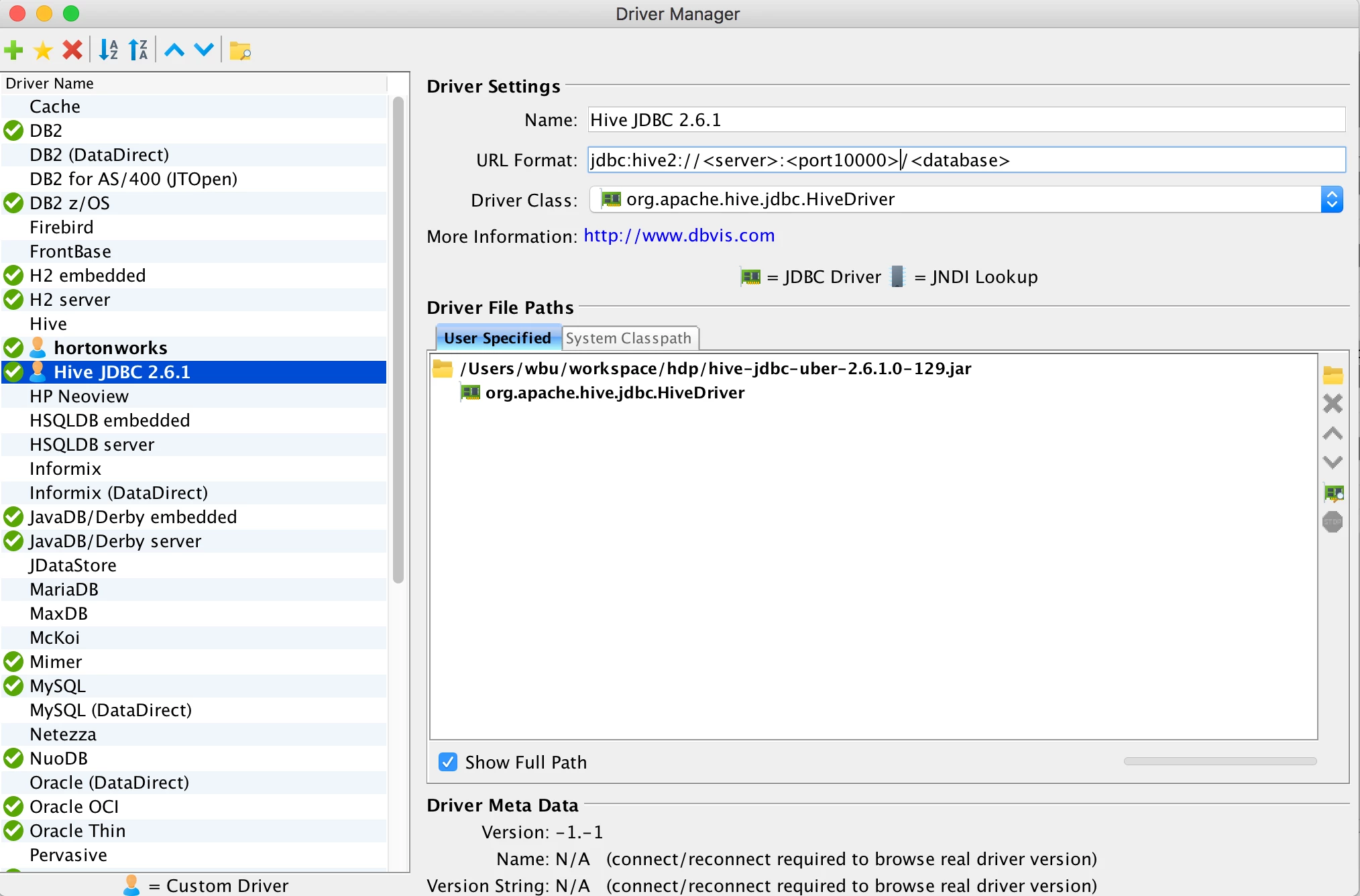
URL Format: jdbc:hive2://<server>:<port10000>/<database>
The URL Format is for standard hive2 jdbc, will change later in actual connection for Knox.
Create a new Connection with this new Driver
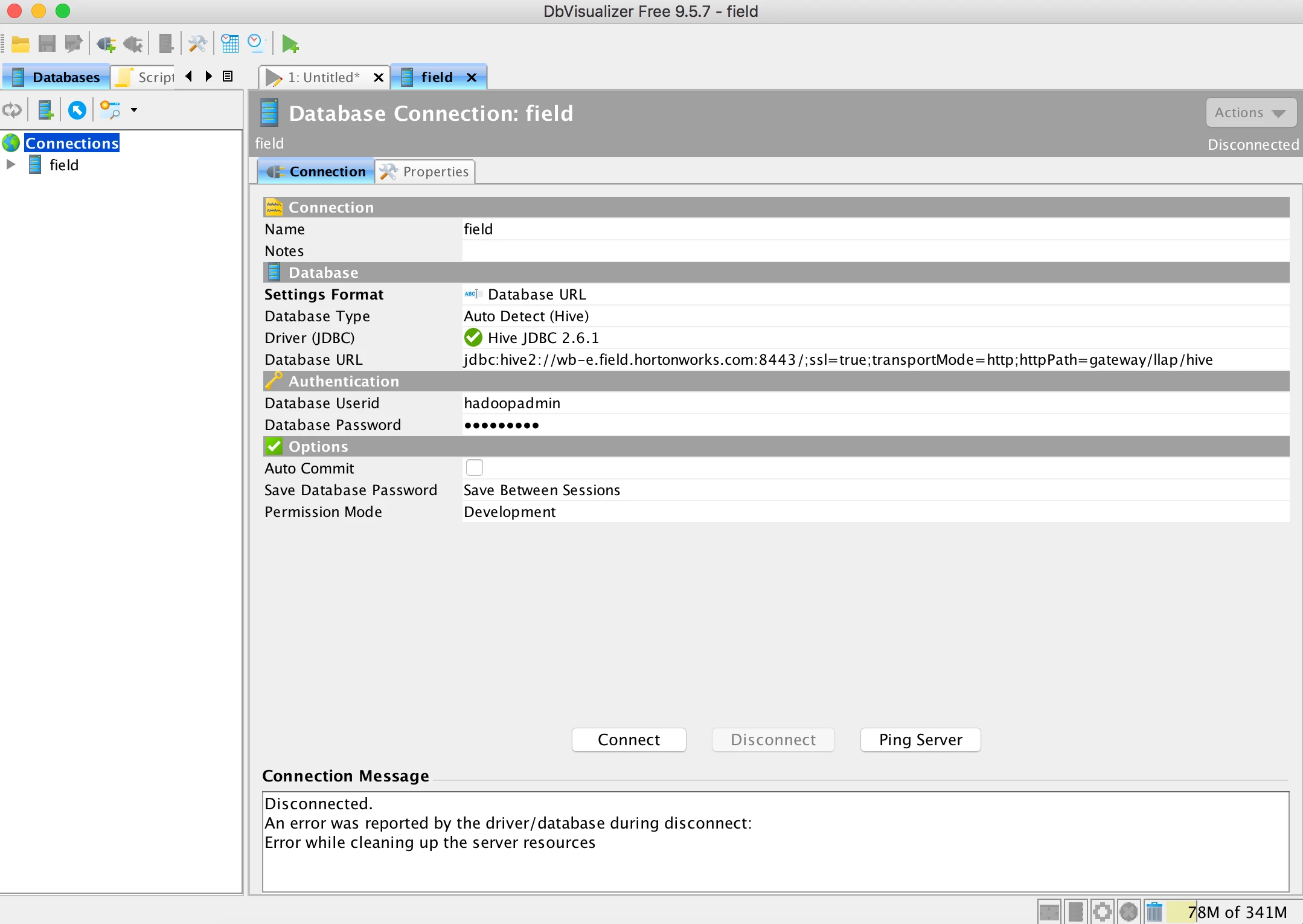
Use Database URL, and edit the Database URL as
jdbc:hive2://<KNOX_NODE_FQDN>:<port>/;ssl=true;transportMode=http;httpPath=<KNOX_HIVE_HTTPPATH>
Default knox hive http path is gateway/default/hive, but please double check with your system admin.
Add Knox node certificate or CA certificate into DbVisualizer JVM truststore, otherwise will get SSL Exception during DB connection.
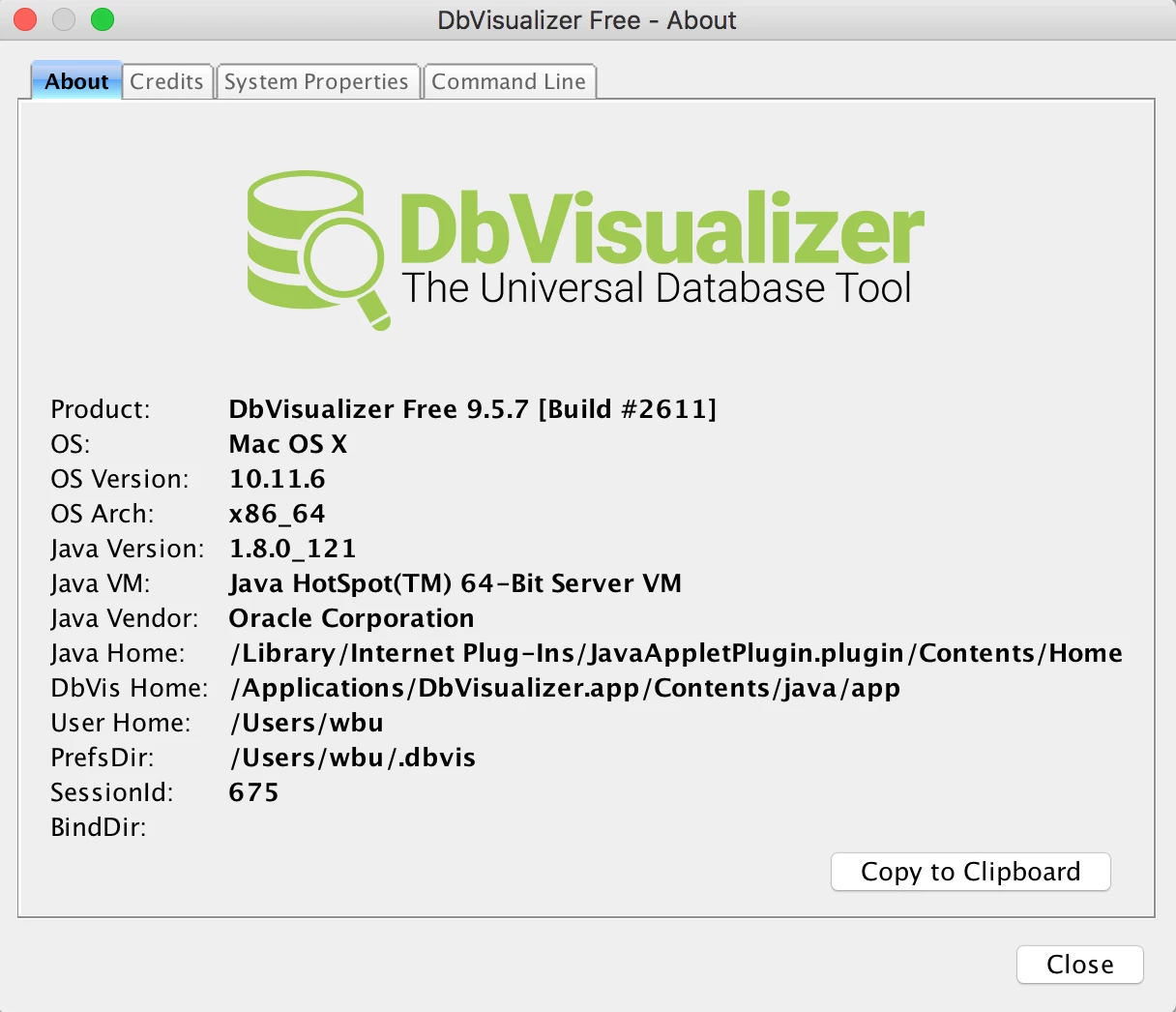
Check the Java Home of DbVisualizer. Then add Knox node certificate or CA certificate into the truststore
$ sudo keytool -import
-alias knox -file wb-e.crt.pem -keystore /Library/InternetPlug-Ins/JavaAppletPlugin.plugin/Contents/Home/lib/security/cacerts

Enter keystore password:changeit
Enjoy DbVisualizer