

Update NiFi Connection Destination via REST API
Introduction
Recently a customer asked me how to change destination of a connection which still contains data, but the destination is stopped. Using NiFi REST Api we can change the flow, here in this article I am trying to capture steps to update destination of a connection using REST API. The requirement around this was to push incoming data to different flows on a timely manner.
Prerequisites
1) To test this, Make sure HDF-2.x version of NiFi is up an running
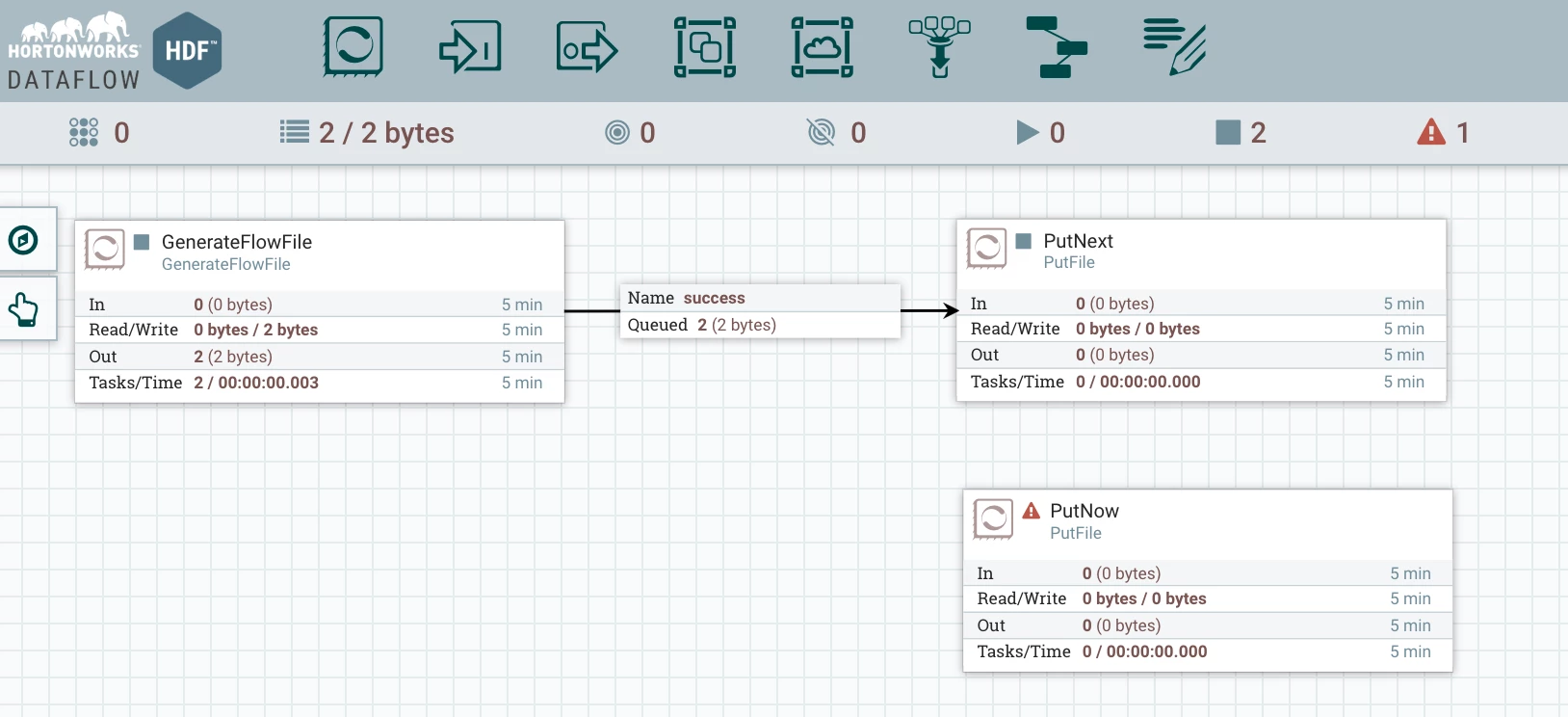
2) Minimum 3 processors are on the canvas with connection like below:
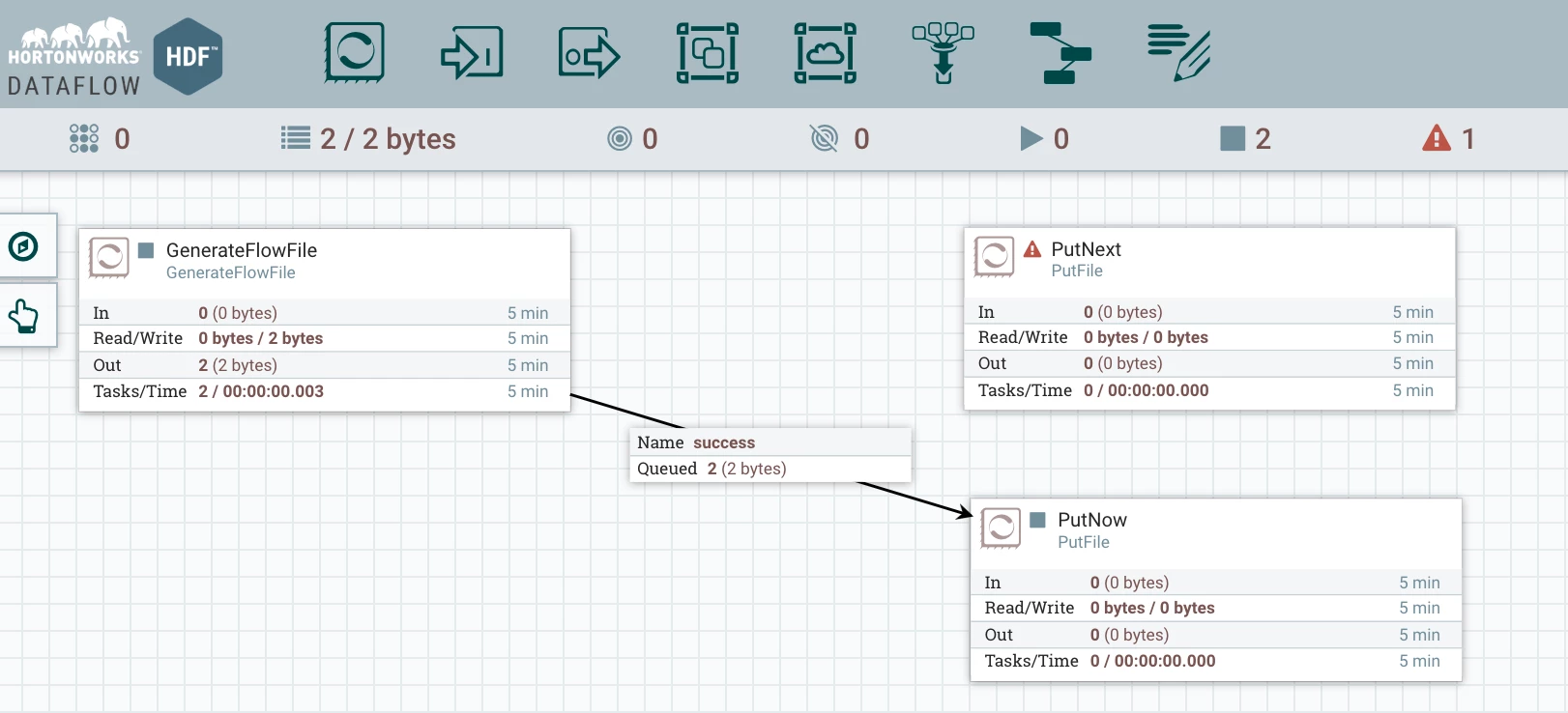
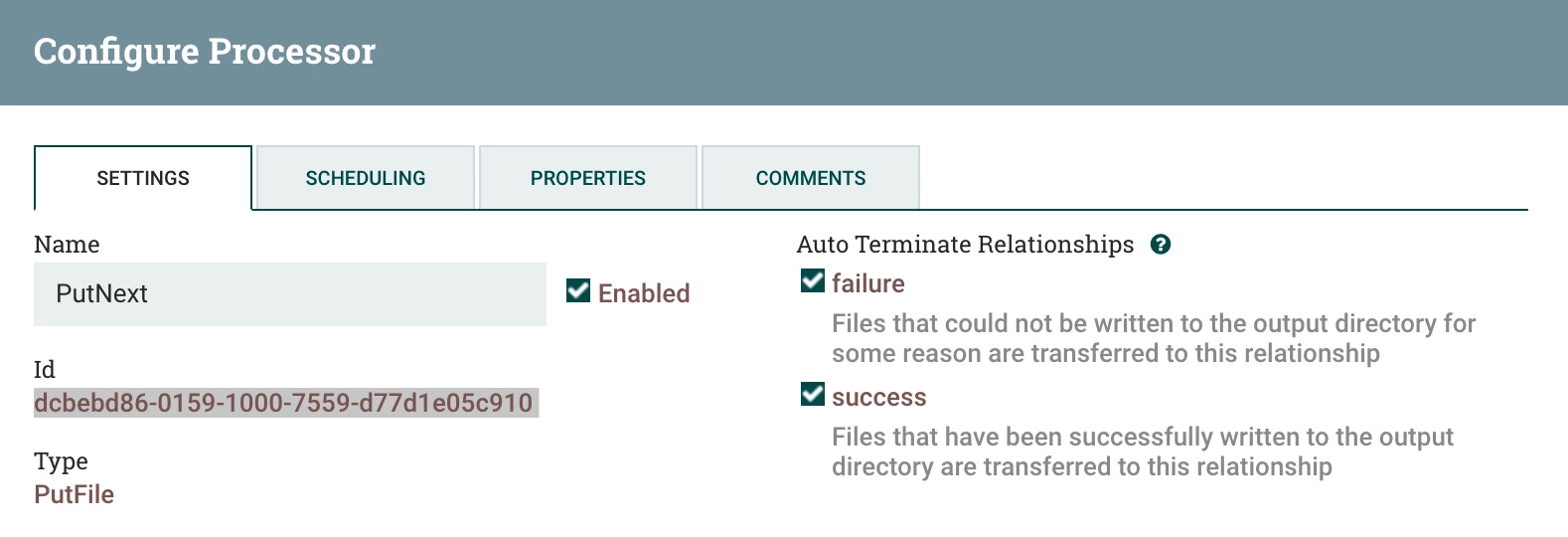
3) Note the destination's uuid [In my case 'PutNext' processor's uuid]
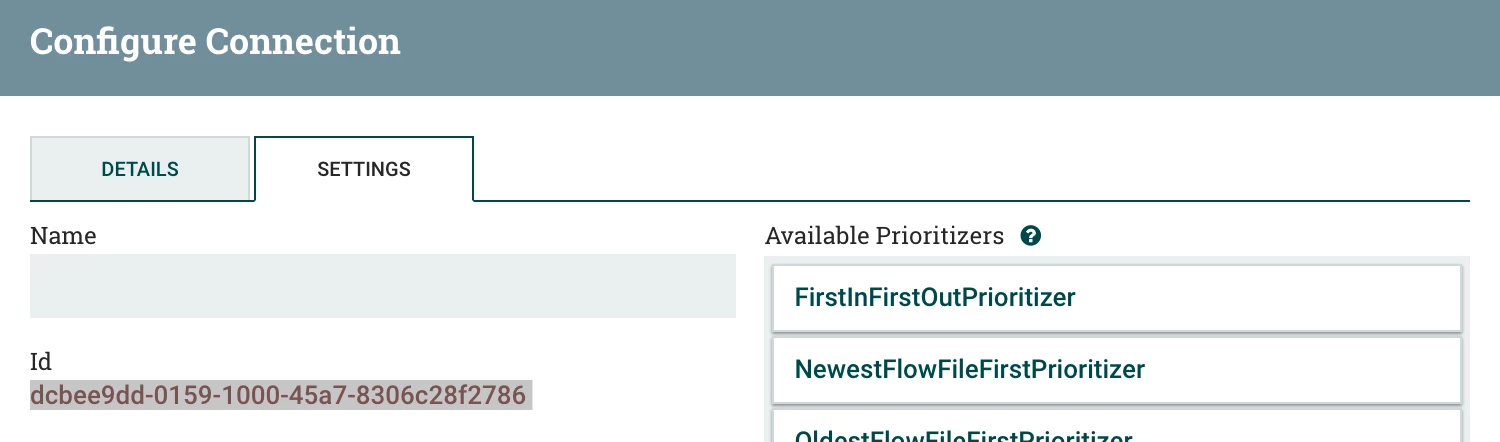
4) Note the uuid of the connection that has to be made to the 'PutNext' processor
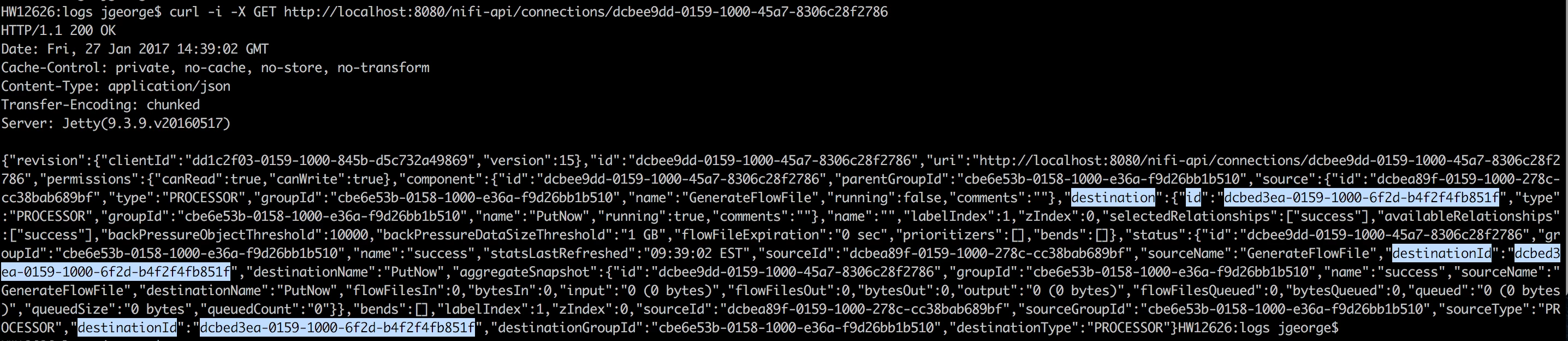
'GET'ing the details of connection
1) Execute the below command on your terminal with uuid of the connection:
curl -i -X GET http://localhost:8080/nifi-api/connections/dcbee9dd-0159-1000-45a7-8306c28f2786
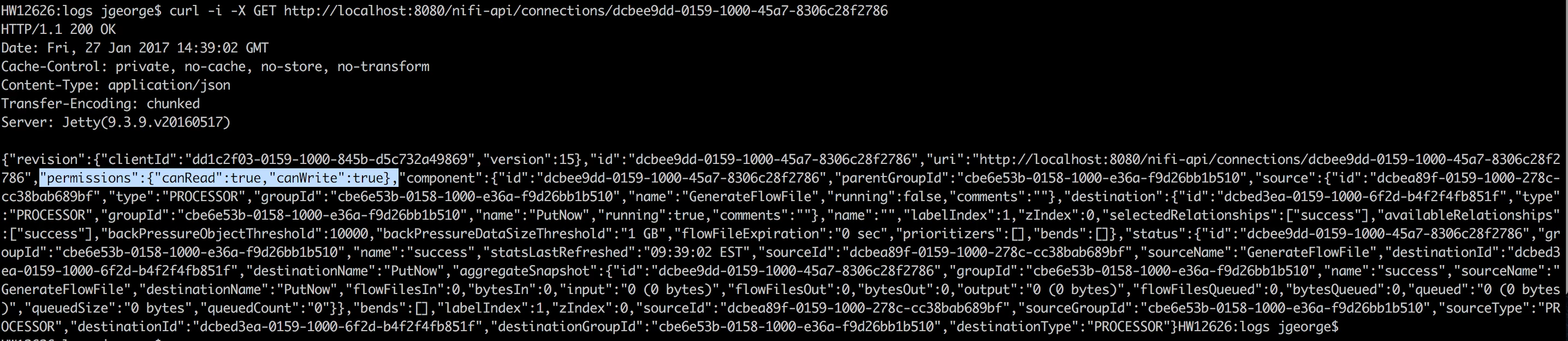
2) Now Copy the result of the GET curl command and update the below section with uuid of the 'PutNext' processor.
"destination":{"id":
"destinationId":"
"destinationId":
3) Remove the below json element from the copied result:
"permissions":{"canRead":true,"canWrite":true},
Updating Destination with PUT REST calls
1) Once updated, run the PUT REST API call from command line using curl as below:
curl -i -X PUT -H 'Content-Type: application/json' -d '{ **MY UPDATED JSON**}' http://localhost:8080/nifi-api/connections/dcbee9dd-0159-1000-45a7-8306c28f2786
My Sample command is as below:
curl -i -X PUT -H 'Content-Type: application/json'  -d  '{
    "revision": {
        "clientId": "dd1c2f03-0159-1000-845b-d5c732a49869",
        "version": 15
    },
    "id": "dcbee9dd-0159-1000-45a7-8306c28f2786",
    "uri": "http://localhost:8080/nifi-api/connections/dcbee9dd-0159-1000-45a7-8306c28f2786",
    "component": {
        "id": "dcbee9dd-0159-1000-45a7-8306c28f2786",
        "parentGroupId": "cbe6e53b-0158-1000-e36a-f9d26bb1b510",
        "source": {
            "id": "dcbea89f-0159-1000-278c-cc38bab689bf",
            "type": "PROCESSOR",
            "groupId": "cbe6e53b-0158-1000-e36a-f9d26bb1b510",
            "name": "GenerateFlowFile",
            "running": false,
            "comments": ""
        },
        "destination": {
            "id": "dcbebd86-0159-1000-7559-d77d1e05c910",
            "type": "PROCESSOR",
            "groupId": "cbe6e53b-0158-1000-e36a-f9d26bb1b510",
            "name": "PutFile",
            "running": false,
            "comments": ""
        },
        "name": "",
        "labelIndex": 1,
        "zIndex": 0,
        "selectedRelationships": ["success"],
        "availableRelationships": ["success"],
        "backPressureObjectThreshold": 10000,
        "backPressureDataSizeThreshold": "1 GB",
        "flowFileExpiration": "0 sec",
        "prioritizers": [],
        "bends": []
    },
    "status": {
        "id": "dcbee9dd-0159-1000-45a7-8306c28f2786",
        "groupId": "cbe6e53b-0158-1000-e36a-f9d26bb1b510",
        "name": "success",
        "statsLastRefreshed": "09:02:22 EST",
        "sourceId": "dcbea89f-0159-1000-278c-cc38bab689bf",
        "sourceName": "GenerateFlowFile",
        "destinationId": "dcbebd86-0159-1000-7559-d77d1e05c910",
        "destinationName": "PutFile",
        "aggregateSnapshot": {
            "id": "dcbee9dd-0159-1000-45a7-8306c28f2786",
            "groupId": "cbe6e53b-0158-1000-e36a-f9d26bb1b510",
            "name": "success",
            "sourceName": "GenerateFlowFile",
            "destinationName": "PutFile",
            "flowFilesIn": 0,
            "bytesIn": 0,
            "input": "0 (0 bytes)",
            "flowFilesOut": 0,
            "bytesOut": 0,
            "output": "0 (0 bytes)",
            "flowFilesQueued": 18,
            "bytesQueued": 18,
            "queued": "18 (18 bytes)",
            "queuedSize": "18 bytes",
            "queuedCount": "18"
        }
    },
    "bends": [],
    "labelIndex": 1,
    "zIndex": 0,
    "sourceId": "dcbea89f-0159-1000-278c-cc38bab689bf",
    "sourceGroupId": "cbe6e53b-0158-1000-e36a-f9d26bb1b510",
    "sourceType": "PROCESSOR",
    "destinationId": "dcbebd86-0159-1000-7559-d77d1e05c910",
    "destinationGroupId": "cbe6e53b-0158-1000-e36a-f9d26bb1b510",
    "destinationType": "PROCESSOR"
}' http://localhost:8080/nifi-api/connections/dcbee9dd-0159-1000-45a7-8306c28f2786
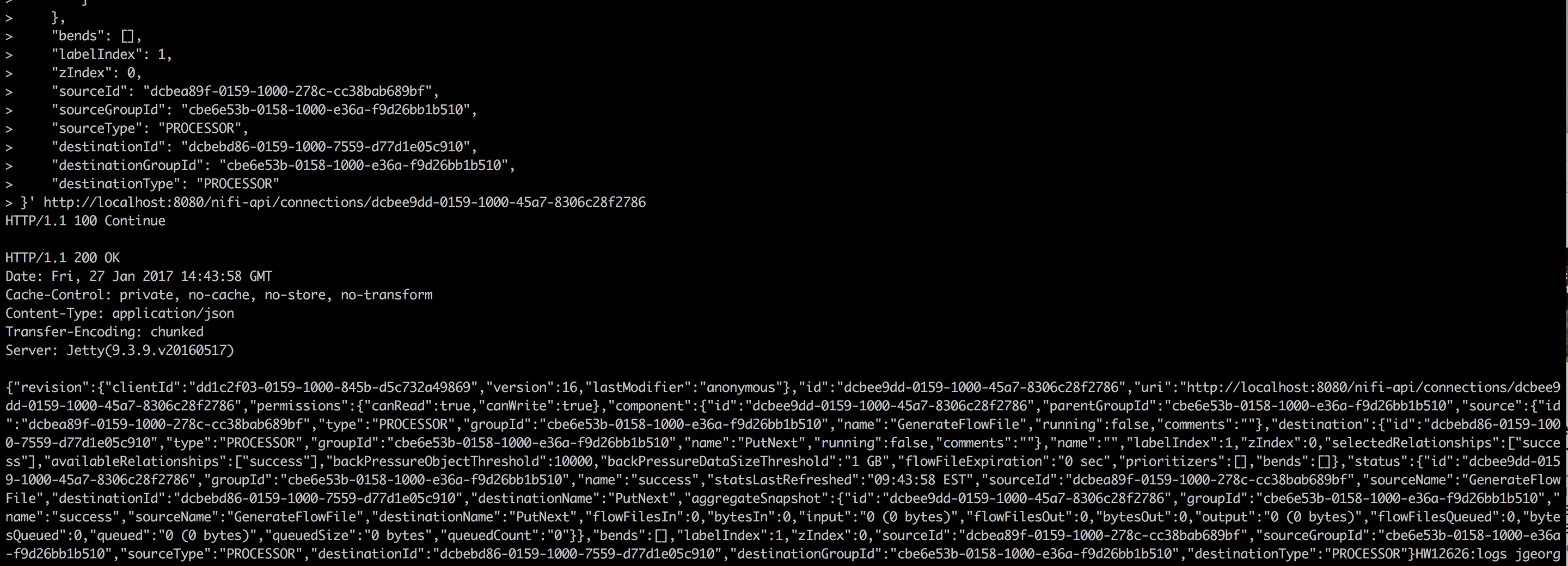
2) Once you execute the above, if the update is successful, you will get below result:
HTTP/1.1 200 OK
Date: Fri, 27 Jan 2017 14:59:37 GMT
Cache-Control: private, no-cache, no-store, no-transform
Content-Type: application/json
Transfer-Encoding: chunked
Server: Jetty(9.3.9.v20160517)
Result will be similar as below:
3) Now login Back to the NiFi UI and make sure the change is done:
References:
Thanks,
Jobin George

