


User authentication from Windows Workstation to HDP Realm Using MIT Kerberos Client (with Firefox)
The document lists the steps to be performed to enable users on windows workstation to access the HDP cluster hosted on a different realm.
Windows Workstation (realm: WIN.EXAMPLE.COM)
HDP (realm: HDP.EXAMPLE.COM)
Accessing WebUI components for Namenode, YARN, MapReduce, Oozie etc.
- Install and Setup MIT Kerberos
- Install Firefox
- Enable MIT Kerberos on Firefox
- Get Kerberos Ticket using MIT Kerberos Utility
- Open NN, RM UIs using Firefox
For 64-bit machines (includes both 32 and 64 bit libraries)
http://web.mit.edu/kerberos/dist/kfw/4.0/kfw-4.0.1-amd64.msi
For 32-bit machines (includes only 32 bit libraries)
http://web.mit.edu/kerberos/dist/kfw/4.0/kfw-4.0.1-i386.msi
Default location of configuration file in Windows machine is "C:\Program Files\MIT\Kerberos" directory.
Note: This is a hidden folder.
Copy the krb5.conf file (from the HDP KDC) to above mentioned location and rename krb5.conf to krb5.ini.
Configure the following environment properties for MIT Kerberos.
- KRB5_CONFIG: Path for the kerberos ini file.
- KRB5CCNAME: Path for the kerberos credential cache file.
Create a writable directory.
Eg: c:\temp (or any path where user has access to and make a note of the path) for the krb5cache file specified in the path created by the utility.
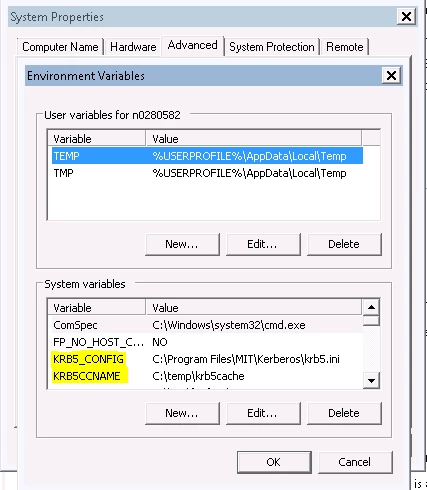
Save and reboot the machine.
Install Firefox
Install Mozilla Firefox from below link and follow instructions on webpage for installation.
https://www.mozilla.org/en-US/firefox/new/
Enable MIT Kerberos on Firefox
Open Firefox, type about:config in URL and hit enter Search for and change below parameters
- network.negotiate-auth.trusted-uris = .domain.com
- network.negotiate-auth.using-native-gsslib = false
- network.negotiate-auth.gsslib = C:\Program Files\MIT\Kerberos\bin\gssapi32.dll
- network.auth.use-sspi = false
- network.negotiate-auth.allow-non-fqdn = true
Get Kerberos Ticket using MIT Kerberos Utility
1. Click start button
2. Click All Programs
3. Click Kerberos for windows program group
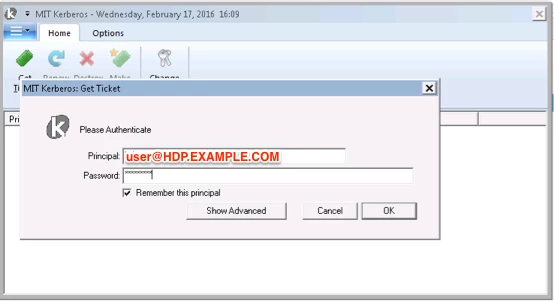
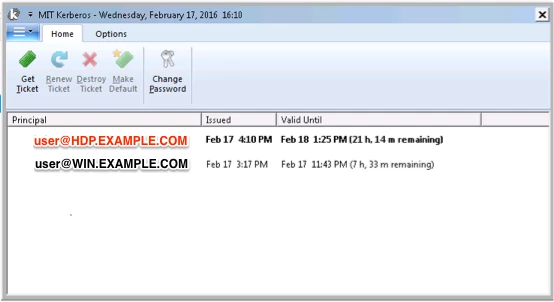
4. Use "MIT Kerberos Ticket Manager" to obtain a ticket for the principal that will be used to connect to HDP cluster.
a. Click Get Ticket
b. Enter Principal and Password as below.
Open NN, RM UIs using Firefox
Open Firefox, ambari UI -> HDFS -> Quick Links -> NN UI or directly open the NN UI: http://xx-xxx-xxxx.aws.hdp.com:50070
If you don't have a kerberos ticket, then this opens a dialog box for MIT kerberos client requesting Principal and password for the HDP KDC user. (user@HDP.EXAMPLE.COM and ******).
If your ticket is invalid or has expired, then you would see an "Unauthorized User" exception on the browser.
Upon successful authentication this should open the NN UI and others.
Remember to refresh the ticket as it expires overtime (using getTicket in the MIT kerberos client utility).
This authentication is also required to establish connection to Hive Server2 for operating on hive tables.
Appendix:-
https://bugzilla.mozilla.org/show_bug.cgi?id=628210
The above link has some debugging techniques which can be used to debug firefox authentication using gsslib.

