
Using Apache Atlas to view Data Lineage
Before completing this tutorial, it is important to understand data lineage.
What is Data Lineage
Data lineage is defined as a data life cycle that conveys data origin and where data moves over time. In Apache Hive, if I create a table (TableA) and then insert data (from another table TableB), the data lineage will display TableA as the target and Table B as the source/origin. These two tables are linked together by a process "insert into Table..", allowing a user to understand the data life cycle. In a Hadoop ecosystem, Apache Atlas contains the data lineage for various systems like Apache Hive, Apache Falcon and Apache Sqoop.
What is Apache Atlas
Apache Atlas is a centralized governance framework that supports the Hadoop ecosystem as a metastore repository. To add metadata to Atlas, libraries called ‘hooks’ are enabled in various systems which automatically capture metadata events in the respective systems and propagate those events to Atlas. (More on Atlas' Architecture).
Prerequisites
- Download Atlas-Ranger preview VM here
Once the Atlas-Ranger VM is running, you can login through an SSH shell with user = root, password = hadoop
Atlas UI: http://localhost:21000 (use: Data Lineage), user = admin, password = admin
Ambari UI: http://localhost:8080 (use: Hive View), user = admin, password = admin
Step 1 - Login to Ambari and access Hive View

Step 2 - Create table brancha (database = default)
create table brancha(full_name string, ssn string, location string);
Step 3 - Create table branchb (database = default)
create table branchb(full_name string, ssn string, location string);
Step 4 - Insert data into both tables
insert into brancha(full_name,ssn,location) values ('ryan', '111-222-333', 'chicago');
insert into brancha(full_name,ssn,location) values ('brad', '444-555-666', 'minneapolis');
insert into brancha(full_name,ssn,location) values ('rupert', '000-000-000', 'chicago');
insert into brancha(full_name,ssn,location) values ('john', '555-111-555', 'boston');
insert into branchb(full_name,ssn,location) values ('jane', '666-777-888', 'dallas');
insert into branchb(full_name,ssn,location) values ('andrew', '999-999-999', 'tampa');
insert into branchb(full_name,ssn,location) values ('ryan', '111-222-333', 'chicago');
insert into branchb(full_name,ssn,location) values ('brad', '444-555-666', 'minneapolis');
(Using Atlas-Ranger preview - execute one insert statement at a time)
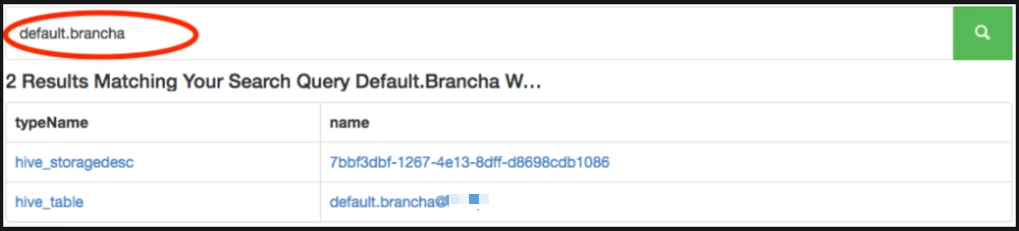
Step 5 - In a web browser, access Atlas UI at http://localhost:21000 and search for default.brancha
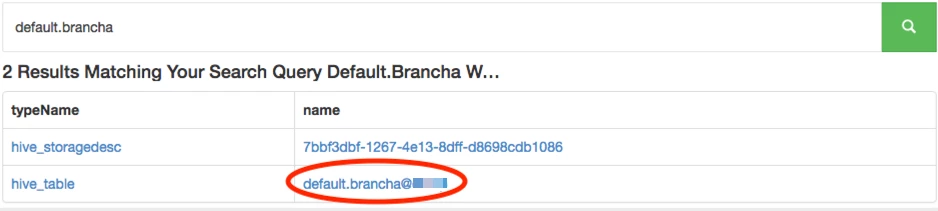
Step 6 - In the Atlas UI, select the hyperlink under the column name "default.brancha@abc"
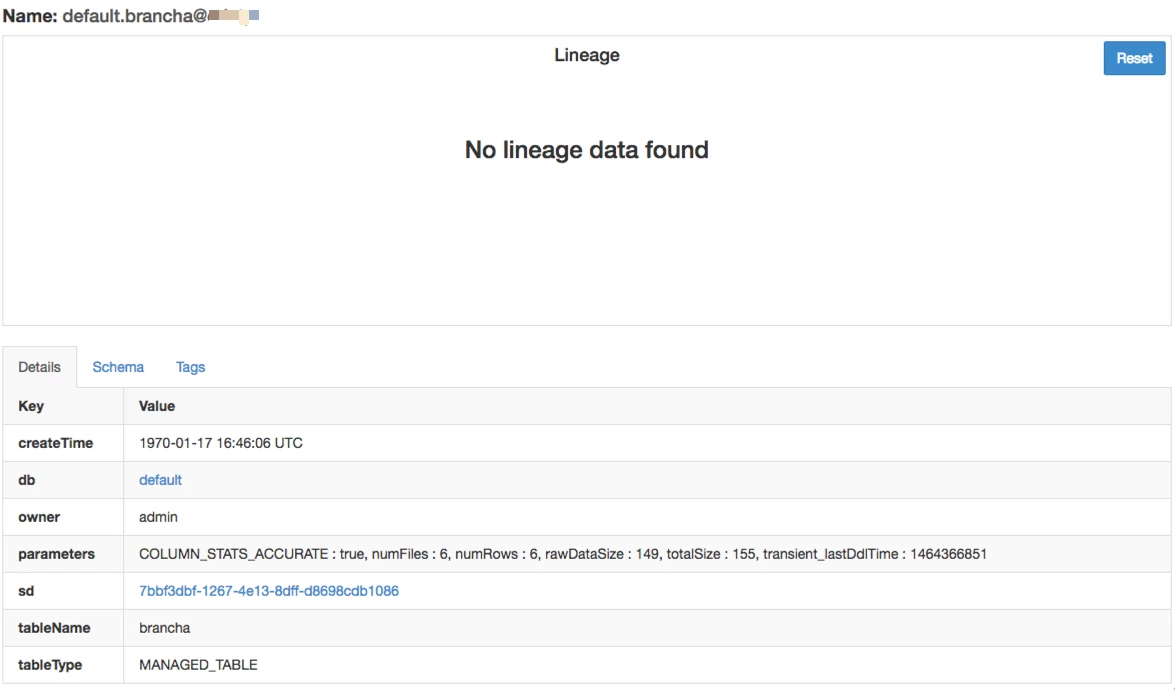
Step 7 - In the Atlas UI, there should be no lineage for brancha
Step 8 - Create table branch_intersect (database = default) as a join of brancha and branchb where the ssn is equal
create table branch_intersect as select b1.full_name,b1.ssn,b1.location from brancha b1 inner join branchb b2 ON b1.ssn = b2.ssn;
Step 9 - In the Atlas UI, refresh the browser from Step 7
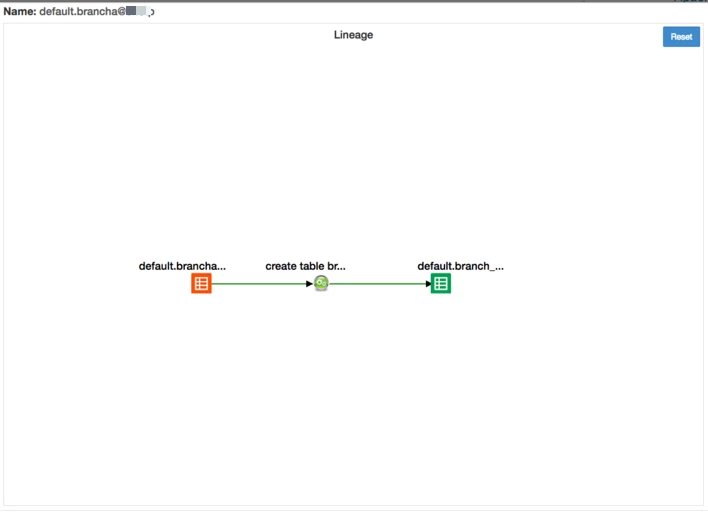
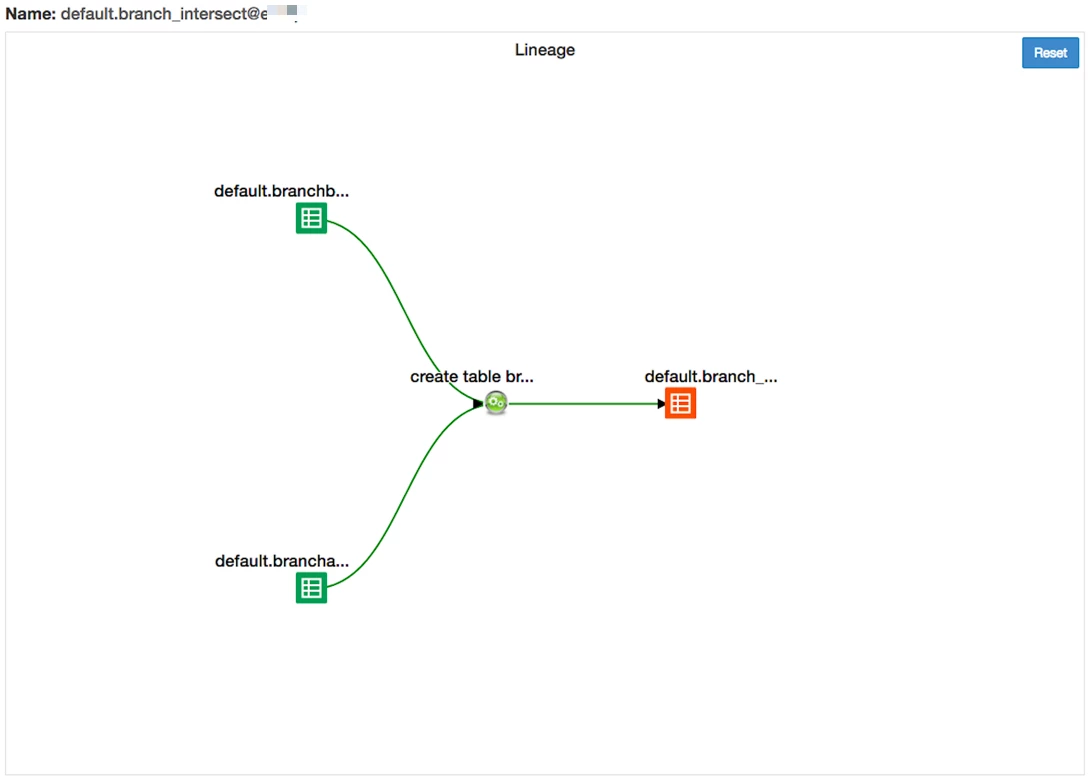
(orange = current table) You can see source brancha had a process of “create table br...” populating the target branch_intersect table
Step 10 - In the Atlas UI, search for default.branch_intersect