

Using Pig to convert uncompressed data to compressed data in HDFS
Overview
ORC provides many benefits, including support for compression. However, there are times when you need to store “raw” data in HDFS, but want to take advantage of compression. One such use case is with Hive external tables. Using PIG, you can LOAD the contents of uncompressed data from an HDFS directory, and then STORE that data in a compressed format into another HDFS directory. This approach is particularly useful if you are already using PIG for part of your ETL processing.
Scope
This tutorial has been tested with the following configuration:
- Mac OS X 10.11.5
- VirtualBox 5.1.2
- HDP 2.5 Tech Preview on Hortonworks Sandbox
Prerequisites
The following should be completed before following this tutorial:
- VirtualBox for Mac OS X installed
- Hortonworks HDP 2.5 Technical Preview Sandbox configured in VirtualBox
Steps
1. Connect to the Sandbox
If you are using Vagrant to spin up your sandbox, then you can simply connect using:$ vagrant ssh
If you are not using Vagrant but are interested, check out this article: HCC Article
If you are using the standard Sandbox without Vagrant, then you can connect using:
$ ssh -p 2222 vagrant@127.0.0.1
Note: The Sandbox should already have port forwarding enabled so that local port 2222 is forwarded to the sandbox port 22.
2. Download sample data
We need sample data to work with. For this tutorial, we will use historical NYSE stock ticker data for stocks starting with the letter A. You can download the sample data in your sandbox using:
$ cd /tmp
$ curl -O https://s3.amazonaws.com/hw-sandbox/tutorial1/infochimps_dataset_4778_download_16677-csv.zip
Note: This file is 124MB and may take a few minutes to download.
3. Create data directories on HDFS
We are going to create a /user/admin/data/uncompressed directory on HDFS. This is where the uncompressed data will be stored.
Create the uncompressed data directory
$ sudo -u hdfs hdfs dfs -mkdir -p /user/admin/data/uncompressed
Change ownership to the admin user account
$ sudo -u hdfs hdfs dfs -chown -R admin:hadoop /user/admin
Change permissions on the uncompressed data directory
$ sudo -u hdfs hdfs dfs -chmod -R 775 /user/admin/data
Note: These permissions are needed to enable Hive access to the directories. You could alternatively setup Ranger HDFS policies.
4. Push the data to the uncompressed directory on HDFS
We are going to push the NYSE_daily_prices_A.csv file to the uncompressed data directory on HDFS and change the ownership for that file.
Extract the zip archive
$ cd /tmp
$ unzip infochimps_dataset_4778_download_16677.zip
Push the stock file from the local directory to HDFS
$ sudo -u hdfs hdfs dfs -put /tmp/infochimps_dataset_4778_download_16677/NYSE/NYSE_daily_prices_A.csv /user/admin/data/uncompressed/
Change ownership of the file in HDFS
$ sudo -u hdfs hdfs dfs -chown -R admin:hadoop /user/admin/data/uncompressed
Verify the permission changes
$ sudo -u hdfs hdfs dfs -ls /user/admin/data/uncompressed
Found 1 items
-rw-r--r--   1 admin hadoop   40990992 2016-08-11 01:16 /user/admin/data/uncompressed/NYSE_daily_prices_A.csv
5. Create External Hive table on uncompressed data
We are going to create an external table in Hive to view the uncompressed data. We will do this using the Hive View in Ambari.
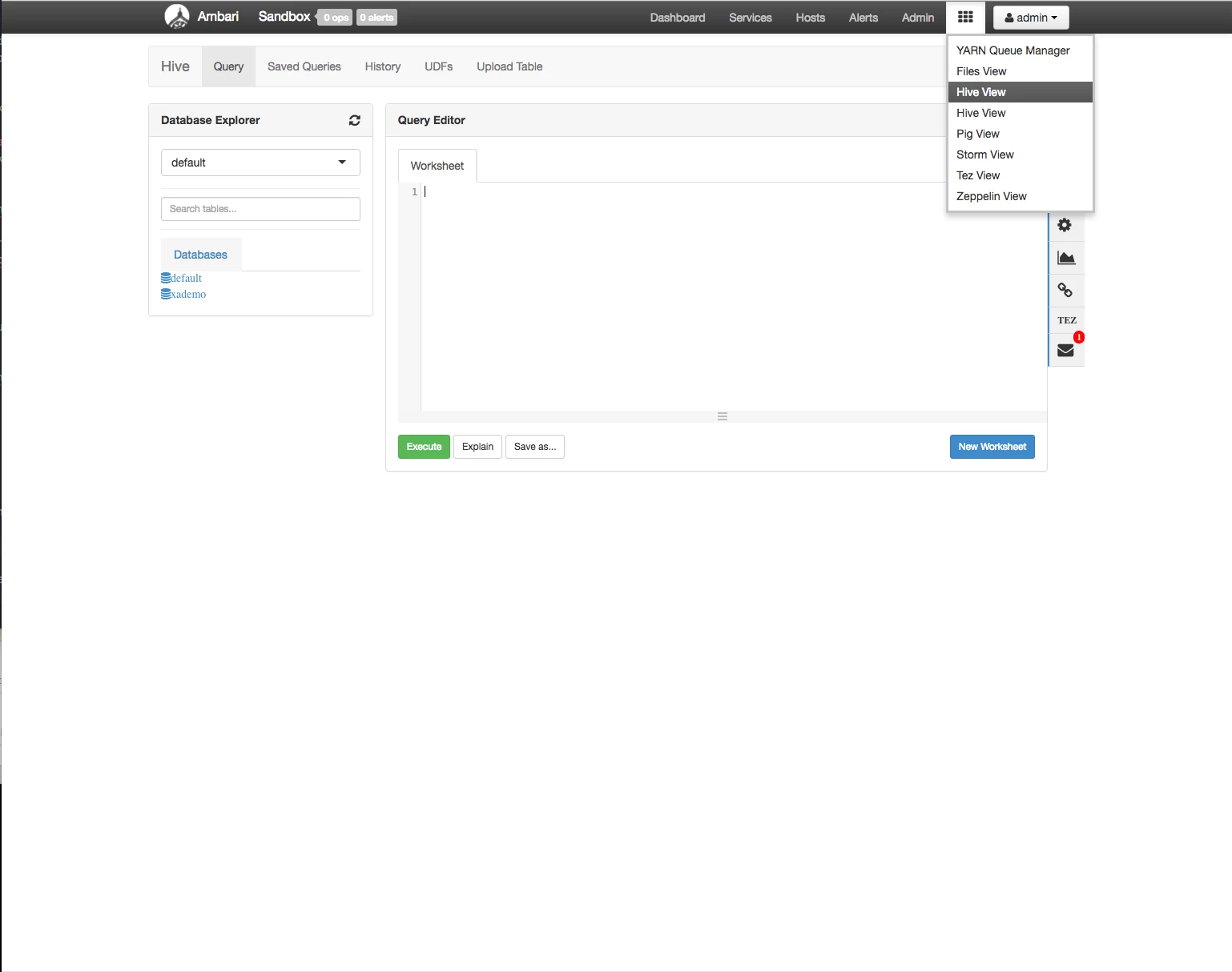
The file schema is straight forward. The first line of the CSV is the header line. Normally you would remove that line as part of your processing, but we’ll leave it in to save time.
Enter the following Hive DDL and click the Execute buttonCREATE EXTERNAL TABLE external_nyse_uncompressed (
stock_exchange STRING,
symbol STRING,
sdate STRING,
open FLOAT,
high FLOAT,
low FLOAT,
close FLOAT,
volume INT,
adj_close FLOAT
)
COMMENT 'Historical NYSE stock ticker data'
ROW FORMAT DELIMITED
FIELDS TERMINATED BY ','
STORED AS TEXTFILE
LOCATION '/user/admin/data/uncompressed';
6. Verify you can see the data in Hive
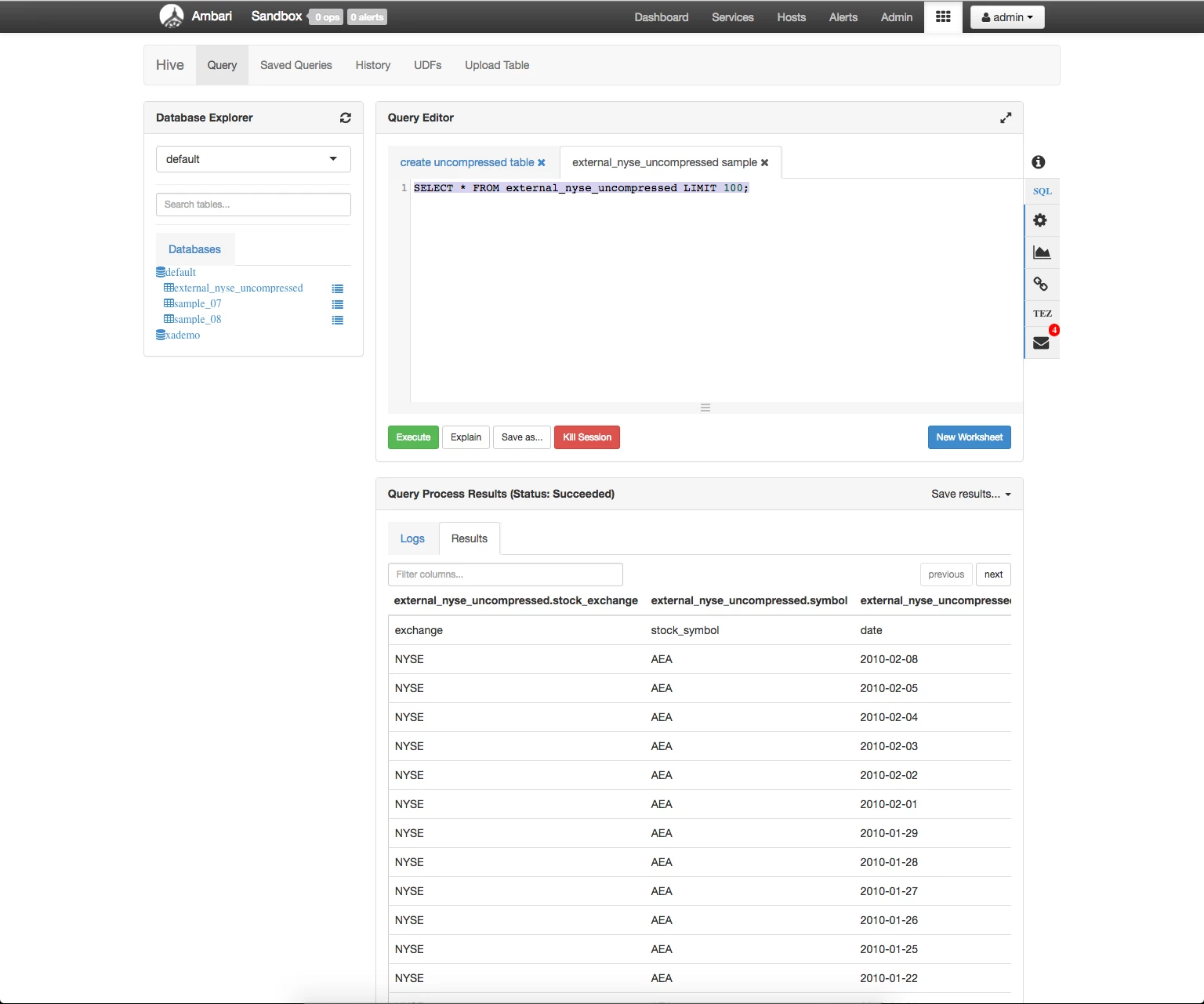
Click the New Worksheet button. Enter the following query:
SELECT * FROM external_nyse_uncompressed LIMIT 100;
You should see something like the following:
7. Create Pig Script
We are going to use the Pig View to create a Pig script to compress our data on HDFS.
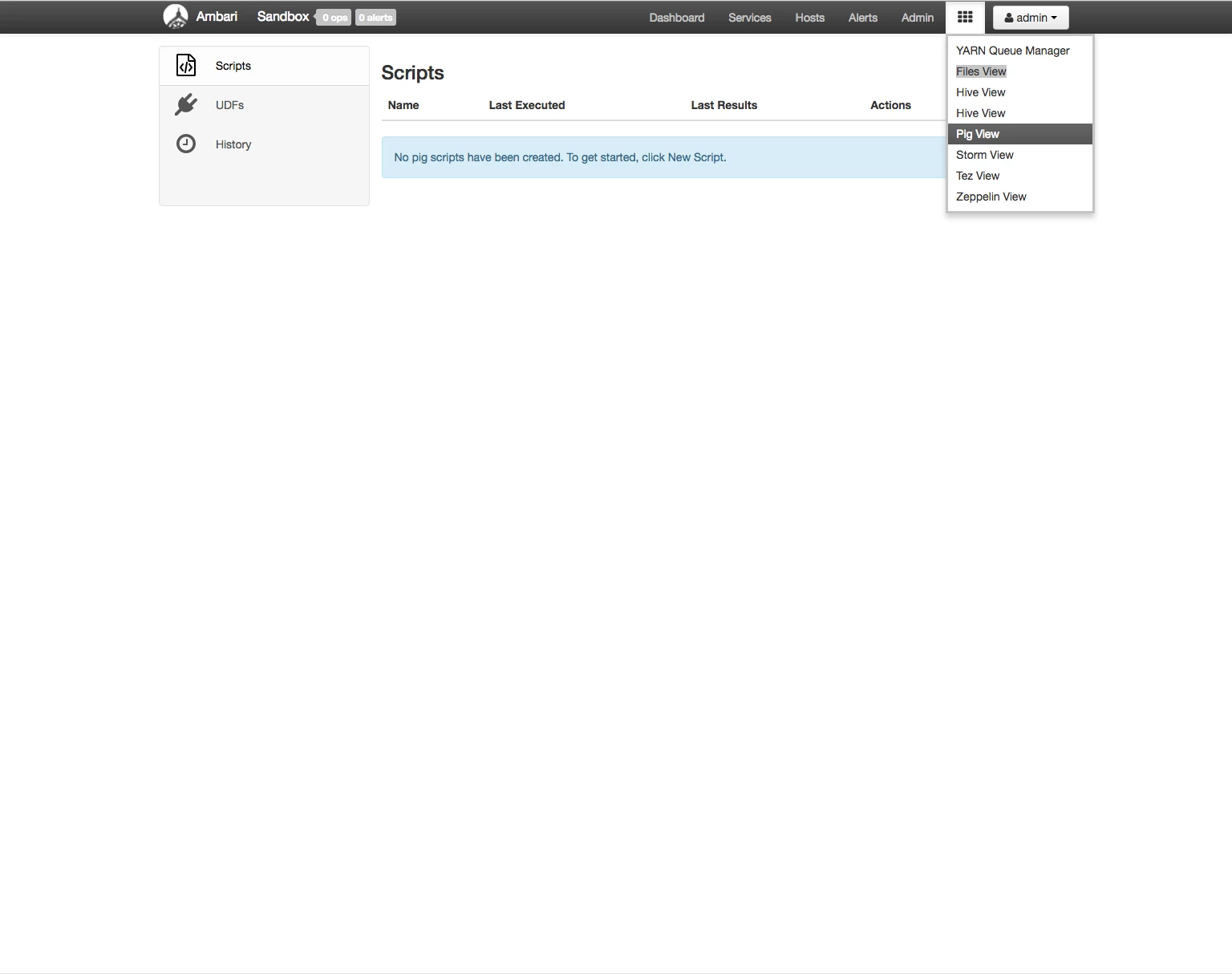
Enter Pig script
SET output.compression.enabled true;
SET output.compression.codec org.apache.hadoop.io.compress.BZip2Codec;
STOCK = LOAD '/user/admin/data/uncompressed/NYSE_daily_prices_A.csv' USING PigStorage(',') AS (
   exchange:chararray,
   symbol:chararray,
   date:chararray,
   open:float,
   high:float,
   low:float,
   close:float,
   volume:int,
   adj_close:float);
STORE STOCK INTO '/user/admin/data/compressed' USING PigStorage(',');
Note: The final output directory can not exist prior to running the script or Pig will throw an error. In this case, the “compressed” directory should not yet exist. Pig will create /user/admin/data/compressed when it stores the output data.
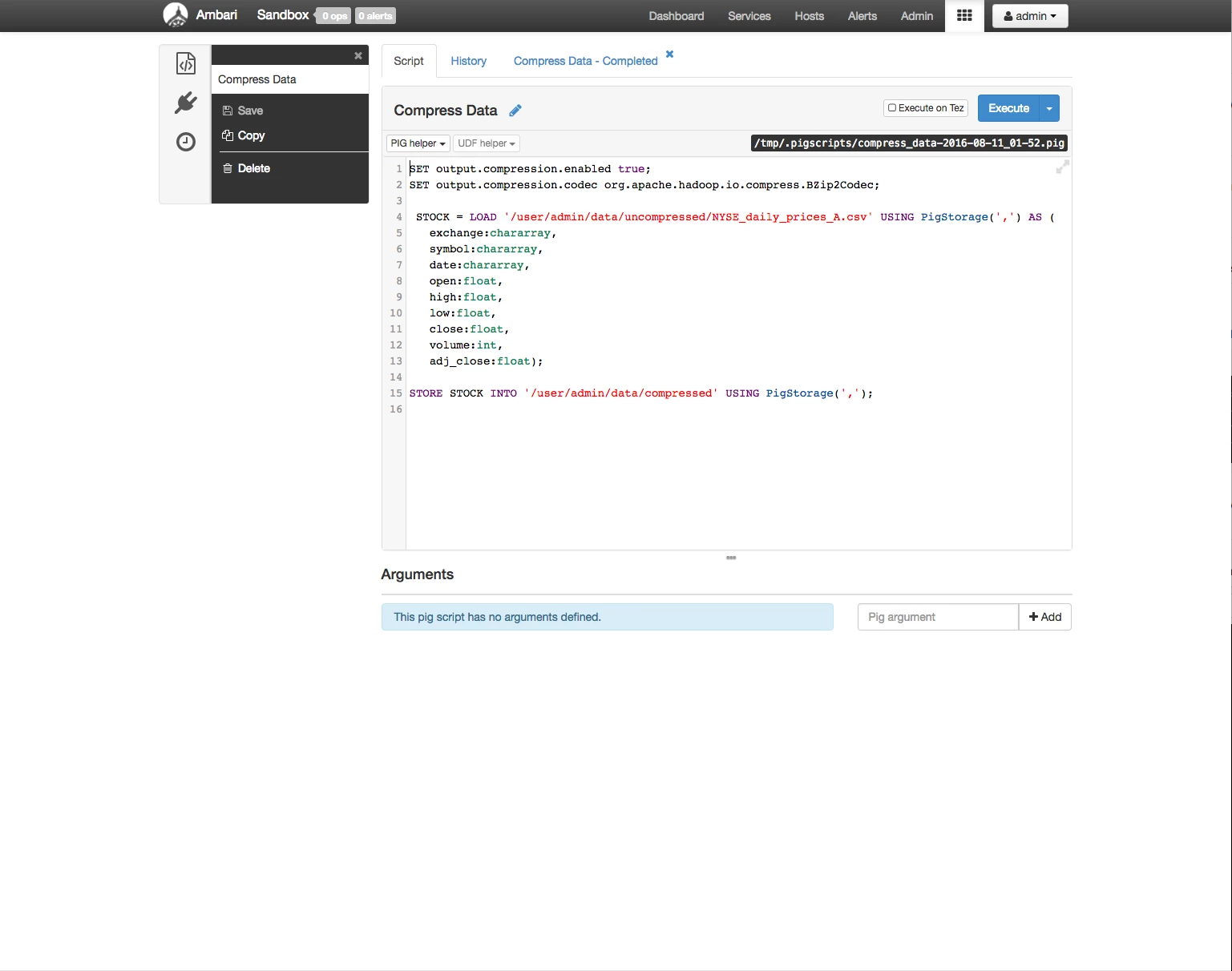
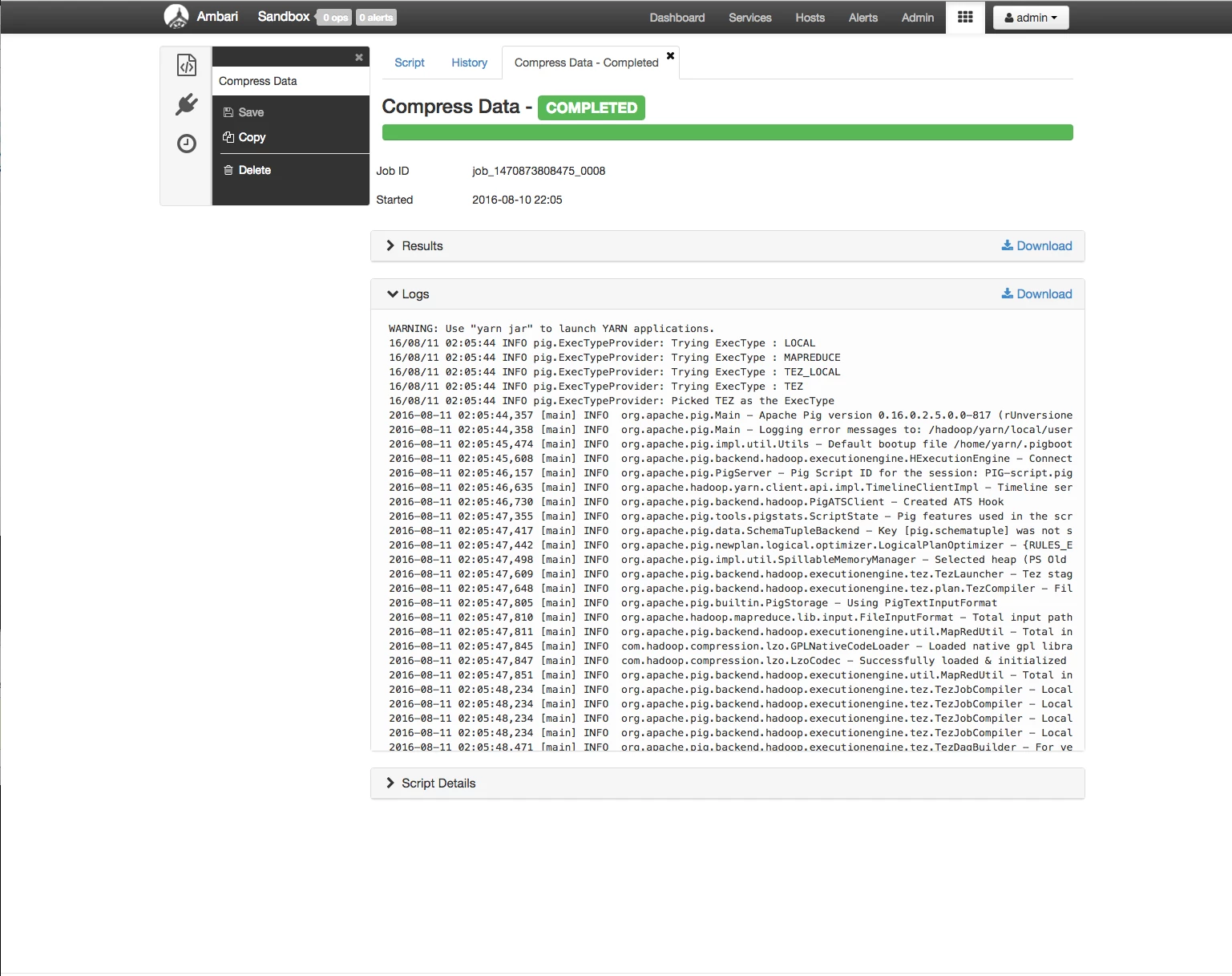
After you have entered the script, click the "Execute" button. When the Pig job finishes, you should see something like this:
8. Create External Hive table on compressed data
We are going to create an external table in Hive to view the compressed data.
Change permissions on the compressed data directory
$ sudo -u hdfs hdfs dfs -chmod -R 775/user/admin/data/compressed
Enter the following Hive DDL and click the Execute button
CREATE EXTERNAL TABLE external_nyse_compressed (
  stock_exchange STRING,
  symbol STRING,
  sdate STRING,
  open FLOAT,
  high FLOAT,
  low FLOAT,
  close FLOAT,
  volume INT,
  adj_close FLOAT
)
COMMENT 'Historical NYSE stock ticker data'
ROW FORMAT DELIMITED
FIELDS TERMINATED BY ','
STORED AS TEXTFILE
LOCATION '/user/admin/data/compressed';
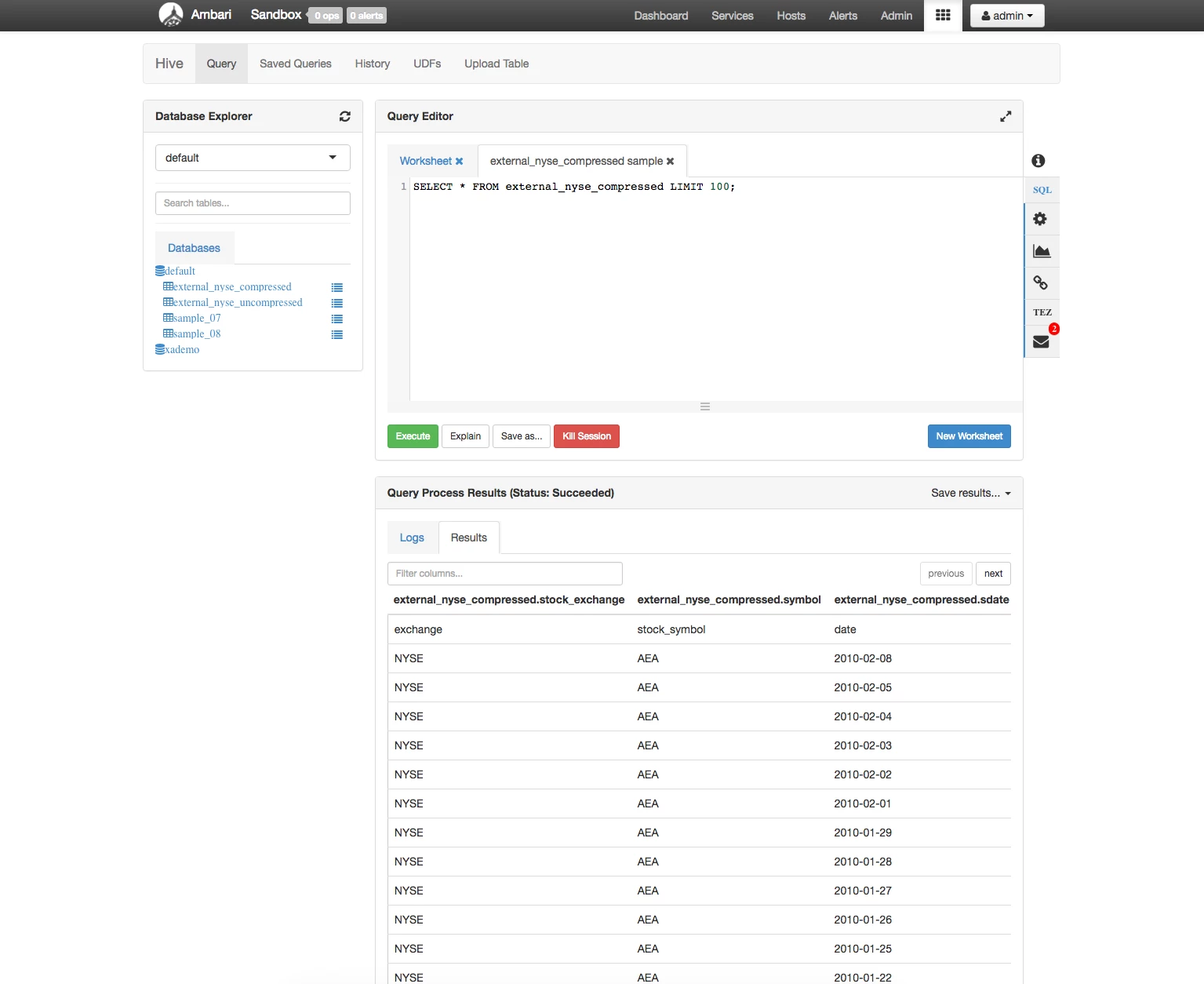
9. Verify you can see the data Hive
Click the New Worksheet button. Enter the following query:
SELECT * FROM external_nyse_compressed LIMIT 100;
You should see something like the following:
10. Compare file sizes
You can compare the file sizes of the two sets of data.
$ sudo -u hdfs hdfs dfs -du -s -h /user/admin/data/*
8.0 M  /user/admin/data/compressed
39.1 M  /user/admin/data/uncompressed
Review
We have successfully created an external Hive table using uncompressed data. We created an external Hive table using compressed data. We have converted uncompressed data to compressed data using Pig.
At this point, you could delete the uncompressed files if they are no longer needed. This process can be run in reverse to create uncompressed data from compressed data. All you need to do is to set:
SET output.compression.enabled false;
Note: When compressing the data, Pig does not maintain the original filenames.

