


Voice Powered Irrigation Control Systems using Apache NiFi with Siri

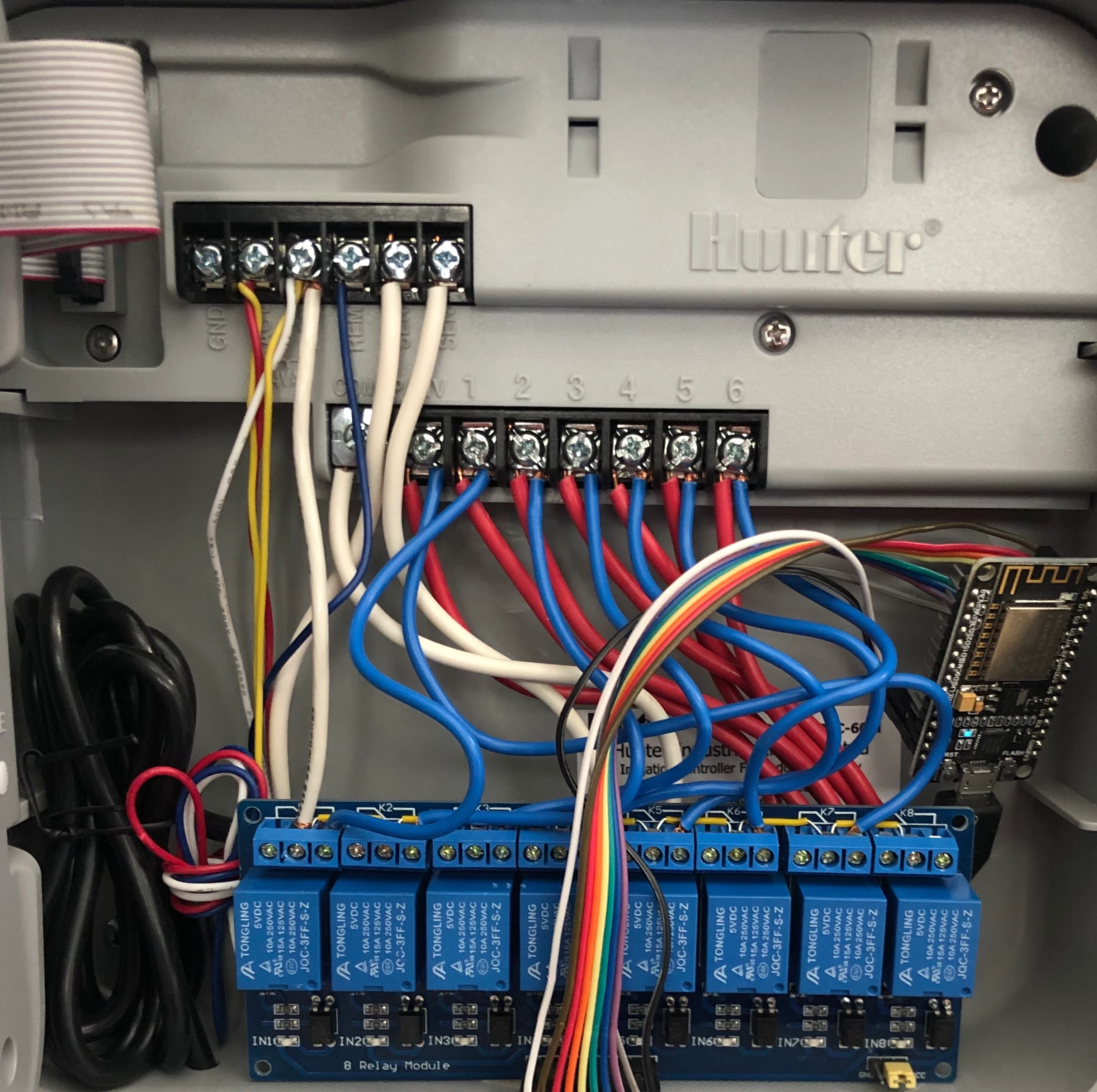
Get the NiFi Template on GitHub : NiFi_Voice_Irrigation_Control_with_Siri.git
We start by creating our own HTTP Server that will listen for and respond to our requests to turn the system on/off.
HandleHTTPRequest and HandleHTTPResponse will interact with our sending applications. Route on Attribute is then used to parse the request parameters for the specific zone you wish to control and the command you wish to issue.
the incoming request is parsed and the parameters are stored as attributes. For example:
in a terminal, you can execute
curl -v -X "POST" http://<NiFi-ip_address>/zone2?on
The parameters parsed from the above example we are interested in would then look like this:
http.query.string --- on
http.remote.host --- sender IP
http.request.uri --- /zone2
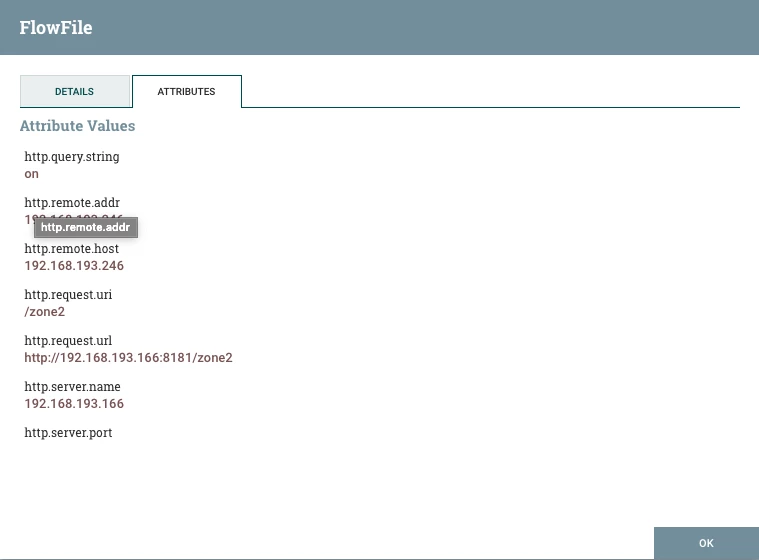
Here is what our Flow should look like...
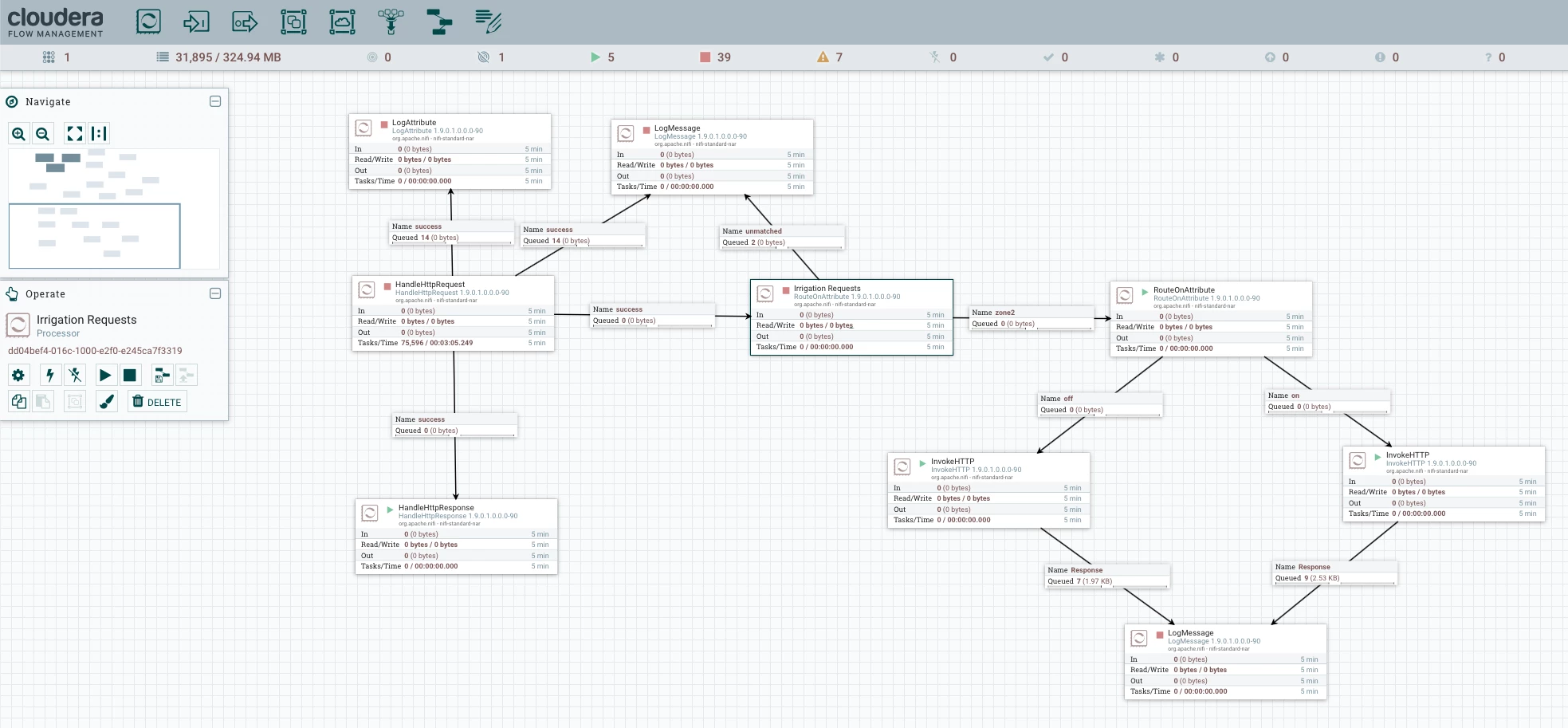
The first RouteOnAttribute will parse and route the zone the following RouteOnAttribute will parse and route the command i.e. on/off...
Go ahead and run the curl command again.
You should be getting a response back in NiFi and water should be spraying out of your zone.
<s:Envelope xmlns:s="<a href="<a href="<a href="<a href="<a href="http://schemas.xmlsoap.org/soap/envelope/" target="_blank">http://schemas.xmlsoap.org/soap/envelope/</a>" target="_blank"><a href="http://schemas.xmlsoap.org/soap/envelope/</a" target="_blank">http://schemas.xmlsoap.org/soap/envelope/</a</a>>" target="_blank"><a href="<a href="http://schemas.xmlsoap.org/soap/envelope/</a" target="_blank">http://schemas.xmlsoap.org/soap/envelope/</a</a>" target="_blank"><a href="http://schemas.xmlsoap.org/soap/envelope/</a</a" target="_blank">http://schemas.xmlsoap.org/soap/envelope/</a</a</a>>>" target="_blank"><a href="<a href="<a href="http://schemas.xmlsoap.org/soap/envelope/</a" target="_blank">http://schemas.xmlsoap.org/soap/envelope/</a</a>" target="_blank"><a href="http://schemas.xmlsoap.org/soap/envelope/</a</a" target="_blank">http://schemas.xmlsoap.org/soap/envelope/</a</a</a>>" target="_blank"><a href="<a href="http://schemas.xmlsoap.org/soap/envelope/</a</a" target="_blank">http://schemas.xmlsoap.org/soap/envelope/</a</a</a>" target="_blank"><a href="http://schemas.xmlsoap.org/soap/envelope/</a</a</a" target="_blank">http://schemas.xmlsoap.org/soap/envelope/</a</a</a</a>>>>" target="_blank"><a href="<a href="<a href="<a href="http://schemas.xmlsoap.org/soap/envelope/</a" target="_blank">http://schemas.xmlsoap.org/soap/envelope/</a</a>" target="_blank"><a href="http://schemas.xmlsoap.org/soap/envelope/</a</a" target="_blank">http://schemas.xmlsoap.org/soap/envelope/</a</a</a>>" target="_blank"><a href="<a href="http://schemas.xmlsoap.org/soap/envelope/</a</a" target="_blank">http://schemas.xmlsoap.org/soap/envelope/</a</a</a>" target="_blank"><a href="http://schemas.xmlsoap.org/soap/envelope/</a</a</a" target="_blank">http://schemas.xmlsoap.org/soap/envelope/</a</a</a</a>>>" target="_blank"><a href="<a href="<a href="http://schemas.xmlsoap.org/soap/envelope/</a</a" target="_blank">http://schemas.xmlsoap.org/soap/envelope/</a</a</a>" target="_blank"><a href="http://schemas.xmlsoap.org/soap/envelope/</a</a</a" target="_blank">http://schemas.xmlsoap.org/soap/envelope/</a</a</a</a>>" target="_blank"><a href="<a href="http://schemas.xmlsoap.org/soap/envelope/</a</a</a" target="_blank">http://schemas.xmlsoap.org/soap/envelope/</a</a</a</a>" target="_blank"><a href="http://schemas.xmlsoap.org/soap/envelope/</a</a</a</a" target="_blank">http://schemas.xmlsoap.org/soap/envelope/</a</a</a</a</a>>>>>" s:encodingStyle="<a href="<a href="<a href="<a href="<a href="http://schemas.xmlsoap.org/soap/encoding/"><s:Body" target="_blank">http://schemas.xmlsoap.org/soap/encoding/"><s:Body</a>" target="_blank"><a href="http://schemas.xmlsoap.org/soap/encoding/"><s:Body</a" target="_blank">http://schemas.xmlsoap.org/soap/encoding/"><s:Body</a</a>>" target="_blank"><a href="<a href="http://schemas.xmlsoap.org/soap/encoding/"><s:Body</a" target="_blank">http://schemas.xmlsoap.org/soap/encoding/"><s:Body</a</a>" target="_blank"><a href="http://schemas.xmlsoap.org/soap/encoding/"><s:Body</a</a" target="_blank">http://schemas.xmlsoap.org/soap/encoding/"><s:Body</a</a</a>>>" target="_blank"><a href="<a href="<a href="http://schemas.xmlsoap.org/soap/encoding/"><s:Body</a" target="_blank">http://schemas.xmlsoap.org/soap/encoding/"><s:Body</a</a>" target="_blank"><a href="http://schemas.xmlsoap.org/soap/encoding/"><s:Body</a</a" target="_blank">http://schemas.xmlsoap.org/soap/encoding/"><s:Body</a</a</a>>" target="_blank"><a href="<a href="http://schemas.xmlsoap.org/soap/encoding/"><s:Body</a</a" target="_blank">http://schemas.xmlsoap.org/soap/encoding/"><s:Body</a</a</a>" target="_blank"><a href="http://schemas.xmlsoap.org/soap/encoding/"><s:Body</a</a</a" target="_blank">http://schemas.xmlsoap.org/soap/encoding/"><s:Body</a</a</a</a>>>>" target="_blank"><a href="<a href="<a href="<a href="http://schemas.xmlsoap.org/soap/encoding/"><s:Body</a" target="_blank">http://schemas.xmlsoap.org/soap/encoding/"><s:Body</a</a>" target="_blank"><a href="http://schemas.xmlsoap.org/soap/encoding/"><s:Body</a</a" target="_blank">http://schemas.xmlsoap.org/soap/encoding/"><s:Body</a</a</a>>" target="_blank"><a href="<a href="http://schemas.xmlsoap.org/soap/encoding/"><s:Body</a</a" target="_blank">http://schemas.xmlsoap.org/soap/encoding/"><s:Body</a</a</a>" target="_blank"><a href="http://schemas.xmlsoap.org/soap/encoding/"><s:Body</a</a</a" target="_blank">http://schemas.xmlsoap.org/soap/encoding/"><s:Body</a</a</a</a>>>" target="_blank"><a href="<a href="<a href="http://schemas.xmlsoap.org/soap/encoding/"><s:Body</a</a" target="_blank">http://schemas.xmlsoap.org/soap/encoding/"><s:Body</a</a</a>" target="_blank"><a href="http://schemas.xmlsoap.org/soap/encoding/"><s:Body</a</a</a" target="_blank">http://schemas.xmlsoap.org/soap/encoding/"><s:Body</a</a</a</a>>" target="_blank"><a href="<a href="http://schemas.xmlsoap.org/soap/encoding/"><s:Body</a</a</a" target="_blank">http://schemas.xmlsoap.org/soap/encoding/"><s:Body</a</a</a</a>" target="_blank"><a href="http://schemas.xmlsoap.org/soap/encoding/"><s:Body</a</a</a</a" target="_blank">http://schemas.xmlsoap.org/soap/encoding/"><s:Body</a</a</a</a</a>>>>>>
<u:GetBinaryStateResponse xmlns:u="urn:Belkin:service:basicevent:1">
<BinaryState>1</BinaryState>
</u:GetBinaryStateResponse>
</s:Body> </s:Envelope>
At this point you can apply this solution to any design pattern you wish!
Some ideas and what will be covered in future articles:
- Use MiNiFi and a moisture sensor to fully automate the process. Allow MiNiFi to monitor ideal moisture levels and only apply water when needed.
- Use ML and computer vision to detect unwanted pests(i.e. Rabbits, Dogs, Neighbors) and spray them when on the lawn or in the garden...
- Create your own application that interfaces with NiFi to give you GUI controls.
- Add parameter parsing to pass a time argument that can turn off after a specified time interval.
For kicks lets wrap this article up with Siri integration! We will expose our relay control through Apple HomeKit to control the irrigation using our Apple Watch, Phone or Computer.
On your machine of choice (i.e. your laptop, a server that is always running, a raspberry Pi) we need to install Homebridge.
Here is a great tutorial to get this setup homebridge from github: nfarina/homebridge
once installed we need to add an HTTP-Switch accessory I use HttpMultiSwitch available here : /homebridge-http-multiswitch
you will need to now create your config to point to your NiFi HTTP handler:
{
	"bridge": {
		"name": "Homebridge",
		"username": "AF:BC:DE:10:22:16",
		"port": 51826,
		"pin": "911-93-594"
	},

	"description": "Configuration for Homebridge accessories.",
	"platforms": [{
		"platform": "config",
		"name": "Config",
		"port": 8082,
		"sudo": false
	}],

	"accessories": [
		{
			"accessory": "HttpMultiswitch",
			"switch_type": "Switch",
			"name": "Sprinker",
			"http_method": "GET",
			"base_url": "http://<NIFI-IP>:8181",
			"on_url": "/zone2?on",
			"off_url": "/zone2?off"
		}

	]
}
The example above is mine you can modify the name of the switch as well as the pin but the rest is required at a minimum.
Now launch homebridge and add it to your HomeKit by scanning the QR code that is generated!!
Viola! You can now tell siri to "Turn on Sprinkler" in this case or "Turn on WHATEVER YOU CALL YOURS"
I hope you enjoyed this hands on tutorial getting you started in the world of NiFi and integrating with just about any solution you can think of. Have fun and let us know how your project goes!

