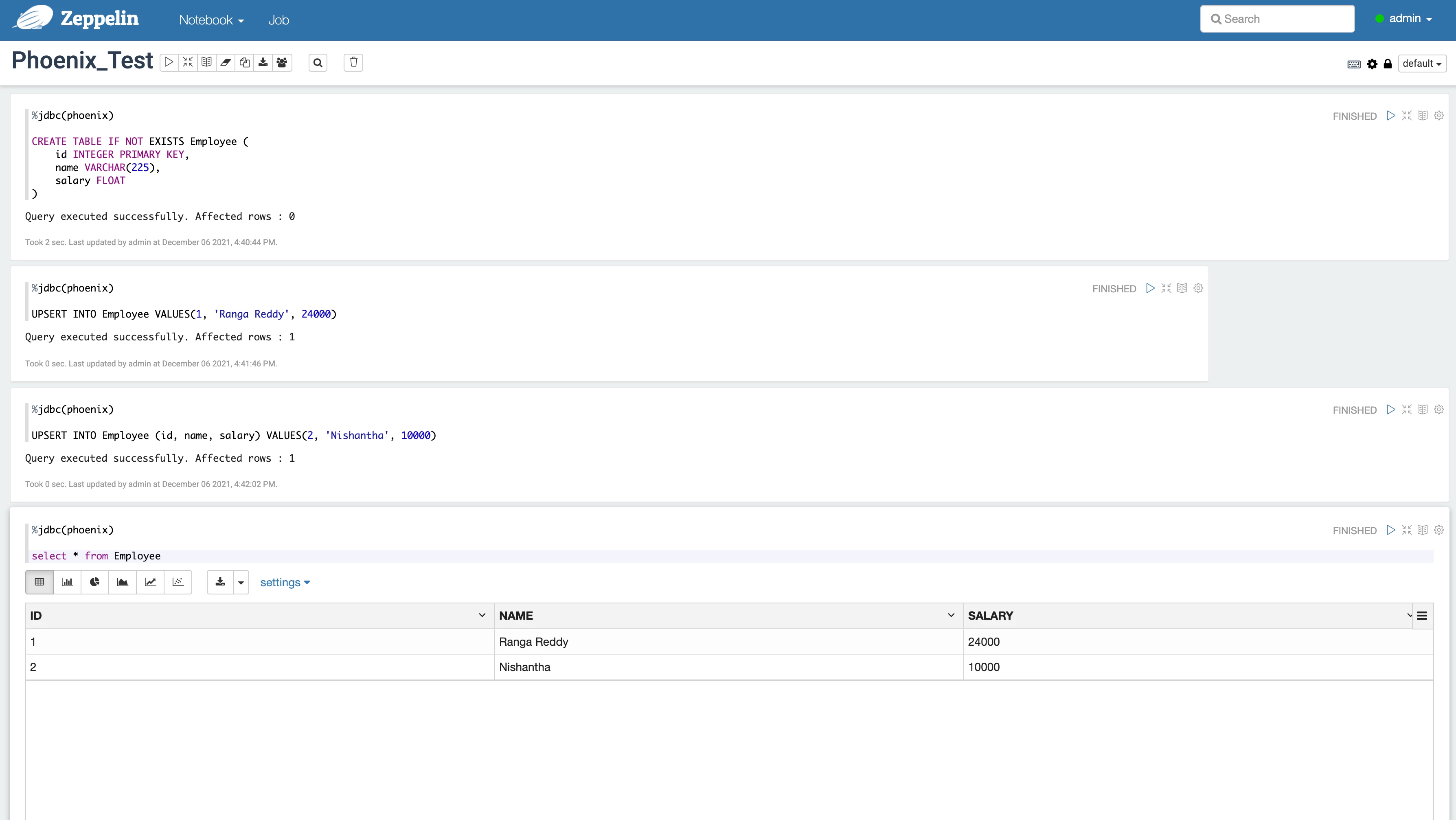
In this article, we will learn how to integrate Zeppelin JDBC (Phoenix) interpreter example.
1. Configuring the JDBC (Phoenix) interpreter:
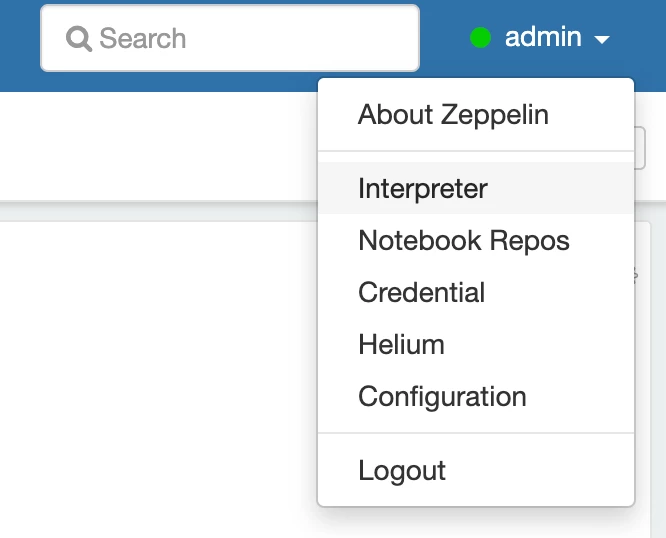
Login to Zeppelin UI -> Click on the user name (in my case, admin) at the right-hand corner. It will display a menu > click on Interpreter.
Click on + Create at the right-hand side of the screen.

It will display a popup menu. Enter Interpreter Name as jdbc and select Interpreter Group as jdbc. Then, it will populate Properties in table format.
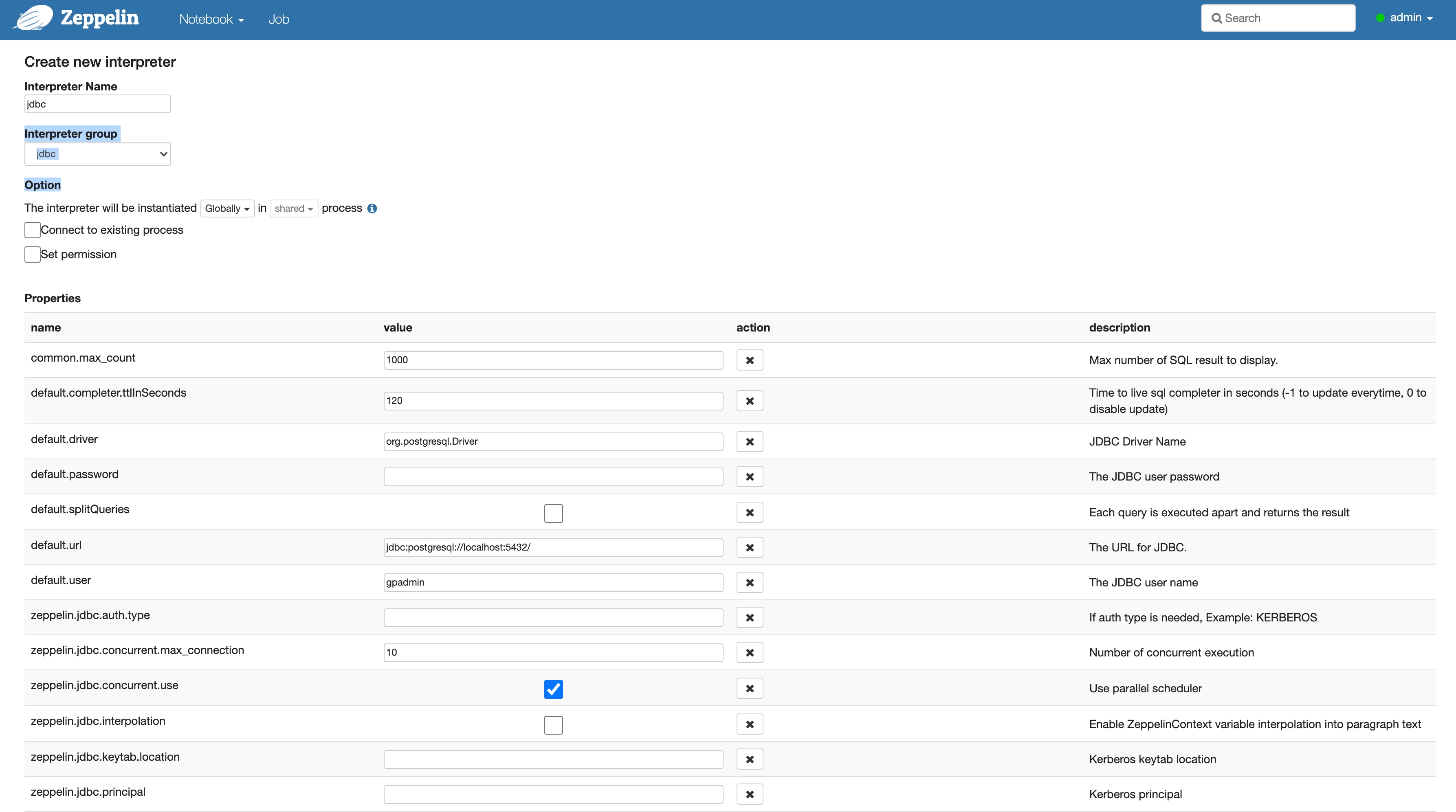
Click on + button and add the Phoenix-related properties according to your cluster, and click on the Save button.
| phoenix.driver | org.apache.phoenix.jdbc.PhoenixDriver |
| phoenix.url | jdbc:phoenix:localhost:2181:/hbase |
| phoenix.user | |
| phoenix.password | |

2. Creating the Notebook:
Click Notebook dropdown menu in the top left-hand corner and select Create new note and enter Note Name as Phoenix_Test,and select Default Interpreter as jdbc. Finally, click on Create button.
3. Running the Phoenix queries using jdbc (Phoenix) interpreter in Notebook:
Happy Learning.