


Community Tips Series: Everything About Your Profile
Your profile is how the community gets to know you. Here is where to find it, what is on it, and how to make it yours.
1. Find your profile
Click your picture in the top right corner.
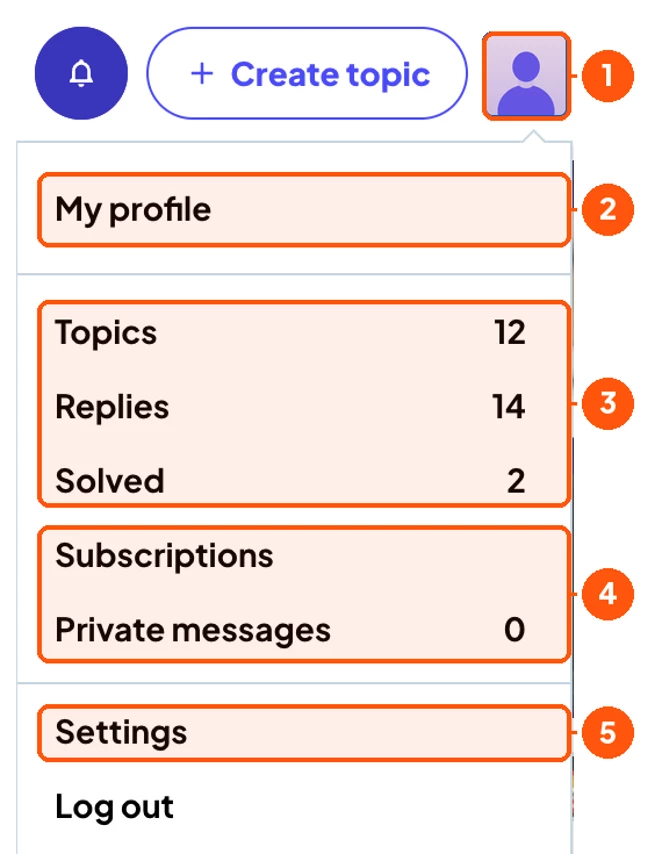
1. Your picture: Click it to open the menu.
2. My profile: Opens your profile page.
3. Your numbers: Topics, replies and solved at a glance.
4. Subscriptions and private messages: What you follow, and your inbox.
5. Settings: Update your profile, privacy and emails.
2. What is on your profile
Here is a typical member profile.
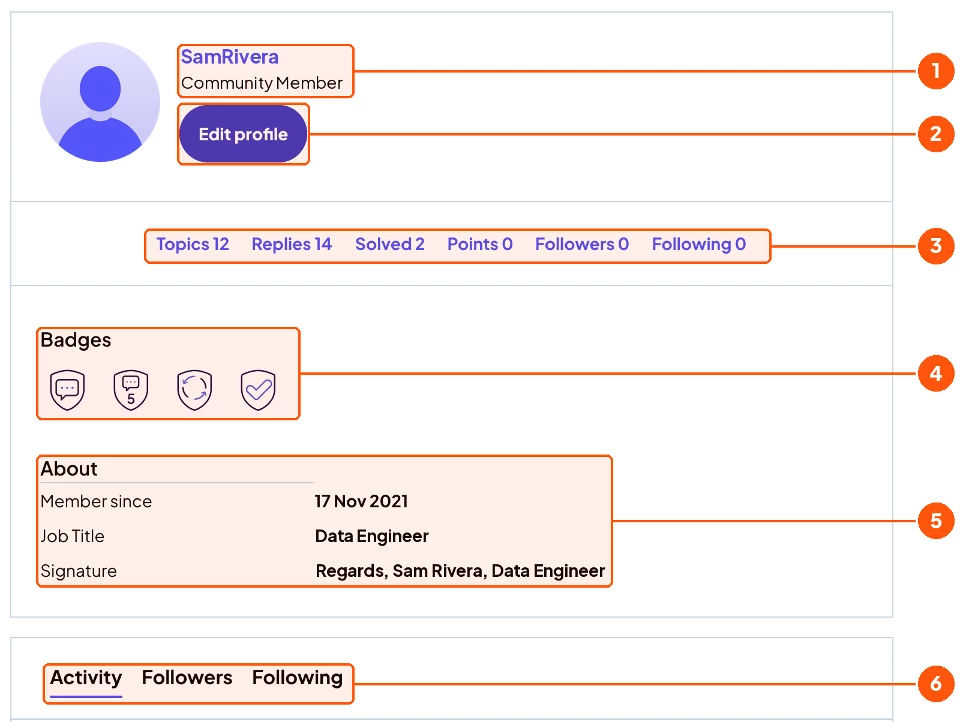
1. Name and title: Your username and your role in the community.
2. Edit profile: The shortcut to your settings.
3. Your stats: Topics, replies, solved, points, followers and following.
4. Badges: Earned as you contribute. See Meet Your New Badges and Ranks.
5. About: Member since, job title and signature.
6. Tabs: Activity, Followers and Following.
3. Make it yours
Click Edit profile, or choose Settings from the menu. You will see three tabs.
Tab 1: 👤 My profile | Your picture and sign-off
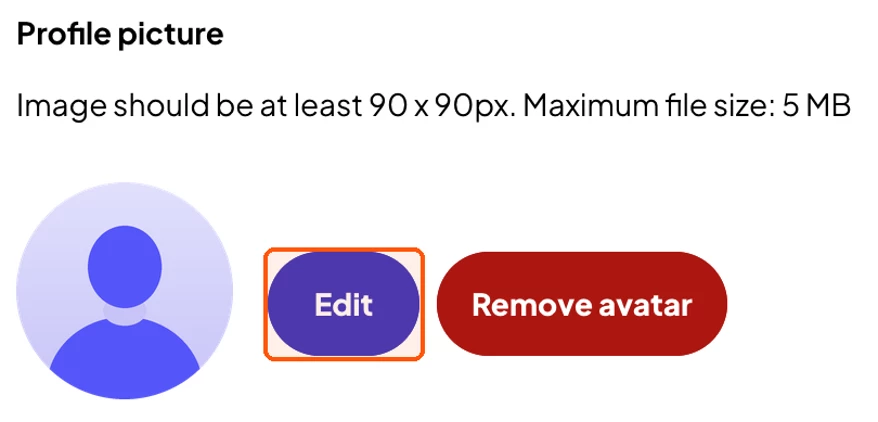
Update your picture. Click Edit to upload a new one. Use at least 90 x 90 px, up to 5 MB.
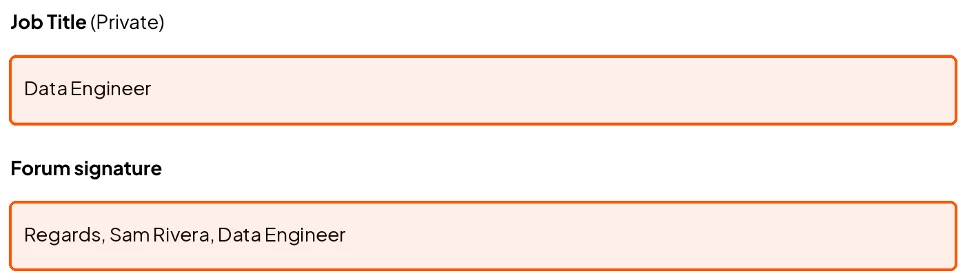
Say who you are. Add a job title and a short signature, like your name and role. The job title is marked Private.
Tab 2: ⚙️ General | What shows, and who can reach you
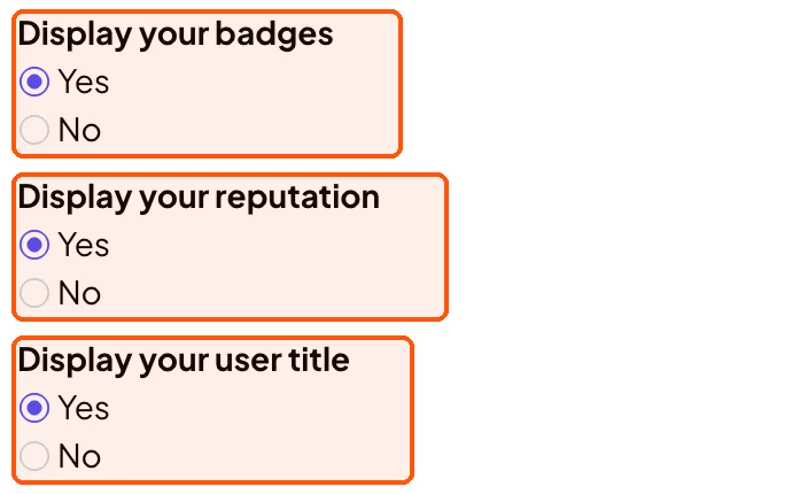
Choose what shows. Pick Yes or No to show or hide your badges, reputation and user title.
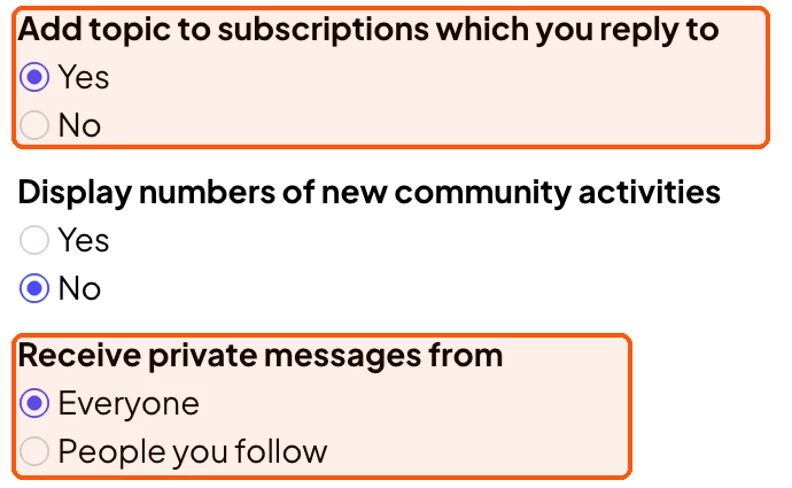
Follow topics, control messages. Follow topics when you reply, and decide who can message you: Everyone or People you follow.
Take your data with you. Get a copy of your profile, activity and preferences with Download my data.

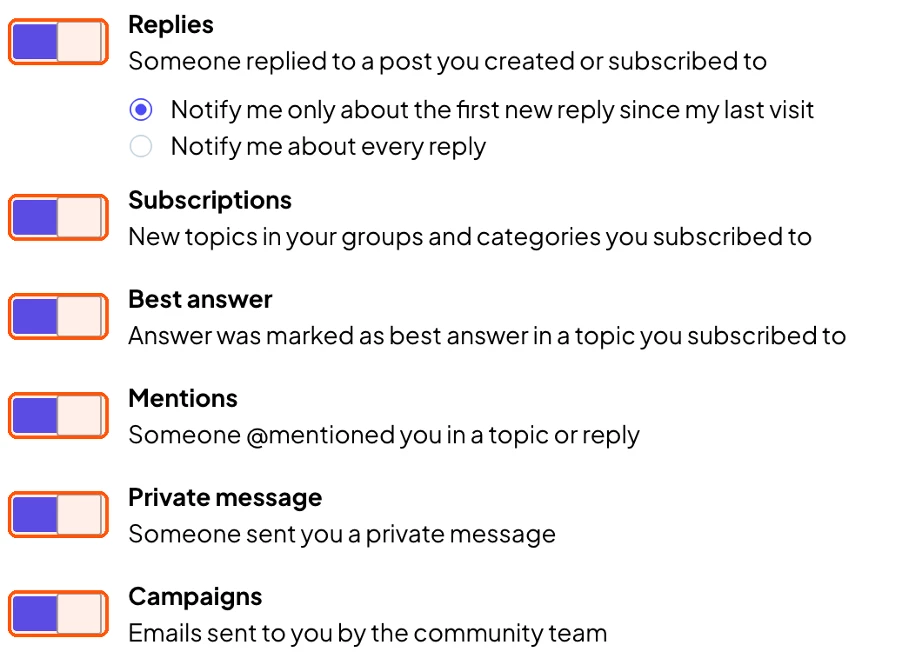
Tab 3: 🔔 Notifications | Choose which emails you get
Pick your emails. Switch off any email you do not need. For Replies, choose only the first new reply since your last visit, or every reply.
💡 Do not forget: Click Save changes at the bottom of each tab.

