


Community Tips Series: How to use the Search Feature Smarter

Type it, narrow it, find it: a quick guide to searching the Community.
Thousands of topics are waiting for you. Here is how to find the right one in seconds.
1. Open search
There are two ways in, depending on where you are.
- On the home page
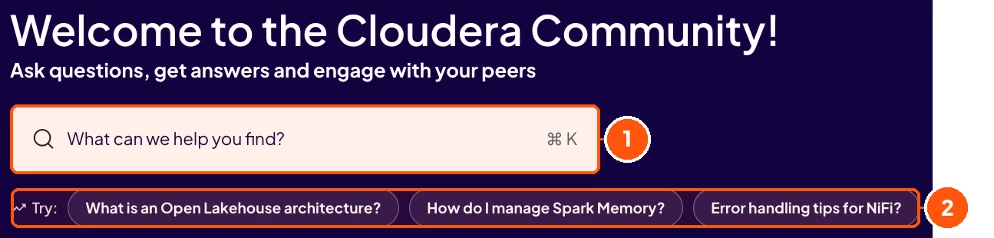
1. Search bar Type a word, a product or an error message. Press ⌘ K (Mac) to jump straight to it.
2. Suggestions Click one to try a popular search.
- On any other page
Click the magnifier next to the bell and the Create topic button.

2. Narrow it down
You land on the search page. Use the filters on the left, and tick more than one to get closer.

1. Search box Change or add words any time.
2. Results tabs Switch between All Results and Community.
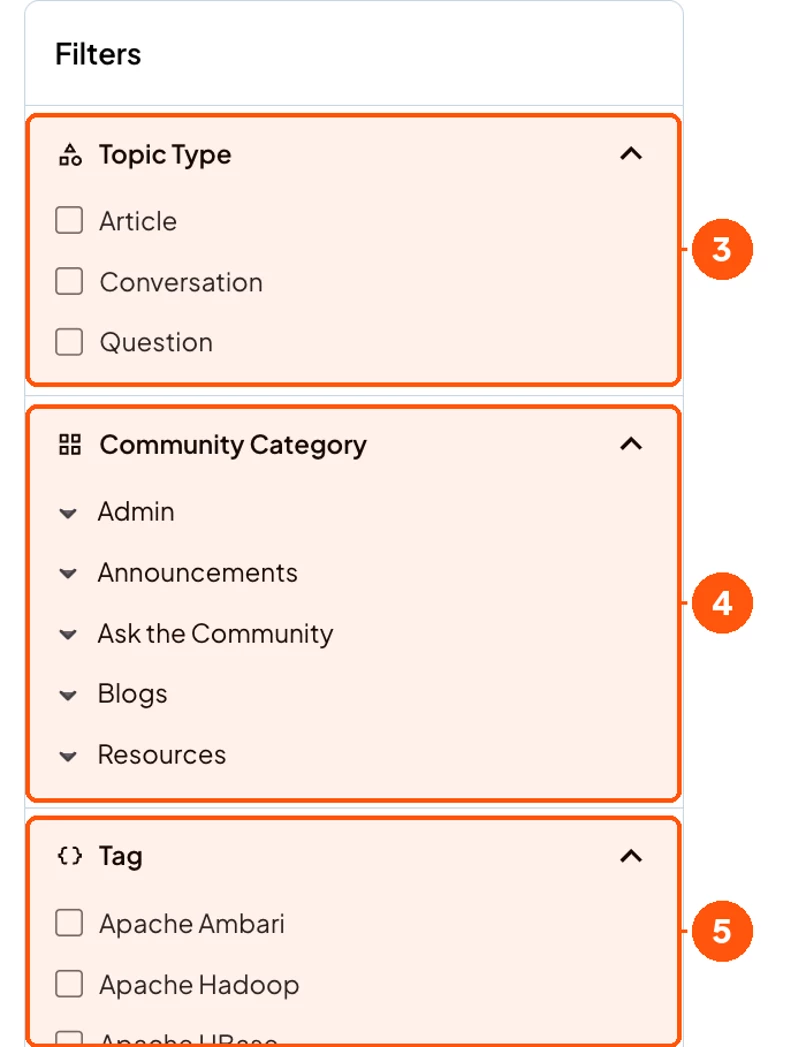
3. Topic Type Show only Articles, Conversations or Questions.
4. Community Category Pick a category, like Announcements, Ask the Community, Blogs or Resources.
5. Tag Pick a product or technology, like Apache Hive or Apache Spark.
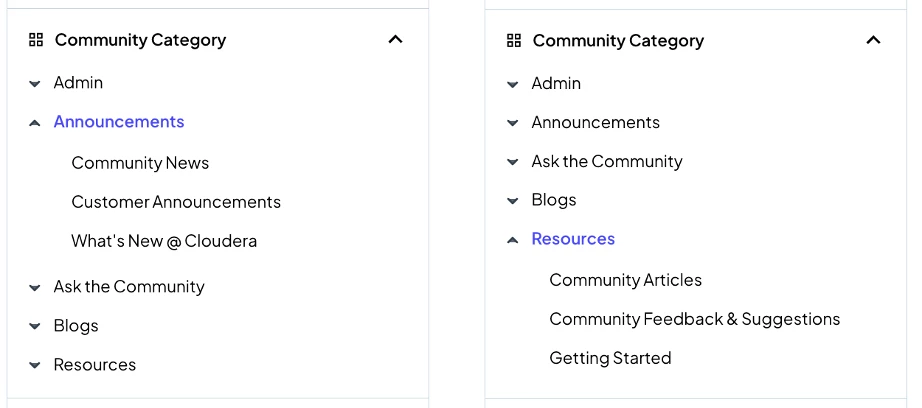
Open a category to see what is inside
Announcements includes Community News, Customer Announcements and What's New @ Cloudera. Resources includes Community Articles, Community Feedback & Suggestions and Getting Started.
3. Read your results
Each result tells you what it is before you click.
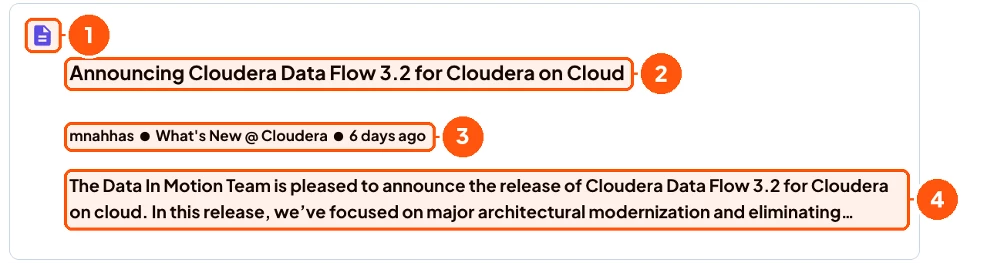
1. Type icon Shows what kind of topic it is.
2. Title Click it to open the topic.
3. Details Who posted, where, and when.
4. Preview A short look at the content.
4. Still stuck?
Ask the Community
Click Create topic and ask. Someone may already know the answer.

💡 Not finding it? Be specific, with a product name or the exact words of an error. Start broad, then add filters.

