
Silver ⭐️⭐️⭐️
Aug 10, 2020 9:14 PM UTC
How to configure NiFi S2S from local machine to CDP Public Cloud (without proxy)
- Oct 5, 2026 8:55 AM UTC
- 0 replies
- 3082 views
- Translate All
Moving data from your local machine to the cloud has never been easier using NiFi site to site protocol and CDP Datahub. In this article, I will focus on how to set up a site to site communication between your local machine and CDP Cloud, without using the default Knox CDP Proxy.
This configuration assumes that you already have a local instance of NiFi (or MiNiFi) and a CDP Datahub Cluster running NiFi. If you want to learn how to use CDP Public Cloud, please visit our overview page and documentation.
This setup will be executed in 4 steps:
- Step 1: Open CDP to your local IP
- Step 2: Download and configure stores on your local machine
- Step 3: Configure a simple site-to-site flow
- Step 4: Authorize this flow in Ranger
Step 1: Open CDP to your local IP
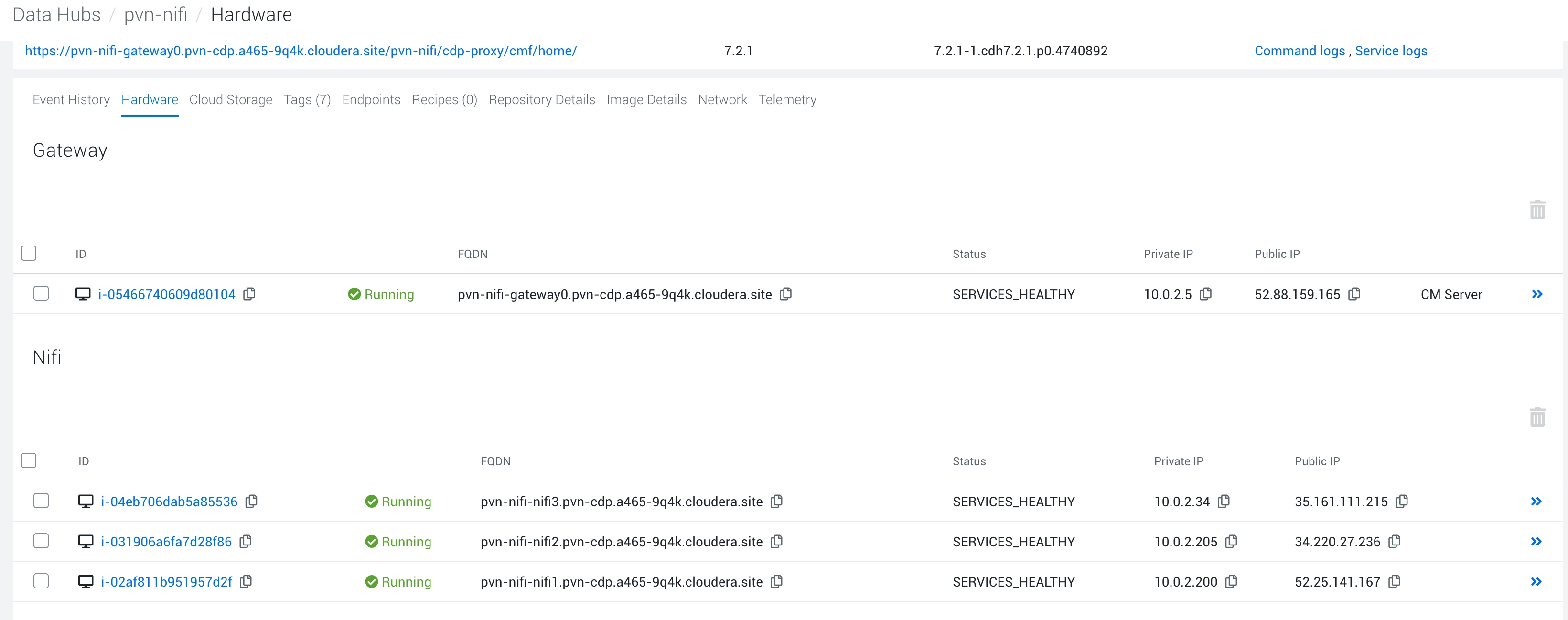
- Go to your CDP Management Console, and find your datahub (here pvn-nifi).
- At the bottom of the datahub page, click on Hardware and locate one of the instances running NiFi:
- Click on the instances and you will be redirected to your cloud provider (here AWS😞
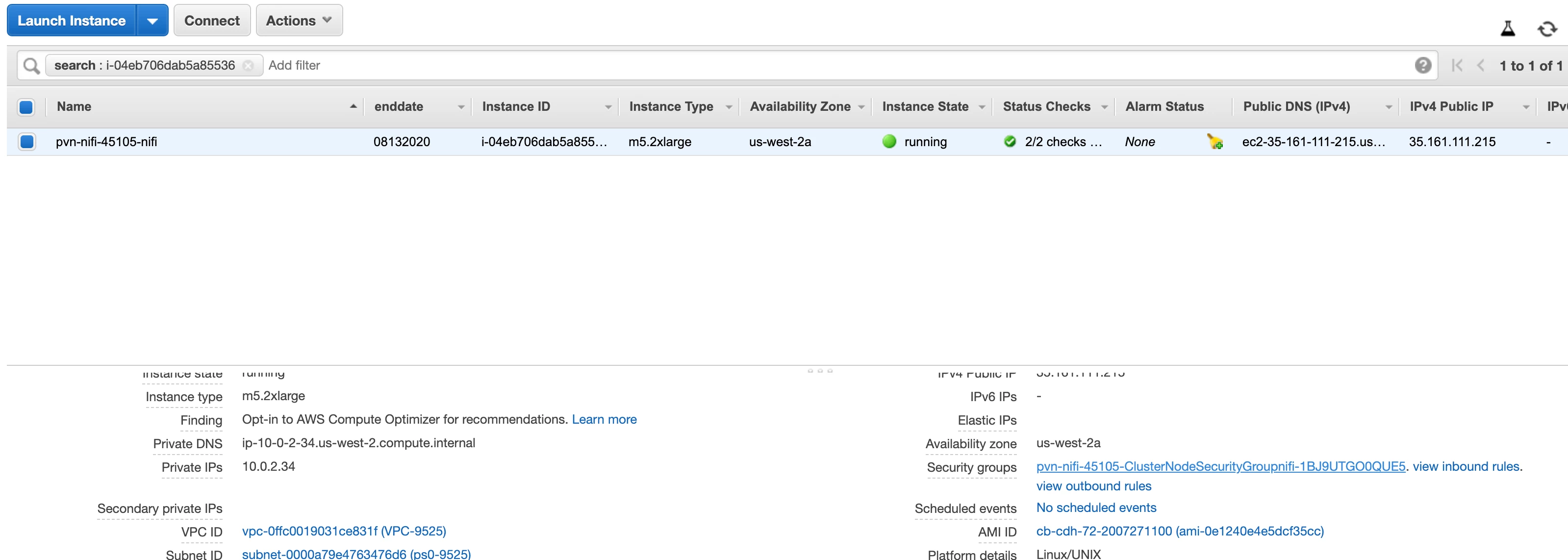
- At the bottom of the screen, click on the security group associated with your instance, and you will be redirected to that security group config page:
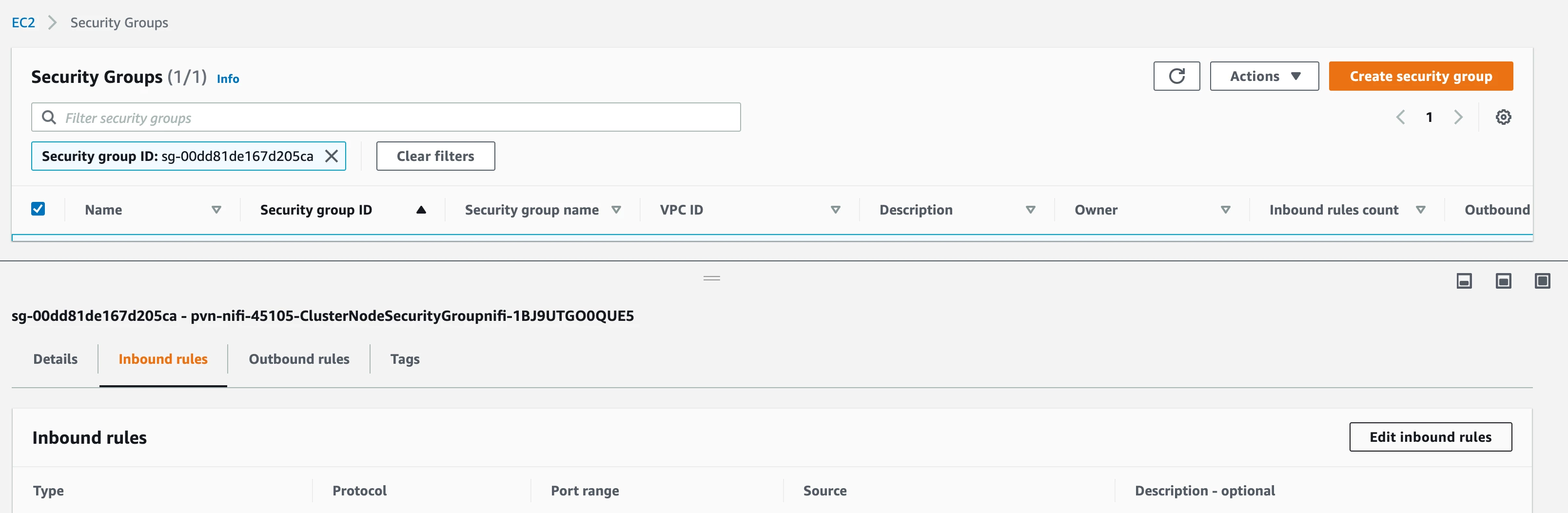
- Click on Edit inbound rules and add a rule opening TCP port 8443 to your local IP:

- Save these changes.
Step 2: Download and configure stores on your local machine
- Connect to one of the NiFi machines with the Cloudbreak user and the key you used at deployment:
$ ssh -i [path_to_private_key] cloudbreak@[your_nifi_host] - Copy and authorize the key and trust stores:
$ sudo su
$ cp /var/lib/cloudera-scm-agent/agent-cert/cm-auto-host_keystore.jks /tmp
$ cp /var/lib/cloudera-scm-agent/agent-cert/cm-auto-global_truststore.jks /tmp
$ chmod a+rw /tmp/cm-auto-host_keystore.jks
$ chmod a+rw /tmp/cm-auto-global_truststore.jks - Disconnect from the remote machine and copy these stores:
$ cd ~/Desktop
$ scp -i [path_to_private_key] cloudbreak@[your_nifi_host]:/tmp/cm-auto-host_keystore.jks cm-auto-host_keystore.jks
$ scp -i [path_to_private_key] cloudbreak@[your_nifi_host]:/tmp/cm-auto-global_truststore.jks cm-auto-global_truststore.jks - Configure your local NiFi with these stores, by modifying your nifi.properties:
Note: To know the passwords of these stores, please connect with your Cloudera team.nifi.security.keystore=/Users/pvidal/Desktop/cm-auto-host_keystore.jks
nifi.security.keystoreType=JKS
nifi.security.keystorePasswd=[keystore_pw]
nifi.security.keyPasswd=[keystore_pw]
nifi.security.truststore=/Users/pvidal/Desktop/cm-auto-global_truststore.jks
nifi.security.truststoreType=JKS
nifi.security.truststorePasswd=[truststore_pw] - Restart your local NiFi instance:
nifi restart
Step 3: Configure a simple site-to-site flow
Local instance
- Create a process group to host your flow (here called S2S Cloud:
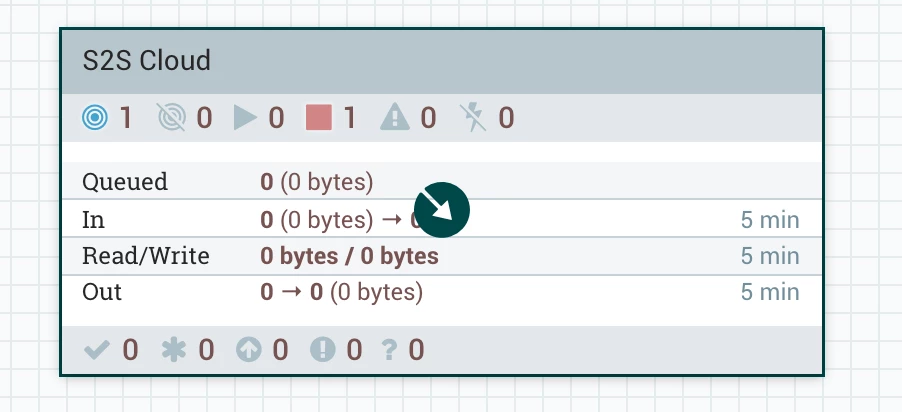
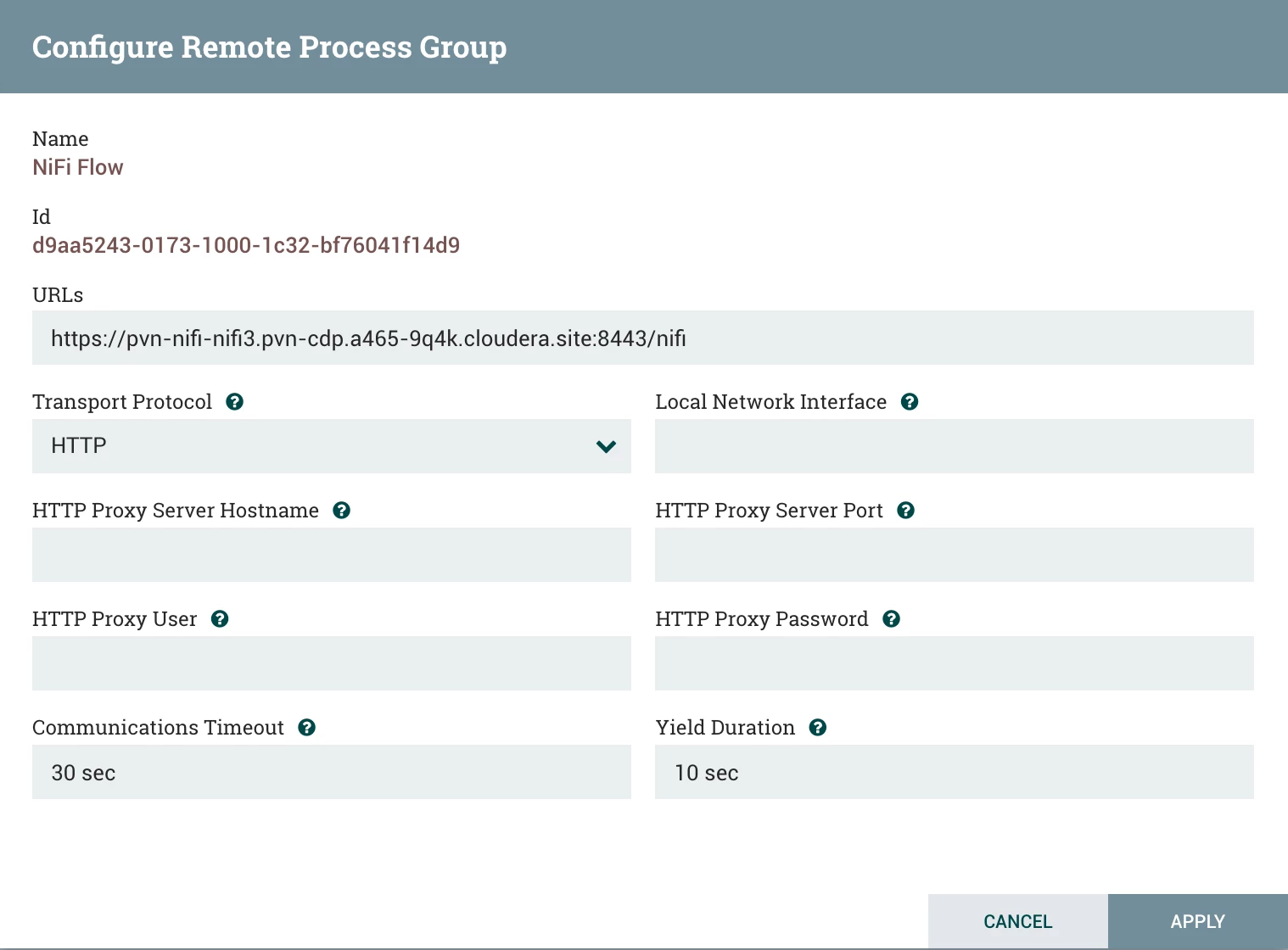
- In this process group, create a remote process group instance and configure it with one of your cloud NiFi instances address, and the HTTP protocol:
- Create a simple Generate flow file processor and connect it to the remote processor:
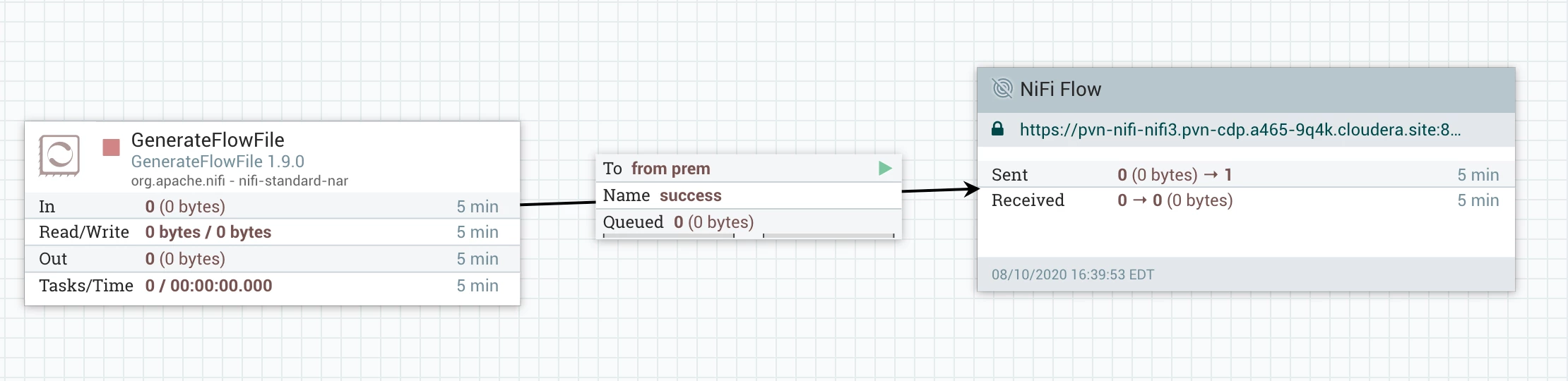 Note: Without configuring Ranger, you will get a Forbidden warning (see step 4).
CDP Public Instance
- Create a process group to host your flow (here called Receive from on prem):
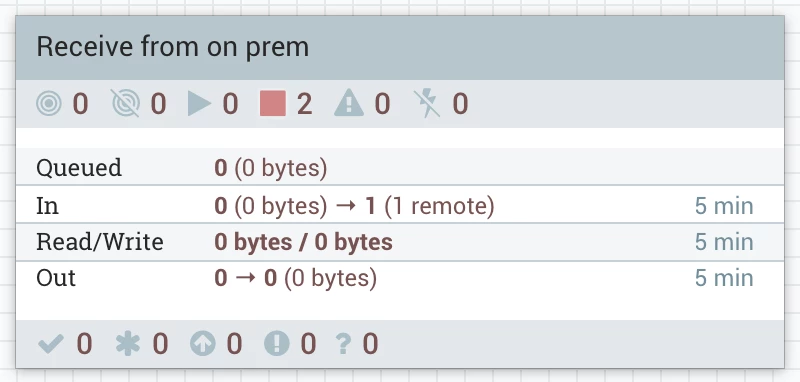
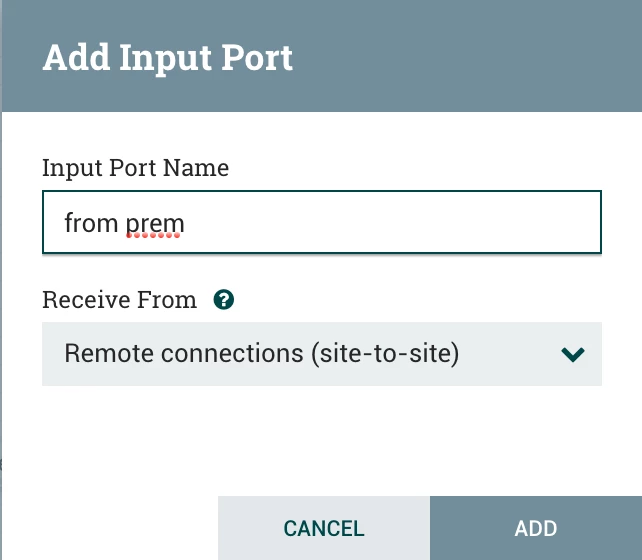
- In this process group, create an input port accepting remote connections:
- Finally, create a flow that takes the data and logs it:

- Start your flow.
Step 4: Authorize this flow in Ranger
- From the Cloudera Management console, go to Ranger and your NiFi service:
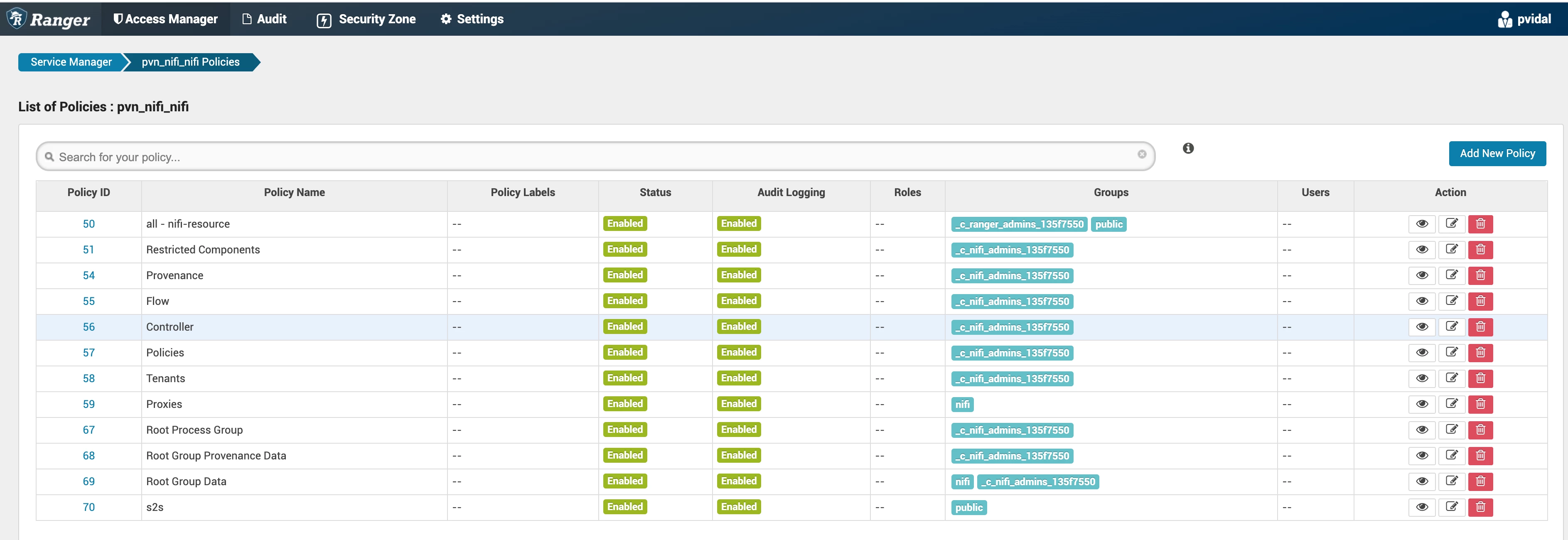
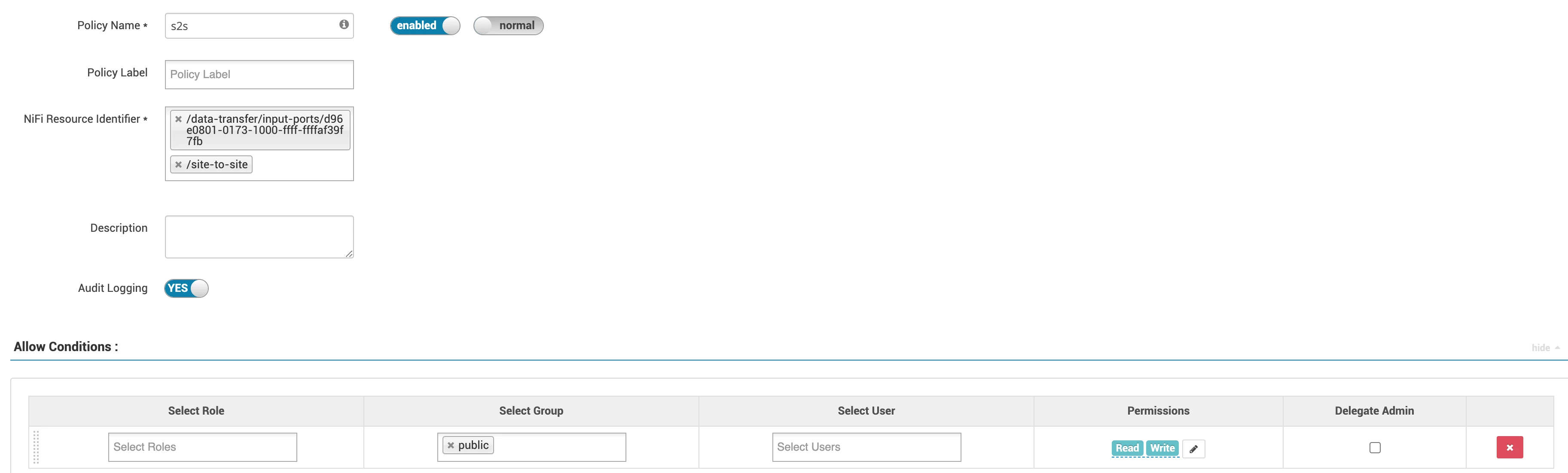
- From the list of policies, create a new policy (here called s2s) that will allow access to your specific process group and the site-to-site protocol (Ranger does auto completion):
- Save this policy, and go back to your local machine; you can now enable the remote process group and start sending files!
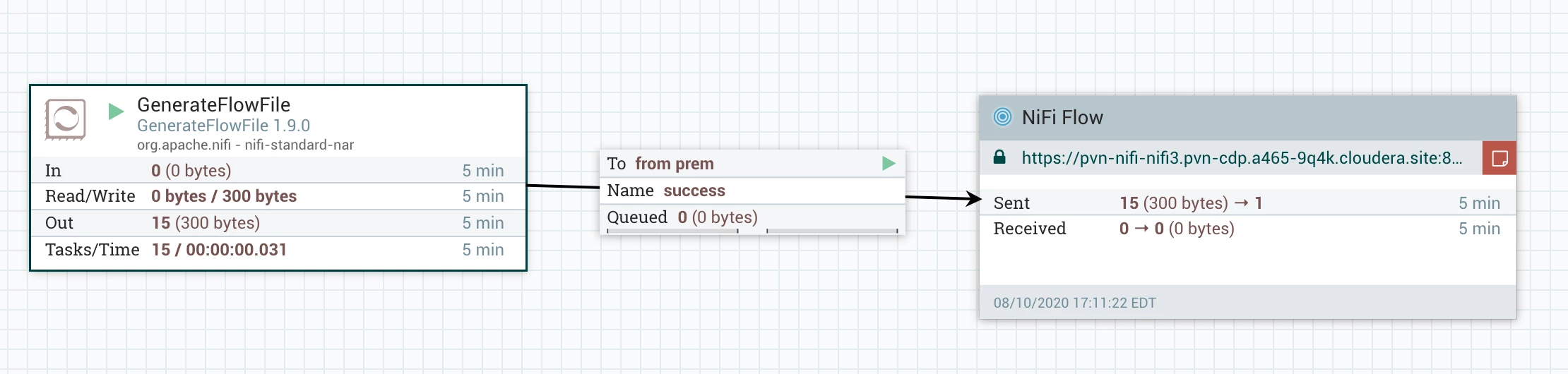
Example of successful flows
Local Flow
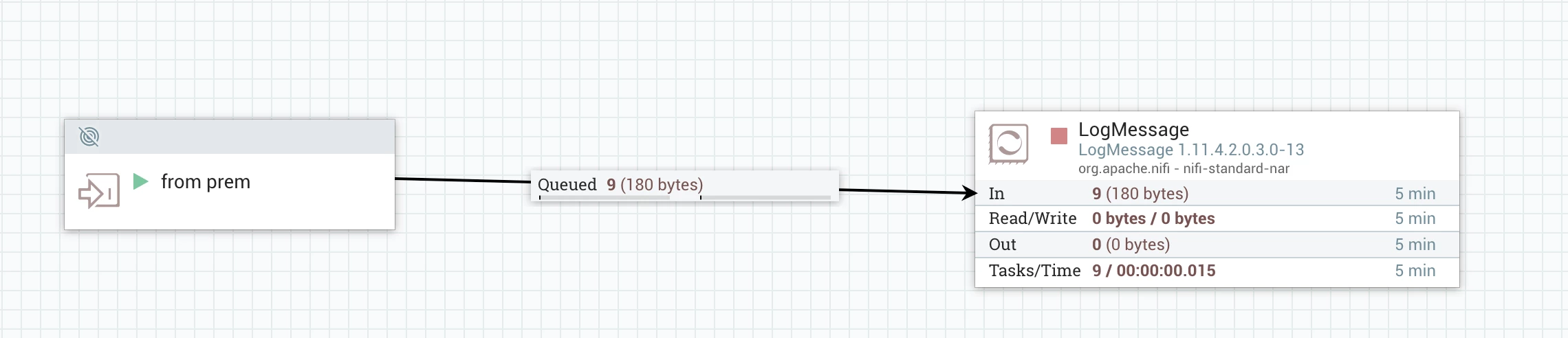
CDP Public Flow