
Gold ⭐️⭐️
April 19, 2017
Is the Cloudera Altus CLI supported for Windows systems?
- October 5, 2026 at 9:21 AM
- 2 replies
- 3876 views
- Translate All
Question
Is the Cloudera Altus CLI supported for Windows systems?
Answer
Starting with the Cloudera Altus CLI Version 1.1.3, installation is available through pip, as long as the following minimum requirements are met:
Minimum version of Python 3.6+
1) Download and Install Python for Windows according to the website's instructions:
2) Open a Command Prompt (Windows Key + R), then type cmd and hit enter.
3) In the Command prompt window, run the command to update the Windows environment to add the newly installed Python folder to the system path:
setx "%PATH%";C:\<Python_Install_destination>\Scripts;
For example, if Python 2.7 was installed in it's default location, the following command would be run:
setx "%PATH%";C:\Python36\Scripts;
4) In the same Window, run the pip installer to install the Cloudera Altus CLI Utility:
pip install altuscli
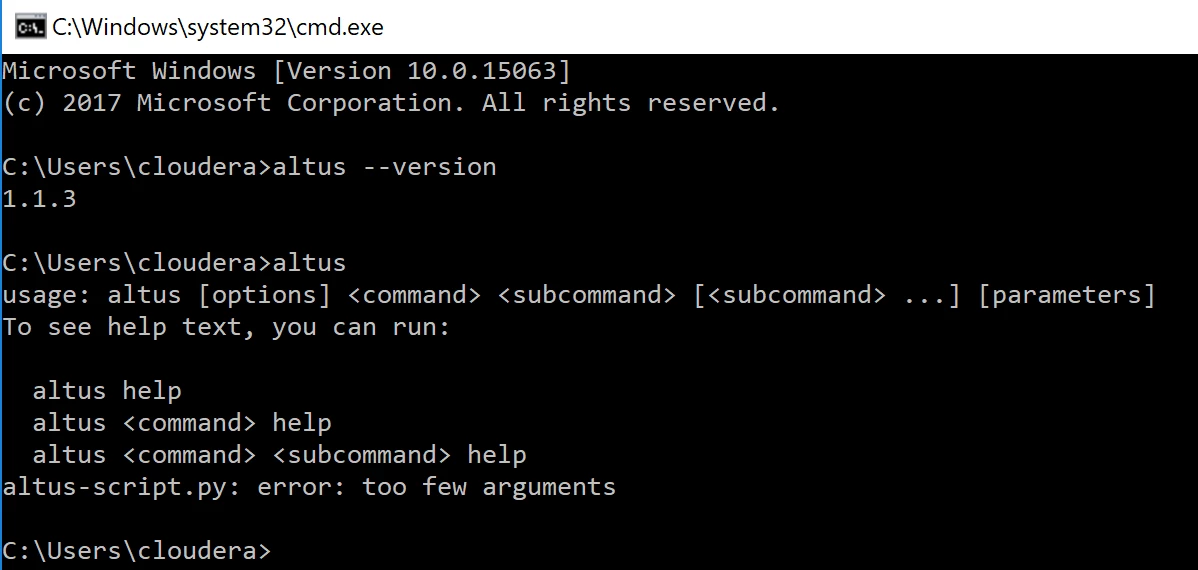
5) Once the Cloudera Altus CLI is installed, confirm its functionality by running altus --version as shown below: