


News Authors Personality Detection - Part 2: Using SAM to consume Kafka, load into Druid and create superset visualization
Overview
Following my series on news author personality detection, let's dive into the streaming analytics side of things, and continue building our data science and engineering platform. This tutorial does assume that you completed part 1 of the series. After completing this part, your architecture will look like this:
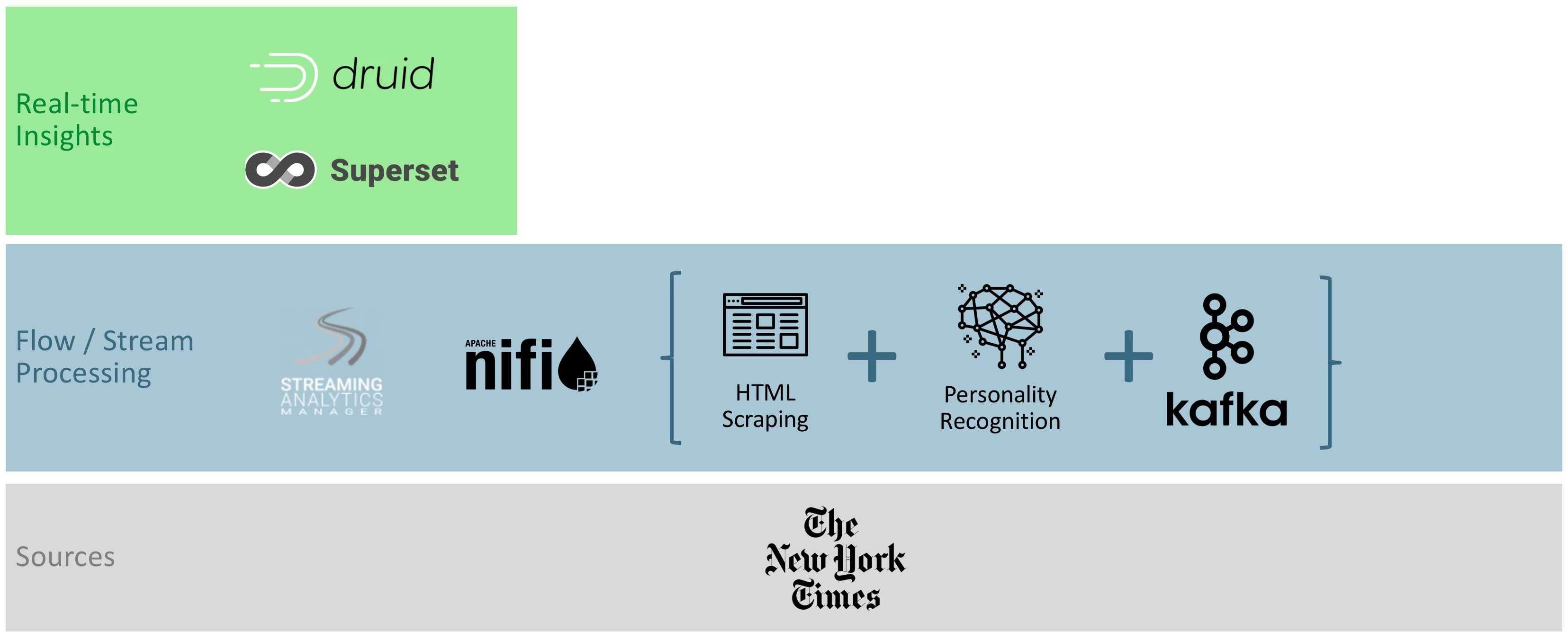
This tutorial will be divided in sections:
- Section 1: Create a custom UDF for SAM
- Section 2: Create a SAM application to sink to Druid
- Section 3: Monitor your streaming application
- Section 4: Create a simple superset visualization
Note: Creating a custom UDF is a purely academical exercise, as is the use of SAM for sinking into Druid, considering I could have connected Kafka to Druid directly. However, one of the goal of this series is to learn as much as possible about the Hortonworks stack. Therefore, custom UDF and SAM is on the menu.
Section 1: Create a custom UDF for SAM
Step 1: Download the structure for your custom UDF
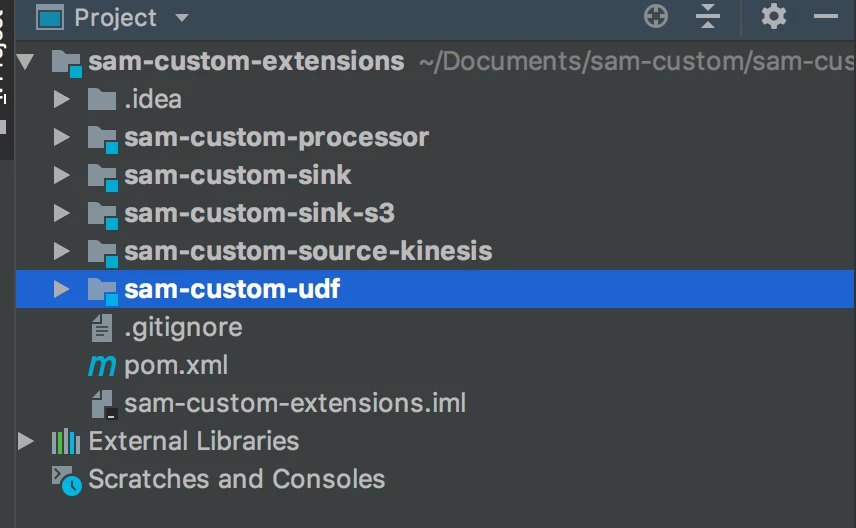
Using the example give by the SAM documentation, fork/clone this repository: link. Using your favorite IDE, open the cloned folder and navigate to the sam-custom-udf folder:
Step 2: Create a new class
Under [YOUR_PATH]/sam-custom-extensions/sam-custom-udf/src/main/java/hortonworks/hdf/sam/custom/udf/math add a new class called NormalizeByline (I realize this is not a math function, but again, this is an exercise). This class removes the "By " at the beginning of a by line and capitalizes it. It should contain the following code:
package hortonworks.hdf.sam.custom.udf.math;
import com.hortonworks.streamline.streams.rule.UDF;
import org.apache.commons.lang.WordUtils;
public class NormalizeByline implements UDF<String, String> {
    public String evaluate(String value) {
        String result = WordUtils.capitalize(value.replaceAll("By ", ""));
        return result;
    }
}
Step 3: Compile your code
Go to [YOUR_PATH]/sam-custom-extensions/sam-custom-udf/ and run the following command:
$ mvn install
You should see something like this:
[INFO] Scanning for projects...
[WARNING]
[WARNING] Some problems were encountered while building the effective model for hortonworks.hdf.sam.custom:sam-custom-udf:jar:3.1.0.0-564
[WARNING] 'version' contains an expression but should be a constant. @ hortonworks.hdf.sam.custom:sam-custom-extensions:${sam.extensions.version}, /Users/pvidal/Documents/sam-custom/sam-custom-extensions/pom.xml, line 6, column 13
[WARNING] 'build.plugins.plugin.version' for org.apache.maven.plugins:maven-compiler-plugin is missing. @ hortonworks.hdf.sam.custom:sam-custom-extensions:${sam.extensions.version}, /Users/pvidal/Documents/sam-custom/sam-custom-extensions/pom.xml, line 80, column 12
[WARNING] 'build.plugins.plugin.version' for org.apache.maven.plugins:maven-jar-plugin is missing. @ hortonworks.hdf.sam.custom:sam-custom-extensions:${sam.extensions.version}, /Users/pvidal/Documents/sam-custom/sam-custom-extensions/pom.xml, line 94, column 21
[WARNING] 'build.plugins.plugin.version' for org.apache.maven.plugins:maven-shade-plugin is missing. @ hortonworks.hdf.sam.custom:sam-custom-extensions:${sam.extensions.version}, /Users/pvidal/Documents/sam-custom/sam-custom-extensions/pom.xml, line 89, column 21
[WARNING]
[WARNING] It is highly recommended to fix these problems because they threaten the stability of your build.
[WARNING]
[WARNING] For this reason, future Maven versions might no longer support building such malformed projects.
[WARNING]
[INFO]
[INFO] -------------< hortonworks.hdf.sam.custom:sam-custom-udf >--------------
[INFO] Building sam-custom-extensions-udfs 3.1.0.0-564
[INFO] --------------------------------[ jar ]---------------------------------
[INFO]
[INFO] --- maven-resources-plugin:2.6:resources (default-resources) @ sam-custom-udf ---
[WARNING] Using platform encoding (UTF-8 actually) to copy filtered resources, i.e. build is platform dependent!
[INFO] Copying 3 resources
[INFO]
[INFO] --- maven-compiler-plugin:3.1:compile (default-compile) @ sam-custom-udf ---
[INFO] Changes detected - recompiling the module!
[WARNING] File encoding has not been set, using platform encoding UTF-8, i.e. build is platform dependent!
[INFO] Compiling 4 source files to /Users/pvidal/Documents/sam-custom/sam-custom-extensions/sam-custom-udf/target/classes
[INFO]
[INFO] --- maven-resources-plugin:2.6:testResources (default-testResources) @ sam-custom-udf ---
[WARNING] Using platform encoding (UTF-8 actually) to copy filtered resources, i.e. build is platform dependent!
[INFO] skip non existing resourceDirectory /Users/pvidal/Documents/sam-custom/sam-custom-extensions/sam-custom-udf/src/test/resources
[INFO]
[INFO] --- maven-compiler-plugin:3.1:testCompile (default-testCompile) @ sam-custom-udf ---
[INFO] No sources to compile
[INFO]
[INFO] --- maven-surefire-plugin:2.12.4:test (default-test) @ sam-custom-udf ---
[INFO] No tests to run.
[INFO]
[INFO] --- maven-jar-plugin:2.4:jar (default-jar) @ sam-custom-udf ---
[INFO] Building jar: /Users/pvidal/Documents/sam-custom/sam-custom-extensions/sam-custom-udf/target/sam-custom-udf-3.1.0.0-564.jar
[INFO]
[INFO] --- maven-install-plugin:2.4:install (default-install) @ sam-custom-udf ---
[INFO] Installing /Users/pvidal/Documents/sam-custom/sam-custom-extensions/sam-custom-udf/target/sam-custom-udf-3.1.0.0-564.jar to /Users/pvidal/.m2/repository/hortonworks/hdf/sam/custom/sam-custom-udf/3.1.0.0-564/sam-custom-udf-3.1.0.0-564.jar
[INFO] Installing /Users/pvidal/Documents/sam-custom/sam-custom-extensions/sam-custom-udf/pom.xml to /Users/pvidal/.m2/repository/hortonworks/hdf/sam/custom/sam-custom-udf/3.1.0.0-564/sam-custom-udf-3.1.0.0-564.pom
[INFO] ------------------------------------------------------------------------
[INFO] BUILD SUCCESS
[INFO] ------------------------------------------------------------------------
[INFO] Total time: 1.981 s
[INFO] Finished at: 2018-09-04T16:46:04-04:00
[INFO] ------------------------------------------------------------------------
Once compiled, a new jar (sam-custom-udf-3.1.0.0-564.jar) should be created under [YOUR_PATH]/sam-custom-extensions/sam-custom-udf/target
Step 4: Add UDF to SAM
In your SAM application, go to Configuration > Application Resources UDF. Click on the + sign on the right side of the screen, and enter the following parameters:
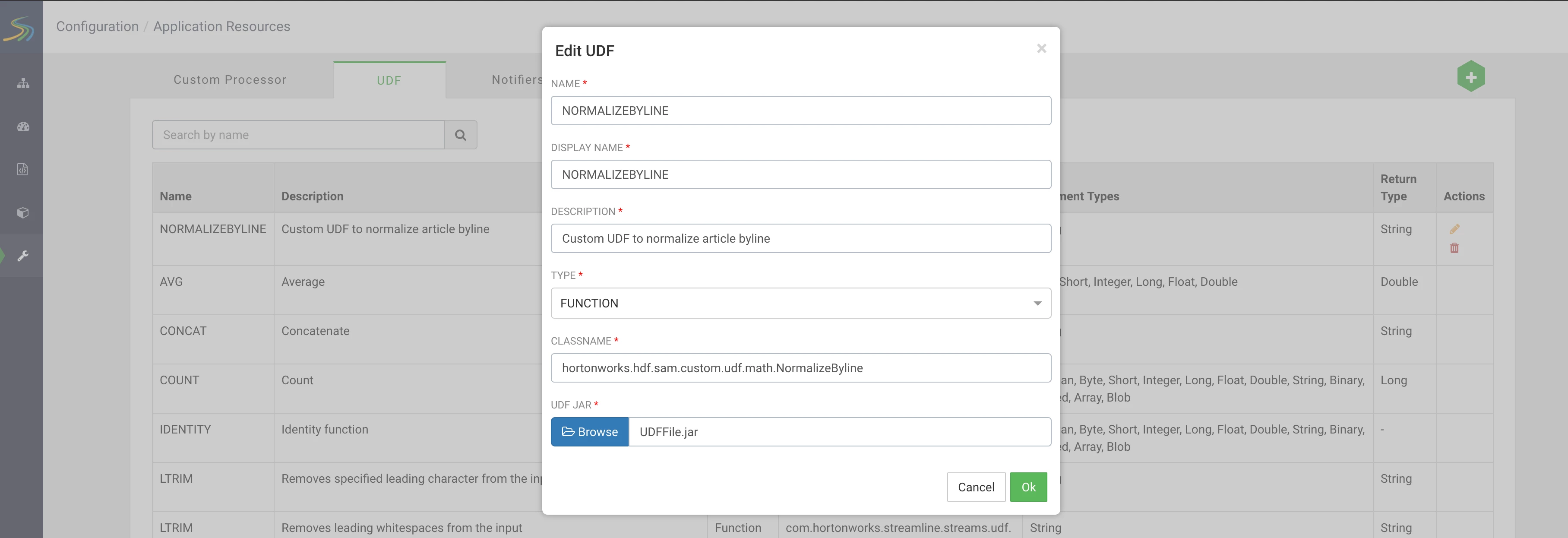
Don't forget to upload your recently created jar (sam-custom-udf-3.1.0.0-564.jar). Once done, click OK.
Section 2: Create a SAM application to sink to Druid
Step 1: Configure Service Pool & Environment
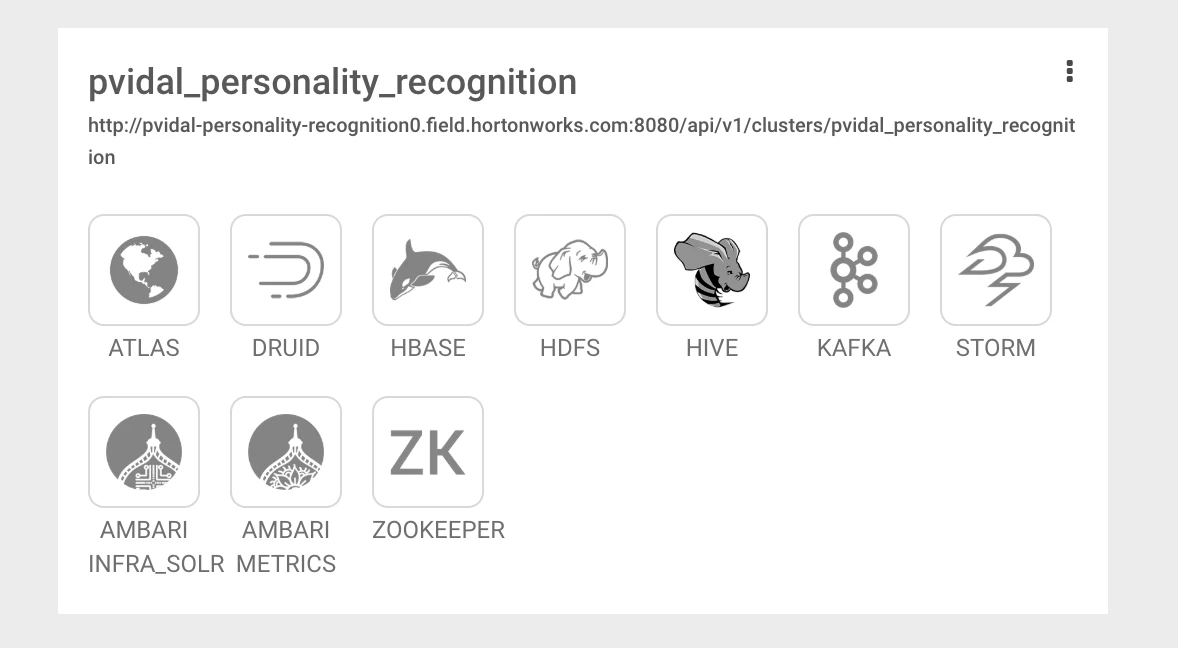
In your SAM application, go to Configuration > Service Pool. Use the Auto Add feature by specifying your Ambari's API: http://ambari_host:port/api/v1/clusters/CLUSTER_NAME Once Auto Add is complete, you should see something like this:
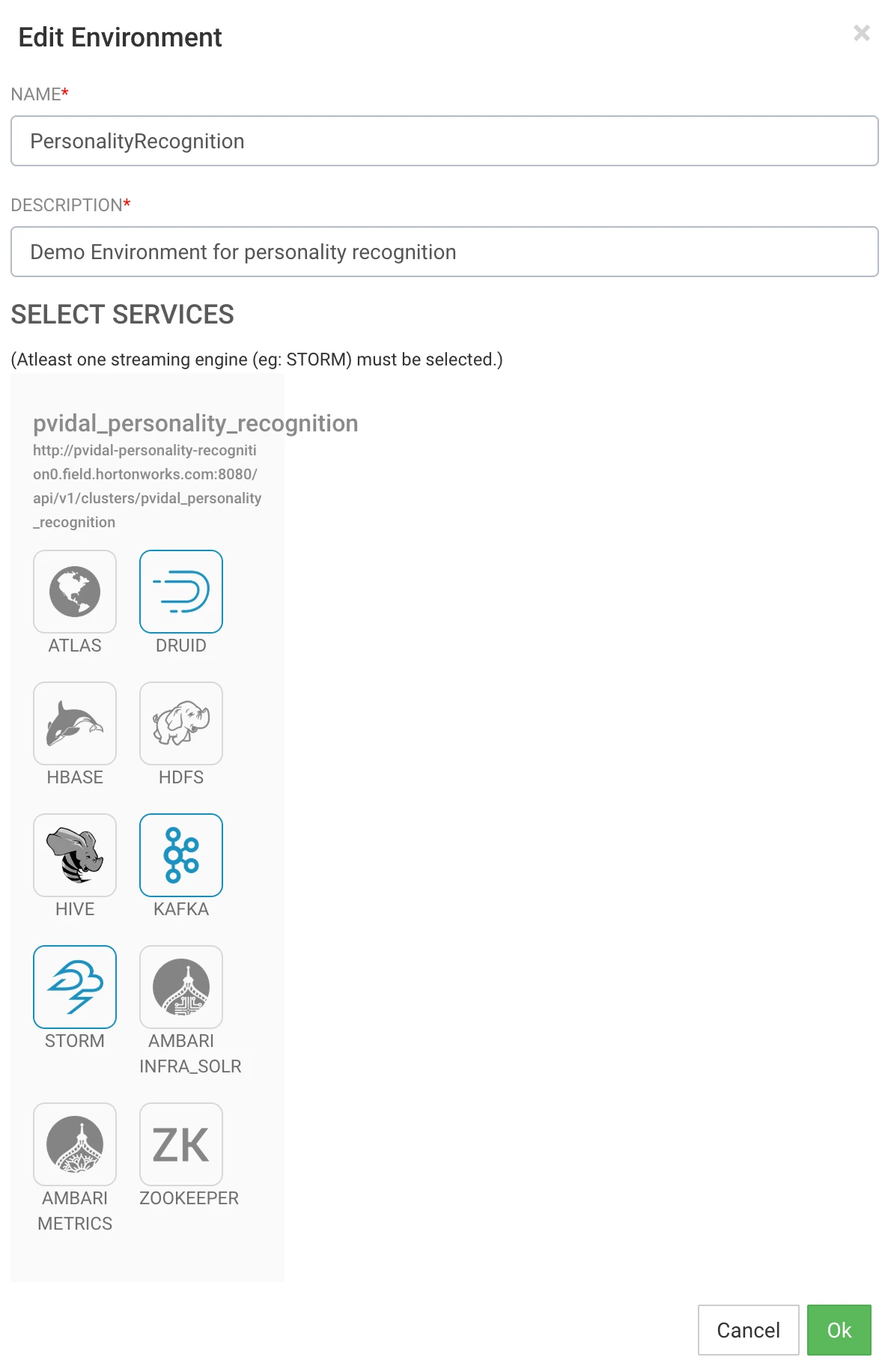
Then, go to Configuration > Environments and create a new environment selecting Kafka, Druid and Storm, as follows:
Step 2: Create application
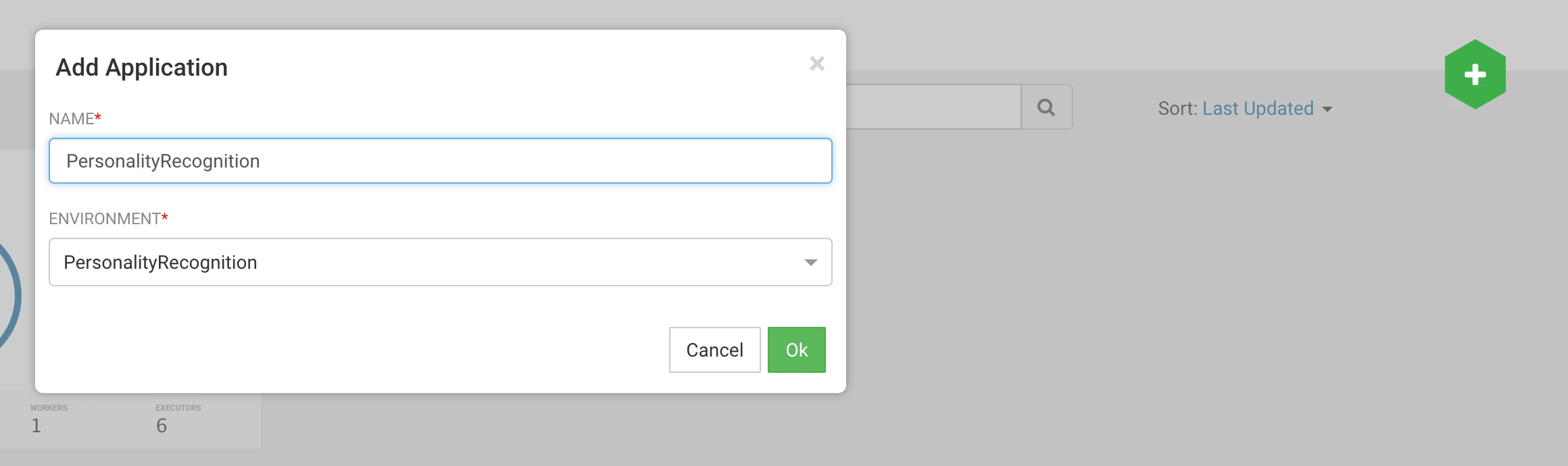
Go to My Applications. Use the + sign in the top right of the screen to create a new application using the environment we just configured, as follows:
Step 3: Add Kafka Source
In the edit screen of your new application, add a Kafka source:
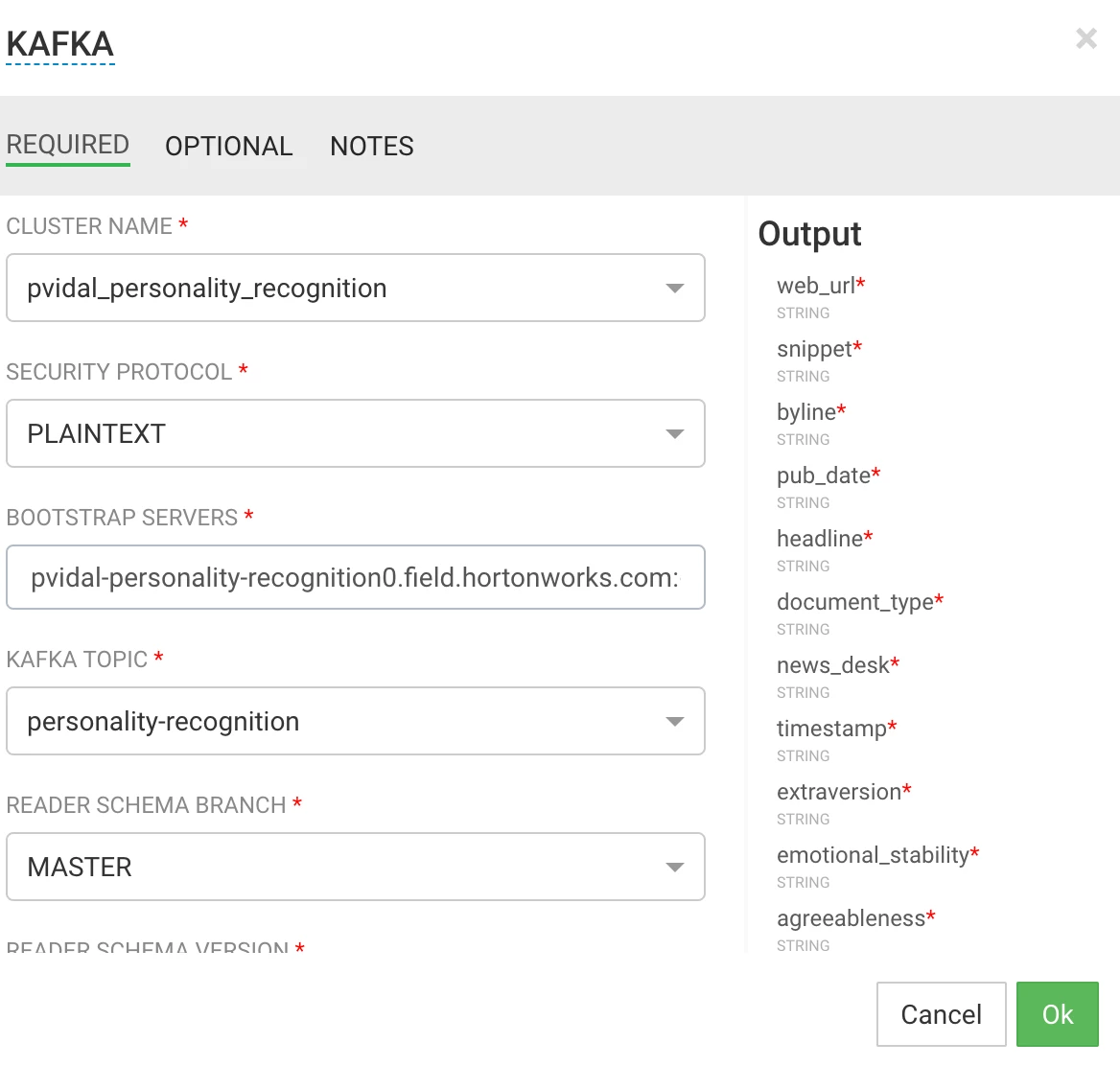
Most of the parameters are auto detected from your environment (including kafka topic and schema registry created in previous tutorial), as detailed below for mine:
- Cluster Name: pvidal_personality_recognition
- Security Protocol: PLAINTEXT
- Bootstrap Servers: pvidal-personality-recognition0.field.hortonworks.com:6667
- Kafka Topic: personality-recognition
- Reader Schema Branch: MASTER
- Reader Schema Version: 1
- Consumer Group Id: persorecognition_group (you can put whatever you want here)
For this exercise, no need to concern yourself with optional parameters.
Step 4: Add Projection
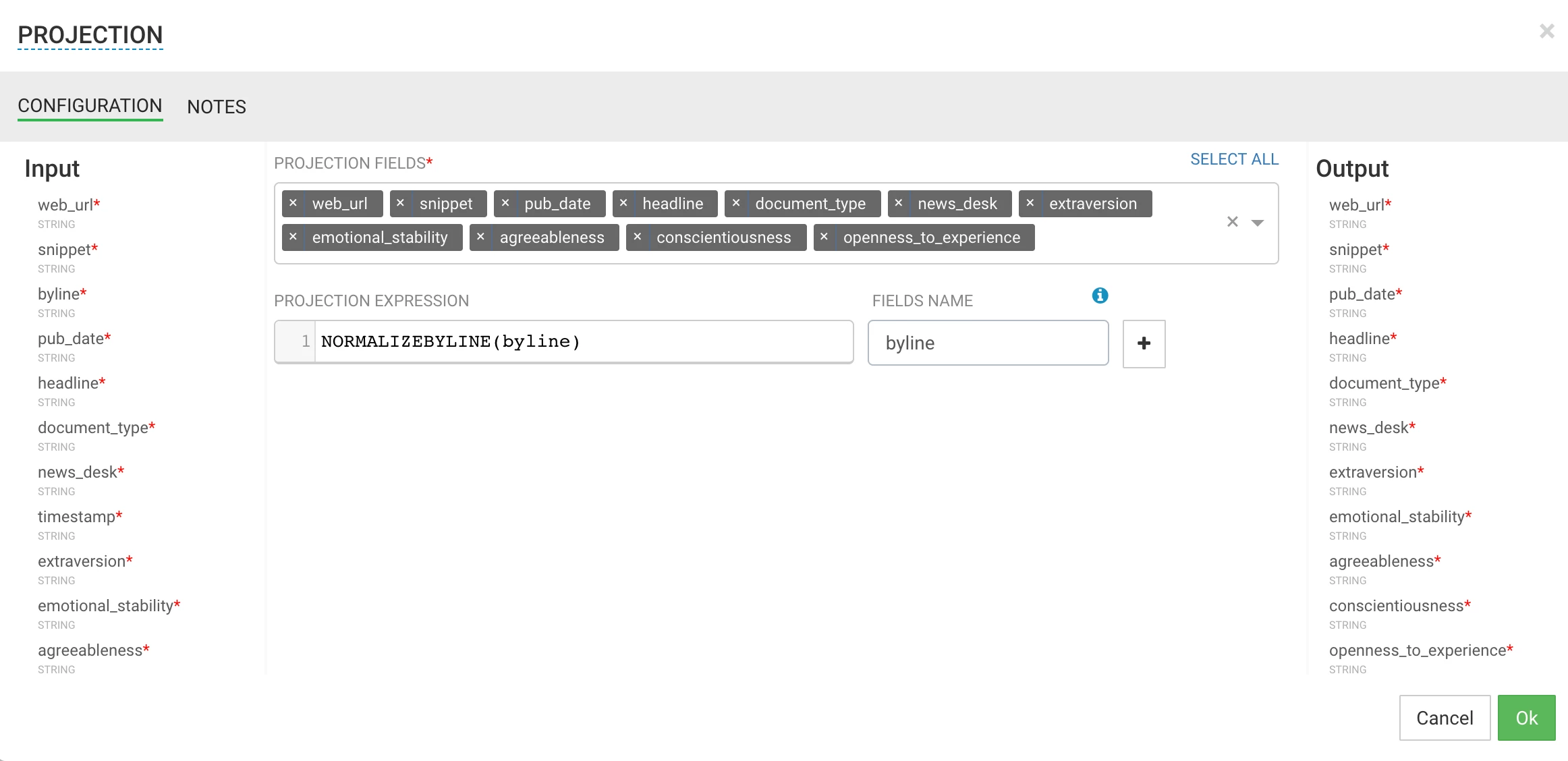
In the edit screen of your new application, add a projection to use your custom UDF, and link it to your kafka source. The configuration is very straightforward, as depicted below:
Step 5: Add Druid sink
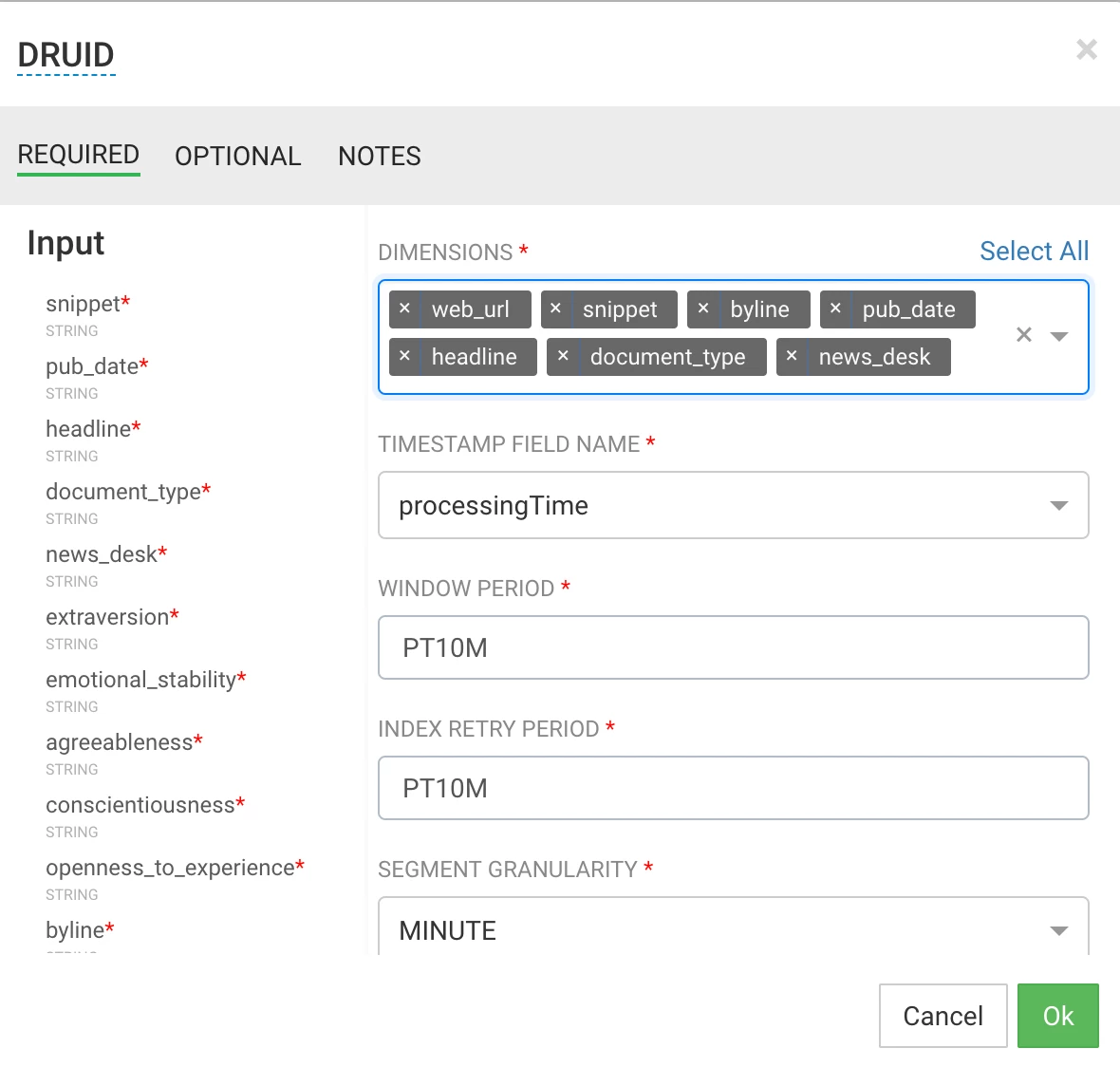
In the edit screen of your new application, add a Druid sink, and link it to your projection. You will need to configure two screens for this sink: the required part for Druid dimensions, and the optional part for aggregations, to be used later on in superset. The required part should have the following configuration elements:
- Cluster Name: pvidal_personality_recognition
- Name of the indexing service: druid/overlord
- Service discovery path: /druid/discovery
- Datasource Name: personality-detection-datasource (you can put whatever you want here)
- Zookeeper connection string: pvidal-personality-recognition0.field.hortonworks.com:2181,pvidal-personality-recognition1.field.hortonworks.com:2181,pvidal-personality-recognition2.field.hortonworks.com:2181
- Dimensions: Everything but the 5 traits of personality for which we will create aggregations
- Timestamp field name: processingTime
- Window Period: PT10M
- Index Retry Period: PT10M
- Segment Granularity: Minute
- Query Granularity: Second
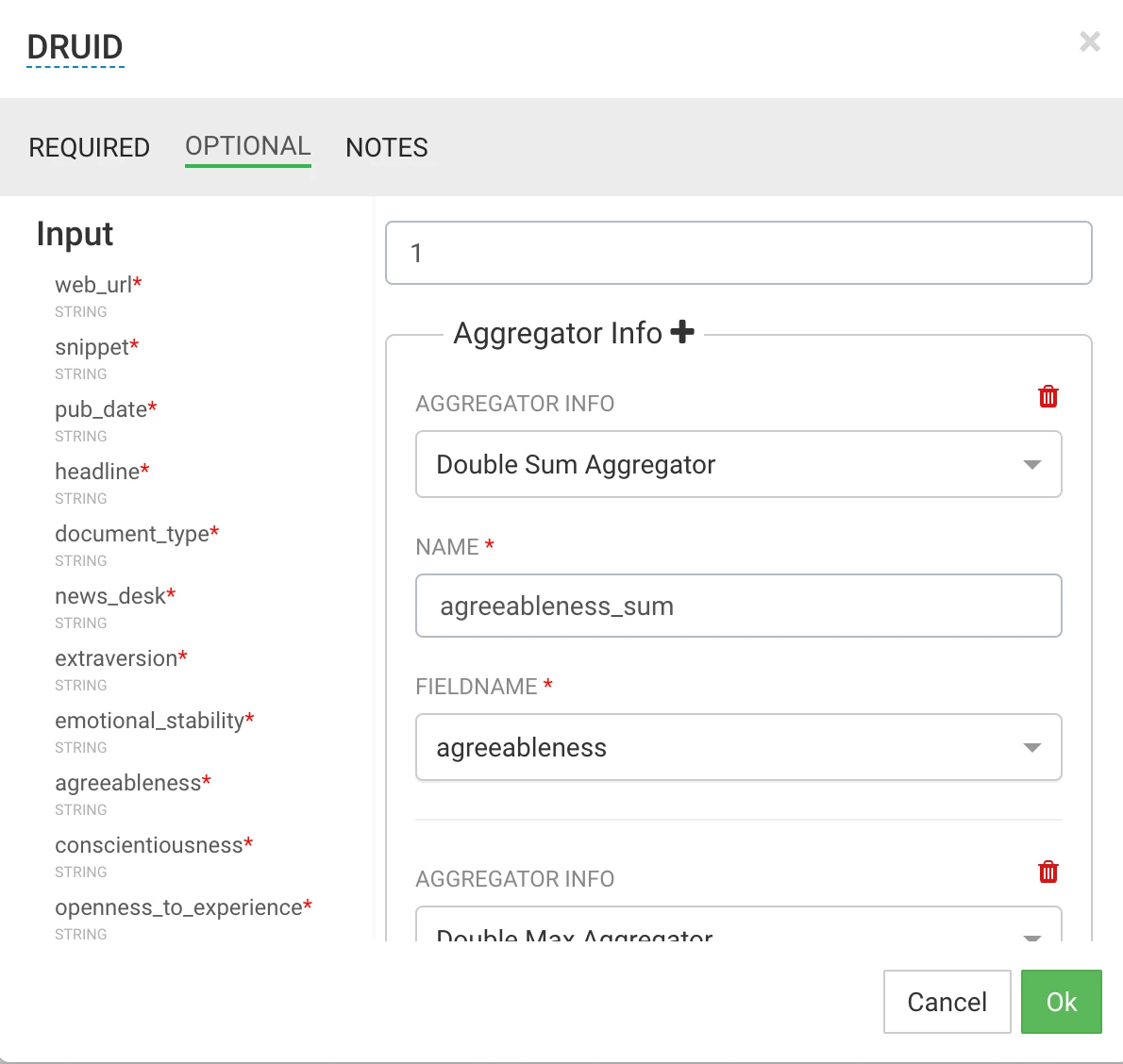
In the optional section of the configuration, you will leave every parameters as default, but you will have to create, for each personality trait (agreeableness, extraversion, openness_to_experience, conscientiousness, emotional_stability), 3 aggregators:
- Double Sum
- Double Max
- Double Min
The figure below details the configuration of the agreeableness Double Sum aggregator:
Section 3: Monitor your streaming application
After finalizing your application, launch it by clicking on the paper plane icon of SAM. This will deploy the application. Once launched the application can be monitored via the Storm UI. Go to the My Applications screen, click on your application, then click on the storm UI icon on the top right of the screen:
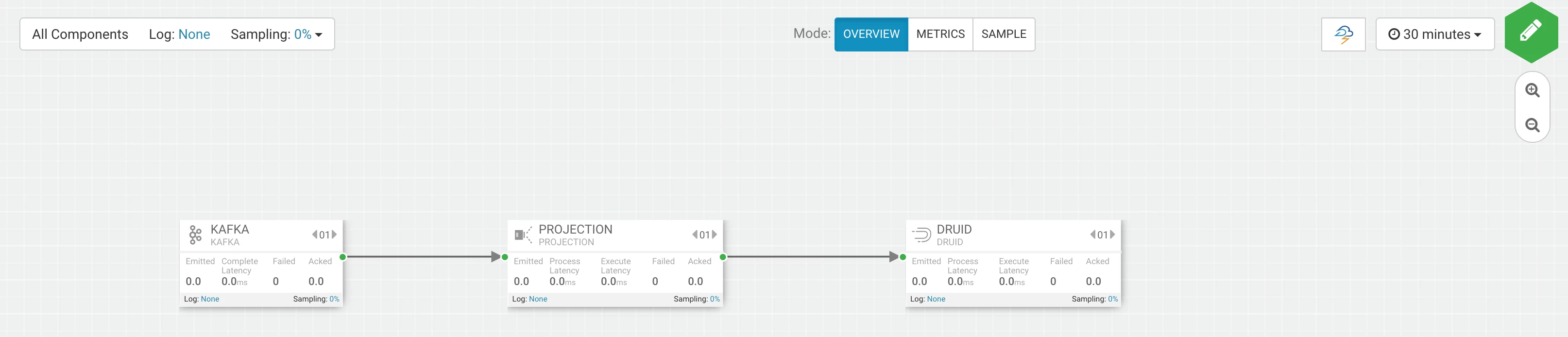
The icon opens a new tab to the Storm UI, where you can monitor your app for error, lag, etc.
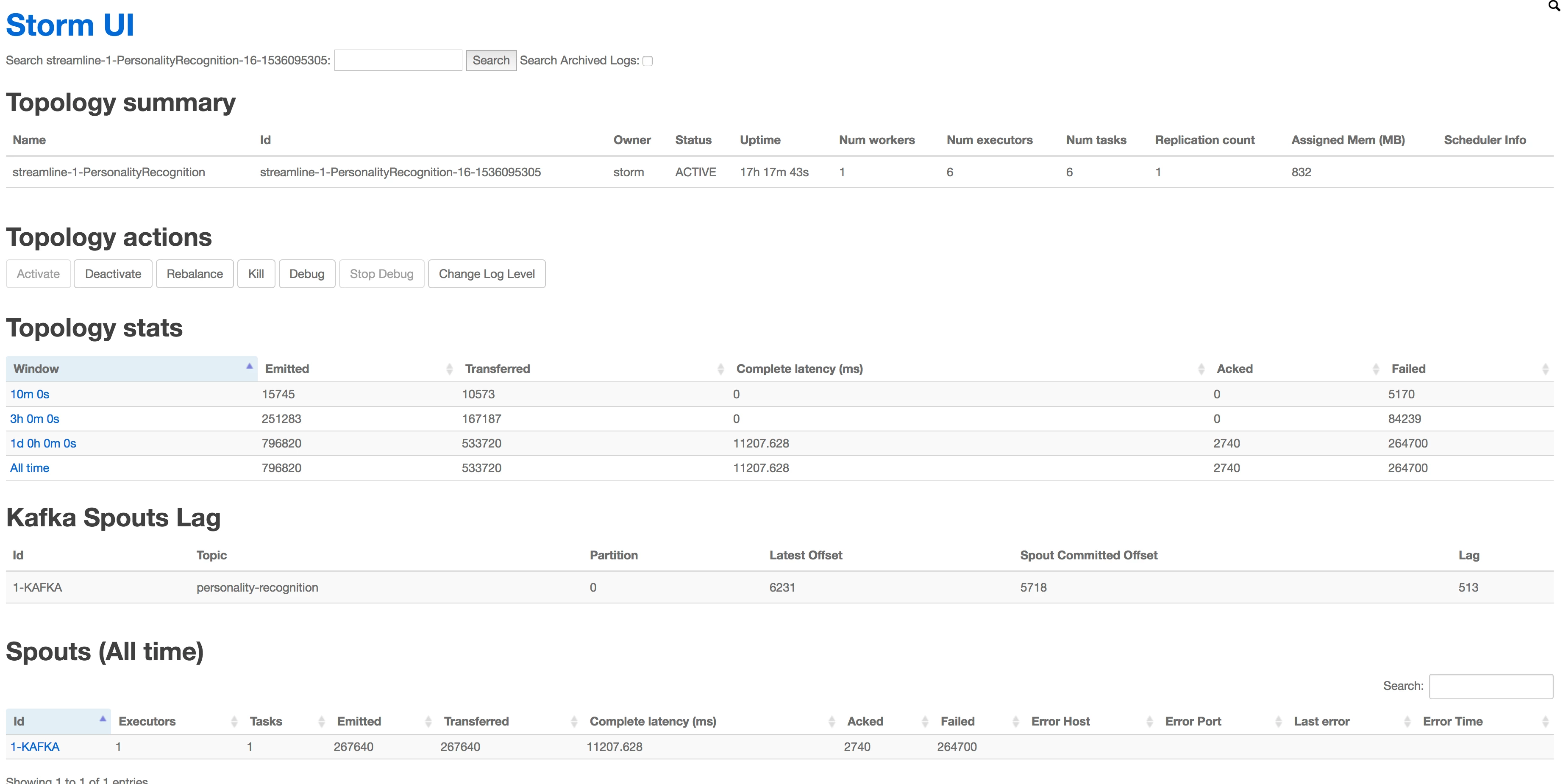
I also recommend to get familiar with navigating indexing and segmentation from the Druid Overlord or Druid console:

Section 4: Create a simple superset visualization
Step 1: Refresh / Verify Datasource
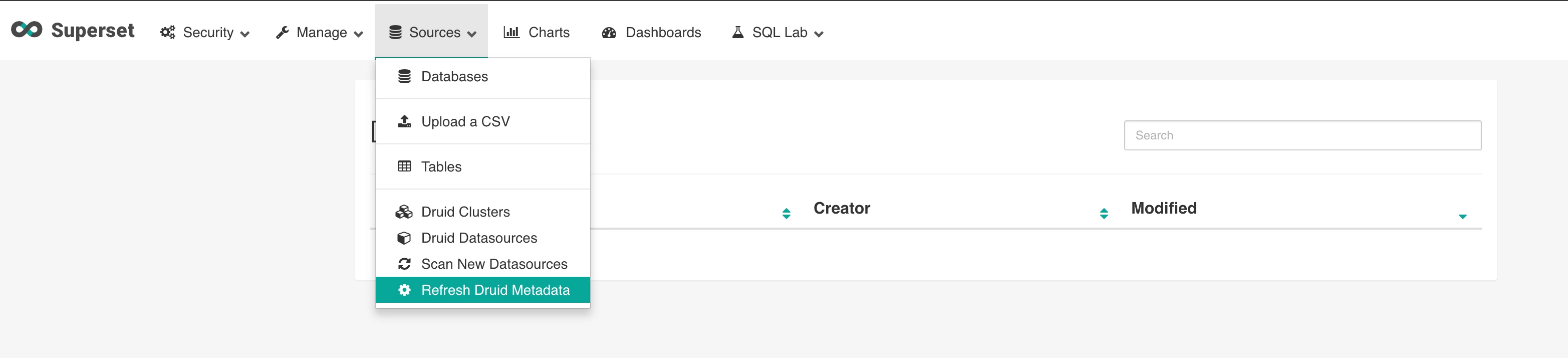
In Superset, click on Refresh Druid Metadata:
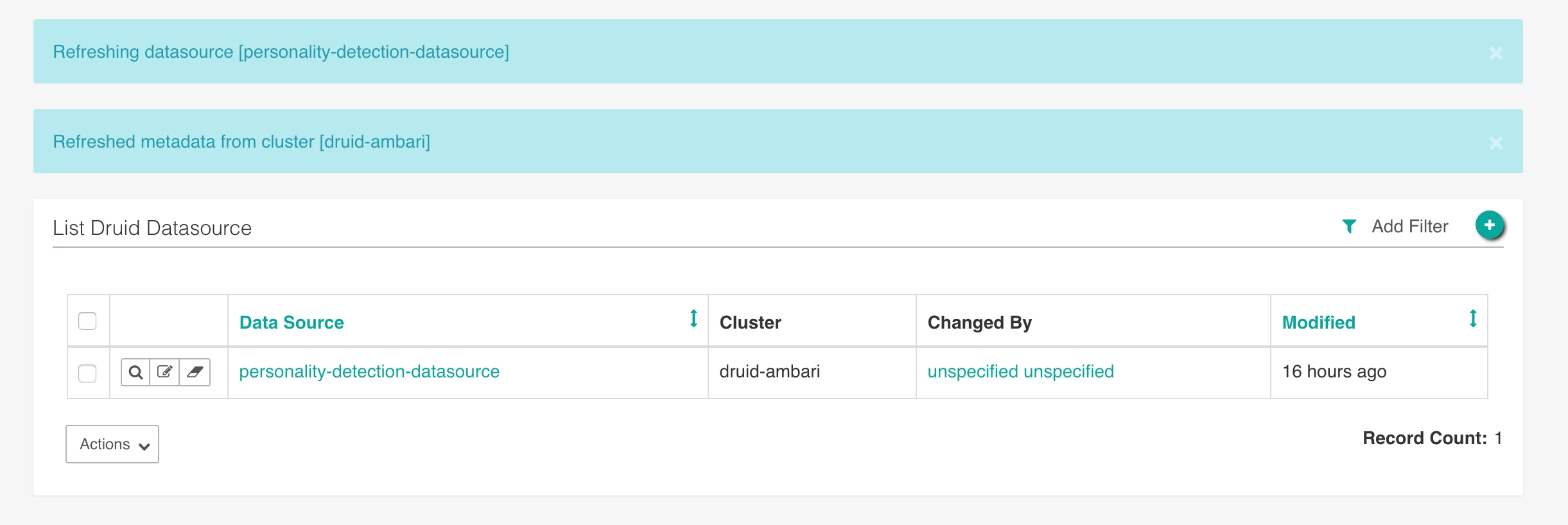
You should see your datasource listed in the Druid datasources:
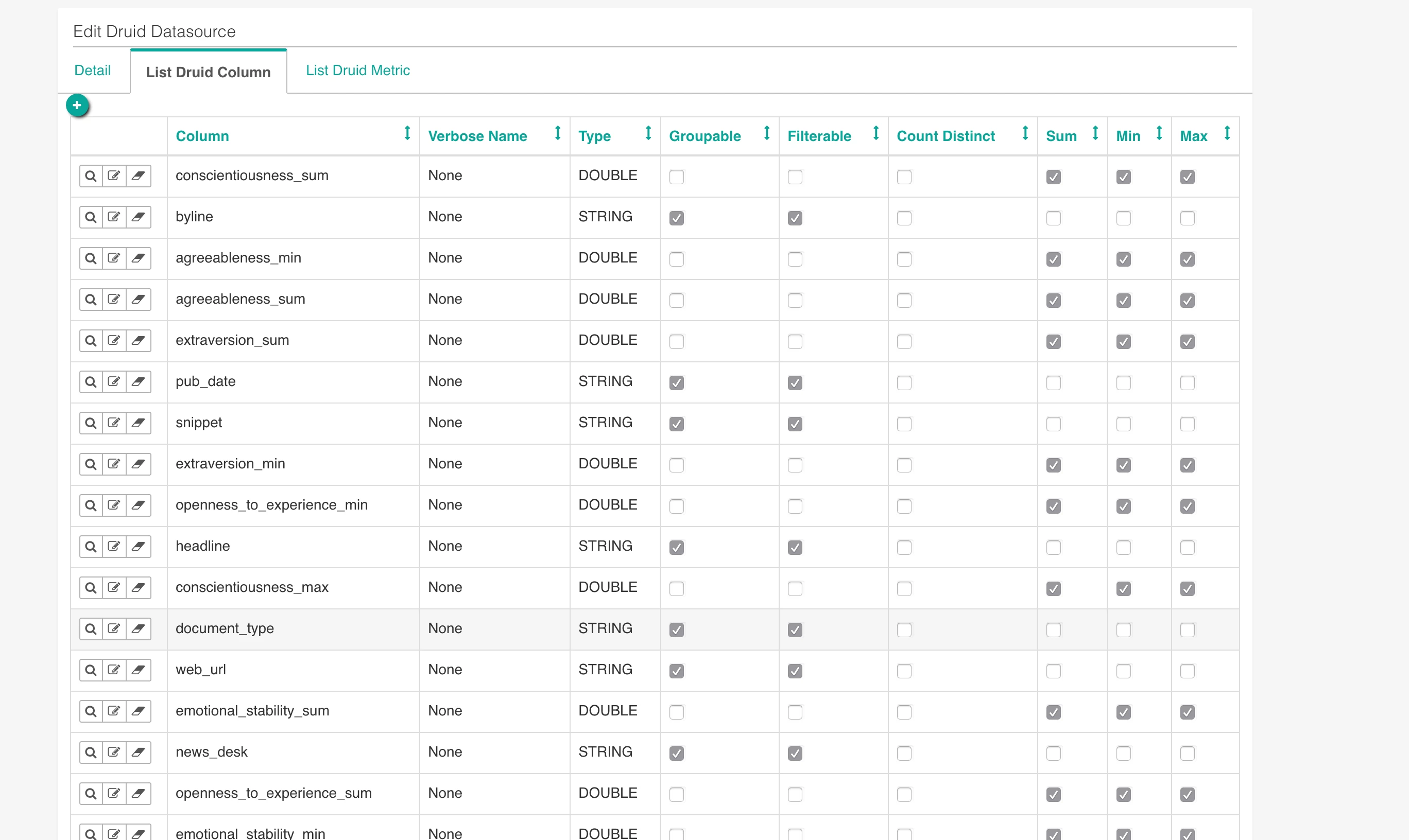
Click on the edit icon of your datasource and verify your druid columns. It should look something like this:
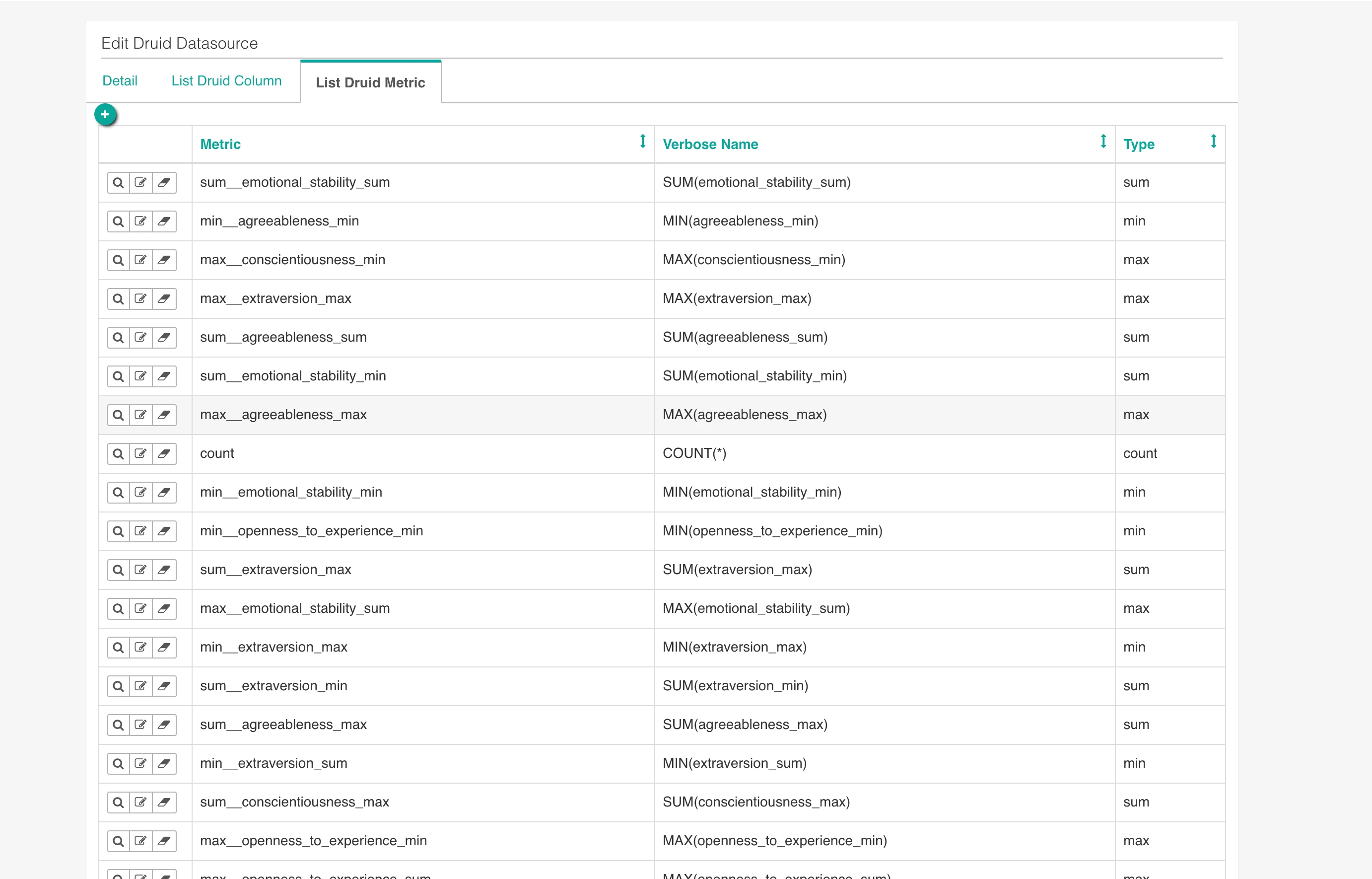
Verify your metrics as well. It should look something like this:
Step 2: Create visualization
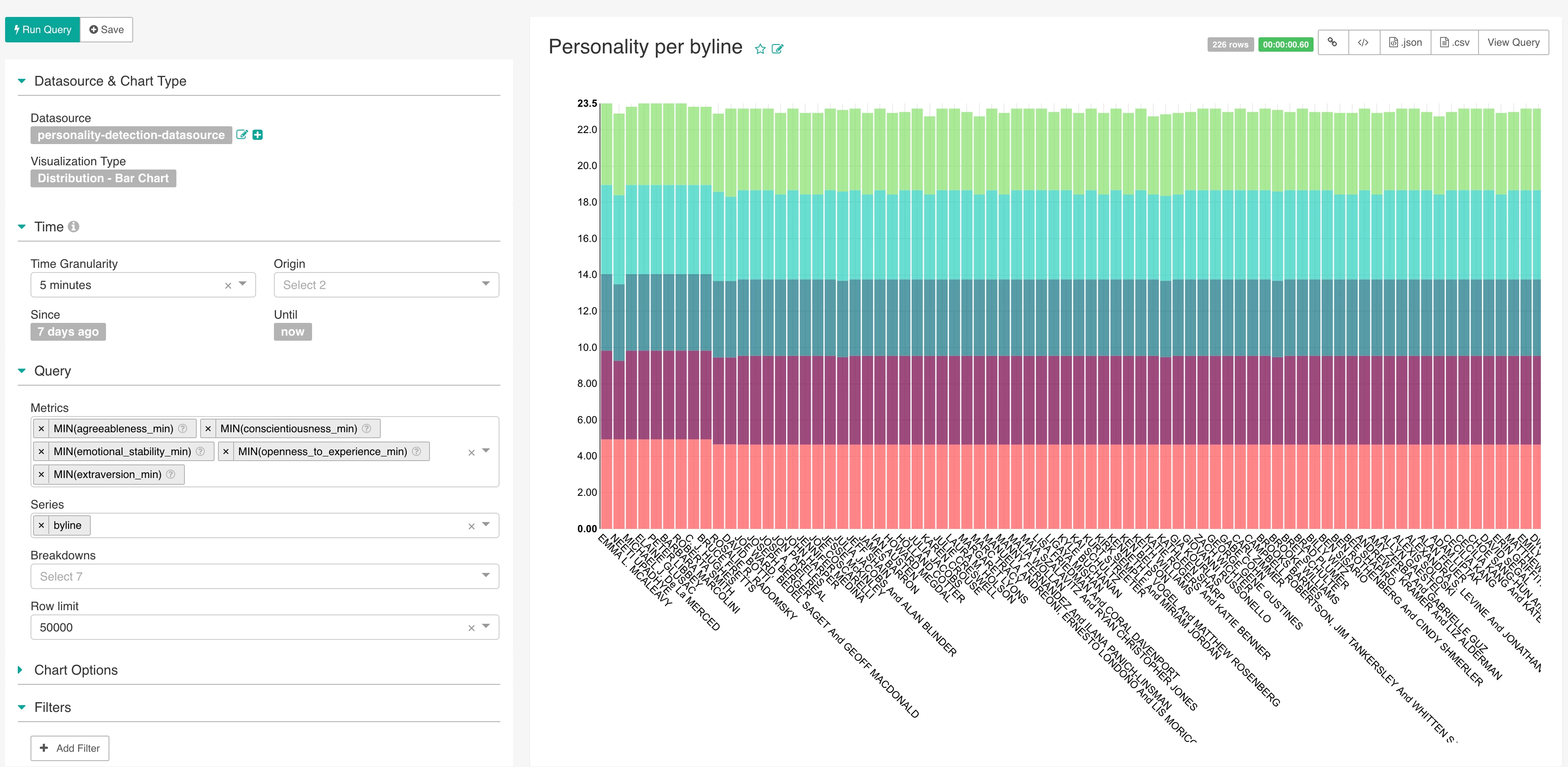
Go back to the druid datasources screen and click on your datasource. You can then create visualizations based on the data collected. Below is a simple example of personality trait, per byline, using the min of each aggregate:
Superset of course gives you the opportunity to create a lot better visualizations, including timeseries, if you are not creatively impaired like I am. See you soon for part 3, where we will dive deeper into machine learning and optimize our platform.

