

Using the TLS Toolkit to simplify security
Step 1: Download
Firstly download and unzip the package (I used: nifi-toolkit-1.0.0-bin.tar.gz) Inside there are a number of folders and files but I am mostly interested in bin/tls-toolkit.sh. This can be run in either standalone or server/client mode:
- Standalone is for a one-off generation of certificates and keys
- Client/Server allows you to run the tls toolkit as a server to sign Certificate Signing Requests from clients
Step 2: Generate Keys and Certificates
Initially I ran the help:
./bin/tls-toolkit.sh standalone -h
Then I created three bundles for each of my servers:
./bin/tls-toolkit.sh standalone -n 'localhost(3)' -C 'CN=scarroll,OU=NIFI' -O -o ../security_output
Which generated my truststore, keystore and nifi.properties file for my three hosts and my client certificates as well. Here is the output:
|
Then I copied the truststore, keystore and nifi.properties files out to each host. I was using vagrant so I just ran
|
WARNING: This will overwrite your old nifi.properties file which is not a problem for a clean system like mine. To maintain your old configuration you can manually copy the relevant security settings over or pass your existing nifi.properties file into the tls-toolkit which will modify the correct values.
Issue #1: HTTPS listening only on localhost
Initially NiFi wouldn't start on my external interface, but it is easy to resolve. Whatever value is in -n switch for the toolkit will be set to the nifi.web.https.host option. I just set nifi.web.https.host to empty and restarted NiFi. This will mean NiFi is now listening on all interfaces and may not be the most secure way of running NiFI however is fine for a demo
Issue #2: ERR_CONNECTION_CLOSED
If you try to access the UI now you should see an error:
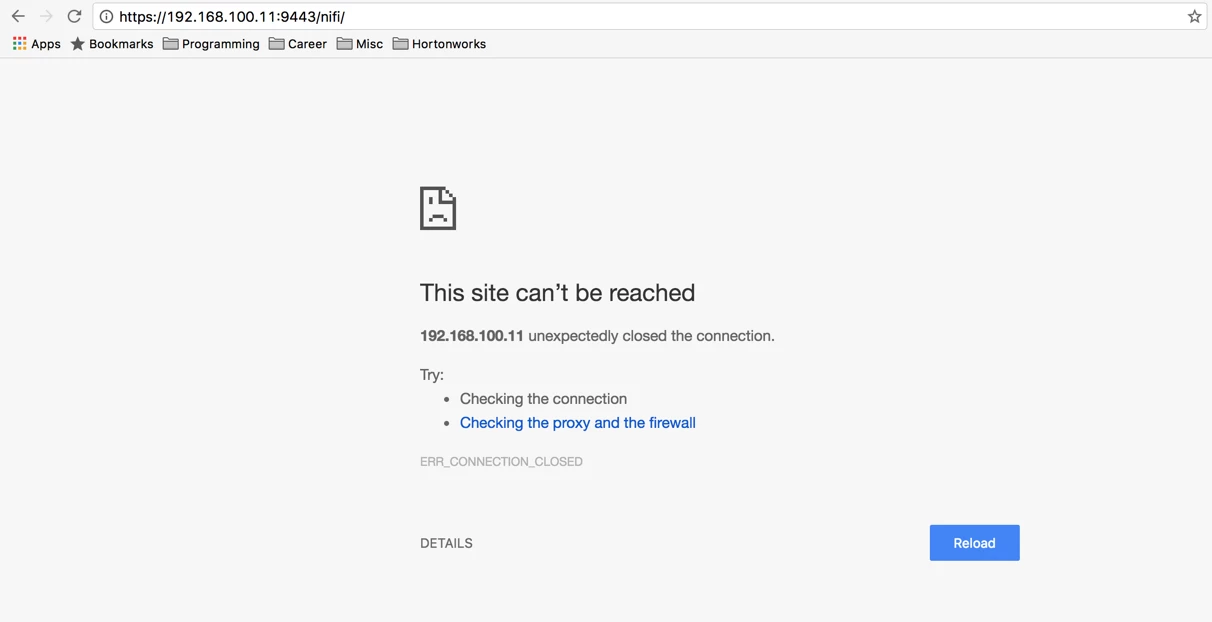 I was expecting to see a connection but get a permission denied/forbidden error so this stumped me for a while but seems to be standard behaviour for NiFi. The solution is to offer up some way to authenticate yourself.
Step 3: Importing certificates to Chrome
Since I am not integrating NiFi with any user management system I'll need to import the client certificates into Chrome to get access to the NiFi UI. I'm on a mac and use the Keychain access program for this so can open this directly. Alternatively, settings → Manage Certificates will get you to the same place. Once there pick a keychain that is unlocked (Initially I used System which prompted for a password every time I connected) so instead I created a new keychain called nifi-certs. Next import the CN=scarroll_OU=NIFI.p12 file and enter the password in the CN=scarroll_OU=NIFI.password file. Unfortunately on a mac this text box cannot be pasted into, so the super long secure password that the toolkit generated needs to be typed by hand (or some other workaround).
Now you can restart chrome and you will be asked to chose a certificate to present:
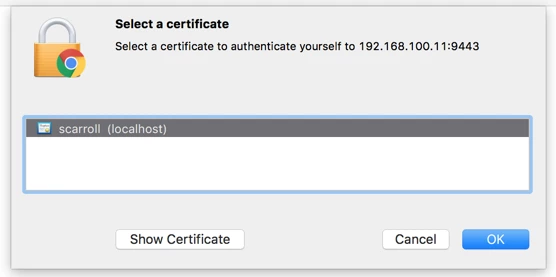
Issue #3: Forbidden
Now even through NiFI knows who you are, you shouldn't be allowed to do anything. If open, NiFi gives power to all users by default however when secured, NiFi gives no permissions as default. The path to allow yourself access to the UI varies depending on whether this instance is a new instance or an upgrade. For a new instance you need to add yourself (or another admin) as the Initial Admin Identity and for an upgrade you can use the legacy existing authorized-users.xml file. Both settings can be found in the authorizers.xml. Since this is a new instance I added myself as an initial admin and restarted NiFi. Restarting is important so the Initial Admin credentials gets populated to the users.xml and authorizations.xml files. Now I can log in to my newly secured instance.

