
Archives of Support Questions (Read Only)
- Cloudera Community
- Board Archive
- Archives of Support Questions (Read Only)
- Remove user created with 'Sign up' link on login p...
- Subscribe to RSS Feed
- Mark Question as New
- Mark Question as Read
- Float this Question for Current User
- Bookmark
- Subscribe
- Mute
- Printer Friendly Page
- Subscribe to RSS Feed
- Mark Question as New
- Mark Question as Read
- Float this Question for Current User
- Bookmark
- Subscribe
- Mute
- Printer Friendly Page
Remove user created with 'Sign up' link on login page
- Labels:
-
Hortonworks Cloudbreak


Created 05-10-2017 12:39 PM
- Mark as New
- Bookmark
- Subscribe
- Mute
- Subscribe to RSS Feed
- Permalink
- Report Inappropriate Content
I have a Cloudbreak 1.14.1 install up and running. A new user was added through the 'Sign up' link, but it appears that creates a completely new environment since that user can't see the existing clusters and doesn't show up under 'accounts'.
I would like to remove this user so the email can be used to subsequently add the user using the 'Invite user' button.
How can I remove a user that I can't see under accounts?



Created 05-10-2017 01:19 PM
- Mark as New
- Bookmark
- Subscribe
- Mute
- Subscribe to RSS Feed
- Permalink
- Report Inappropriate Content
@Peter Teunissen Unfortunately, this is not a supported use-case.
There is a quick and dirty workaround, though:
You can modify the existing user's e-mail address in the UAA db with the following command to avoid the collision:
docker exec -it cbreak_uaadb_1 bash
psql -U postgres
UPDATE users SET username = '<EMAIL>' where username = '<EMAIL>';
After these changes, you should be able to invite the user from Cloudbreak UI.
Hope this helps!
Created 05-10-2017 01:19 PM
- Mark as New
- Bookmark
- Subscribe
- Mute
- Subscribe to RSS Feed
- Permalink
- Report Inappropriate Content
@Peter Teunissen Unfortunately, this is not a supported use-case.
There is a quick and dirty workaround, though:
You can modify the existing user's e-mail address in the UAA db with the following command to avoid the collision:
docker exec -it cbreak_uaadb_1 bash
psql -U postgres
UPDATE users SET username = '<EMAIL>' where username = '<EMAIL>';
After these changes, you should be able to invite the user from Cloudbreak UI.
Hope this helps!
Created 05-10-2017 01:45 PM
- Mark as New
- Bookmark
- Subscribe
- Mute
- Subscribe to RSS Feed
- Permalink
- Report Inappropriate Content
That did the trick, thanks.
Is it possible to give this new user the ability to admin existing users too?
Created on 05-10-2017 02:24 PM - edited 08-17-2019 06:27 PM
- Mark as New
- Bookmark
- Subscribe
- Mute
- Subscribe to RSS Feed
- Permalink
- Report Inappropriate Content
You can do that logged in with the previous admin user in the UI, clicking on the invited user:
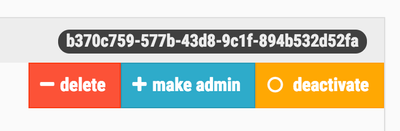
Hope this helps!


