
Our Community is getting an upgrade! To get everything ready for the relaunch, we’ll be placing the site in read-only mode starting September 21st.
We really appreciate your understanding while we get things set up behind the scenes. Catch up on all the exciting details about the move here.
Need help or have questions? Drop us a line at [email protected]

Archives of Support Questions (Read Only)
- Cloudera Community
- Board Archive
- Archives of Support Questions (Read Only)
- sandbox welcome screen does not appear when connec...
- Subscribe to RSS Feed
- Mark Question as New
- Mark Question as Read
- Float this Question for Current User
- Bookmark
- Subscribe
- Mute
- Printer Friendly Page
- Subscribe to RSS Feed
- Mark Question as New
- Mark Question as Read
- Float this Question for Current User
- Bookmark
- Subscribe
- Mute
- Printer Friendly Page
sandbox welcome screen does not appear when connecting via azure public IP
- Labels:
-
Hortonworks Data Platform (HDP)


Created 01-26-2017 10:41 PM
- Mark as New
- Bookmark
- Subscribe
- Mute
- Subscribe to RSS Feed
- Permalink
- Report Inappropriate Content
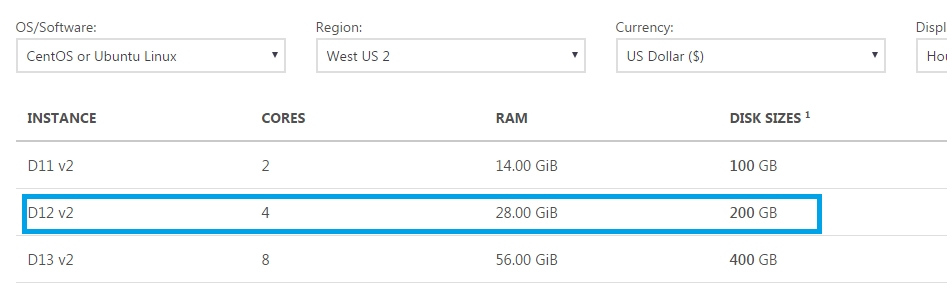
I created a VM in Azure (VM spec: D12 v2) with HortonWorks Sandbox 2.4 following the guide here: http://hortonworks.com/hadoop-tutorial/deploying-hortonworks-sandbox-on-microsoft-azure/
On step 13, when i tried to connect using http://<public ip from azure>:<8888/8080/80/22/150> , it doesnt connect at all. i tried all major browsers, from home network, work network and mobile network. doesnt help
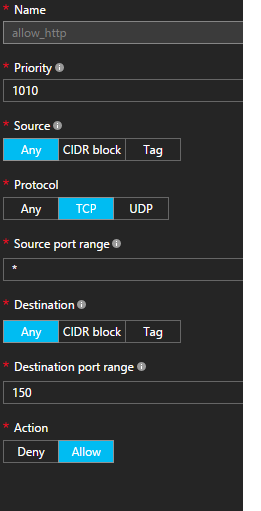
I checked Azure Network Security group settings and i saw an entry for inbound rules to allow SSH. I also created a new Inbound rule to allow HTTP over port 150, but that doesnt work either.
allow-http.png network-security-group.png
What am i missing here? Any particular configuration i have to do?
Side note: PuTTy doesnt connect to the machine as well. I have been banging my head against the wall for a week with this.





Created 01-27-2017 02:04 AM
- Mark as New
- Bookmark
- Subscribe
- Mute
- Subscribe to RSS Feed
- Permalink
- Report Inappropriate Content
There is some information about this in the following thread: https://community.hortonworks.com/questions/79042/step-12-not-showing-welcome-page-as-mentioned.html...
Essentially, you are right to be adding inbound rules, as only port 22 is open initially, though I don't know what would listening on port 150. You will need to add 8080 and 8888 at a minimum.
John
Created 01-27-2017 02:04 AM
- Mark as New
- Bookmark
- Subscribe
- Mute
- Subscribe to RSS Feed
- Permalink
- Report Inappropriate Content
There is some information about this in the following thread: https://community.hortonworks.com/questions/79042/step-12-not-showing-welcome-page-as-mentioned.html...
Essentially, you are right to be adding inbound rules, as only port 22 is open initially, though I don't know what would listening on port 150. You will need to add 8080 and 8888 at a minimum.
John
Created 01-27-2017 08:52 AM
- Mark as New
- Bookmark
- Subscribe
- Mute
- Subscribe to RSS Feed
- Permalink
- Report Inappropriate Content
Hi John,
Thanks for the guidance. I in fact added 8888/8080/9995(for Zepellin) and the likes during my intial attempt (a week ago). But it did not allow me to login. But today, i rebuild the VM from scratch and added them again. I am able to login and I am also able to update ambari password.
Thanks once again fro your assistance.
<Marking your reply as answer>


