Our Community is getting an upgrade! To get everything ready for the relaunch, we’ll be placing the site in read-only mode starting September 21st. We really appreciate your understanding while we get things set up behind the scenes. Catch up on all the exciting details about the move here. Need help or have questions? Drop us a line at [email protected]
Created on 10-29-202011:55 AM - edited on 04-21-202604:23 AM by GrazittiAPI
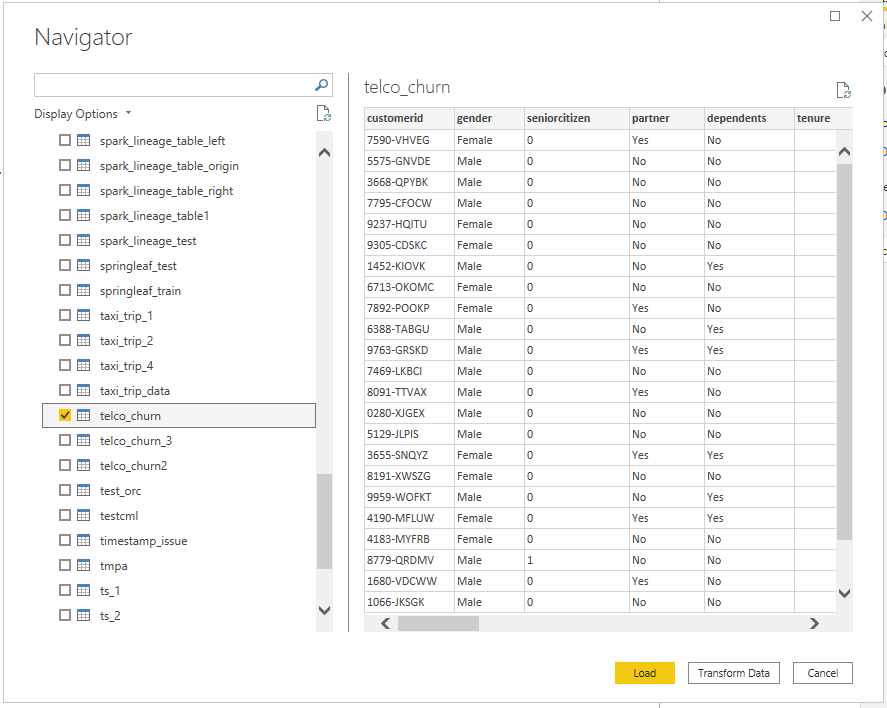
A great way to connect Power BI desktop to CDP Public Cloud is using the Cloudera Data Warehouse Experience with Hive LLAP.
Prerequisites
CDP Public Cloud environment with Data Warehouse Experience using either Hive LLAP or Impala
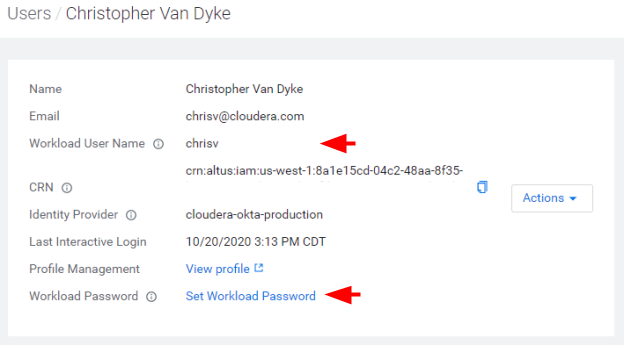
User will need a CDP login and will need to set up their Workload Password
From their CDP login, they will need the Workload User Name and Workload Password
Note
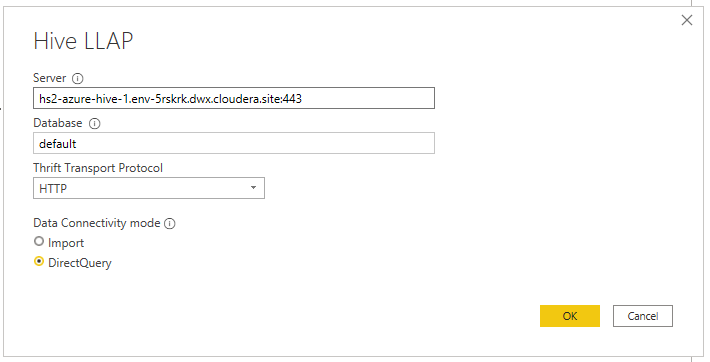
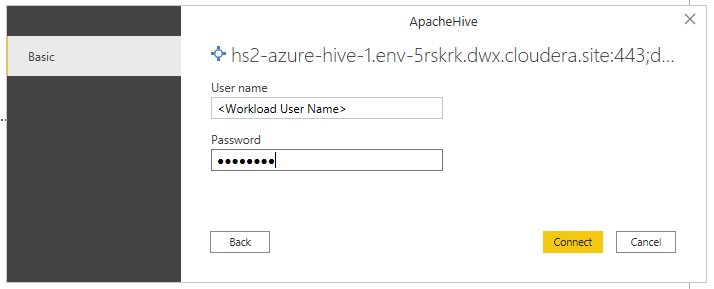
Both Impala and Hive LLAP Virtual Warehouses will work with the Hive LLAP driver that is included with Power BI. The steps below will work for both. It is important to include port 443 when entering the server string in Step 6.
Steps to connect Power BI to CDW with Hive LLAP
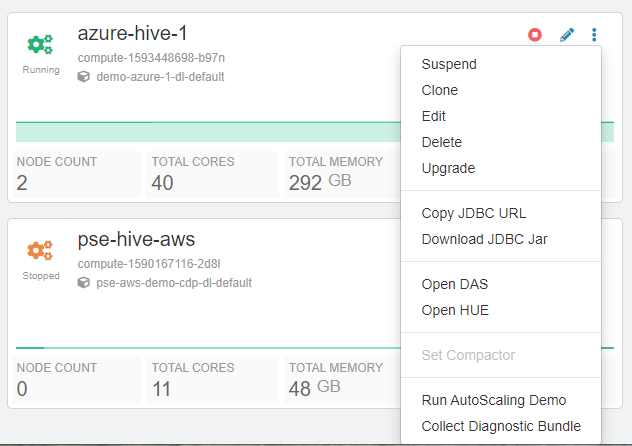
From within the DW experience in the CDP Management console, select the Virtual Warehouse you want to use and click the and select Copy JDBC URL:
From that string, you will only need the bold portion such as the following: