
Our Community is getting an upgrade! To get everything ready for the relaunch, we’ll be placing the site in read-only mode starting September 21st.
We really appreciate your understanding while we get things set up behind the scenes. Catch up on all the exciting details about the move here.
Need help or have questions? Drop us a line at [email protected]

Archives of Support Questions (Read Only)
- Cloudera Community
- Board Archive
- Archives of Support Questions (Read Only)
- Re: Installed sandbox but can't get the welcome / ...
- Subscribe to RSS Feed
- Mark Question as New
- Mark Question as Read
- Float this Question for Current User
- Bookmark
- Subscribe
- Mute
- Printer Friendly Page
- Subscribe to RSS Feed
- Mark Question as New
- Mark Question as Read
- Float this Question for Current User
- Bookmark
- Subscribe
- Mute
- Printer Friendly Page
Installed sandbox but can't get the welcome / HDP page working
- Labels:
-
Hortonworks Data Platform (HDP)


Created on 01-16-2016 11:37 AM - edited 09-16-2022 02:57 AM
- Mark as New
- Bookmark
- Subscribe
- Mute
- Subscribe to RSS Feed
- Permalink
- Report Inappropriate Content
Hi, I have installed HDP2.3.2 sandbox and can login to the linux env. Before that, I get the page where instructions ask to login to welcome/HDP page using http://<ip_address>/. When i try this using Chrome/IE versions as per the instructed versions, it comes back with "This webpage is not available". I also tried using port 8888 and 8080 along with ip_address, but still the response is same. I further tried to execute sanbox in "host-only" configuration, now the ip is changed to 127.0.0.1, but the start up process gives error of adaptor not available and still the welcome/HDP page doesn't come up.
Please guide if i am missing anything important. Thanks a lot in advance for all your valuable feedback.


Created 01-16-2016 03:50 PM
- Mark as New
- Bookmark
- Subscribe
- Mute
- Subscribe to RSS Feed
- Permalink
- Report Inappropriate Content
Created 01-18-2016 11:50 AM
- Mark as New
- Bookmark
- Subscribe
- Mute
- Subscribe to RSS Feed
- Permalink
- Report Inappropriate Content
@Gagan Dutt Are you able to login to vm?
HW11326:Desktop nsabharwal$ ssh -p 2222 [email protected]
[email protected]'s password:
Last login: Mon Jan 18 01:41:09 2016 from 10.0.2.2
[root@sandbox ~]#
Created 01-18-2016 12:43 PM
- Mark as New
- Bookmark
- Subscribe
- Mute
- Subscribe to RSS Feed
- Permalink
- Report Inappropriate Content
I can login to sandbox vm by entering root credentials in vm linux env, but not through windows cmd prompt.
Created 01-18-2016 12:47 PM
- Mark as New
- Bookmark
- Subscribe
- Mute
- Subscribe to RSS Feed
- Permalink
- Report Inappropriate Content
@Gagan Dutt few checks
from your laptop
1) telnet 127.0.0.1 8080 (working? )
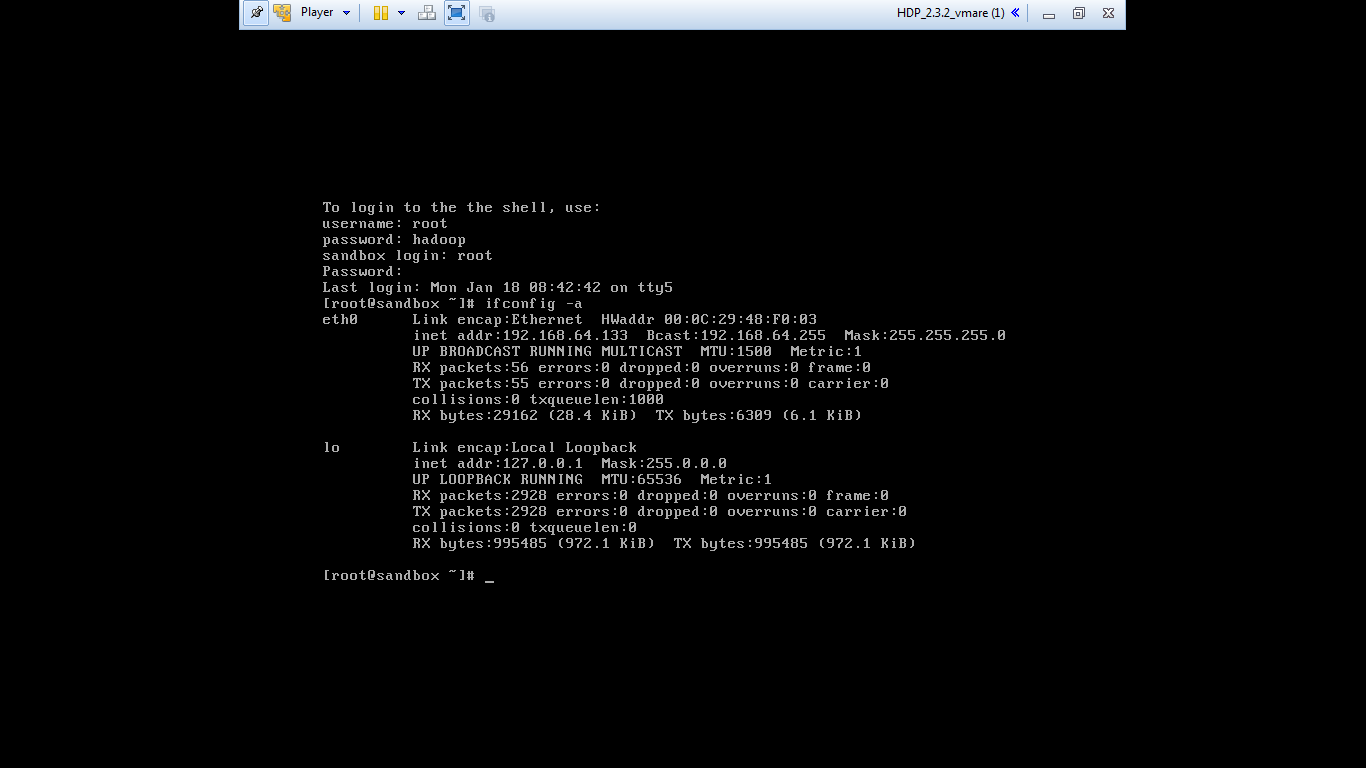
2) once you are in vm , ifconfig -a
3) if 1 is working then http://127.0.0.1:8080 should work. I am assuming you are not on vpn, any firewall blocking connection etc
Created 01-18-2016 01:05 PM
- Mark as New
- Bookmark
- Subscribe
- Mute
- Subscribe to RSS Feed
- Permalink
- Report Inappropriate Content
1) is not working for me.
2) Attached the output of ifconfig from vm.
3) I am not on vpn and not seeing any kind of blocking actions initiated by Antivirus.
Created 01-18-2016 01:07 PM
- Mark as New
- Bookmark
- Subscribe
- Mute
- Subscribe to RSS Feed
- Permalink
- Report Inappropriate Content
@Neeraj Sabharwal PFA ifconfig -a output.ifconfig-output.jpeg
Created 01-18-2016 01:09 PM
- Mark as New
- Bookmark
- Subscribe
- Mute
- Subscribe to RSS Feed
- Permalink
- Report Inappropriate Content
@Gagan Dutt Thats the real problem.
telnet 192.168.64.133 8080 - if its working then
Created 01-18-2016 03:04 PM
- Mark as New
- Bookmark
- Subscribe
- Mute
- Subscribe to RSS Feed
- Permalink
- Report Inappropriate Content
@Neeraj Sabharwal Finally I managed to make it work. The catch lies in changing the Network Adapter settings to Bridged Adapter, which generated a whole new <ip-address> and http:///>/ works along with telnet to port 8080.
Thank you so much for trying to help me on this and going through all different options and possibilities.
Created 01-18-2016 03:05 PM
- Mark as New
- Bookmark
- Subscribe
- Mute
- Subscribe to RSS Feed
- Permalink
- Report Inappropriate Content
@Gagan Dutt Perfect! Please accept the best answer to close the loop 🙂 It was lot of work indeed 😛

Created 12-21-2022 04:48 AM
- Mark as New
- Bookmark
- Subscribe
- Mute
- Subscribe to RSS Feed
- Permalink
- Report Inappropriate Content
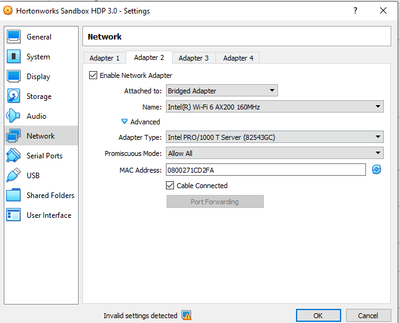
What option should i choose for the name and adapter type,
the problem is I m not able to use port 8080, rest everything works fine



Created 12-21-2022 05:15 AM
- Mark as New
- Bookmark
- Subscribe
- Mute
- Subscribe to RSS Feed
- Permalink
- Report Inappropriate Content
@aravinth53, as this is an older post, you would have a better chance of receiving a resolution by starting a new thread. This will also be an opportunity to provide details specific to your environment that could aid others in assisting you with a more accurate answer to your question. You can link this thread as a reference in your new post.
Regards,
Vidya Sargur,Community Manager
Was your question answered? Make sure to mark the answer as the accepted solution.
If you find a reply useful, say thanks by clicking on the thumbs up button.
Learn more about the Cloudera Community:


