Our Community is getting an upgrade! To get everything ready for the relaunch, we’ll be placing the site in read-only mode starting September 21st.
We really appreciate your understanding while we get things set up behind the scenes. Catch up on all the exciting details about the move here.
Need help or have questions? Drop us a line at [email protected]

Community Articles

Find and share helpful community-sourced technical articles.
Announcements
Share your experience with Cloudera on G2 and get a $25 Amazon Gift card.
Hi, I'm CLEO! Something exciting is coming to the Community. Stay Tuned!

avatar
Master Guru

This tutorial has been successfully tried on HDP-2.4.0.0 and Ambari 2.2.1.0

.

I have my HDP Cluster Kerberized and Ambari has been configured for SSL.

Note - Steps are same for Ambari with or without SSL.

.

Please follow below steps for Configuring Hive View on Kerberized HDP Cluster.

.

Step 1 - Please configure your Ambari Server for Kerberos with the steps mentioned in below article. Please follow steps 1 to 5.

https://community.hortonworks.com/articles/40635/configure-tez-view-for-kerberized-hdp-cluster.html

.

Step 2 - Please add below properties to core-site.xml via Ambari UI and restart required services.

.

Note - If you are running Ambari Server as root user then add below properties

hadoop.proxyuser.root.groups=*
hadoop.proxyuser.root.hosts=*

.

If you are running Ambari server as non-root user then please add below properties in core-site.xml

hadoop.proxyuser.<ambari-server-user>.groups=*
hadoop.proxyuser.<ambari-server-user>.hosts=*

Please replace <ambari-server-user> with user running Ambari Server in above example.

.

I'm assuming that your ambari server principal is [email protected], if not then please replace 'ambari-server' with your principal's user part.

hadoop.proxyuser.ambari-server.groups=*
hadoop.proxyuser.ambari-server.hosts=*

.

Step 3 - Create user directory on hdfs for the user accessing hive view. For e.g. in my case I'm using admin user to access hive view.

.

sudo -u hdfs hadoop fs -mkdir /user/admin 
sudo -u hdfs hadoop fs -chown admin:hdfs /user/admin
sudo -u hdfs hadoop fs -chmod 755 /user/admin

.

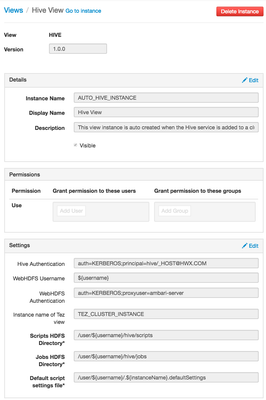
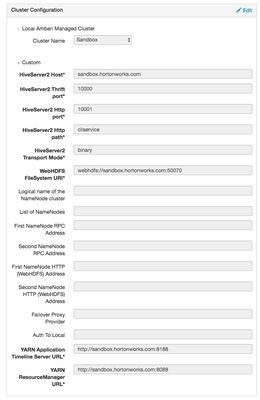
Step 4 - Goto Admin tab --> Click on Manage Ambari --> Views --> Edit Hive view ( Create a new one if it doesn't exist already ) and configure settings as given below

.

Note - You may need to modify values as per your environment settings!

.

5110-screen-shot-2016-06-19-at-93741-pm.png

5121-screen-shot-2016-06-19-at-93824-pm.png

.

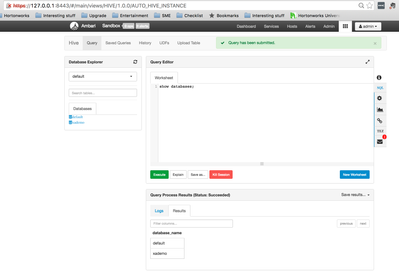
After above steps, you should be able to access your hive view without any issues. If you receive any error(s) then please check /var/log/ambari-server/ambari-server.log for more details and troubleshooting.

.

5122-screen-shot-2016-06-19-at-94111-pm.png

.

Please comment if you have any feedback/questions/suggestions. Happy Hadooping!! :)

4,619 Views
Comments
avatar
New Member

I also needed to follow the instructions here: https://community.hortonworks.com/answers/35075/view.html

avatar
Visitor

The screen shot is out of date? I have Ambari 2.4.2 and they are different. I have tried to configure as close to you steps as I can, I got "Service Hive check failed: Server Error"

Version history
Last update:
‎09-16-2022 01:35 AM
Updated by:
Contributors