Our Community is getting an upgrade! To get everything ready for the relaunch, we’ll be placing the site in read-only mode starting September 21st.
We really appreciate your understanding while we get things set up behind the scenes. Catch up on all the exciting details about the move here.
Need help or have questions? Drop us a line at [email protected]
Created on 09-30-2015 06:21 AM
Clients normally want a development environment for SQL. They often have Eclipse-based SQL development tools already ( Teradata SQL Editor, Eclipse Data tools platform ). Hue and command line are not always an option.
To connect to HDP2.3 ( should work for HDP2.2) with Eclipse:
1. Install the Eclipse Data Tools Platform
- Download Eclipse from eclipse.org ( for example Luna )
- Select Help->Install new Software
- "Work with" the official update location for your release ( Luna )
- Install all plugins under "Database Development" and restart Eclipse
2. Create an Hive JDBC driver
- Open the Data Source Explorer View ( Windows->Show View->Others->Type Data Source Explorer)
- Under Database Connections select "New"
- Select "Generic JDBC Driver". You should see three tabs ( Name, Jars , Properties )
- Create a new Driver with the plus button and give name "Hive"
- On Jars add the following jars from your HDP installation
From HDP_INSTALLATION/hive/lib ( hive-jdbc.jar and commons-loggingxxx.jar )
From HDP_INSTALLATION/hadoop/hadoop-commonxxx.jar
- Under Properties ( might not show up sometimes, redo first steps if properties tab is blank )
Connection URL: jdbc:hive2://server:10000/default
Database: default
Driver Class: org.apache.hive.jdbc.HiveDriver
User: Optional
3. Develop SQL
- In the Data Source Explorer, create a connection
- Create a project and files with extension .sql
- When opening the file select your connection at the top
- You can write SQL and execute it by right-click
- Execute All
- Execute Highlighted
...
4. Investigate Results
Query results are shown in the SQL Results View.
- You have a list of executed queries
- Result Sets ( limited to 50000 rows configurable )
- You can export result sets as CSVs
In addition to Data Development tools you can also install in Eclipse:
Remote System Tools:
- drag and drop files to your edge node out of Eclipse
- You can even have remote projects that are directly stored and compiled on the edge node
Scala IDE:
- Develop Spark Applications and drag the jar files to your edge node
Java IDE:
- Write Hive/Pig UDFs and MapReduce jobs
XML Editor:
- Basic Syntax highlighting and XML checking for Oozie workflows
...
Created on 10-01-2015 07:39 PM
Note that since HDP 2.2, Hive ships with another jar HIVE_HOME/lib/hive-jdbc-*-standalone.jar. The idea is that you don't need other dependent jars in your classpath.
Created on 10-02-2015 04:34 AM
That was actually the jar I was using. The hive-jdbc.jar is a link to the standalone jar. But I still had to add the two other jars. Otherwise I got Classnotfound exceptions.
Created on 01-15-2016 09:58 PM
What is HDP_INSTALLATION in the above steps? I downloaded HDP_2.3.2_vmware and opened in VM Ware workstation. How do I know this HDP_INSTALLATION? Pls. help.
Created on 01-15-2016 11:23 PM
Its /usr/hdp<version_number>
Created on 07-11-2016 07:57 AM - edited 08-17-2019 02:27 PM
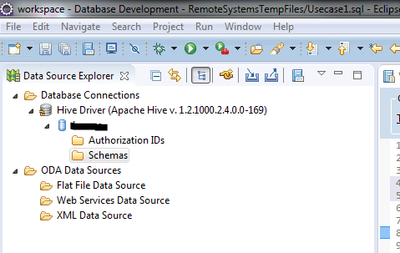
I was really excited when i found your article. We are looking for a client like ssms to execute hive statements and to have an overview of the tables in a hive database. The connection worked and i am able to execute statements but unfortunately i cannot see all the tables and their definition. This would help us a lot. Can you help me? Another question is where can i set the limit for the result set?
I am using the newest version of eclipse "neon".
Thanks in advance.
Created on 08-01-2016 05:53 PM
Hi Florian did you got the answer for your question ? or it's expected behavior of Hive connection in eclipse ?