Our Community is getting an upgrade! To get everything ready for the relaunch, we’ll be placing the site in read-only mode starting September 21st.
We really appreciate your understanding while we get things set up behind the scenes. Catch up on all the exciting details about the move here.
Need help or have questions? Drop us a line at [email protected]

Community Articles

Find and share helpful community-sourced technical articles.
Announcements
Share your experience with Cloudera on G2 and get a $25 Amazon Gift card.
Hi, I'm CLEO! Something exciting is coming to the Community. Stay Tuned!

Labels (1)
avatar
Guru

Objective

In a separate HCC article, I detailed how to offload nodes using the NiFi UI. This article covers how to perform the same operation using the NiFi Toolkit CLI.

Note: This tutorial assumes you have already setup a running NiFi cluster. The examples included are for a 2 node NiFi cluster.

Environment

This tutorial was tested using the following environment and components:

  • Mac OS X 10.11.6
  • Apache NiFi 1.8.0
  • Apace NiFi Toolkit 1.8.0

Offload Nodes via CLI Tutorial

Queue FlowFiles

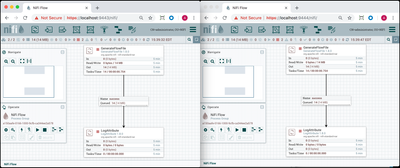
First, generate some queued flowfiles:

93005-1.png

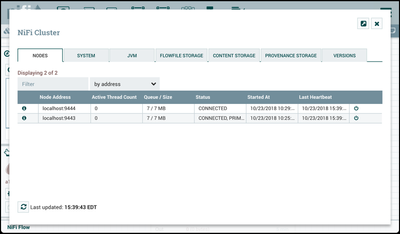
The queued flowfiles are distributed between both nodes in the cluster:

93006-2.png

Disconnect Node

From a terminal window, navigate to the directory where the NiFi Toolkit was installed. From the /nifi-toolkit-1.8.0/bin directory, run:

./cli.sh

Enter the command nifi get-nodes to retrieve the node IDs:

#> nifi get-nodes
#   Node ID                                Node Address   API Port   Node Status
-   ------------------------------------   ------------   --------   -----------
0   dfa62636-479b-4456-aa16-3bfc19f35cb5   localhost      9443       CONNECTED
1   20a68479-e8dc-46c9-8612-872200e2fdab   localhost      9444       CONNECTED

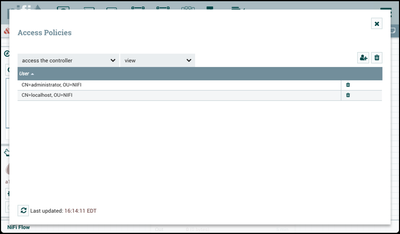
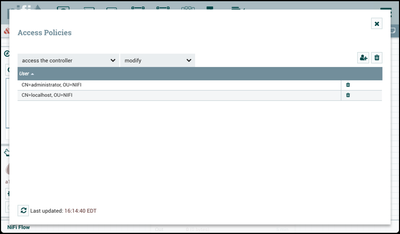
Note: If you see the error "ERROR: Error executing command 'get-nodes' : Error retrieving node status: Unable to view the controller. Contact the system administrator." You need to add "CN=localhost, OU=NIFI" to the "access the controller" view policy.

93007-controller-view.png

Use the command nifi disconnect-node to disconnect the node on Port 9444:

#> nifi disconnect-node -nnid 20a68479-e8dc-46c9-8612-872200e2fdab
Node ID: 20a68479-e8dc-46c9-8612-872200e2fdab
Node Address: localhost
API Port: 9444
Node Status:DISCONNECTED~

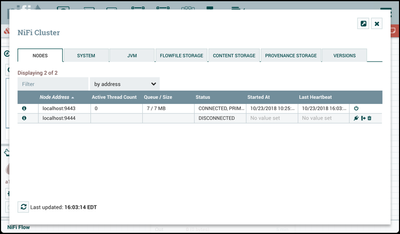
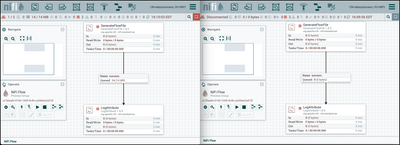
The node is disconnected:

93008-3.png

93009-4.png

Note: If you see the error "ERROR: Error executing command 'disconnect-node' : Error disconnecting node: Unable to modify the controller. Contact the system administrator." You need to add "CN=localhost, OU=NIFI" to both the "access the controller" modify policy.

93010-controller-modify.png

Offload Node

Use the command nifi offload-node to offload the flowfiles on port 9444:

#> nifi offload-node -nnid 20a68479-e8dc-46c9-8612-872200e2fdab
Node ID: 20a68479-e8dc-46c9-8612-872200e2fdab
Node Address: localhost
API Port: 9444
Node Status:OFFLOADING~

Repeating the command returns the current status of the node:

#> nifi offload-node -nnid 20a68479-e8dc-46c9-8612-872200e2fdab
Node ID: 20a68479-e8dc-46c9-8612-872200e2fdab
Node Address: localhost
API Port: 9444
Node Status:OFFLOADED~

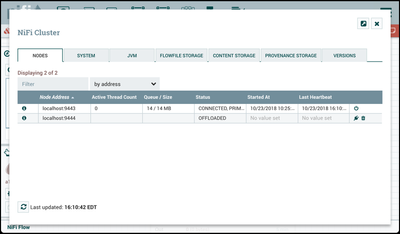
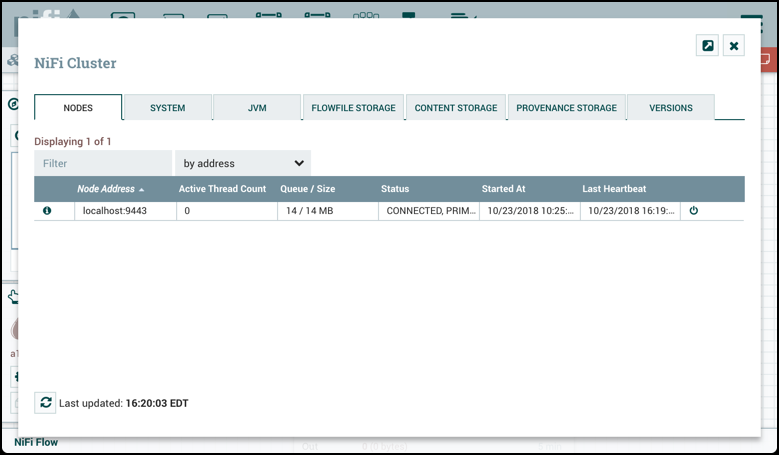
In the UI, it is confirmed that all the flowfiles have been offloaded to the active node:

93011-5.png

93012-6.png

Delete & Decommission Node

An offloaded node can be either connected back to the cluster ( nifi connect-node) or deleted. If the goal is to to decommission the node, use the nifi delete-node command:

#> nifi delete-node -nnid 20a68479-e8dc-46c9-8612-872200e2fdab
OK

Then after the node is deleted, stop/remove the NiFi service on the host.


7.png
4,821 Views
Version history
Last update:
‎08-17-2019 06:03 AM
Updated by:
Contributors