Our Community is getting an upgrade! To get everything ready for the relaunch, we’ll be placing the site in read-only mode starting September 21st. We really appreciate your understanding while we get things set up behind the scenes. Catch up on all the exciting details about the move here. Need help or have questions? Drop us a line at [email protected]
Created on 06-06-201901:57 PM - edited on 04-21-202604:37 AM by GrazittiAPI
Introduction
Time for the tutorial 1 of a series detailing how to go from AI to Edge!
Note: all code/files referenced in this tutorial can be found on my github, here.
Agenda
This tutorial is divided in the following sections:
Section 1: Create a custom Docker container running Jupyter for CDSW
Section 2: Automate Jupyter launch in a CDSW project
Section 3: Train and save a model reading MNSIT database
Section 1: Create a custom Docker container running Jupyter for CDSW
This is fairly straight forward to implement, as it is detailed in the official documentation.
Note: make sure that dock is signed in with your Dockerhub username/password (not email) otherwise the docker push will not work.
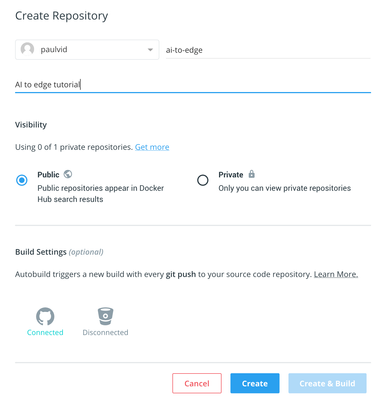
Step 1: Create a repository in docker hub
Go to docker hub and sign in with your account. Create a new repository as follows:
You should see something like this:
Step 2: Creating a custom docker file
Go to a folder on your computer can create this docker file (saving it as Dockerfile😞
FROM docker.repository.cloudera.com/cdsw/engine:7
RUN pip3 install --upgrade pip
RUN pip3 install keras
RUN pip3 install tensorflow
RUN pip3 install sklearn
RUN pip3 install jupyter
RUN pip3 install 'prompt-toolkit==1.0.15'
RUN pip3 install onnxruntime
RUN pip3 install keras2onnx
Step 3: Build the container
Run the following command in the folder where the file has been saved:
Section 2: Automate Jupyter launch in a CDSW project
Step 1: Create a shell script to run Jupyter
In CDSW 1.5, you can't add a CMD or an ENTRYPOINT to your docker file. Therefore, you will need to add a .bashrc file to your CDSW project, with the following code:
processes=`ps -ef | grep jupyter | wc -l`
if (( $processes == 2 )) ; then
echo "Jupyter is already running!"
elif (( $processes == 1 )) ; then
jupyter notebook --no-browser --ip=0.0.0.0 --port=8080 --NotebookApp.token=
else
echo "Invalid number of processes, relaunch your session!"
fi
Save this file to a github repository.
Step 2: Add the custom engine to CDSW
In CDSW config, use the docker hub image you created as your default engine:
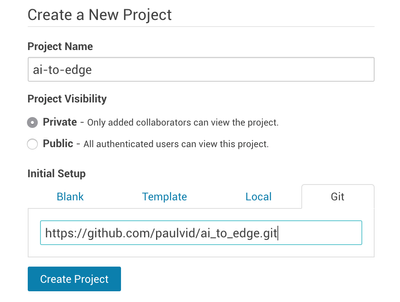
Step 3: Create a project in CDSW with .bashrc
In CDSW, create a new project using the github repository you just created:
Note: You can create a blank project and add the .bashrc file to it, but this automates it.
Step 4: Launch a CDSW session with Jupyter
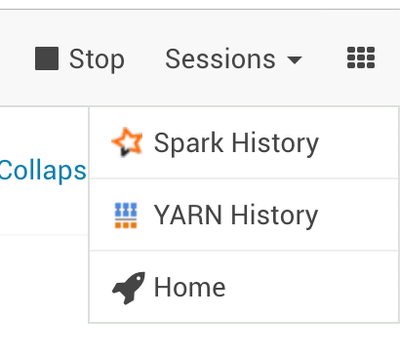
In your project, open workbench and launch a session with your custom engine. Run terminal access and Jupyter will launch. You will then see the following on your 9 dots, allowing you to run Jupyter:
Section 3: Train and save a model reading MNSIT database
The model training is very well explained in the original Kaggle article that can be found here.
A reviewed version of this notebook can be found on my github. The main thing that was added to the notebook is the publishing of the model:
# Convert into ONNX format with onnxmltools
import keras2onnx
onnx_model = keras2onnx.convert_keras(model, model.name)
import onnx
temp_model_file = 'model.onnx'
onnx.save_model(onnx_model, temp_model_file)
After the notebook runs, you should see the model.onnx file created.