Our Community is getting an upgrade! To get everything ready for the relaunch, we’ll be placing the site in read-only mode starting September 21st.
We really appreciate your understanding while we get things set up behind the scenes. Catch up on all the exciting details about the move here.
Need help or have questions? Drop us a line at [email protected]

Community Tips

Read our tips and tricks on how to use the community
Announcements
Share your experience with Cloudera on G2 and get a $25 Amazon Gift card.
Hi, I'm CLEO! Something exciting is coming to the Community. Stay Tuned!

How do I update my personal settings and privacy?

avatar
Community Manager

By default, your nickname, or user name, appears whenever you post or send private messages. This allows members who wish to not be identified by their real name to choose a community nickname and help them feel more comfortable participating.

You can tell other community members as much or as little about yourself as you want. You can enter a short biography, your location, your interests, or anything else (within community guidelines, of course).

See the Community FAQs for more information. 

To tell other community members about yourself:

  1. Sign in to your community account.
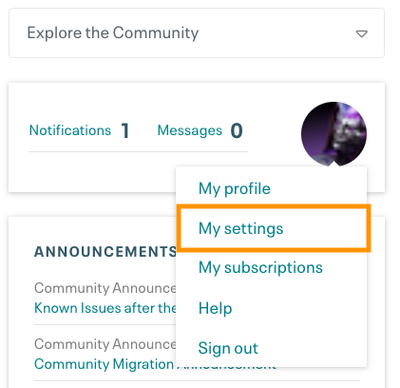
  2. Click on your community avatar.
    profile non admin my settings.png
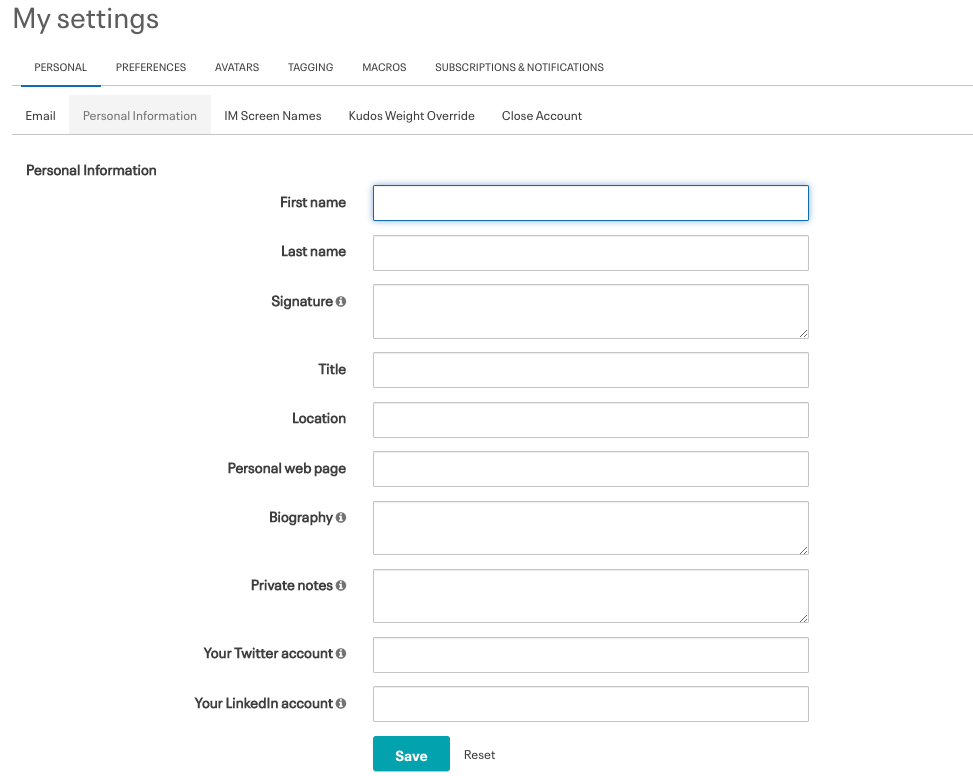
  3. Go to My Settings > Personal Profile > Personal Information.
  4. Enter information about yourself in the Biography field. You can also enter your name, location, company info, and any other information you want to share.
  5. Click Save.
    My Personal Settings.png

To change the visibility of your personal info only to people on your Friends List or No One:

Community members can use their privacy settings to expose or hide private information about themselves to everyone (all), friends or no one. This allows members to protect their personal information, such as their real name if they wish.

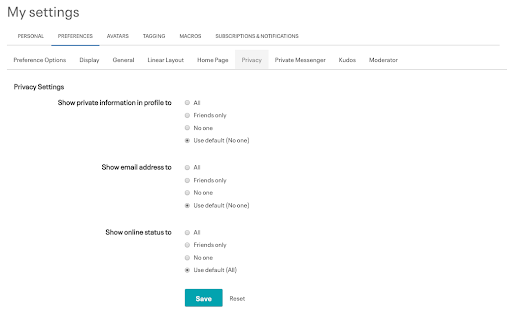
  1. Click Preferences > Privacy.
  2. Set show private information in profile to one of the options: All, Friends only, No one. 
  3. Click Save.
    My privacy settings.png

Please don’t hesitate to reach out to our Community Team or comment below if you have questions.