Created on 06-04-202011:38 AM - edited on 04-21-202604:28 AM by GrazittiAPI
Cloudera Machine Learning (and Cloudera Data Science Workbench) is built on a very robust and flexible framework to ease integration with third parties. In this article, I decided to explore the integration of Teradata with CML via ODBC.
A few notes before I dive in:
I could have easily used JDBC via JayDeBeApi (see my previous article), but where is the fun in that
This article could be generalized to more ODBC connections, provided proper parameters are setup
To get a fully rounded tutorial, I will go through these 3 steps:
Step 1 (optional if you already have a Teradata instance): Setting up Teradata Vantage in AWS
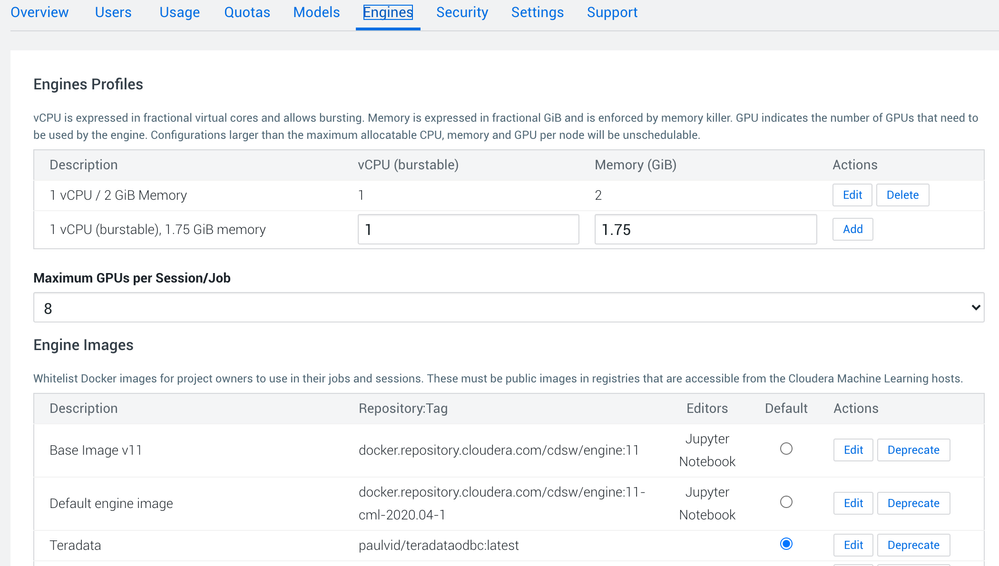
Step 2: Create a custom image with Teradata driver
Step 3: Configure and run python to Teradata ODBC
Step 1: Setting up Teradata Vantage in AWS
If you want to do development testing of Teradata, you can use Teradata Vantage Developer on the AWS Market Place. I am not going to dive too much into this as this configuration may change as Teradata evolves.
Pre-Requisites
The Teradata Vantage Developer is an AWS CloudFormation template, that requires the following assets to be pre-created:
An Internet Gateway
A VPC associated with this IGW (and DNS / DNS Hostnames support)
A subnet (with a route to the IGW and Public IP creation on launch)
A placement group
Setup
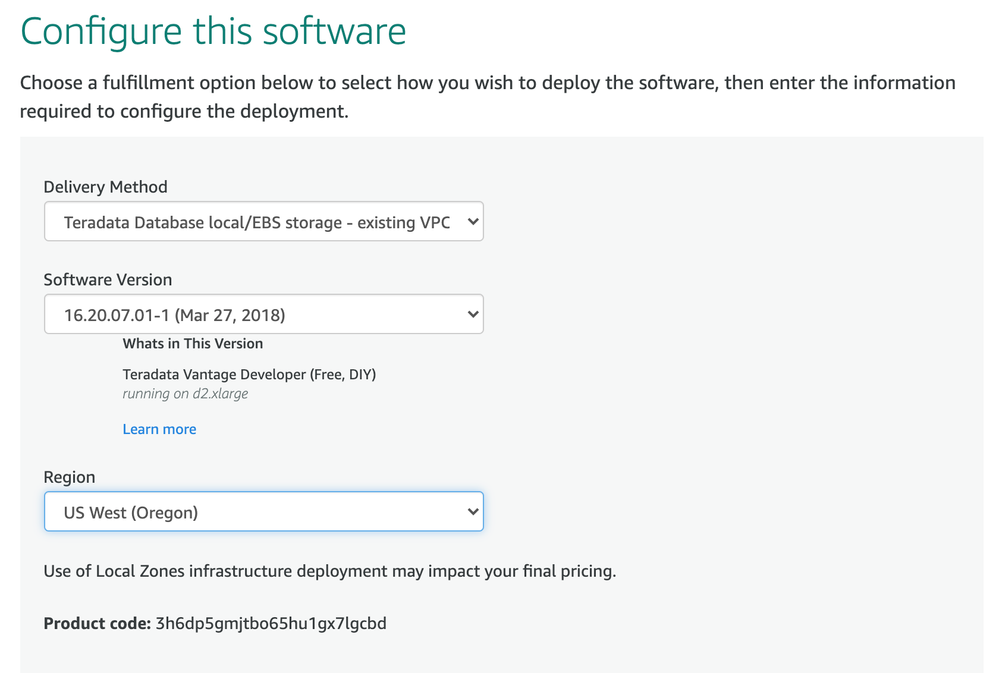
Once the assets are created, go to Teradata Vantage Developer and select your configuration (make sure you select the same region as the assets you created):
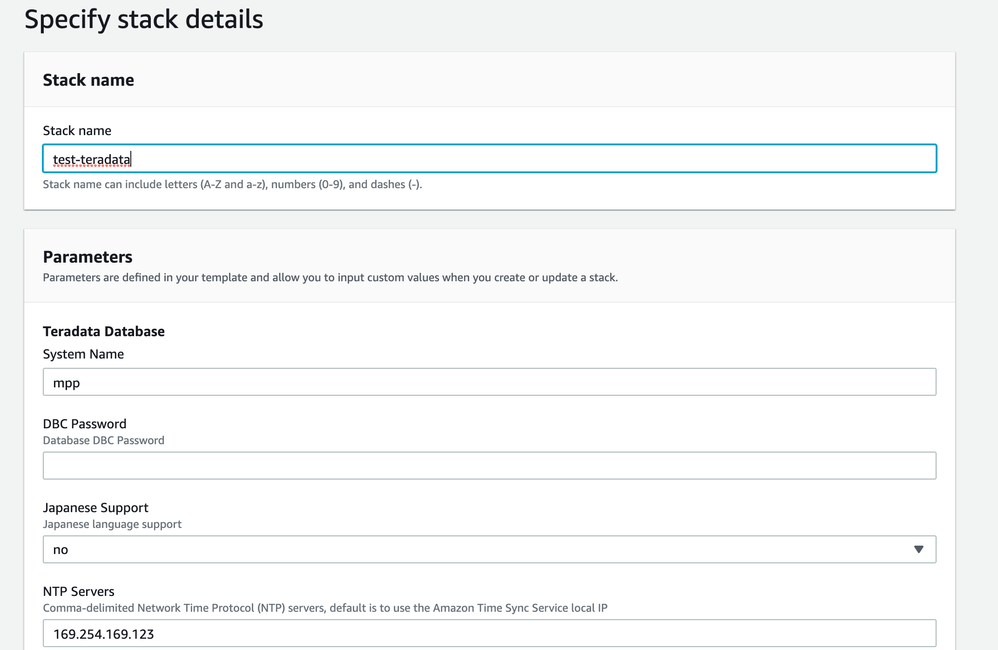
From this configuration, launch the CloudFormation template and fill the parameters with the AWS assets you created:
The template will create two nodes by default. We will connect to one of them to create a test user:
$ ssh ec2-user@[your_public_hostname]
ec2-user@SMP001-01:~> bteq
Teradata BTEQ 16.20.00.01 for LINUX. PID: 17205
Copyright 1984-2017, Teradata Corporation. ALL RIGHTS RESERVED.
Enter your logon or BTEQ command:
.LOGON
UserId: dbc
Password: [password_set_in_cf_template]
CREATE user test AS password=test perm = 200000000, SPOOL = 100000000;
You can then connect with your favorite SQL editor to test the connection and run table creation:
#Dockerfile
FROM docker.repository.cloudera.com/cdsw/engine:11-cml-2020.04-1
WORKDIR /tmp
#The RUN commands that install an editor
#For example: RUN apt-get install myeditor
RUN apt-get autoremove unixodbc -y
RUN apt-get update -y
RUN apt-get install lib32stdc++6 -y
RUN apt-get install wget -y
RUN wget [LOCATION_OF_DRIVERS]
RUN tar -xzvf tdodbc1620__ubuntu_indep.16.20.00.87-1.tar.gz
RUN dpkg -i tdodbc1620/tdodbc1620-16.20.00.87-1.noarch.deb
RUN apt-get install -y python-pyodbc
Go to your workbench in a new project, and create a session with the engine you created.
Then run the following:
pip3 install pyodbc
After it is installed, go to your odbc.ini file:
vi /home/cdsw/.odbc.ini
Configure your file as follows:
[ODBC Data Sources]
Teradata ODBC DSN = Teradata ODBC Driver 16.20
TEST = My DSN Description
[TEST]
Driver = /opt/teradata/client/16.20/odbc_64/lib/tdataodbc_sb64.so
Description = Teradata database
DBCName = [your_teradata_hostname]
UID = test
PWD = test
Finally, you can run the following code to test:
import pyodbc
import pandas as pd
conn = pyodbc.connect('DSN=TEST')
# Define Cursor
cus=conn.cursor()
query = "select * from test.TEST_TABLE;"
# Execute SQL statement to get current datetime and store result in cursor
cus.execute(query)
# Display the content of cursor
row = cus.fetchone()
print(row)
# Use Pandas to execute and retrieve results
df = pd.read_sql(query, conn)
print(df)
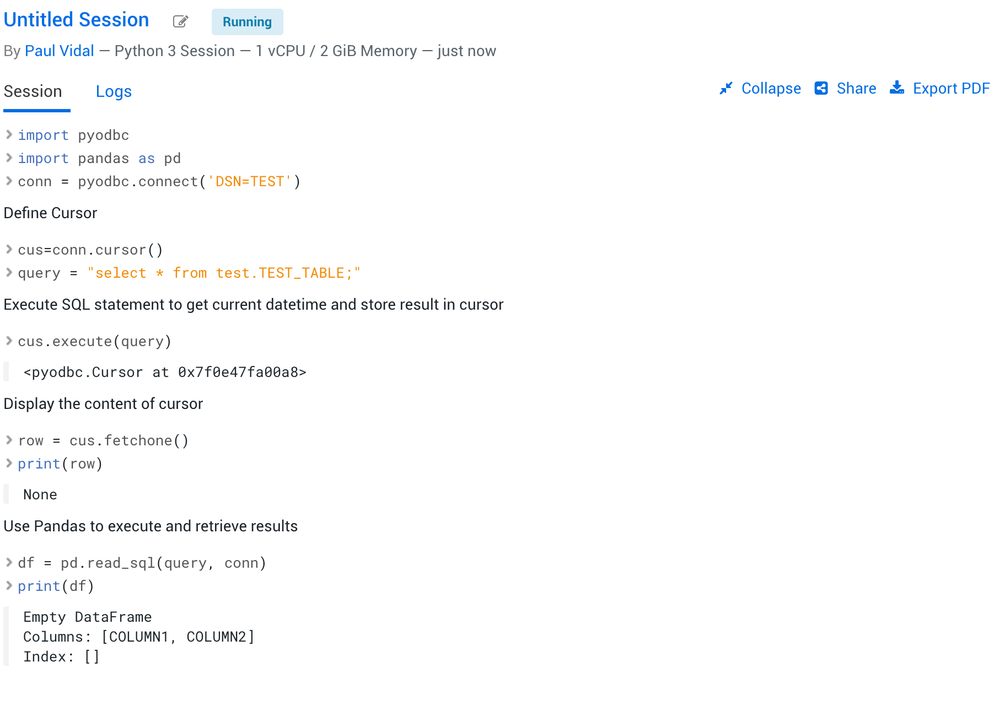
The output in the workbench should look something like the following: