Our Community is getting an upgrade! To get everything ready for the relaunch, we’ll be placing the site in read-only mode starting September 21st.
We really appreciate your understanding while we get things set up behind the scenes. Catch up on all the exciting details about the move here.
Need help or have questions? Drop us a line at [email protected]

Community Articles

Find and share helpful community-sourced technical articles.
Announcements
Share your experience with Cloudera on G2 and get a $25 Amazon Gift card.
Hi, I'm CLEO! Something exciting is coming to the Community. Stay Tuned!

Labels (1)
avatar
New Member

How to read fsimage:

We can use Offline Image Viewer tool to view the fsimage data in a human readable format. Sometimes, this becomes more essential to analyse the fsimage to understand the usage pattern, how many 0 bite files are created, what is the space consumption pattern and is the fsimage corrupt.

Donwload the fsimage: hdfs dfsadmin –fetchImage /fsimage

This will download the latest fsimage from Name node

16/12/27 05:40:43 INFO namenode.TransferFsImage: Opening connection to http://<nn_hostname>:50070/getimage?getimage=1&txid=latest

16/12/27 05:40:43 INFO namenode.TransferFsImage: Transfer took 0.23s at 89.74 KB/s

Reading fsimage:

We can read the fsimage in several output formats.

1 .Web is the default output format.

2 .XML document

3 .Delimiters

4 .Reverse XML.

5 .FileDistribution is the tool for analyzing file sizes in the namespace image.

In this blog I will focusing on two output formats Web and Delimiters.

To get the output on web:

Run the oiv command with fsimage as input file:

hdfs oiv –i /fsimage/fsimage_0000000000000005792

16/12/27 05:48:43 INFO offlineImageViewer.FSImageHandler: Loading 9 strings

16/12/27 05:48:43 INFO offlineImageViewer.FSImageHandler: Loading 64 inodes.

16/12/27 05:48:43 INFO offlineImageViewer.FSImageHandler: Loading inode references

16/12/27 05:48:44 INFO offlineImageViewer.FSImageHandler: Loaded 0 inode references

16/12/27 05:48:44 INFO offlineImageViewer.FSImageHandler: Loading inode directory section

16/12/27 05:48:44 INFO offlineImageViewer.FSImageHandler: Loaded 32 directories

16/12/27 05:48:44 INFO offlineImageViewer.WebImageViewer: WebImageViewer started. Listening on /127.0.0.1:5978. Press Ctrl+C to stop the viewer.

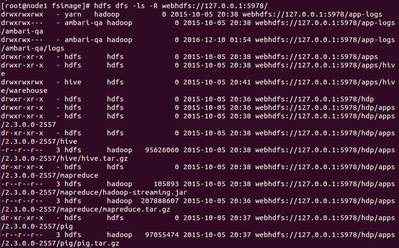
Now open another terminal and run the below commands to read fsimage.

hdfs dfs -ls webhdfs://127.0.0.1:5978/

OR

hdfs dfs -ls –R webhdfs://127.0.0.1:5978/

10828-1.png

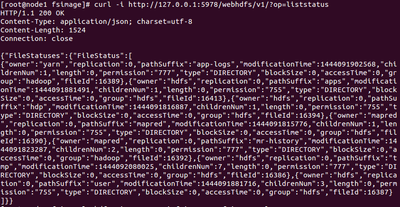
We can also get the output in JSON format by using curl: curl -i http://127.0.0.1:5978/webhdfs/v1/?op=liststatus

10829-2.png

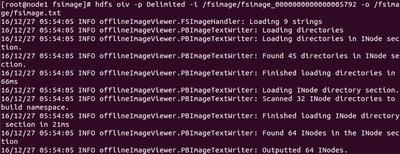
To get the output in to an output directory: hdfs ovi –p Delimited –i /fsimage/fsimage__0000000000000005792 –o /fsimage/fsimage.txt

10830-3.png

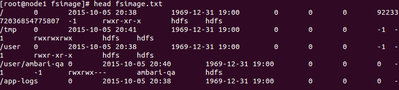
We can read the data in fsimage.txt by running: head fsimage.txt from the local folder.

10841-4.png

19,979 Views
Comments
avatar
New Member

I'm getting OOM.

I have tried:

export HADOOP_CLIENT_OPTS="$HADOOP_CLIENT_OPTS -Xmx20G "; hdfs oiv ..
export HADOOP_OPTS="$HADOOP_OPTS -Xmx20G "; hdfs oiv ...
export JAVA_HEAP_MAX="-Xmx10G"; hdfs oiv ...

None worked.

Can anybody show how to do it?

Thx

avatar
Expert Contributor

Hi @dsht6955 ,

Can you try running the hdfs oiv command with -t flag as show below and see if that helps:


hdfs oiv -p Delimited -delimiter delimiterString -t temporaryDir -i fsimage -o output.xml


Thanks

Vipin

avatar
Contributor

What if there are multiple namespaces with multiple namenodes? `hdfs dfsadmin -fetchImage` command only reads from the default namespace.

Version history
Last update:
‎08-17-2019 06:37 AM
Updated by:
Contributors