Our Community is getting an upgrade! To get everything ready for the relaunch, we’ll be placing the site in read-only mode starting September 21st. We really appreciate your understanding while we get things set up behind the scenes. Catch up on all the exciting details about the move here. Need help or have questions? Drop us a line at [email protected]
Created on 11-10-201603:56 PM - edited 08-17-201908:12 AM
Below are the steps to move Namenode from one machine to another via Ambari
.
These steps have been successfully tested for below version of Ambari and HDP
Ambari - 2.2.2.X
HDP - 2.2.X/2.3.X/2.4.X
.
Step 1: Ensure that all the HDFS Components are up and
running
.
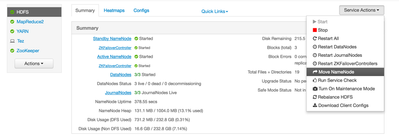
Step 2: Select HDFS Services à
Click on Service Actions on the top right à
Click on Move Namenode
.
.
Step 3: Read the instructions carefully and click on Next
.
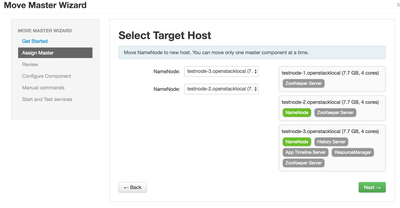
Step 4: Select new target for your Standby NN à Click Next
.
.
Step 5: Review the changes and click on Deploy
.
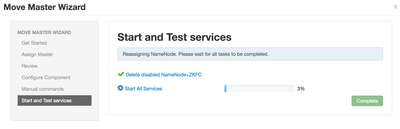
Step 6: This wizard will stop required services, setup new
NN + ZFKC, Disable HDFS on earlier
Namenode and Start services on New Namenode. Once this step is done à Click Next
.
.
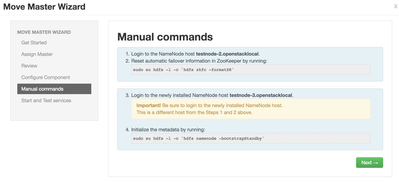
Step 7: Follow the
Manual steps given in ‘Manual Commands’ section
.
.
Step 8 – Confirm that you have performed all the manual
steps and click on OK
.
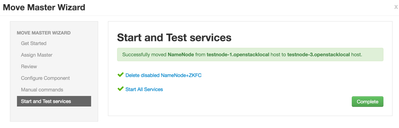
Step 9 – Once confirmed, Ambari will delete earlier Standby
NN and Start all the Services
.
.
.
Please comment if you have any feedback/questions/suggestions. Happy Hadooping!!