Created on 08-23-2016 09:51 AM - edited 08-17-2019 10:40 AM
Introduction
Apache NiFi 1.0 was recently released and being integrated into Hortonworks Data Flow (HDF) that will be release very soon.
In this easy tutorial we will see how we can stream data from CSV format into Hive tables directly and start working on it right away without a single line of coding to set up the streaming.
Pre-requisites
In order to run this tutorial successfully you need to download the Following:
NiFi 1.0 or higher, you can download it from here
HDP Sandbox 2.4 or higher, you can download it from here
Download the Olympics CSV data from the attachment list below.
Changing NiFi Port (Optional)
Since Ambari and NiFi both uses port 8080, you will have problems starting NiFi if you are running the sandbox and NiFi on the same machine.
Once NiFi is downloaded, uncompress it and go to /nifi/conf/nifi.properties and change the port no to 8089 as follows:
nifi.web.http.port=8089
Starting NiFi and the Sandbox
Once NiFi is downloaded, uncompress and start it using the command:
/nifi/bin/nifi.sh start
you may open a new browser page and go to http://localhost:8089/nifi to make sure NiFi is running fine, give it a minute to load.
start the Sandbox from Vmware or Virtual Box and go to Ambari on https://localhost:8080 and make sure Hive is started.
now we lets work on the table and the streaming part…
Creating The Hive Table
Since we will have to create an empty external table, we need to make sure that the folder do exist for this table so we can store the data there without a problem, in order to do this connect to the sandbox and create the directory using the hive user:
Hive-user>hadoop fs -mkdir /user/hive/olympics
Now lets move on the the table creation,
From the downloaded olympics data olympics.zip lets examine the header of any of the file
City,Edition,Sport,sub_sport,Athlete,country,Gender,Event,Event_gender,Medal
In order for Hive Streaming to work the following has to be in place:
We will have to create a table in Hive to match the schema as following:
CREATE EXTERNAL TABLE
OLYMPICS(CITY STRING,EDITION INT,SPORT STRING,SUB_SPORT STRING,ATHLETE STRING,COUNTRY STRING,GENDER STRING,EVENT STRING,EVENT_GENDER STRING,MEDAL STRING)
CLUSTERED BY (EDITION)INTO 3 BUCKETS
ROW FORMAT DELIMITED
STORED AS ORC
LOCATION '/user/hive/olympics'
TBLPROPERTIES('transactional'='true');Once the table is created successfully we may move on to the NiFi part.
NiFi Template (Optional, if you are feeling lazy)
if you dont want to follow the steps below, you can easily download the template that contains the whole thing from here hive-streaming-olympics.xml (easily start NiFi and import it)
if you have done the previous part, just make sure to change the directories in the processors and the parameters in every processor to match your configuration.
Configure NiFi
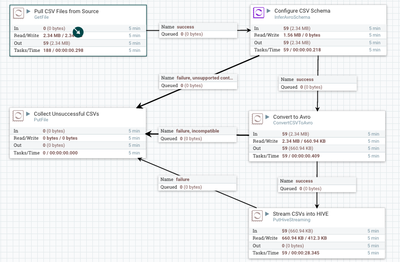
in a high level, we need to create the following flow for our streaming to work:
For more on the Avro Conversion, refer to the great write up from @Jeremy Dyer on how to convert CSV to Avro, as it explains in greated details how the flow is working.
Pulling Data from CSV
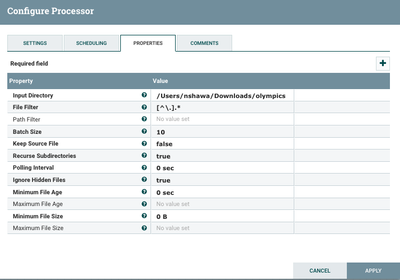
Simply the only thing you need to do here is configure your source directory, there are some handy parameters to check based on the no. of CSV files like Batch Size(How Many CSVs per pull)
Pre-Configure the Files for Avro Conversion
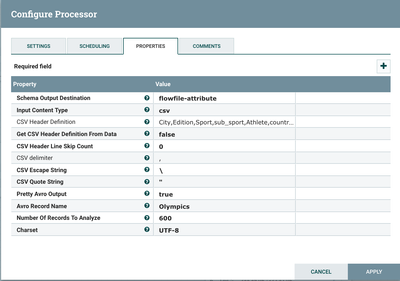
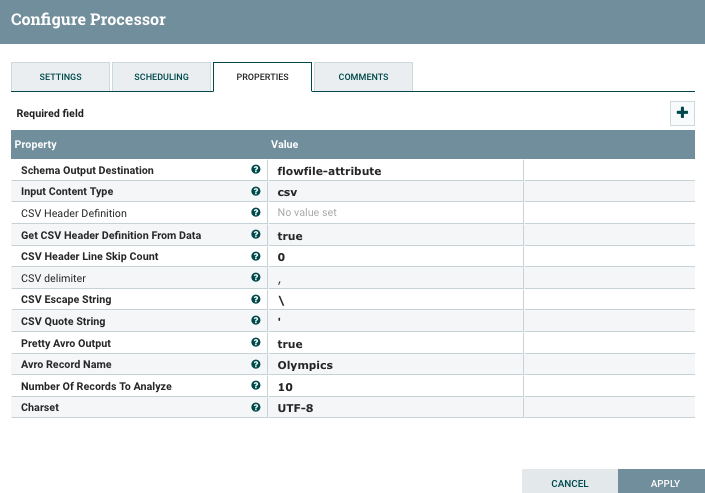
Make sure Flowfile-attribute is selected for Schema Output Destination as we will capture the flow file in the next processor, Content type could be JSON or CSV in our case it will be CSV.
Since all CSVs here have no header, we will have to set teh definition for the header file easily using the processor, the header definitions will be as follow:
City,Edition,Sport,sub_sport,Athlete,country,Gender,Event,Event_gender,Medal
if we did have a header in every file, we can easily set Get CSV Header definition from Data to “true” and let NiFi determine the schema (make sure you skip a line on the next processor if you are doing that, otherwise you will have the headers ingested as well) .
CSV Header Skip Count is important if you have a custom header and you want to ignore whatever headers you previously have in your CSVs.
Convert to Avro.
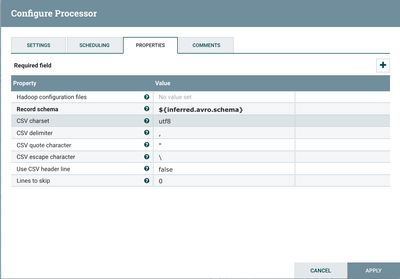
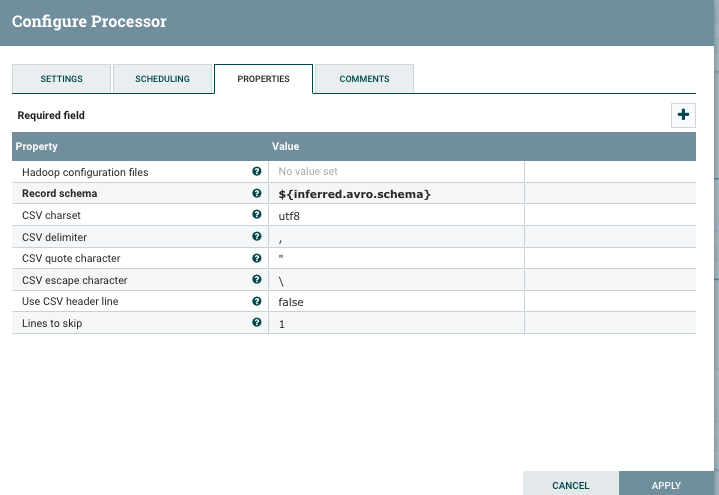
Nothing much to do here except for capturing the flow file generated by the previous processor using the ${inferred.avro.schema} parameter, we dont have to skip any headers lines here as we dont have any contained within the CSVs.
Stream into Hive
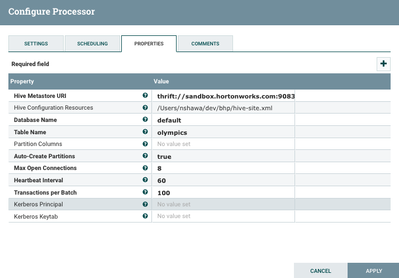
Here is where all the action is happening, you will need to configure the Hive Metastore URI to reflect the address to the sandbox (I have added sandbox.horotnworks.com in my /etc/hosts file so I don’t have to write the IP address)
Another important thing is to grab the hive-site.xml file from your sandbox (usually under /etc/hive/2.x.x.x-xxx/0/hive-site.xml), save it in a local directory and refer to it here.
Table Name will be “Olympics” where all data will be stored.
Catching any errors
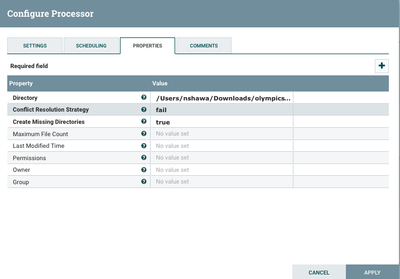
In real life cases, not all CSVs are good to go, we will get some corrupted ones from now to then, configuring a processor to store those files so you can deal with them later is always a good idea, just simply add the directory on where the corrupt or faulty files will be stored.
Start Streaming
Now Simply press the play button and enjoy watching the files being streamed into Hive, watch for any red flags on the processors which means there are some sisues to resovle.
Check The Data
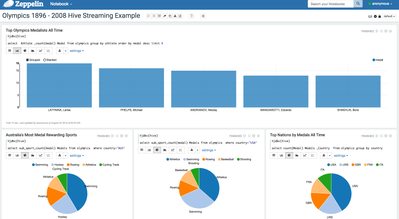
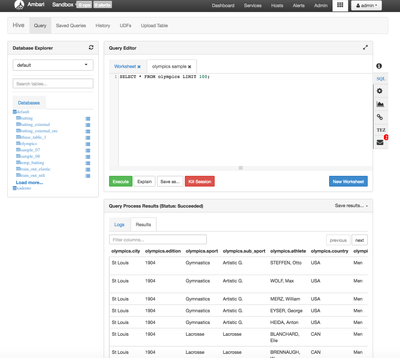
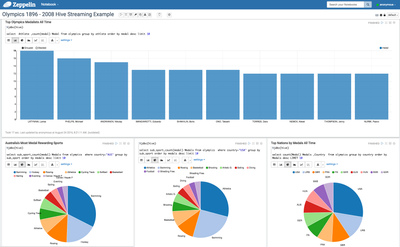
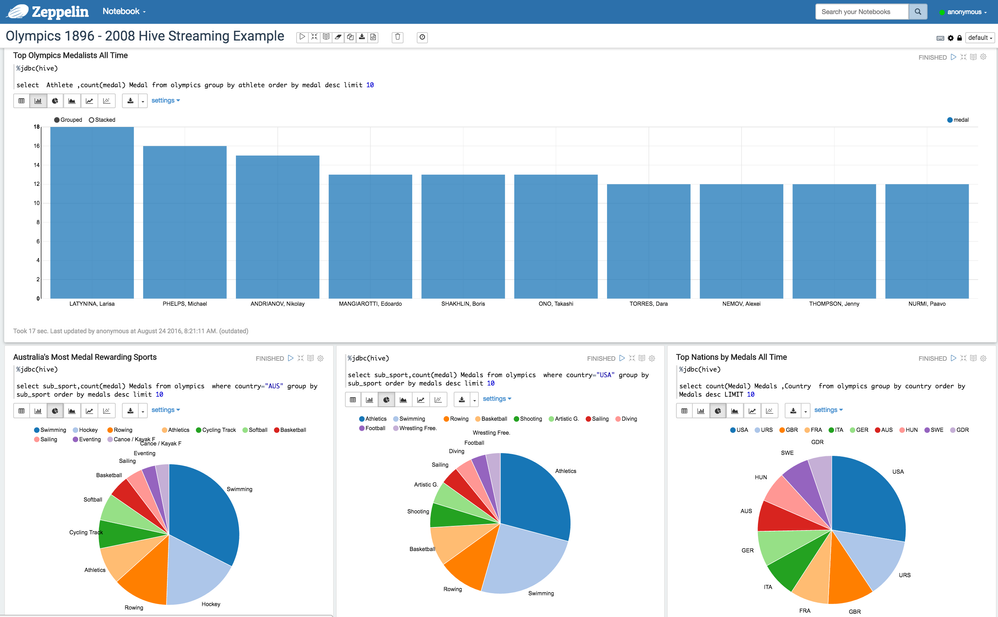
Once the data is streamed, you can check the data out using Ambari Hive View or even Zeppelin to visualise it.
Lets look how the data will look like in the table using the Ambari / Hive View
Now, lets do some cooler stuff with NiFi
Created on 04-22-2026 04:37 AM
This is a really clean and practical walkthrough—streaming data into Hive using NiFi’s HiveStreaming makes the whole process feel effortless, especially for beginners who want results without diving into heavy coding. I like how it simplifies handling large historical datasets like the Olympics records, turning raw CSV files into instantly usable insights. It actually reminds me of how platforms like Sportzfy deliver content smoothly behind the scenes—efficient pipelines make all the difference.