Our Community is getting an upgrade! To get everything ready for the relaunch, we’ll be placing the site in read-only mode starting September 21st.
We really appreciate your understanding while we get things set up behind the scenes. Catch up on all the exciting details about the move here.
Need help or have questions? Drop us a line at [email protected]

Community Articles

Find and share helpful community-sourced technical articles.
Announcements
Share your experience with Cloudera on G2 and get a $25 Amazon Gift card.
Hi, I'm CLEO! Something exciting is coming to the Community. Stay Tuned!

Labels (1)
avatar
Master Mentor

In order to setup HTTPs access for LogSearch Portal UI first of all we will need to create the keystore. We will also create truststore as well using the "$JAVA_HOME/bin/keytool" utility. In this example we will be using the self signed certificates.

# mkdir -p /etc/security/serverKeys/

# keytool -genkey -v -alias logsearch -keyalg RSA -keysize 1024 -keystore /etc/security/serverKeys/logsearch.keyStore.jks -validity 3650 -keypass logsearch -storepass logsearch -dname 'CN=erie1.example.com, OU=hwx, O=test, L=Pune, S=Maharashtra, C=IN'

# keytool -genkeypair -alias logsearch -keyalg RSA -keysize 2048 -keypass logsearch -storepass logsearch -validity 3650 -keystore /etc/security/serverKeys/logsearch.trustStore.jks  -dname 'CN=erie1.example.com, OU=hwx, O=test, L=Pune, S=Maharashtra, C=IN' -rfc

.

- In the above example i used CN=erie1.example.com as my LogSearch service is running on the same host.

- Now we will need to make sure that those files has proper read permissions and ownership set correctly.

# chown -R logsearch:hadoop /etc/security/serverKeys/

# ls -la /etc/security/serverKeys/
-rw-r--r--. 1 logsearch hadoop 1399 Feb 24 07:19 logsearch.keyStore.jks
-rw-r--r--. 1 logsearch hadoop 2245 Feb 24 07:38 logsearch.trustStore.jks

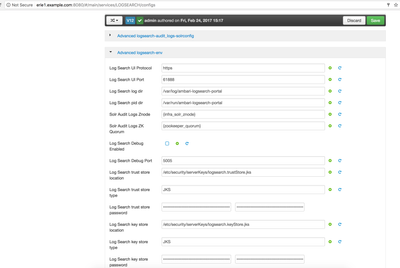
. - Now we can login to ambari UI and navigate to "Log Search" --> "Configs" --> "Advanced" --> "Advanced logsearch-env" and then provide the following details there:

Log Search UI Protocol:   https
Log Search UI Port: 61888
Log Search trust store location: /etc/security/serverKeys/logsearch.trustStore.jks
Log Search trust store type: JKS
Log Search trust store password: logsearch
Log Search key store location: /etc/security/serverKeys/logsearch.keyStore.jks
Log Search key store type: logsearch
Log Search key store password: logsearch

12963-logsearch-https-settings.png .

- Once we enter the above details then we can "Save" the settings and then restart the "Log Search" service.

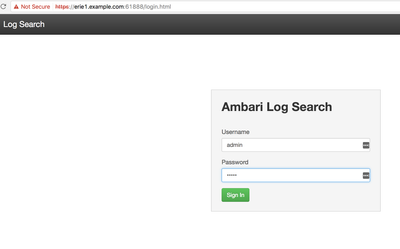
- Now we should be able to access the "Log Search" using the HTTPs protocol12964-logsearch-ui-login-https.png

.

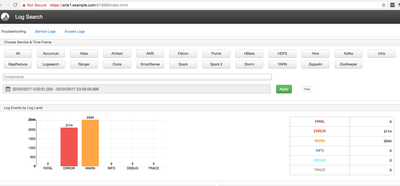
And then the Log Search UI dashboard:

12965-logsearch-ui.png

.

Troubleshooting Common Issues:

If we encounter any issue while while running starting up the Log Search after enabling the https then we can look at the file "/var/log/ambari-logsearch-portal/logsearch/logsearch.err", For example if we enter incorrect credentials of store then we might see the following kind of error in our logs:

[main] WARN  org.eclipse.jetty.util.component.AbstractLifeCycle (AbstractLifeCycle.java:212) - FAILED ServerConnector@1cb37ee4{SSL-http/1.1}{0.0.0.0:61888}: java.io.IOException: Keystore was tampered with, or password was incorrect
java.io.IOException: Keystore was tampered with, or password was incorrect
    at sun.security.provider.JavaKeyStore.engineLoad(JavaKeyStore.java:780)
    at sun.security.provider.JavaKeyStore$JKS.engineLoad(JavaKeyStore.java:56)
    at sun.security.provider.KeyStoreDelegator.engineLoad(KeyStoreDelegator.java:225)
    at sun.security.provider.JavaKeyStore$DualFormatJKS.engineLoad(JavaKeyStore.java:70)
    at java.security.KeyStore.load(KeyStore.java:1445)
    at org.eclipse.jetty.util.security.CertificateUtils.getKeyStore(CertificateUtils.java:55)
    at org.eclipse.jetty.util.ssl.SslContextFactory.loadTrustStore(SslContextFactory.java:884)
    at org.eclipse.jetty.util.ssl.SslContextFactory.doStart(SslContextFactory.java:274)
    at org.eclipse.jetty.util.component.AbstractLifeCycle.start(AbstractLifeCycle.java:68)
    at org.eclipse.jetty.util.component.ContainerLifeCycle.start(ContainerLifeCycle.java:132)
    at org.eclipse.jetty.util.component.ContainerLifeCycle.doStart(ContainerLifeCycle.java:114)
    at org.eclipse.jetty.server.SslConnectionFactory.doStart(SslConnectionFactory.java:64)
    at org.eclipse.jetty.util.component.AbstractLifeCycle.start(AbstractLifeCycle.java:68)
    at org.eclipse.jetty.util.component.ContainerLifeCycle.start(ContainerLifeCycle.java:132)
    at org.eclipse.jetty.util.component.ContainerLifeCycle.doStart(ContainerLifeCycle.java:114)
    at org.eclipse.jetty.server.AbstractConnector.doStart(AbstractConnector.java:256)
    at org.eclipse.jetty.server.AbstractNetworkConnector.doStart(AbstractNetworkConnector.java:81)
    at org.eclipse.jetty.server.ServerConnector.doStart(ServerConnector.java:236)
    at org.eclipse.jetty.util.component.AbstractLifeCycle.start(AbstractLifeCycle.java:68)
    at org.eclipse.jetty.server.Server.doStart(Server.java:366)
    at org.eclipse.jetty.util.component.AbstractLifeCycle.start(AbstractLifeCycle.java:68)
    at org.apache.ambari.logsearch.LogSearch.run(LogSearch.java:89)
    at org.apache.ambari.logsearch.LogSearch.main(LogSearch.java:73)
Caused by: java.security.UnrecoverableKeyException: Password verification failed
    at sun.security.provider.JavaKeyStore.engineLoad(JavaKeyStore.java:778)
    ... 22 more

.

2,538 Views
Version history
Last update:
‎08-17-2019 02:08 PM
Updated by:
Contributors